Advanced Line Numbers
approvedby anamaydev
Show absolute, relative, and hybrid line numbers in markdown files, with cursor position (line and column) in the status bar. - This plugin has not been manually reviewed by Obsidian staff.
★ 4 stars↓ 1,342 downloadsUpdated 2mo agoMIT
Advanced Line Numbers
An Obsidian plugin that enhances the editor with customizable line numbers and active line highlighting.
Features
Line Number Modes
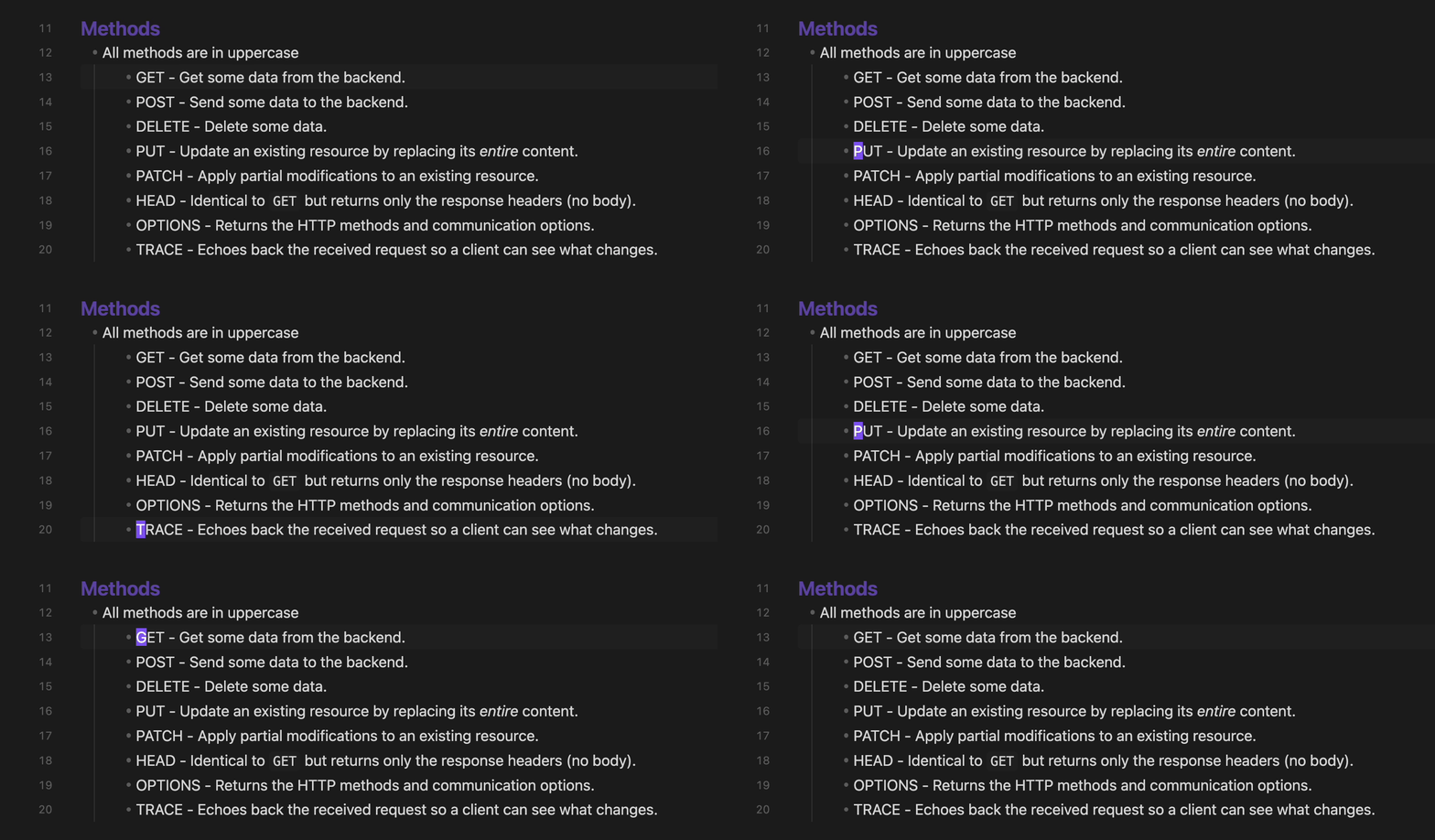
- Absolute - Standard line numbers (1, 2, 3...)
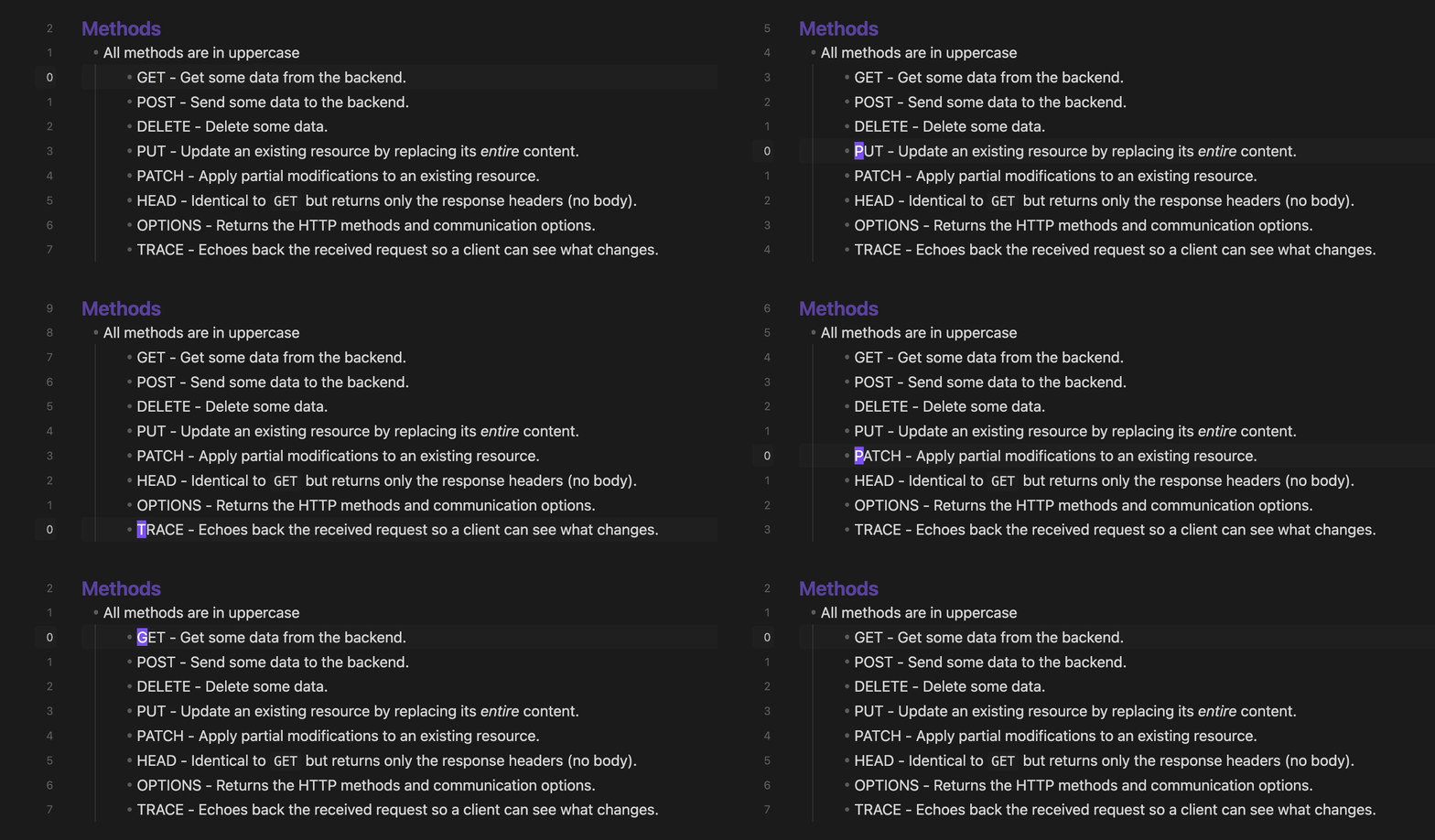
- Relative - Shows distance from current line (useful for vim-style navigation)
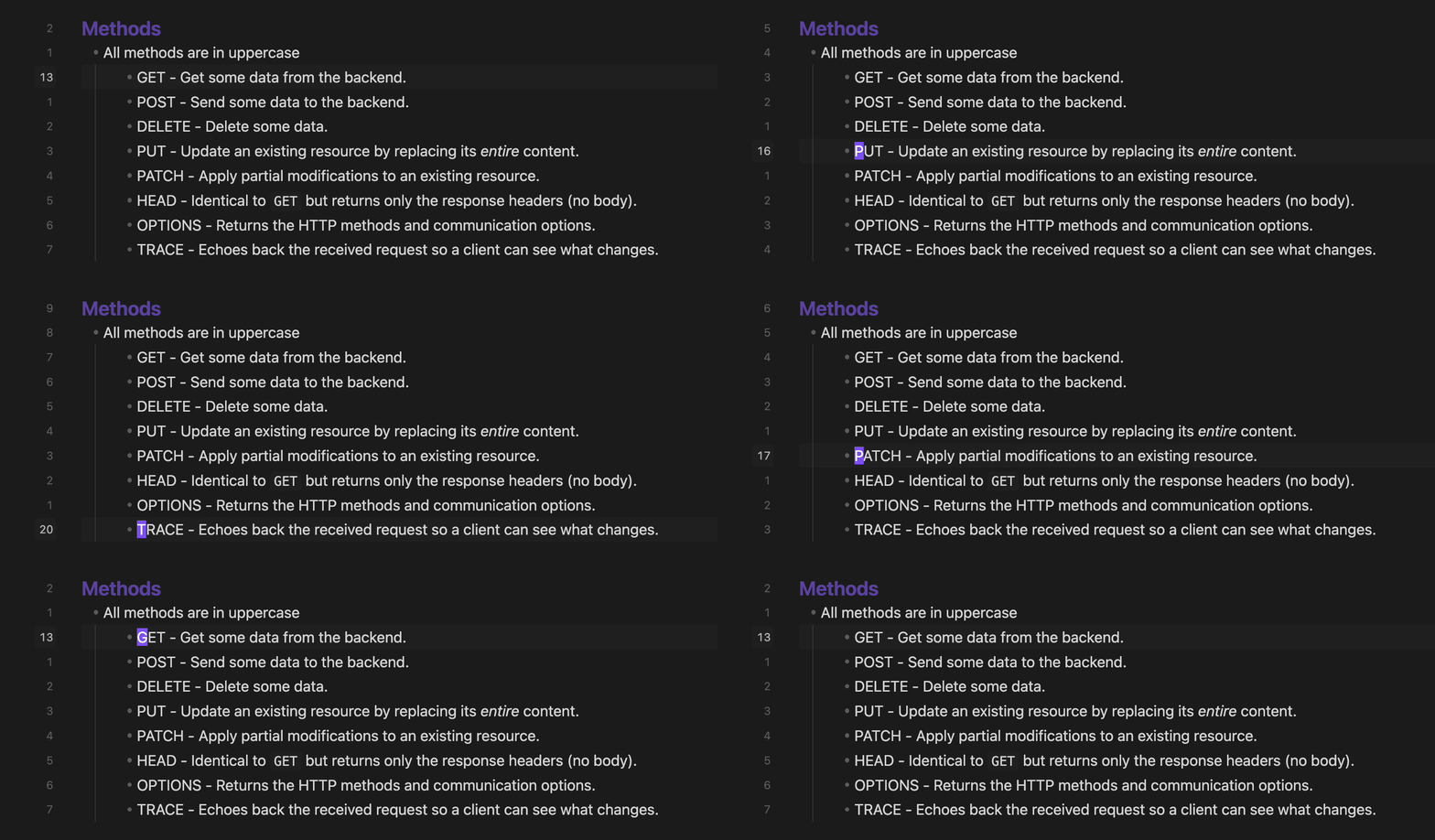
- Hybrid - Combines both: absolute number on current line, relative on others
Active Line Highlighting
- Highlight the active line in the editor
- Highlight the active line in the gutter
- Highlight the active line number with a distinct color
- Can be toggled off entirely if your theme provides its own active line highlight
Status Bar
- Displays cursor's position (Ln X, Col Y)
Screenshots
Line Number Modes
Hybrid
 Relative
 Absolute
Cursor's Position In Status Bar

Installation
From Community Plugins
- Open Settings → Community Plugins
- Search for "Advanced Line Numbers"
- Click Install, then Enable
Manual Installation
- Download
main.js,styles.css, andmanifest.jsonfrom the latest release - Create folder:
VaultFolder/.obsidian/plugins/advanced-line-numbers/ - Copy the downloaded files into the folder
- Reload Obsidian and enable the plugin in Settings → Community Plugins
Settings
| Setting | Description |
|---|---|
| Line Number Mode | Choose between Absolute, Relative, or Hybrid |
| Show cursor position in status bar | Toggle the Ln X, Col Y status bar item on and off |
| Highlight active line | Toggle the editor and gutter active line highlight on and off |
Commands
All settings can also be toggled via the command palette:
| Command | Description |
|---|---|
| Set line numbering: absolute / relative / hybrid | Switch the line numbering mode |
| Enable / Disable cursor position | Show or hide the cursor position in the status bar |
| Enable / Disable active line highlight | Show or hide the editor and gutter active line highlight |
Development
# Install dependencies
npm install

# Build for development (watch mode)
npm run dev

# Build for production
npm run build

# Lint code
npm run lint
Support
License
MIT
For plugin developers
Search results and similarity scores are powered by semantic analysis of your plugin's README. If your plugin isn't appearing for searches you'd expect, try updating your README to clearly describe your plugin's purpose, features, and use cases.