Advanced Word Count
approvedby pan4ratte
Create complex word count presets that will be displayed in the status bar or in the right pane tab. Install tens of community presets, custom metrics, and settings from the extension store. - This plugin has not been manually reviewed by Obsidian staff.
Advanced Word Count plugin
.svg?size=lg&logo=ri%3AFaHeart&logoColor=ef4444&color=09090b&labelTextColor=ef4444)
English | Русский
Features
1. Create multiple word count presets
Each separate preset can have its own list of metrics and methods of counting formatting elements, which makes working on multiple projects easier. You can quickly cycle between presets by clicking on the status bar, the right pane tab header of or from the command palette.
2. View word counters in the right pane tab
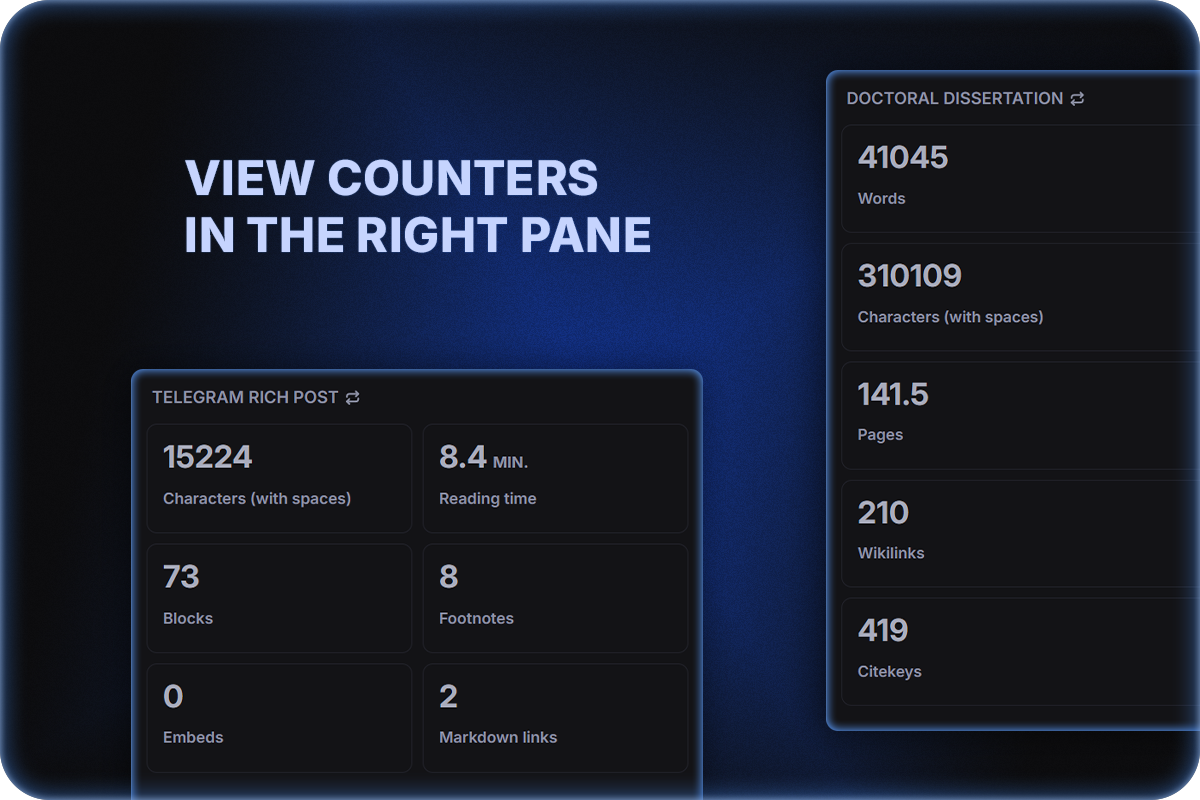
- Counters can be viewed not only in the status bar, but also in the right pane tab. You can define whether counters are visible in both places or only one.
- Moreover, for any chosen metric you can set up a limit warning and/or a goal: a warning colors the metric orange at ≥90% of the limit and red at ≥100%, while a goal colors it green at ≥100% (a metric can have both at once, and a goal can't be set higher than its warning).
- The progress indication style for goals and limits in the right pane can be configured; five options are currently available: "Border and text", described above, as well as "Border progress", "Progress bar", "Progress circle" and "Progress background".
- You can also reorder the metrics in the right pane by dragging them — the new order is applied to the status bar as well (drag-and-drop on mobile devices is experimental for now).
- Every metric — built-in or community — can be renamed to your liking in Set custom labels, separately for the status bar and the right pane, or left without a label at all so only its number is shown.
3. Track many different counting metrics
-
Essentials:
- Words
- Pages
- Characters (with spaces)
- Characters (without spaces)
-
Additional options:
- Lines (all lines, including blank ones)
- Paragraphs (blocks of text, empty lines are ignored)
- Reading time (estimated from a chosen reading speed)
- Markdown links
(url)[label]and[label](url) - Embeds
![[note]]or![[file.pdf]] - Footnotes — complete
[^1]references and inline^[…]
-
Special "academic" options:
- Wikilinks
[[wiki]]and[[wiki|label]] - Citekeys
[@doe2020]
- Wikilinks
4. Fine-tune "Words" and "Characters…" counting methods with advanced settings
You can specify, how formatting elements will be counted:
| Advanced option | Off | On |
|---|---|---|
| Count links display text | (url)[label] → label and url will be counted | only label will be counted |
| Ignore wikilinks | wikilinks text will be counted | wikilinks will be ignored |
| Count wikilinks display text | [[wiki|label]] → wiki and label will be counted | only label will be counted |
| Ignore citekeys | citekeys text will be counted | citekeys will be ignored |
| Ignore comments | comments %% … %% and <!-- … --> text will be counted | comments will be ignored |
| Ignore HTML tags | HTML tags like <b> … </b> etc. will be counted | HTML tags will be ignored |
5. Count canvases and embedded notes
- Obsidian Canvas is supported. In a canvas, the counters show metrics for the whole document, for the selected cards, and for the card being edited.
- Counting text in embedded notes. An option in the settings lets you include the notes embedded in the current one in the counts. Whole-note
![[Note]], heading![[Note#Heading]]and block![[Note#^block]]embeds are supported, nested embeds are counted too, as are embeds inside canvas cards. Handy for a book or a thesis assembled from embedded chapters.
6. Install community extensions: presets, metrics and advanced settings
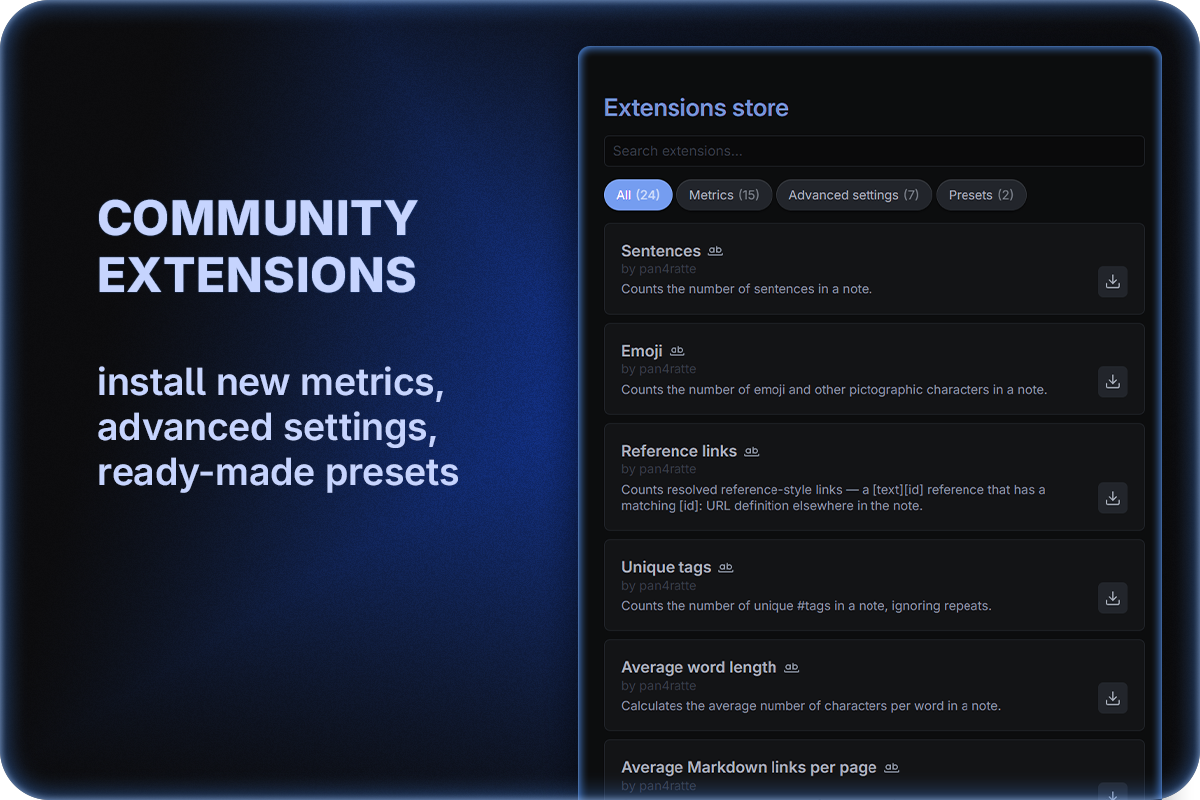
Community extensions are small add-ons, each of which adds one metric, one advanced (word-count) setting, or a whole ready-made preset.
- The extension store opens in the plugin settings. Search by name, author or description, filter by type (metrics / advanced settings / presets), and install, update or remove any extension with a single click. Installed extensions are highlighted with your accent colour.
- Ready-made presets carry their toggle states, advanced settings, warnings/goals and connected community extensions. Installing one adds it to your presets and downloads the extensions it needs automatically. Made a preset you like? Click the Share (↗) icon in its header to export a file you can suggest for the plugin's catalogue.
- Connecting installed extensions is done separately for each of your presets — use the Community extensions… dropdown inside a preset.
- Dependencies are installed automatically: if an extension depends on another, everything it needs is downloaded with it.
- Updating extensions is available manually in the store, or automatically on Obsidian startup when the Automatically update installed community extensions setting is enabled.
The official catalogue currently includes:
Metrics
| Name | Description |
|---|---|
| Sentences | Counts the number of sentences in a note. |
| Emoji | Counts the number of emoji and other pictographic characters in a note. |
| Reference links | Counts resolved reference-style links — a [text][id] reference that has a matching [id]: URL definition elsewhere in the note. |
| HTTP(S) links | Counts every http(s) link in a note, wherever it appears — bare, inside a Markdown link, angle brackets or any other brackets. |
| Comments | Counts HTML and Obsidian comments in the note. |
| Unique tags | Counts the number of unique #tags in a note, ignoring repeats. |
| Average word length | Calculates the average number of characters per word in a note. |
| Average Markdown links per page | Calculates the average number of Markdown links per page. |
| Average words per sentence | Calculates the average number of words per sentence in a note. |
| Headings | Counts the number of Markdown headings (# … ######) in a note. |
| Tasks (all) | Counts all task checkboxes — checked and unchecked. |
| Completed tasks | Counts only completed task checkboxes (- [x] or - [X]). |
| Incomplete tasks | Counts only incomplete task checkboxes (- [ ]). |
| References | Counts the number of unique @citekeys in a note. |
| Average citations per page | Calculates the average number of citations per page. |
| Pandoc generated footnotes | Counts Markdown footnotes combined with @citekey groups that will generate footnotes after Pandoc export of the note. Use if you export with a footnote citation style. |
| Tables | Counts the number of complete Markdown tables (header + delimiter row) in a note. |
| Tags | Counts the number of #tags in a note. |
| Canvas cards | Counts the cards in a canvas: all of them, the selected ones, or the card being edited. |
| Canvas connections | Counts the arrows in a canvas. For selected cards, counts the arrows leading into, out of and between them. |
| Unconnected canvas cards | Counts the cards in a canvas that have no arrows leading into or out of them — ideas not yet linked to the rest. |
| Canvas notes | Counts the distinct vault notes placed on a canvas as note cards. A note shown on several cards counts once. |
Advanced settings
| Name | Description |
|---|---|
| Ignore highlights | When counting words and characters, ignores ==highlighted== spans. |
| Ignore math | When counting words and characters, excludes LaTeX math — block $$…$$ and inline $…$. |
| Ignore tables | When counting words and characters, excludes Markdown table rows. |
| Ignore URLs | When counting words and characters, excludes bare http(s) links. |
| Ignore strikethrough | When counting words and characters, excludes ~~struck-through~~ text. |
| Ignore backslash commands | When counting words and characters, excludes lines consisting solely of a backslash command such as \pagebreak or \newpage. |
| Ignore Dataview fields | When counting words and characters, excludes inline Dataview fields — [key:: value] and (key:: value). |
| Ignore code | When counting words and characters, excludes block and inline code. |
| Count Telegram emoji as one symbol | When counting words and characters, counts a custom Telegram emoji in the format 😢 as one symbol. The extension provides support for the “Publish to Telegram” plugin emojis. |
| Ignore canvas note cards | When counting a canvas, leaves out note cards, so the counts cover only the text written on the canvas itself. |
| Count canvas group and arrow labels | When counting a canvas, also counts the text of group names and arrow labels. |
Presets
| Name | Description |
|---|---|
| Telegram user post | Preset for posts made as a Telegram user: with limit warnings and all metrics set up to count characters the way Telegram does. |
| Telegram rich-text post | Preset for rich-text posts in Telegram: with limit warnings and all metrics set up to count characters the way Telegram does. |
| Scientific article | Preset with all basic metrics and goals, necessary for academic writing purposes. |
Want to build your own? See the extension contributor guide.
Installation
Option 1: Obsidian plugin store
-
In Obsidian settings open the tab "Community plugins" and click "Browse" button.
-
In the search bar type
Advanced Word Count, click on the result, then "Install" and "Enable" buttons.
Alternatively, you can install the plugin by following the link to the community website: https://community.obsidian.md/plugins/advanced-word-count
Option 2: BRAT plugin
If you want to test beta-versions of the plugin or use previous versions, you can do that with BRAT plugin:
-
Install
BRATplugin from the official Obsidian plugin store. -
In the
BRATsettings, find the “Beta plugin list” section and click on the “Add beta plugin” button. -
In the window that appears, paste the link to the
Advanced Word Countplugin repository: https://github.com/pan4ratte/obsidian-advanced-word-count -
Under “Select a version” choose the desired version and click the “Add plugin” button. The plugin will be automatically installed and will be ready to use.
About the Author
My name is Mark Ingrem and I am a Religious Studies scholar. Apart from my main area of study (Protestant Political Theology in Russia), I teach a university course called "Information Technologies in Scientific Research", which is based on my own unique program. This plugin helps me in my research and I use it in my teaching, along with the other plugins I develop, which you can find on my GitHub profile.
Hello to every student who came across this page!
For plugin developers
Search results and similarity scores are powered by semantic analysis of your plugin's README. If your plugin isn't appearing for searches you'd expect, try updating your README to clearly describe your plugin's purpose, features, and use cases.