AI Transcriber
approvedby Musashino Software
Transcribe audio and video files easily with OpenAI's latest GPT Transcribe API for highly accurate transcripts.
AI Transcriber
A speech-to-text plugin for Obsidian that uses OpenAI transcription models, including GPT Transcribe, GPT-4o Transcribe, GPT-4o Mini Transcribe, and Whisper.
Features
- File Transcription: Transcribe existing audio and video files (see supported formats below)
- Post-Processing: Optional word correction to improve transcription accuracy
- Multi-Language: Supports multiple languages with automatic detection
Screenshots
| Transcription dialog | File picker | Settings panel |
|---|---|---|
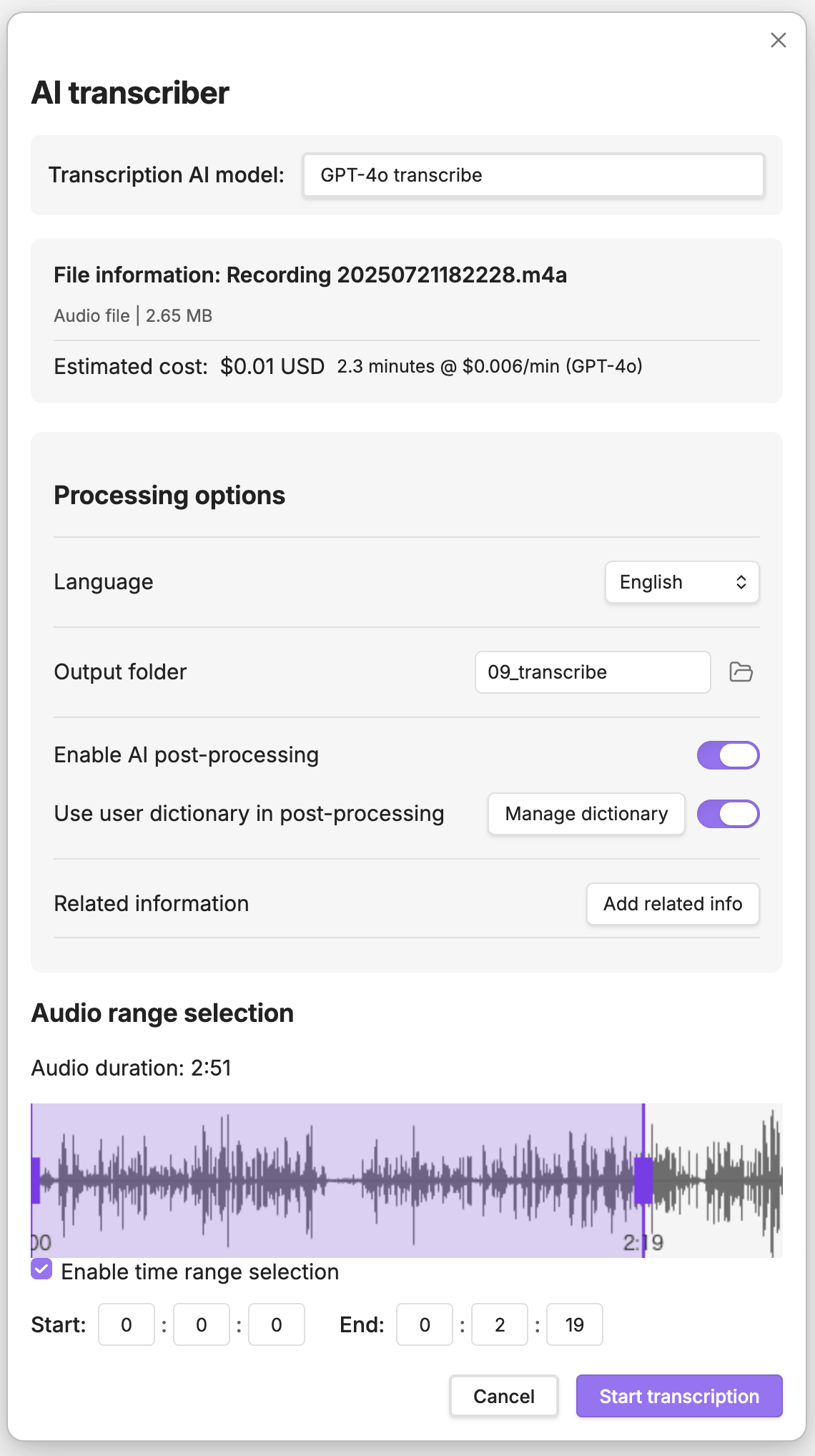 | 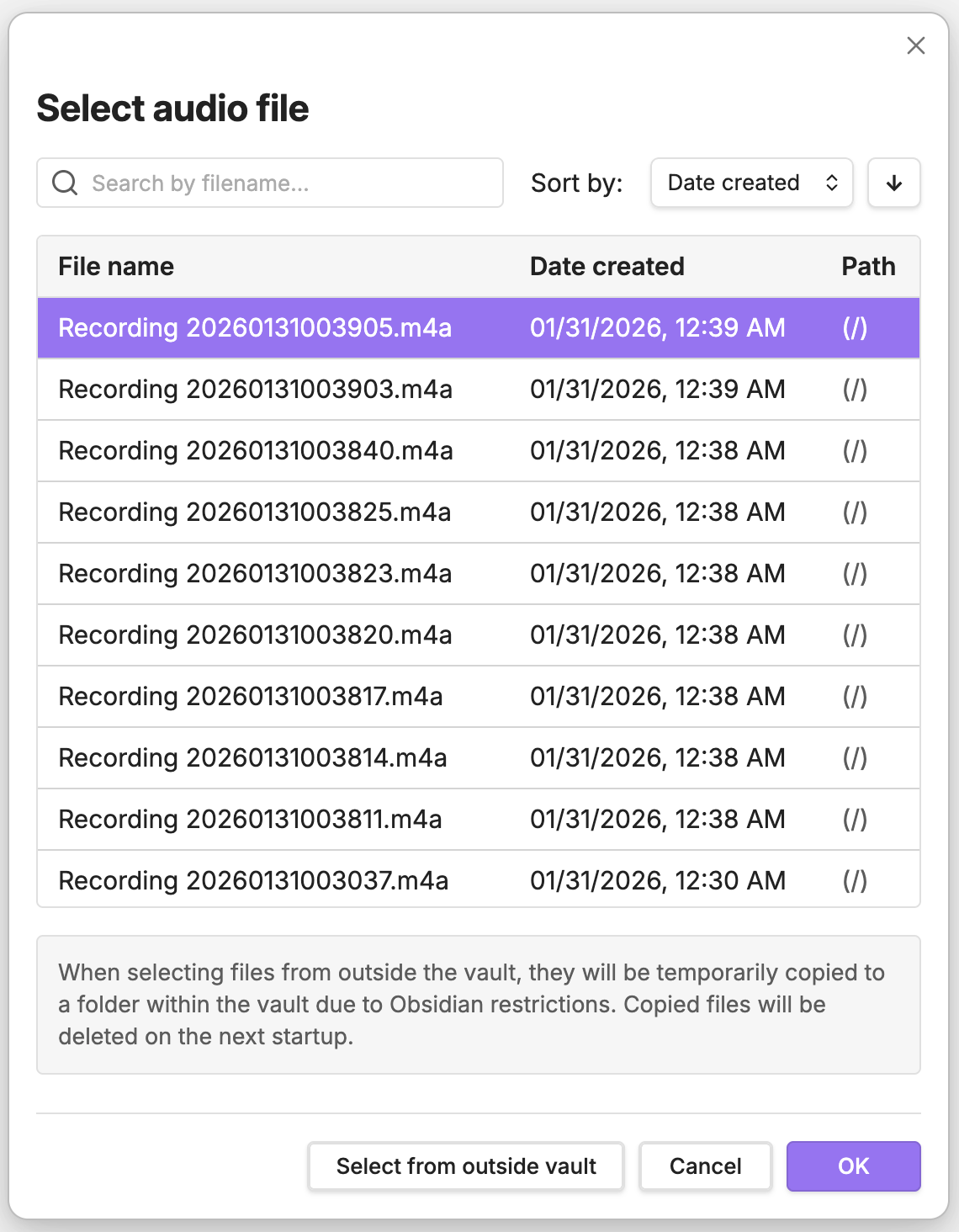 | 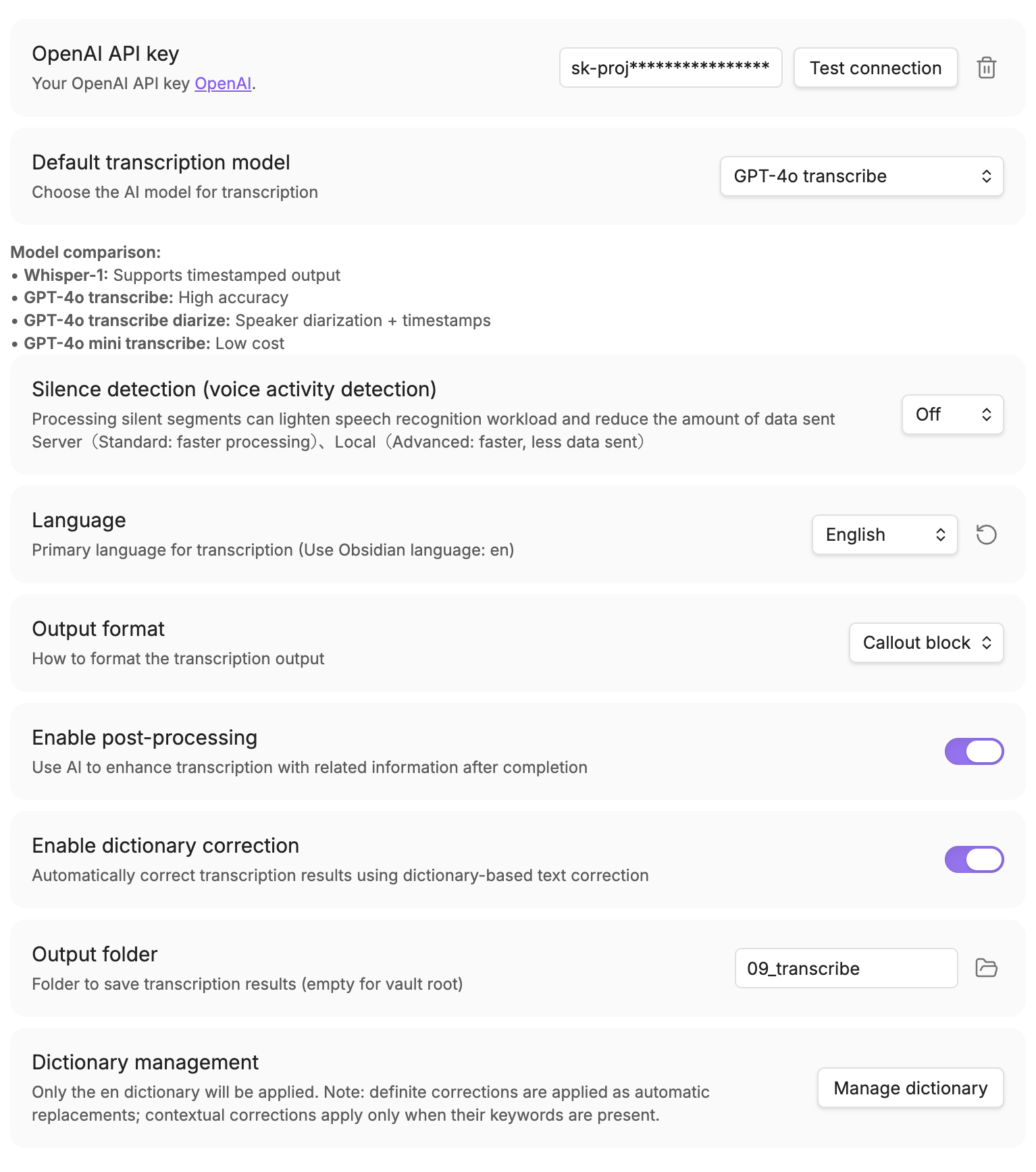 |
Supported file formats
Supported extensions:
- Audio:
mp3,m4a,wav,flac,ogg,aac,wma - Video:
mp4,m4v,mov,avi,mkv,webm
Notes:
- WMA support is limited to unencrypted WMA Standard (
wmav1/wmav2) in an ASF container. WMA Pro, WMA Lossless, WMA Voice, and DRM-protected files are not supported. - Video files are processed by extracting the audio track. Support depends on the file codec/DRM and your environment; if it fails, convert to an audio format (e.g.,
m4a,wav,mp3). - AVI is accepted by the picker, but common AVI codec combinations may not decode in Chromium/Obsidian. Convert an AVI that fails to
m4a,wav, ormp3. - The external file picker currently supports up to 500MB per file. Workflows that decode media in the Obsidian renderer (including time ranges, local VAD, and formats that cannot use direct upload) accept at most 128MiB of encoded media and 2 hours of decoded audio, with an additional memory-work budget. Eligible OpenAI file-transcription models can upload supported files directly, bypassing this local decode limit while remaining subject to provider/model limits. Split or convert files that exceed the applicable limit.
Requirements
- Obsidian v1.8.7 or higher (Desktop only)
- OpenAI API account with API key
- Internet connection for API calls
Installation
From Obsidian Community Plugins
- Open Obsidian Settings
- Navigate to "Community plugins"
- Click "Browse" and search for "AI Transcriber"
- Click "Install"
- Enable the plugin
Manual Installation
- Download the latest release from the GitHub releases page
- Extract
main.js,manifest.json, andstyles.cssto the AI Transcriber folder inside your vault's community plugins folder. - Reload Obsidian
- Enable the plugin in Settings → Community plugins
Setup
Getting an OpenAI API Key
- Visit OpenAI Platform
- Sign up or log in to your account
- Navigate to API keys section
- Create a new API key
- Copy the key (you won't be able to see it again!)
Important: OpenAI API is a paid service. You will be charged based on usage. Please check OpenAI's pricing page for current rates.
Configuring the Plugin
- Open Obsidian Settings → AI Transcriber
- Enter your OpenAI API key
- Choose your preferred transcription model:
- GPT Transcribe (
gpt-transcribe): Default and recommended for recorded speech - GPT-4o Transcribe (
gpt-4o-transcribe): Existing high-accuracy option - GPT-4o Mini Transcribe (
gpt-4o-mini-transcribe): Lowest-cost GPT transcription option - Whisper (
whisper-1/whisper-1-ts): Use the timestamp mode when timestamps are required
- GPT Transcribe (
OpenAI does not provide a gpt-transcribe-mini model or a transcription reasoning_effort setting. Choose GPT-4o Mini Transcribe explicitly when lower cost is the priority. Existing valid saved model selections are preserved; GPT Transcribe is used for new settings and recovery from a missing or invalid model value.
Optional: Local VAD (fvad.wasm)
By default, the plugin does not remove silence, prioritizing quiet voices and short utterances. To use local VAD (WebRTC VAD) for on-device speech/silence detection:
- Download
fvad.wasmfrom the echogarden project: https://github.com/echogarden-project/fvad-wasm - In the plugin settings, select "Local" from the VAD Mode dropdown and load the file using the file loader. For manual installs, this places
fvad.wasmin the same plugin folder that containsmanifest.json. - Set VAD Mode to "Local" in the plugin settings
Local VAD can reduce uploaded audio and may reduce transcription cost when recordings contain substantial silence, but quiet voices and short utterances can be lost. If fvad.wasm is unavailable, processing continues without silence removal.
Usage
Transcribing Audio/Video Files
- Use the command palette: "AI Transcriber: Transcribe audio file"
- Select an audio or video file from your device
- Choose transcription settings
- Wait for processing
- The transcription text will be saved to your specified folder
Settings
API Settings
- API Key: Your OpenAI API key (saved only when Electron safeStorage is available)
- Model Selection: Choose GPT Transcribe (
gpt-transcribe), GPT-4o Transcribe (gpt-4o-transcribe), GPT-4o Mini Transcribe (gpt-4o-mini-transcribe), or Whisper (whisper-1/whisper-1-ts) - Language: Specify a language (settings serve as a baseline, but the API will detect as appropriate)
Output Settings
- Save Location: Folder for transcribed notes
- Post-Processing: Enable/disable transcript enhancement
Dictionary Settings
- Custom Dictionary: Improve transcription accuracy with personalized corrections
- Register commonly mistranscribed words or proper nouns
- Support for multiple languages (Japanese, English, Chinese, Korean)
Network Usage Disclosure
This plugin requires an internet connection and communicates with the following services:
- OpenAI API (api.openai.com): Used for audio transcription and text processing
- Audio data is sent to OpenAI for transcription
- Transcribed text and related information are sent only when AI post-processing is enabled
- Definite dictionary corrections use no API and have no additional charge
- When both features are enabled, only relevant contextual dictionary entries are sent with the existing AI post-processing request; AI post-processing charges apply
- API key is sent with each request for authentication
- Plugin data stores settings, dictionaries, and up to 50 transcription-history items. History can include input/output file names and paths, status, timestamps, progress, provider, estimated cost, error details, and a transcript preview of up to 50 characters. Completed full transcripts are not retained as another copy in plugin data
Links to GitHub, OpenAI documentation, and Buy Me a Coffee are documentation or support links. They are not contacted by the plugin during transcription unless you open those links yourself.
Local data and permissions
- Vault file lists: The plugin uses the public Obsidian Vault API to list files only when the picker or history recovery needs them, then filters the result to supported transcription formats.
- Vault writes: The plugin creates a new transcription note with its complete body in the output folder you choose. Files selected outside the vault are copied into the plugin-owned
ai-transcriber-tempfolder (or an ownedai-transcriber-temp-managed/ numbered alternative when that path is occupied), removed when processing or cancellation ends, and recovered for cleanup after an interrupted session on the next startup. The plugin may also placefvad.wasmin its plugin folder when you explicitly choose a local VAD file. - Manual recovery display: If creating a transcription note fails, the plugin shows the complete generated Markdown in a visible recovery window so you can restore it manually.
- Local VAD WASM:
fvad.wasmis an optional WebRTC VAD module from@echogarden/fvad-wasm. It is used only for local voice activity detection when configured. - Base64 encoding: Base64 is used for API-key storage wrappers and realtime audio encoding. It is not used to hide network endpoints or telemetry.
Privacy and Security
- New OpenAI API keys are saved only when Electron safeStorage is available. If OS encryption is unavailable, the plugin warns you and does not persist the new key. Legacy XOR-wrapped values remain readable for migration but are not used for new storage
- Eligible GPT Transcribe and GPT-4o transcription files may be uploaded directly as an automatic transport optimization; time ranges, local VAD, large files, and unsupported direct-upload formats are processed locally before upload. Ordinary file-transcription requests do not request server-side chunking
- Locally processed chunks use WebCodecs Opus in an audio-only WebM container when the current Obsidian runtime supports it, reducing uploaded bytes. If capability detection, encoding, or container creation fails, the plugin falls back to 16 kHz mono WAV before making the request
- For a selected time range, only that processed range is encoded into upload chunks; the full original recording is not attached to the range request
- No telemetry or usage data is collected by this plugin
- Completed transcription notes are saved to your local vault. Plugin data retains only the bounded history fields described above, including the short preview
Troubleshooting
Common Issues
"Invalid API Key" error
- Verify your API key is correct and active
- Check if you have sufficient credits in your OpenAI account
Transcription is cut off or incomplete
- Large audio files may hit token limits
- Try using shorter recordings or split long files
Poor transcription quality
- Ensure good audio quality (minimal background noise)
- Speak clearly and at a moderate pace
- Start with the default GPT Transcribe model for recorded speech
Getting Help
If you encounter issues:
- Check the console for error messages (Ctrl/Cmd + Shift + I)
- Disable other plugins to test for conflicts
- Report issues on GitHub
Support
If you find this plugin helpful, consider:
- Starring the repository on GitHub
- Reporting bugs or suggesting features
- Contributing to documentation
License
This plugin is licensed under the MIT License. See LICENSE for details.
Third-Party Software
This plugin includes third-party software with their own licenses. See THIRD-PARTY-LICENSES.md for details.
Notable third-party components:
- WebRTC VAD (@echogarden/fvad-wasm): Used for voice activity detection
- libav.js / FFmpeg: A narrowly configured local decoder for WMA Standard audio
Acknowledgments
- The wonderful Obsidian team for providing an excellent platform
- OpenAI for providing powerful AI models
Open Source Libraries
- WebRTC VAD - Google's voice activity detection algorithm
- @echogarden/fvad-wasm - WASM port of WebRTC VAD
Development Tools
- Node.js - JavaScript runtime
- TypeScript - Type-safe JavaScript
- esbuild - Fast JavaScript bundler
- Jest - Testing framework
AI Transcriber
GPT Transcribe、GPT-4o Transcribe、GPT-4o Mini Transcribe、Whisperなど、OpenAIの文字起こしモデルを使用するObsidian用の音声認識テキスト変換プラグインです。
機能
- ファイル文字起こし: 音声ファイル・動画ファイルを文字起こし(対応形式は下記)
- 後処理: 文字起こし精度を向上させるオプションの単語校正機能
- 多言語対応: 自動検出による複数言語のサポート
スクリーンショット
| 文字起こしダイアログ | ファイル選択 | 設定画面 |
|---|---|---|
| | |
対応ファイル形式
対応している拡張子:
- 音声:
mp3,m4a,wav,flac,ogg,aac,wma - 動画:
mp4,m4v,mov,avi,mkv,webm
補足:
- WMAは、ASFコンテナ内の暗号化されていないWMA Standard(
wmav1/wmav2)のみ対応します。WMA Pro、WMA Lossless、WMA Voice、DRM保護ファイルには対応していません。 - 動画ファイルは音声トラックを抽出して処理します。コーデック/DRMや環境によっては失敗する場合があるため、その場合は音声形式(例:
m4a,wav,mp3)に変換してお試しください。 - AVIはファイル選択の対象ですが、一般的なAVIのコーデック構成でもChromium/Obsidianでデコードできない場合があります。失敗するAVIは
m4a、wav、mp3へ変換してください。 - Vault外から選択するファイルは現状 最大500MB までです。Obsidian のレンダラー内でメディアをデコードする処理(時間範囲指定、ローカルVAD、直接送信できない形式など)は、エンコード済みデータ 128MiB、デコード後の音声 2時間 を上限とし、別途メモリ使用量の上限も適用します。条件を満たすOpenAIファイル文字起こしモデルの直接送信はこのローカルデコード上限の対象外ですが、プロバイダーおよびモデル側の制限が適用されます。該当する上限を超える場合は、ファイルを分割または変換してください。
必要条件
- Obsidian v1.8.7以上(デスクトップ版のみ)
- OpenAI APIキー
- API呼び出し用のインターネット接続
インストール
Obsidian Community Pluginsから
- Obsidianの設定を開く
- 「Community plugins」に移動
- 「閲覧」をクリックして「AI Transcriber」を検索
- 「インストール」をクリック
- プラグインを有効化
手動インストール
- GitHubリリースページから最新リリースをダウンロード
main.js、manifest.json、styles.cssを、vault内のCommunity plugin用AI Transcriberフォルダに展開- Obsidianを再読み込み
- 設定 → Community pluginsでプラグインを有効化
セットアップ
OpenAI APIキーの取得
- OpenAI Platformにアクセス
- アカウントにサインアップまたはログイン
- APIキーセクションに移動
- 新しいAPIキーを作成
- キーをコピー(再度表示されません!)
重要: OpenAI APIは有料サービスです。使用量に基づいて課金されます。現在の料金はOpenAIの価格ページをご確認ください。
プラグインの設定
- Obsidian設定 → AI Transcriberを開く
- OpenAI APIキーを入力
- 希望の文字起こしモデルを選択:
- GPT Transcribe (
gpt-transcribe): 録音済み音声向けの推奨モデルで、新規設定の既定値 - GPT-4o Transcribe (
gpt-4o-transcribe): 既存の高精度モデル - GPT-4o Mini Transcribe (
gpt-4o-mini-transcribe): GPT系で最も低コスト - Whisper (
whisper-1/whisper-1-ts): タイムスタンプが必要な場合はタイムスタンプありを選択
- GPT Transcribe (
OpenAIには gpt-transcribe-mini モデルや、文字起こしの reasoning_effort 設定はありません。コストを優先する場合はGPT-4o Mini Transcribeを明示的に選択してください。既存の有効な保存済みモデル選択は維持され、GPT Transcribeは新規設定、およびモデル値の欠落・不正時の復旧先に使用されます。
ローカルVAD(任意 / fvad.wasm)
既定では無音を除去せず、小さな声や短い発話を含む音声全体を処理します。端末内で音声/無音判定(WebRTC VAD)を行いたい場合は、以下の手順でローカルVADを有効化できます。
- echogardenプロジェクトから
fvad.wasmをダウンロード: https://github.com/echogarden-project/fvad-wasm - 設定の無音検出方式のプルダウンでローカルを選択し、ファイルの読み込みで
fvad.wasmを導入。手動インストールでは、manifest.jsonと同じプラグインフォルダに配置されます。 - プラグイン設定で VAD モードを「ローカル」に設定
無音が多い録音では、ローカルVADにより送信音声が減り、文字起こし料金を削減できる場合があります。ただし、小さな声や短い発話が欠ける可能性があります。fvad.wasm を利用できない場合は、無音を除去せずに処理を続行します。
使用方法
音声/動画ファイルの文字起こし
- コマンドパレット: 「AI Transcriber: 音声ファイルを文字起こし」を使用
- デバイスから音声/動画ファイルを選択
- 文字起こし設定を選択
- 処理を待つ
- 文字起こしテキストが指定されたフォルダに保存されます
設定
API設定
- APIキー: OpenAI APIキー(Electron safeStorageを利用できる場合にのみ保存)
- モデル選択: GPT Transcribe(
gpt-transcribe)、GPT-4o Transcribe(gpt-4o-transcribe)、GPT-4o Mini Transcribe(gpt-4o-mini-transcribe)、Whisper(whisper-1/whisper-1-ts)から選択 - 言語: 言語を指定(設定を基本としつつもAPI側で適宜判別)
出力設定
- 保存場所: 文字起こしノートのフォルダ
- 後処理: transcript強化の有効/無効
辞書設定
- カスタム辞書: 個人用の補正辞書で文字起こし精度を向上
- よく誤認識される単語や固有名詞を登録
- 複数言語対応(日本語、英語、中国語、韓国語)
ネットワーク使用の開示
このプラグインはインターネット接続が必要で、以下のサービスと通信します:
- OpenAI API (api.openai.com): 音声の文字起こしとテキスト処理に使用
- 音声データは文字起こしのためOpenAIに送信されます
- 文字起こしテキストと関連情報は、AI後処理を有効にした場合にのみ送信されます
- 固定補正はAPIを使わないため、追加料金はかかりません
- 両方を有効にした場合、関連する文脈補正だけを既存のAI後処理リクエストに含めます。AI後処理の料金がかかります
- APIキーは認証のため各リクエストと共に送信されます
- プラグインデータには、設定、辞書、最大50件の文字起こし履歴を保存します。履歴には入出力ファイル名とパス、状態、日時、進捗、プロバイダー、推定料金、エラー詳細、最大50文字の文字起こしプレビューが含まれる場合があります。完了した文字起こし全文を別のコピーとしてプラグインデータに保持することはありません
GitHub、OpenAIドキュメント、Buy Me a Coffeeへのリンクは、ドキュメントまたはサポート用リンクです。ユーザーがリンクを開かない限り、文字起こし処理中にプラグインがそれらへ通信することはありません。
ローカルデータと権限
- Vaultファイル一覧: 音声/動画ファイルの選択や文字起こし履歴の復旧が必要なときだけ、公開されているObsidian Vault APIでファイル一覧を取得し、文字起こし対応形式に絞り込みます。
- Vaultへの書き込み: 選択した出力フォルダに、完全な本文を含む新しい文字起こしノートを一度で作成します。Vault外から選択したファイルはプラグイン所有の
ai-transcriber-tempフォルダ(既存データがある場合は所有権を明示したai-transcriber-temp-managedまたは連番の代替フォルダ)へ一時コピーし、処理完了時またはキャンセル時に削除します。中断による残存ファイルは次回起動時に清掃します。また、ユーザーがローカルVADファイルを明示的に選択した場合はfvad.wasmをプラグインフォルダへ配置することがあります。 - 手動復旧表示: 文字起こしノートの作成に失敗した場合、生成済みの完全なMarkdownを復旧用ウィンドウに表示し、手動で復元できるようにします。
- ローカルVAD WASM:
fvad.wasmは@echogarden/fvad-wasm由来の任意のWebRTC VADモジュールです。ローカル音声区間検出を設定した場合にのみ使用します。 - Base64エンコード: Base64はAPIキー保存用ラッパーとリアルタイム音声エンコードに使用します。通信先やテレメトリーを隠す目的では使用していません。
プライバシーとセキュリティ
- 新しいOpenAI APIキーはElectron safeStorageを利用できる場合にのみ保存します。OS暗号化を利用できない場合は警告を表示し、新しいキーを永続化しません。旧XOR形式は移行のため読み取り互換性だけを維持します
- 条件を満たすGPT TranscribeおよびGPT-4o文字起こし向けファイルは、通信経路の最適化として自動的に直接送信する場合があります。時間範囲・ローカルVAD・大容量・直接送信非対応形式は送信前にローカル処理します。通常のファイル文字起こしでは、サーバー側チャンク処理を要求しません
- ローカル処理したチャンクでは、現在のObsidianランタイムが対応している場合、音声専用WebMコンテナのWebCodecs Opusを使用します。機能検出、エンコード、コンテナ作成に失敗した場合は、APIリクエスト前に16 kHzモノラルWAVへフォールバックします
- 時間範囲を選択した場合、その処理範囲だけをアップロード用チャンクへエンコードし、元ファイル全体を範囲指定リクエストへ添付することはありません
- このプラグインによるテレメトリーや使用データの収集はありません
- 完了した文字起こしノートはローカルのVaultに保存します。プラグインデータに保持するのは、上記の件数制限付き履歴項目(短いプレビューを含む)だけです
トラブルシューティング
よくある問題
「無効なAPIキー」エラー
- APIキーが正しく、アクティブであることを確認
- OpenAIアカウントに十分なクレジットがあるか確認
文字起こしが途切れるまたは不完全
- 大きな音声ファイルはトークン制限に達する可能性があります
- より短い録音を使用するか、長いファイルを分割してください
文字起こし品質が悪い
- 良好な音質を確保(背景ノイズを最小限に)
- はっきりと、適度なペースで話す
- 録音済み音声では、既定のGPT Transcribeモデルから試す
ヘルプを得る
問題が発生した場合:
- エラーメッセージのコンソールを確認(Ctrl/Cmd + Shift + I)
- 競合をテストするため他のプラグインを無効化
- GitHubで問題を報告
サポート
このプラグインが役立つと思われた場合:
- GitHubでリポジトリにスターを付ける
- バグの報告や機能の提案
- ドキュメントへの貢献
ライセンス
このプラグインはMITライセンスの下でライセンスされています。詳細はLICENSEをご覧ください。
サードパーティソフトウェア
このプラグインには独自のライセンスを持つサードパーティソフトウェアが含まれています。詳細はTHIRD-PARTY-LICENSES.mdをご覧ください。
主なサードパーティコンポーネント:
- WebRTC VAD (@echogarden/fvad-wasm): - 音声区間検出に使用
- libav.js / FFmpeg: WMA Standard音声のローカルデコードに限定構成して使用
謝辞
- 素晴らしいプラットフォームを提供してくれたObsidianチーム
- 強力なAIモデルを提供してくれたOpenAI
オープンソースライブラリ
- WebRTC VAD - Googleの音声区間検出アルゴリズム
- @echogarden/fvad-wasm - WebRTC VADのWASMポート
開発ツール
- Node.js - JavaScriptランタイム
- TypeScript - 型安全なJavaScript
- esbuild - 高速JavaScriptバンドラー
- Jest - テスティングフレームワーク
Transcription rate-limit recovery / 文字起こしのレート制限対応
Temporary HTTP 429 errors are retried at most twice, with at most 60 seconds of automatic waiting per call. Server Retry-After delays also apply to following chunks. Quota/billing errors, local timeouts, network errors and HTTP 408/5xx are not automatically resubmitted; a failed chunk may leave a partial transcript.
一時的な HTTP 429 エラーは最大2回、1回の呼び出しにつき合計60秒以内の待機で再試行します。サーバーの Retry-After は後続チャンクにも適用します。残高・利用枠不足、ローカルタイムアウト、通信障害、HTTP 408/5xx は自動再送しないため、一部の文字起こしが未完了になる場合があります。
For plugin developers
Search results and similarity scores are powered by semantic analysis of your plugin's README. If your plugin isn't appearing for searches you'd expect, try updating your README to clearly describe your plugin's purpose, features, and use cases.