by biqnt
Import Alt (altalt.io) lecture notes with LLM-powered concept extraction, wikilinks, and exam summaries.
Alt2Obs
Turn Alt lecture recordings and slides into connected Obsidian notes.
User guide · 한국어 · Releases · Report a bug
Alt2Obs is for students who record their lectures with the Alt app. It reads the lectures in the Alt desktop app on your computer and writes one note per lecture into your vault: a section for every slide, with commentary that your own Claude Code or Codex CLI writes from the slide and the part of the recording that covers it, plus concept notes linked with [[wikilinks]]. You study in a viewer that scrolls the PDF and the note together, and your own memos survive every re-import.
The interface and the generated notes are in Korean, with academic terms kept in English. Alt2Obs was named Alt2Obsidian before 2.0.0. Its plugin id is alt2obsidian (only 2.0.0 used alt-to-obs).
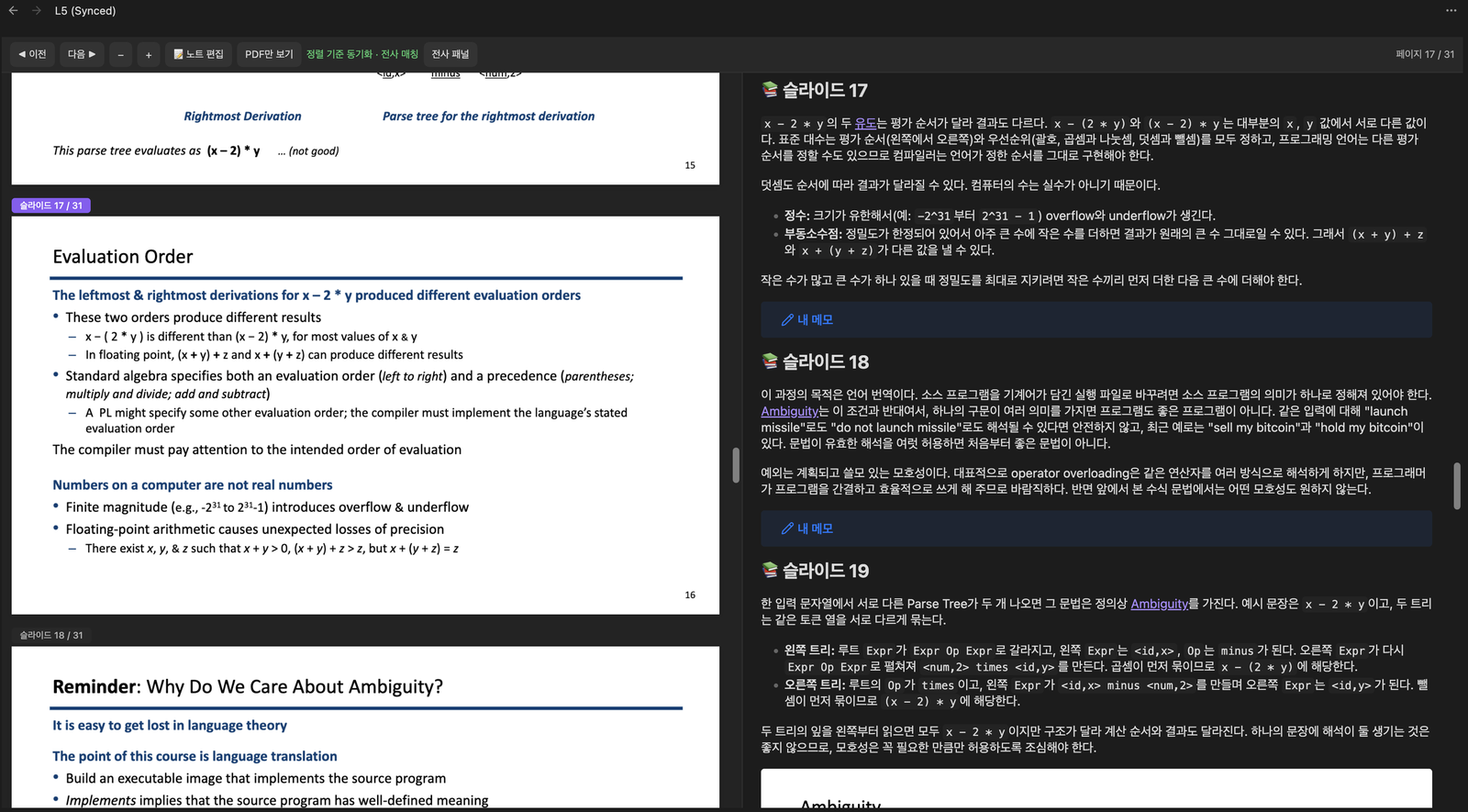
The Synced Viewer: the slide PDF and the lecture note side by side, scrolled to the same slide.
Features
- Import straight from Alt. The sidebar lists the lectures of the Alt desktop app on this computer by Alt folder, with search and a status for each one (new, imported, slides changed). No share link is needed, and Alt's summary and memo come along. A public Alt share link works as a fallback.
- Commentary for every slide. Your Claude Code or Codex CLI writes a section per slide from the slide text (plus the image, for diagram slides) and that slide's part of the transcript. Cover, contents and closing slides and repeated animation steps need no model call, and key diagrams can be saved as images into the note.
- Transcript matched to slides. For lectures from the Alt app, a script matches the timestamped transcript to the slides, with no tokens spent, so each slide gets what was said while it was on screen.
- Synced Viewer. The slide PDF and the note side by side, scrolling together. A transcript panel shows the current slide's part of the transcript with
[mm:ss]times. Opening a lecture PDF opens the viewer. - Lectures without slides. A lecture with only a recording becomes a summary note with a section for about every 12 minutes, each point stamped with its
[mm:ss]time. Or attach the lecture PDF and import it as a slide lecture. - Check your own notes. Compare notes you wrote (a file in the vault, pasted text, or a Notion page through your Notion MCP) with the slides and the transcript. Each claim gets a verdict with links to its evidence, and slides your notes left out are listed.
- Memo-safe re-import. Your
> [!note] 내 메모(my memo) callouts and anything you write outside the managed blocks stay when you import again, and memos follow their slide when slides are added, removed or reordered. Only changed slides are generated again. - Your model, your budget. Pick the provider, model and effort (reasoning effort) for each task, or use a preset. Before every run you see the estimated calls, tokens and images, and can switch the model for that run. You can cancel at any point before the note is saved. Actual usage is recorded in the note and in the settings.
- Concept notes. Key concepts become notes named
English (한국어), such asPipeline Hazard (파이프라인 해저드), linked from the commentary and reused across the lectures of a subject.
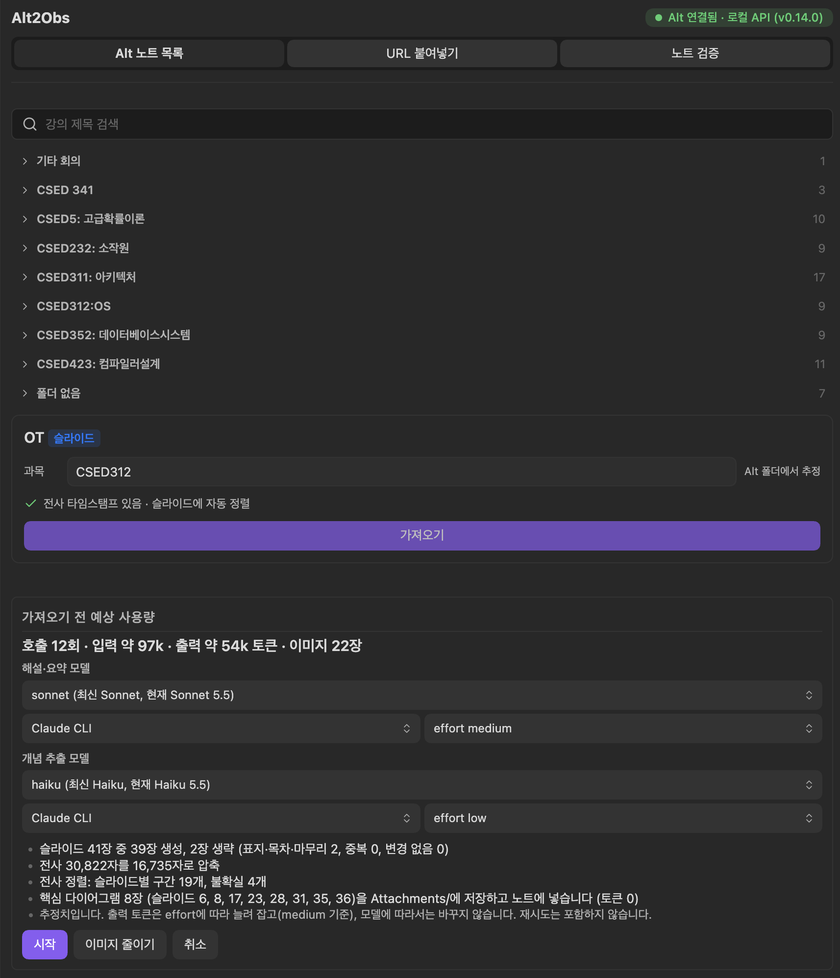
Pick a lecture from Alt and see the estimated usage before anything runs.
Requirements
- Obsidian 1.7.2 or later, desktop. The plugin is desktop only. Tested on macOS; Windows and Linux are covered by unit tests only.
- The Alt desktop app on the same computer, for the local lecture list. Without it you can still import from a public Alt share link.
- Node 22.13 or later inside Obsidian, for Node's built-in
node:sqlite. The plugin uses it to read a copy of Alt's database: while Alt is closed, and while Alt runs, to find synced slide files. To check, open the developer console (Ctrl+Shift+I, or Cmd+Option+I on macOS) and runprocess.versions.node. With an older Node, start Alt before importing; synced slide files may then not be found. - Claude Code or Codex CLI, installed and logged in. Generation runs on your own plan: a Claude account with Claude Code access (a paid Claude plan or Anthropic API credits), or a ChatGPT plan that includes Codex (or an OpenAI API key).
- Optional: a Notion account and the Notion MCP in Claude Code, to check notes you keep in Notion.
Install
Community plugins. Open Settings → Community plugins and select Turn on community plugins if you see it. Select Browse, search for "Alt2Obs", then select Install and Enable. Updates then arrive through Obsidian's normal plugin updates.
Manually. Download main.js, manifest.json and styles.css from the latest release into <vault>/.obsidian/plugins/alt2obsidian/, reload Obsidian and enable Alt2Obs under Settings → Community plugins.
BRAT. Add BiQnT/alt2obsidian as a beta plugin in BRAT to follow new releases.
Upgrading from Alt2Obsidian 1.x or 2.0.0
- From 1.x or a 2.0.0 beta: the update installs in place (same id and folder) and keeps your settings, records and hotkeys. Notes and memos stay as they are. To move 1.x notes into the 2.0 folder layout, run Migrate 1.x vault layout from the command palette. Gemini API and Ollama support is gone; if you need it, stay on 1.1.0. CSS snippets written for the old
alt2obsidian-*classes need thealt-to-obs-*classes. - From 2.0.0 (id
alt-to-obs): Obsidian treats 2.0.0 and later versions as two separate plugins, both named Alt2Obs. Install the new version, disable 2.0.0 without deleting it, then enable the new version: it imports 2.0.0's settings and records once and tells you so. Then delete 2.0.0 and set any hotkeys again. The user guide has the details.
Quick start
- Install Claude Code or Codex and log in once in a terminal (
claude, orcodex login). - Enable Alt2Obs and open Settings → Alt2Obs. The LLM 연결 (LLM connection) cards should show your CLI with its path and version.
- Select the book icon in the ribbon (Alt 강의 가져오기, import an Alt lecture) to open the sidebar. In the Alt 노트 목록 (Alt note list) tab, pick a lecture and check its subject.
- Select 가져오기 (import), review the estimated usage, then select 시작 (start).
- The note opens in the Synced Viewer. Write your own notes in the
> [!note] 내 메모callout under each slide.
The user guide covers every option, lectures without slides, note checking and troubleshooting.
Privacy and disclosures
Alt2Obs has no telemetry, analytics, ads or update checks. This is everything it sends, needs and touches outside your vault.
Network use
- Anthropic (Claude Code) or OpenAI (Codex). Commentary, summaries, concept extraction, the optional alignment check and note checking run your own CLI (
claudeorcodex) as a child process. Each call sends its material to Anthropic or OpenAI under your account. The plugin itself sends nothing to these services. A call can include:- slide text, and slide images for diagram slides;
- transcript excerpts, and Alt's summary and memo;
- the lecture title and subject, concept names, and the tags already used by notes in that subject folder (including notes you wrote yourself);
- for note checking, the sentences of your note with their evidence.
- Notion (optional, note checking). Fetching a Notion page is one Claude Code call that may use only the fetch tool of your Notion MCP server. Claude Code contacts Notion for the page and Anthropic for the model turn. The page URL and the page content reach Anthropic; the content arrives as that call's tool result.
- Other MCP servers (Notion only). Before the fetch,
claude mcp listchecks the connection of every MCP server configured in Claude Code; this can start local servers and contact remote ones. When the Notion server cannot be passed to the call on its own (a claude.ai connector, or a server that is not a plainhttpsaddress without headers), the fetch call also starts your other MCP servers, with their tools blocked. - altalt.io and the slide link (optional, share link import). The plugin downloads the Alt share page from altalt.io. It then downloads the slide PDF from the slide link on that page, as given. Today that link points to Alt's Cloudflare R2 storage (
*.r2.cloudflarestorage.com); older Alt notes may point to Alt's earlier Supabase storage (*.supabase.co). - Alt's local API is reached on 127.0.0.1, on this computer only.
- The plugin makes no other connections. Claude Code and Codex may also contact their own services as their own settings allow.
Accounts and payment
The plugin is free. Its main features need an LLM CLI login: a Claude account with Claude Code access (a paid Claude plan or Anthropic API credits) or a ChatGPT plan that includes Codex (or an OpenAI API key). Every call counts against your plan's limits or your API usage. Optional: a Notion account for the Notion MCP. Your lectures come from the Alt app and your Alt account; the plugin never signs in to Alt.
Files and programs outside the vault
- Alt's data folder, read only: macOS
~/Library/Application Support/alt, Windows%APPDATA%\alt, Linux$XDG_CONFIG_HOME/altor~/.config/alt, or the folder set in the settings. This is needed to list and import your lectures without a share link. The plugin reads:- the local API token and server config (
http-server-token,storage-httpServer.json) and the signed-in account (storage-desktopSync.json). The token is kept in memory only. - Alt's database, through a private copy in the OS temp folder. The copy is made when Alt's local API cannot be used (Alt closed, its local server off, or the port check below failed), and while Alt runs, to find the local path of synced slide files. It is kept until the plugin reconnects to Alt or is disabled, then removed. A copy left behind by a crash is removed by a later copy once it is an hour old.
- the slide PDF files at the paths Alt records for them (normally inside Alt's data folder).
- the local API token and server config (
- Alt's port. Before the token is sent to Alt's local API, the plugin checks that the program listening there is Alt, run by you:
lsofandps(macOS),/proc(Linux),netstatandtasklist(Windows). - Finding the CLIs. The plugin runs your login shell as
$SHELL -ilc 'command -v claude'(orcodex;/bin/zshwhen$SHELLis unset), which loads your shell startup files such as.zshrc. On Windows it runswhere. It also looks in common install folders. - Checking the CLIs (no model calls):
--version,--help,claude auth status,codex login status, and for Notionclaude mcp listandclaude mcp get. - Running the CLIs. Each call runs in a temp folder that is removed afterwards. On Windows an npm-installed CLI is started with
node.exe, and a cancelled call is ended withtaskkill. - What the CLIs may do. Claude Code runs with all its tools turned off; the only exception is the Notion fetch call, which may use the Notion fetch tool and nothing else. Codex runs in its read-only sandbox, which can still read files your account can read. The prompt tells it to use only the material it is given, but choose Codex only if you accept that.
- Read for the model lists:
~/.claude/cache/model-catalog/*-cc.json(or under$CLAUDE_CONFIG_DIR) and~/.codex/models_cache.json(or under$CODEX_HOME). - Read for the Notion MCP:
~/.claude/plugins/installed_plugins.json(or, without it, a walk of~/.claude/plugins), and a Claude Code plugin's.mcp.jsonand.claude-plugin/plugin.json. Claude Code may keep a large fetch result as a file under~/.claude/projects/; the plugin reads it but does not remove it. - Written outside the vault: the transcripts the viewer shows and fetched Notion pages, in the OS cache folder (macOS
~/Library/Caches/alt2obsidian, Windows%LOCALAPPDATA%\alt2obsidian\Cache, Linux$XDG_CACHE_HOME/alt2obsidianor~/.cache/alt2obsidian), one subfolder per vault. Lecture text is kept out of the vault so vault sync does not carry it. - Cache permissions. On macOS and Linux the cache folders and files are created readable only by you (permissions 0700 and 0600). Windows does not apply these permissions; there the files have the usual access of your user profile folder.
The vault's config folder
The plugin reads, and never changes, the files that version 2.0.0 (released under the id alt-to-obs) left in the vault's config folder (.obsidian by default):
- On the first start:
plugins/alt-to-obs/data.json, and the modification times of that file and of the plugin's owndata.json. Later starts read them again until the plugin first saves its data, or while 2.0.0's file cannot be read. The command Import settings from version 2.0.0 (alt-to-obs) reads 2.0.0's file again when you run it. - On every start and whenever a PDF is opened:
community-plugins.jsonandplugins/alt-to-obs/manifest.json, to know whether 2.0.0 is still enabled.
Documentation
- User guide (한국어): setup, importing, the generated notes, the Synced Viewer, note checking, settings, troubleshooting and FAQ.
- README in Korean
- Changelog: GitHub releases, and CHANGELOG.md for a condensed history of every version from 1.x on.
- For contributors: the 2.0 spec (Korean), and the
/alt2obsClaude Code Skill, which imports a lecture from a Claude Code session with the same prompts and note format.
Development
npm install
npm run dev        # development build with an inline source map
npm run build      # production main.js, plus the Skill's CLI bundles
npm run lint       # Obsidian's official ESLint rules (eslint-plugin-obsidianmd)
npm test           # unit tests with fake claude/codex binaries, no tokens spent
npm run test:dom   # viewer, sidebar, settings and PDF.js worker in headless Chromium
A release ships main.js, manifest.json and styles.css; the PDF.js worker is bundled into main.js. ALT2OBS_SMOKE=1 node test/smoke-cli.mjs runs each real CLI once (it uses a little of your plan), and scripts/bench/README.md describes the token benchmark.
License and credits
MIT License, by BiQnT.
main.js bundles PDF.js (pdfjs-dist 4.10.38, Mozilla Foundation, Apache License 2.0, its license notice kept in the bundle) to read and render the slide PDFs.
For plugin developers
Search results and similarity scores are powered by semantic analysis of your plugin's README. If your plugin isn't appearing for searches you'd expect, try updating your README to clearly describe your plugin's purpose, features, and use cases.