Asana Connect
approvedby notenerd
Embed, create, and sync Asana tasks inside Obsidian. Supports any workspace or project. - This plugin has not been manually reviewed by Obsidian staff.
Asana Connect
Embed, create, search, and sync Asana tasks directly inside Obsidian. Works with any Asana workspace or project.
Setup
- Go to Settings → Asana.
- Paste your Personal Access Token (create one at Asana Account Settings → Apps → Personal Access Tokens).
- Click Connect — it will verify your token and auto-fill your default workspace GID.
- Optionally set a Default project GID if your team mostly works in one project.
Your PAT is stored locally in Obsidian's encrypted plugin data store and never leaves your machine.
Features
1. Task embed (single task)
Paste a task GID or full Asana URL in a fenced code block:
```asana-task
1234567890
```
or
```asana-task
https://app.asana.com/0/project/1234567890/f
```
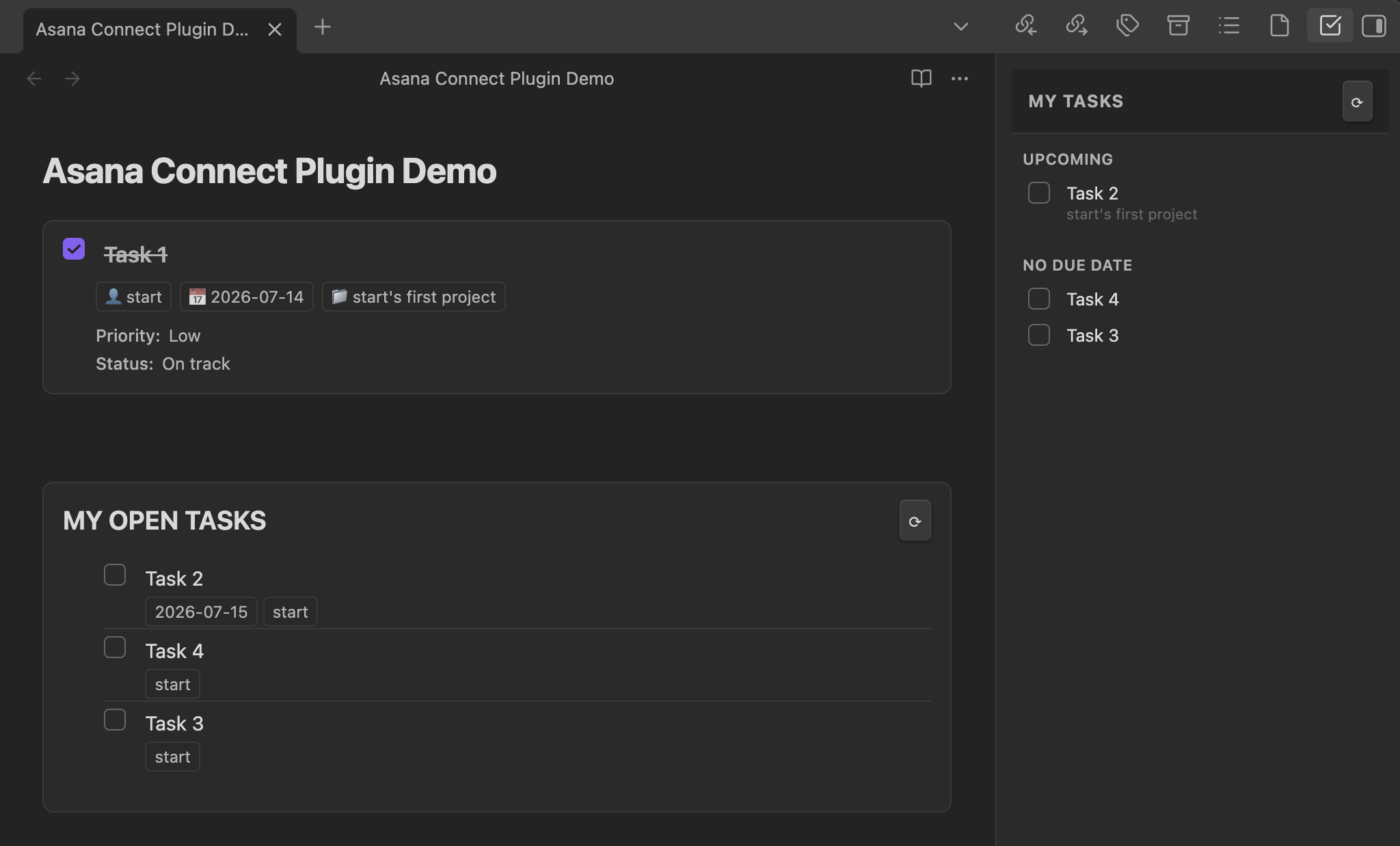
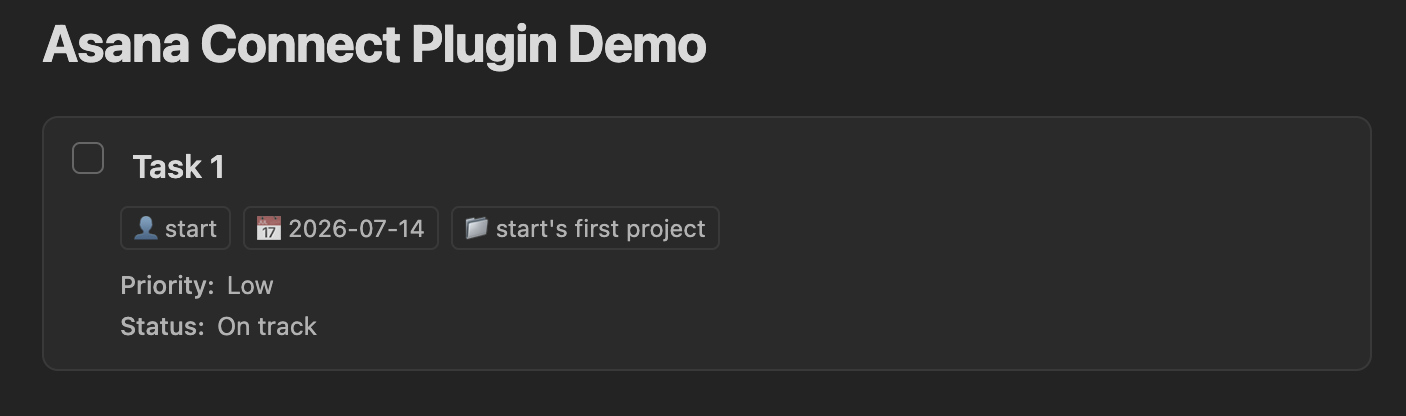
Renders: task name, checkbox (click to complete/reopen), assignee, due date (red if overdue), project, description, and custom fields.
| Task connected in Obsidian from Asana |
|---|
 |
2. Task list block
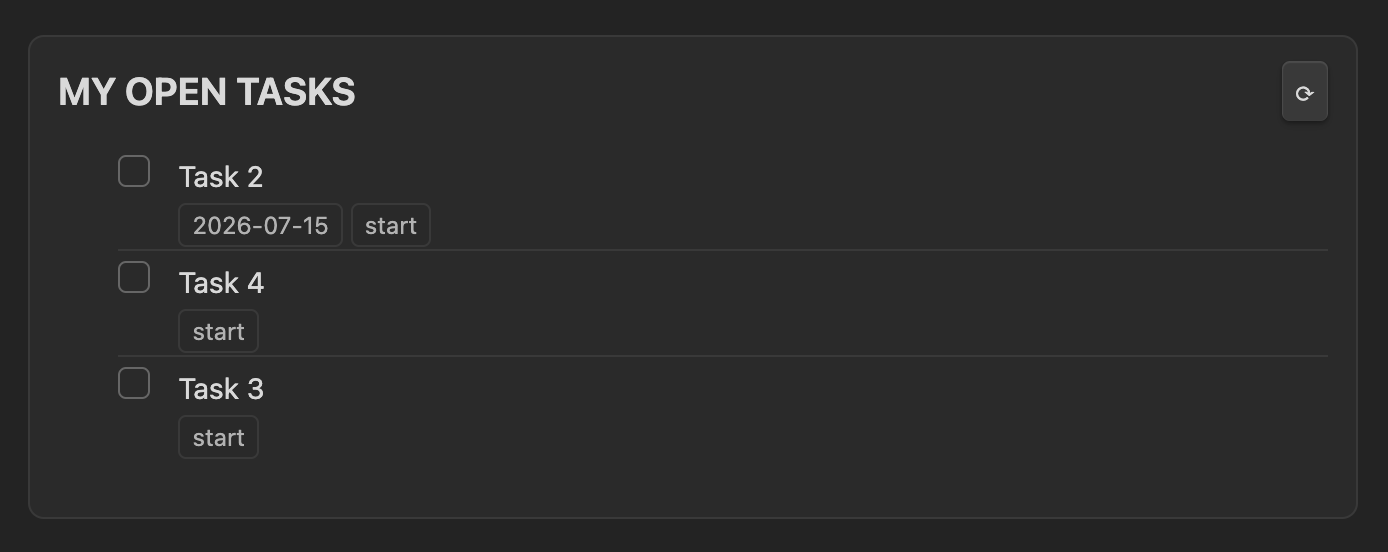
Embed a live list of tasks filtered by various options:
```asana-tasks
mode: my-tasks
title: "My Open Tasks"
limit: 15
show-completed: false
```
Or show all tasks in a specific project:
```asana-tasks
mode: project
project: 987654321
title: "Sprint Tasks"
workspace: 111222333
show-completed: true
limit: 50
```
Options:
| Key | Values | Default |
|---|---|---|
mode | my-tasks / project | my-tasks |
project | project GID | — |
workspace | workspace GID | settings default |
limit | number | 100 |
show-completed | true / false | settings default |
title | any string | "My Tasks" / "Project Tasks" |
| Asana list block |
|---|
 |
3. My Tasks sidebar
Click the checkmark ribbon icon or run Asana: Open My Tasks sidebar from the command palette.
Tasks are grouped into: Overdue, Today, Upcoming, No due date. Check any checkbox to mark complete directly in the sidebar.
Auto-refreshes on a configurable interval (default 5 min).
4. Create tasks
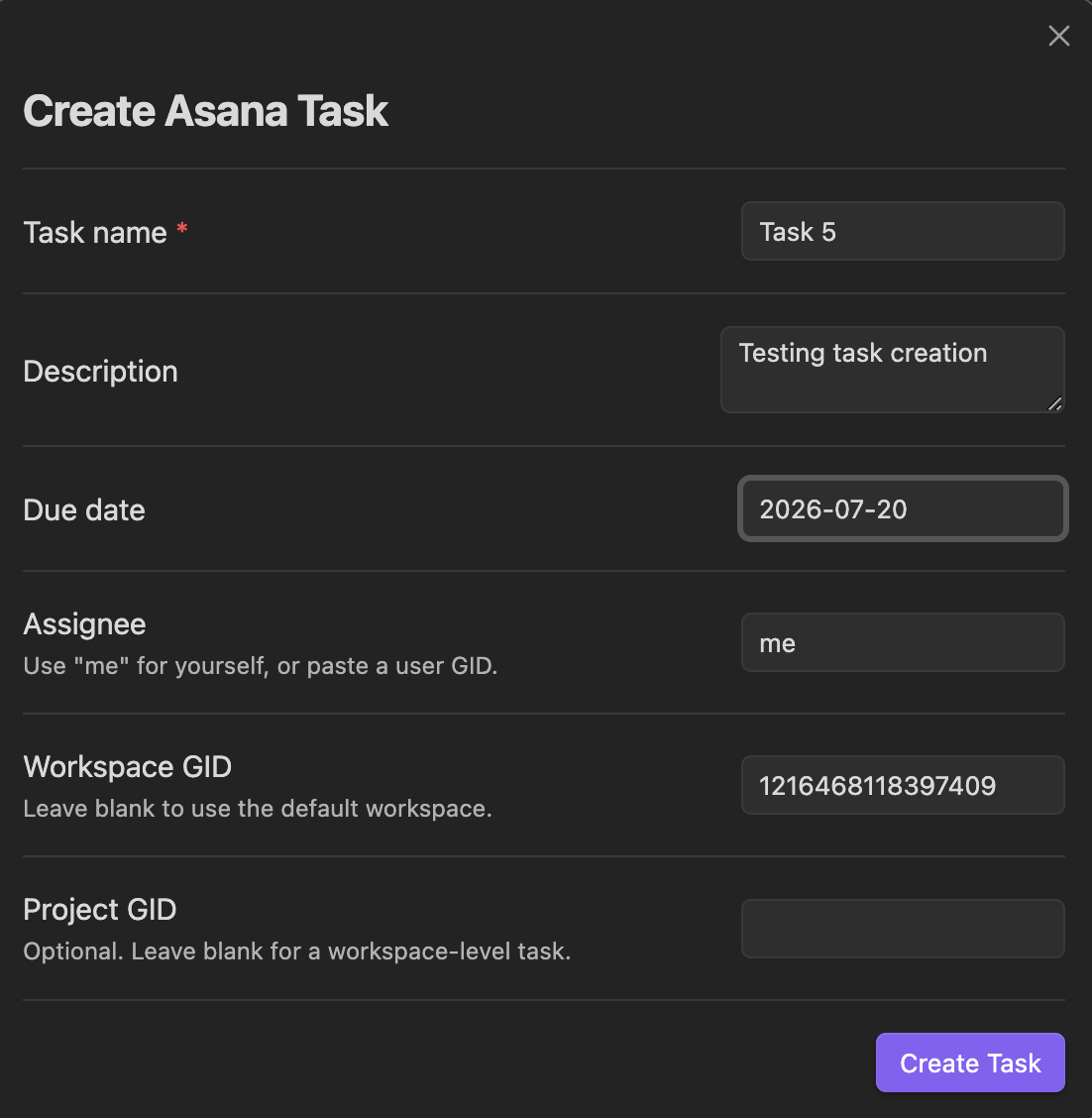
Command palette → Asana Connect: Create Asana task
A modal with: name, description, due date, assignee, workspace GID, project GID.
Create from selected text: select text in a note → command palette → Asana: Create Asana task from selection and insert link. Creates the task pre-filled with the selection and inserts a markdown link back into the note.
| Create Task in Obsidian |
|---|
 |
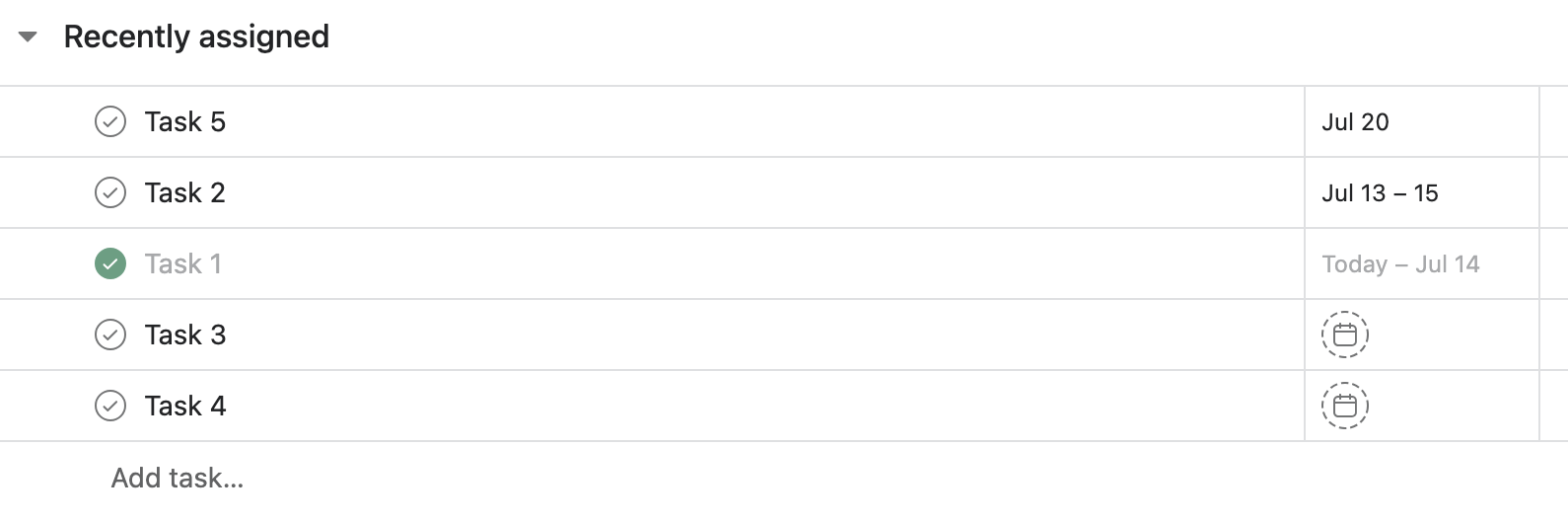
The task created above shows up in Asana immediately — no extra sync step:
| Task created in Asana from Obsidian |
|---|
 |
5. Search and insert
Asana Connect: Search Asana tasks and insert link — fuzzy search your tasks, inserts [Task Name](url) at cursor.
Asana: Search Asana tasks and embed block — same search, inserts an asana-task code block instead.
Live search fires after 2+ characters with 400ms debounce.
6. Note ↔ task linking (frontmatter)
Link this note to an Asana task — search your tasks and select one. Writes to the note's frontmatter:
---
asana-task-gid: "1234567890"
asana-task-url: "https://app.asana.com/0/..."
asana-task-name: "My task"
---
Sync linked task status — pulls the latest task state (name, completed, due date, assignee) into frontmatter.
Complete linked Asana task — marks the linked task complete in Asana from inside Obsidian.
Finding GIDs
- Workspace GID: open any Asana page → the first number after
asana.com/0/in the URL, or go to Settings → connect in the plugin which auto-detects it. - Project GID: open the project in Asana → the number in the URL (
asana.com/0/<workspace>/<project_gid>/...). - Task GID: open the task detail view → the last number in the URL.
Development
npm run dev    # watch mode with source maps
npm run build  # production bundle
License
MIT — see LICENSE.
For plugin developers
Search results and similarity scores are powered by semantic analysis of your plugin's README. If your plugin isn't appearing for searches you'd expect, try updating your README to clearly describe your plugin's purpose, features, and use cases.