by Anthirayas
Create notes through a calm, question-by-question flow using your vault folders as the choices.
Askfiles for Obsidian
Askfiles ("ask, then file") is a calm, question-by-question note creator for Obsidian where your vault's folders are the choices.
Instead of staring at a blank Untitled tab or digging through a nested folder tree in the sidebar, Askfiles turns note creation into a brief, guided conversation. Pick a folder card, drill down as far as you want (or stop early with Save here), name your note, and start writing—with your frontmatter properties and template already filled in.
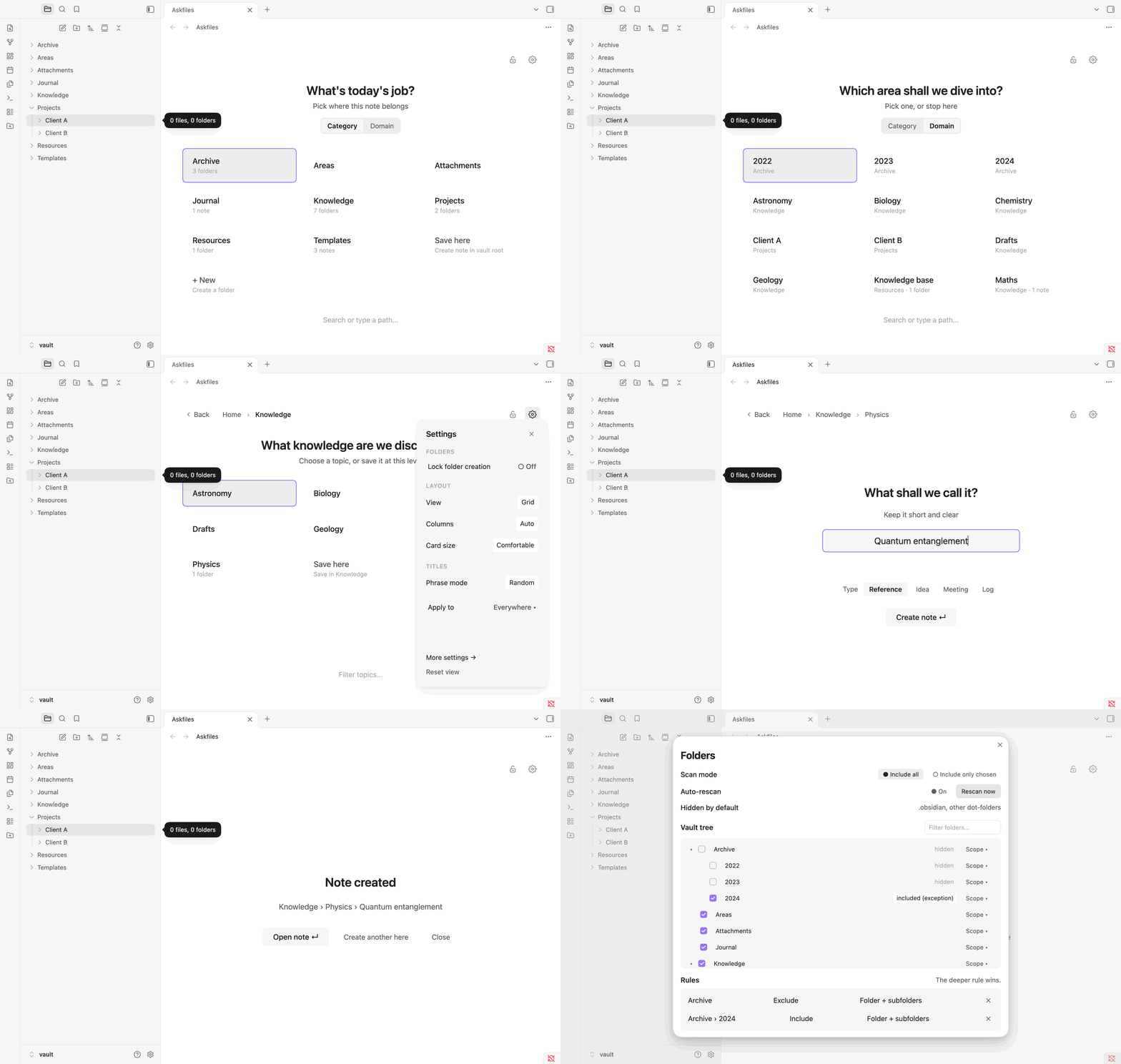
Why Askfiles?
Most vaults already have a natural structure—top-level categories like Knowledge, Projects, Journal, and Study, with domains like Physics, Software, or Web App inside them.
When you press Cmd/Ctrl + N, Obsidian either drops a note at the vault root or inside whatever folder you happened to click last. Filing it properly takes extra mental overhead.
Askfiles flips the flow:
- Zero setup required — It reads your existing vault folders immediately. No database to configure, no tags to maintain.
- Start by Category or by Domain — Toggle between Category (top-level folders) and Domain (second-level folders across your whole vault) right on the Home page.
- Stop at any depth — Every subfolder level gives you a Save here option if you don't want to drill any deeper, or automatically advances to the naming screen when you reach a leaf folder.
- Borderless, quiet design — No heavy boxes or visual clutter. Cards rest gently on your theme's canvas and highlight with a soft surface tint on hover or keyboard focus.
Walkthrough
1. Start by Category or jump straight to a Domain
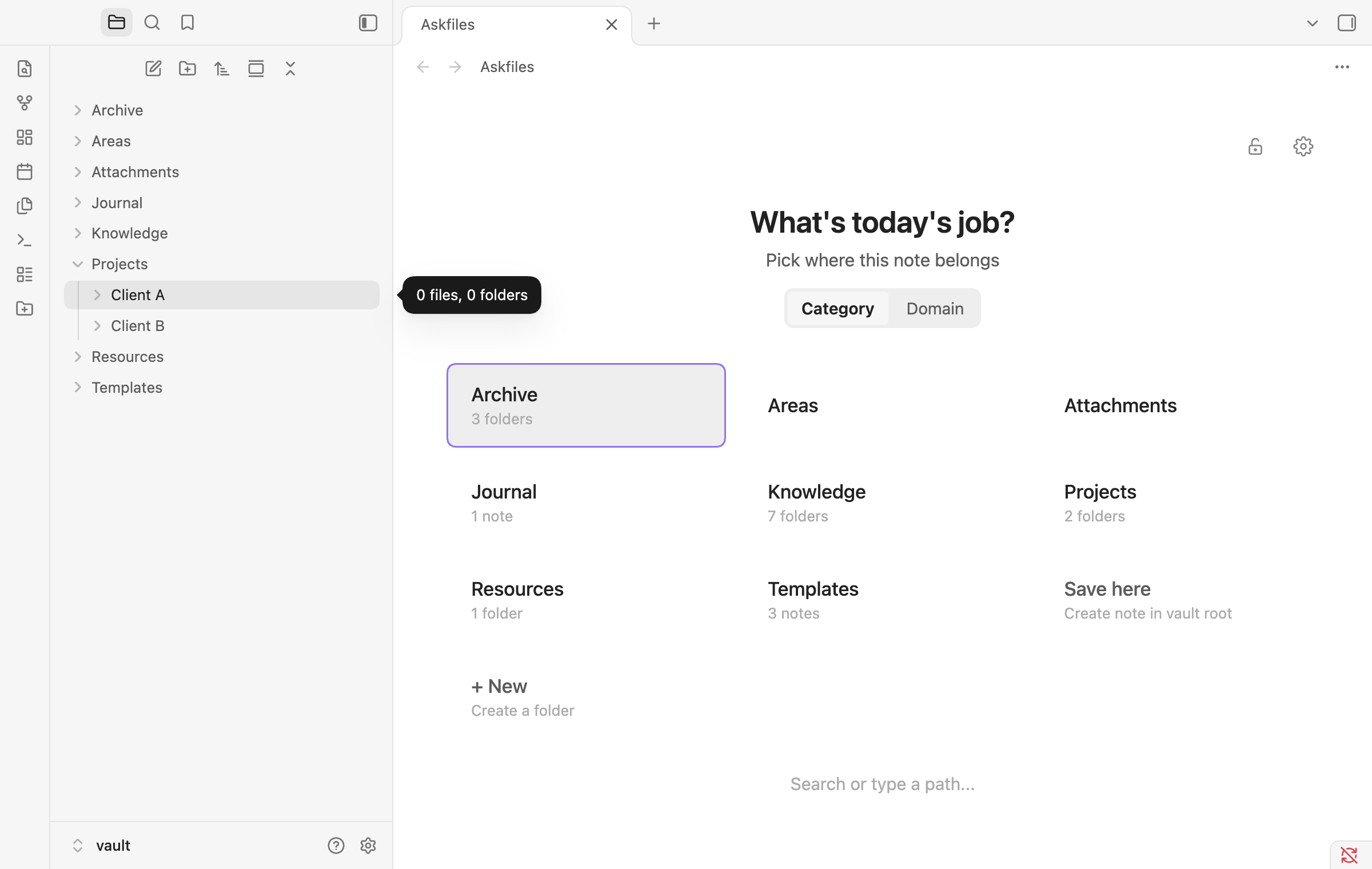
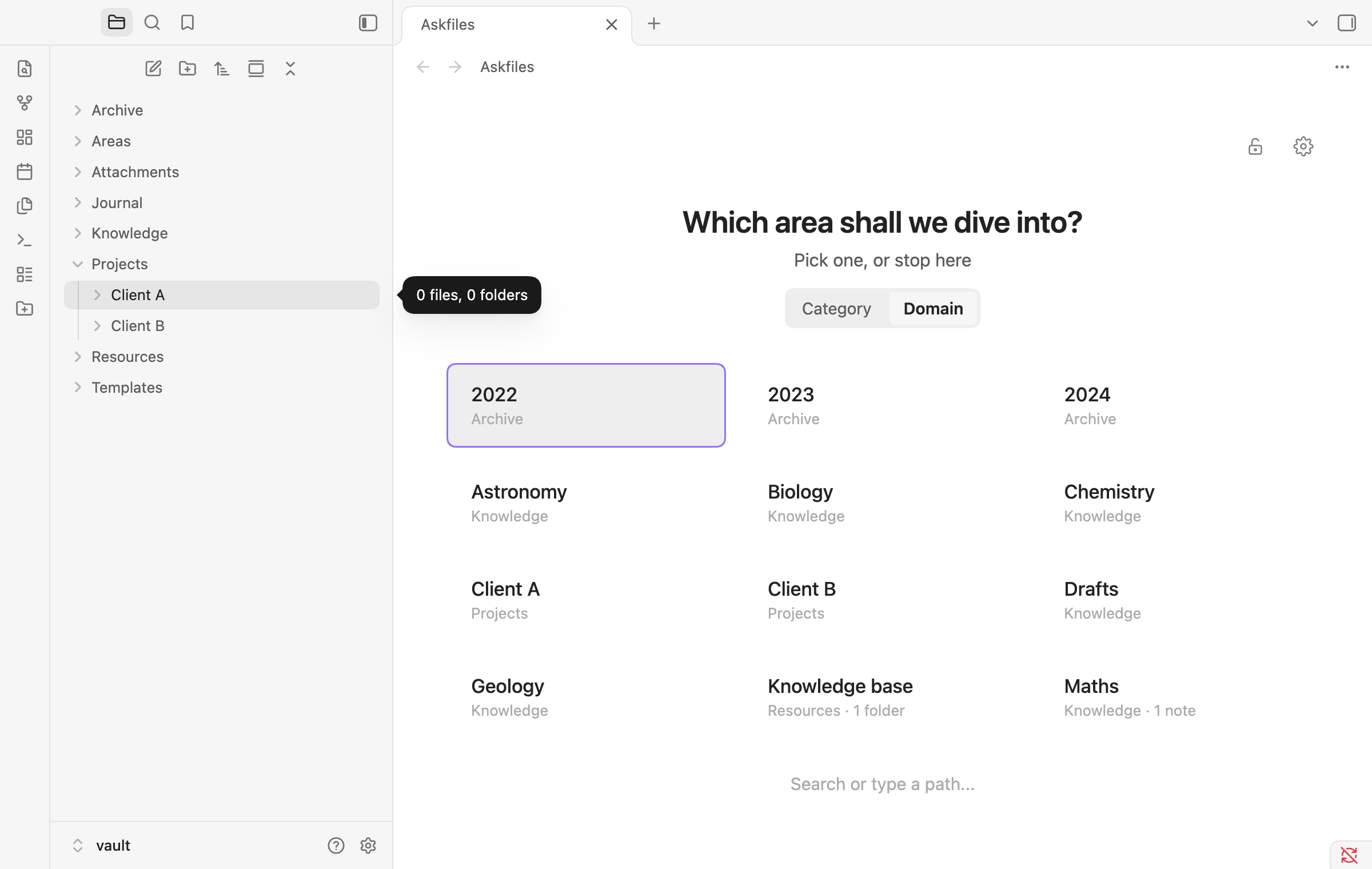
On the Home page, use the Category | Domain pill right above the question to choose how you think:
- Category asks a top-level question ("What's today's job?") and presents your root folders (
Journal,Knowledge,Projects,Study). - Domain swaps to a deeper question ("Which area shall we dive into?") and shows all your second-level domain folders (
Physics,Software,Web App,Calculus) with their parent category shown underneath. If a domain name exists in only one category, clicking it jumps straight to<Category>/<Domain>.
| Start by Category | Start by Domain |
|---|---|
 |  |
2. Drill down & customize the view on the fly
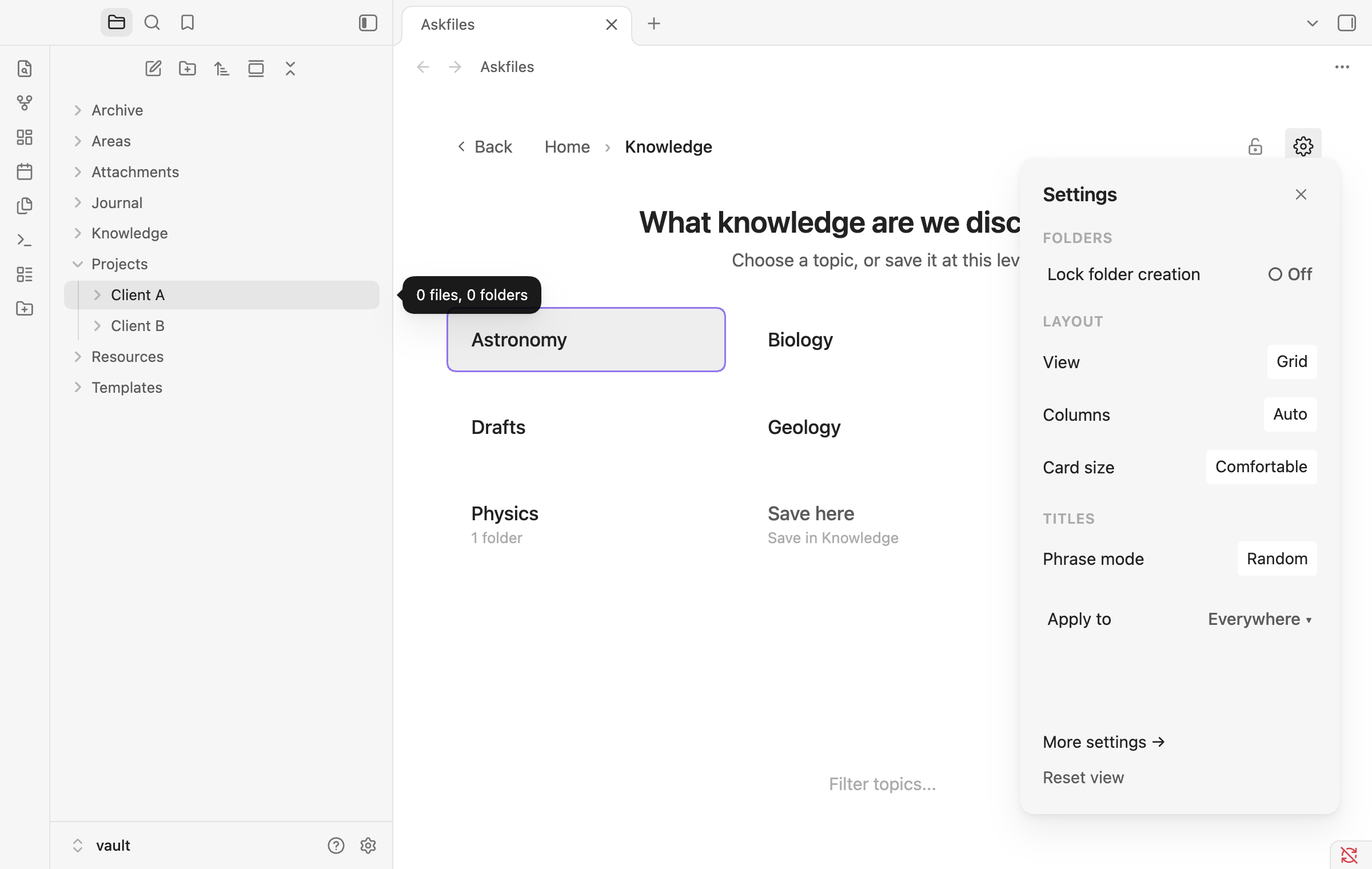
As you pick a folder, a clickable breadcrumb trail builds at the top so you can jump back to any earlier step with a single click.
Click the Gear icon (⚙) in the top-right corner to slide out the Live-Preview Gear Panel without leaving your tab:
- Switch between Grid and List views
- Adjust Columns (
Auto,2,3,4), Card size, Descriptions, and Sort order - Change how the question phrase is chosen (Fixed, Random, or Rotate) and cycle to the next phrase immediately
- Apply layout tweaks to This folder only or Everywhere
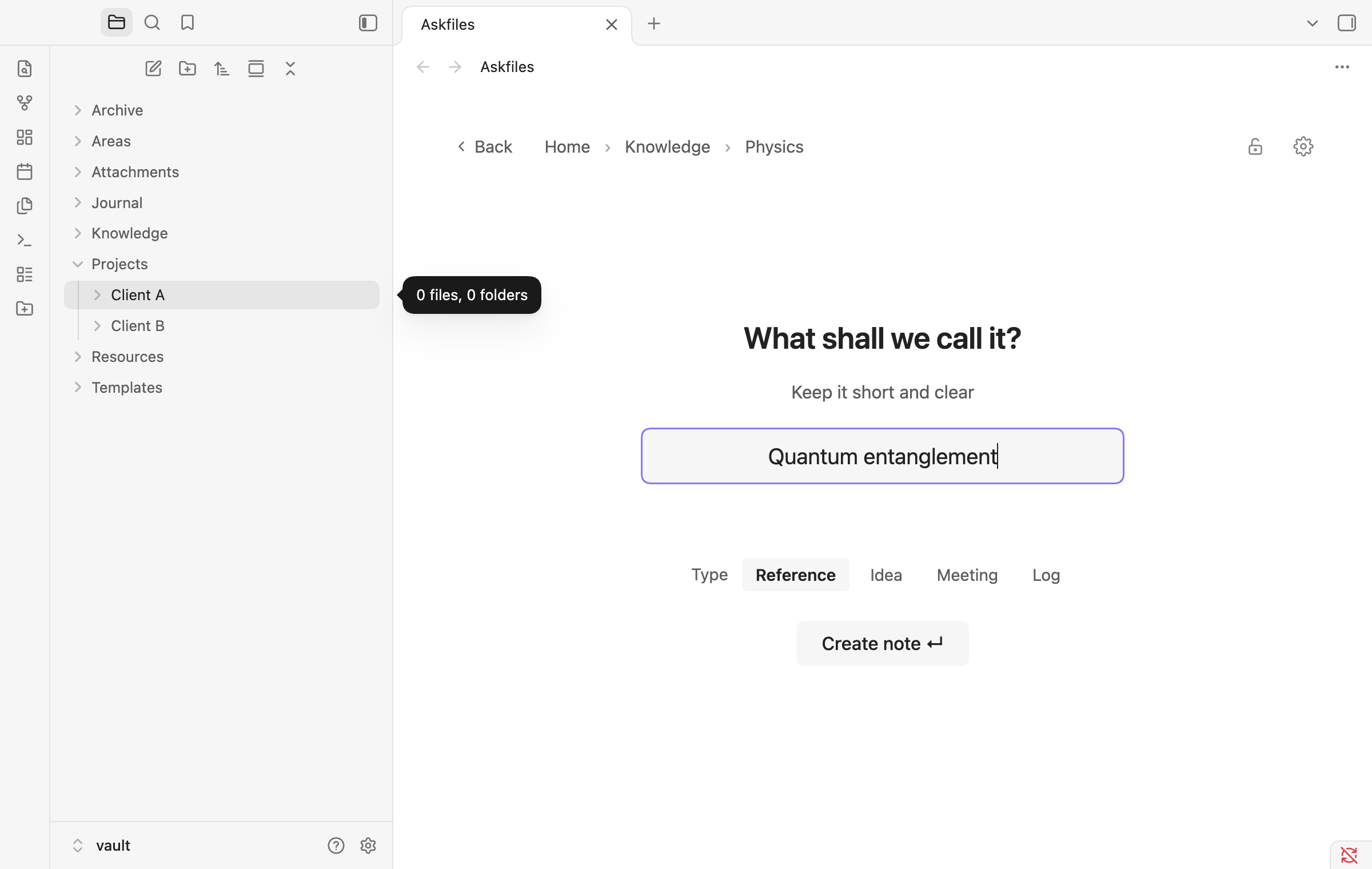
3. Name your note & pick a Note Type
Once you reach a folder with no subfolders (or click Save here), Askfiles asks "What shall we call it?":
- Checks for duplicate note names in real time
- Lets you optionally pick a Note type (
Standard,Fleeting,Literature,Project,Meeting,Reference) - Automatically writes your path choices into YAML frontmatter (
category,domain,subdomain,type) and applies any template configured for that note type
| Naming & Note Types | Note Created Confirmation |
|---|---|
 | 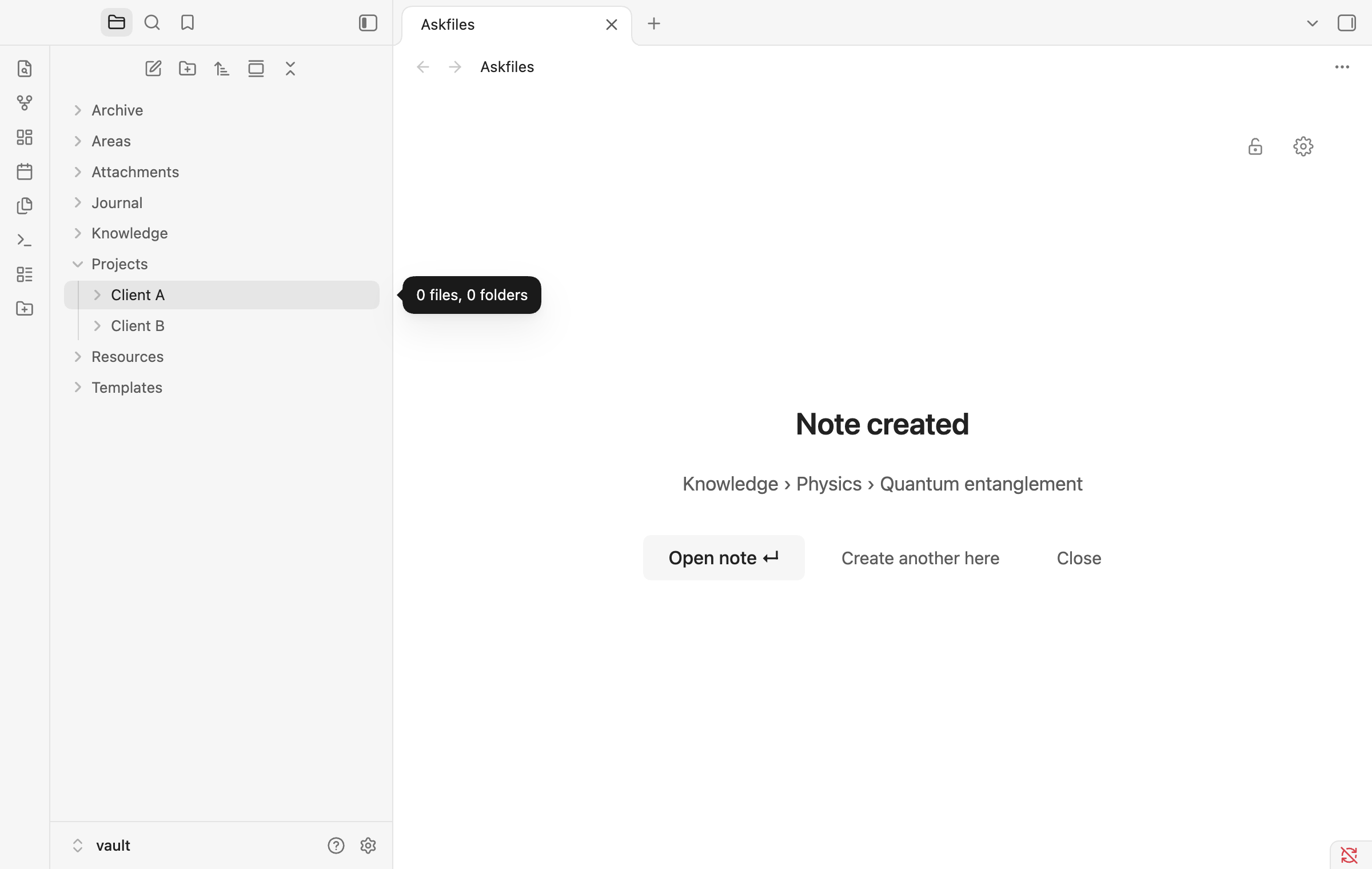 |
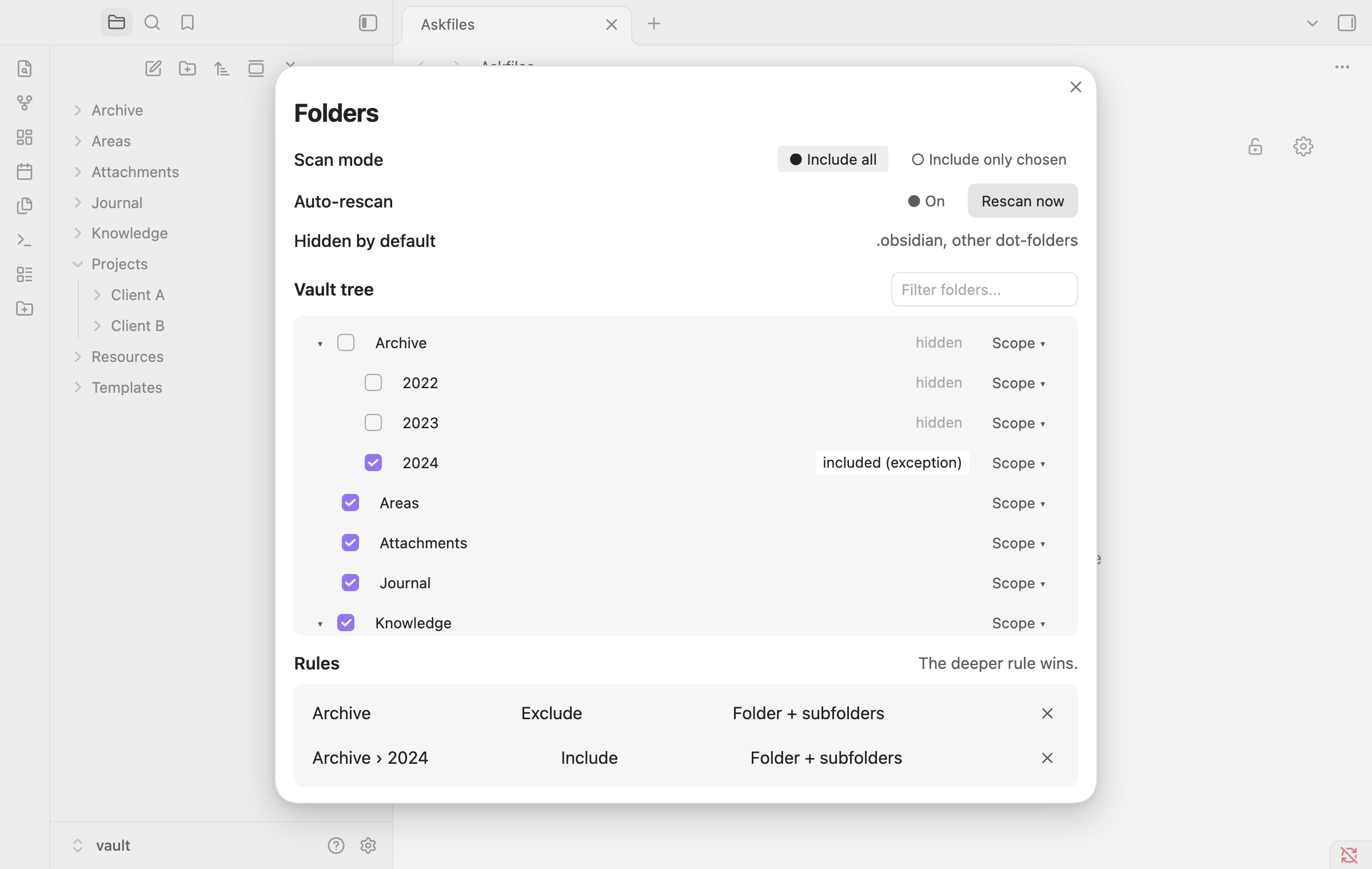
4. Fine-grained Folder Rules (Include / Exclude Tree)
Have an Archive, Templates, or Attachments folder you never want to see as a choice? Or want to hide Archive except for Archive/2024?
Open Settings → Askfiles → Folders → Open folder tree to toggle folders visually with three scopes:
- This folder and everything inside
- Only the subfolders
- Only this folder
The deeper rule always wins, so you can exclude an entire branch and re-include a specific subfolder inside it—and rules automatically update when you rename or move folders in Obsidian.
Keyboard-First Navigation
You can complete the entire flow without touching the mouse:
| Key | Action |
|---|---|
1 – 9 | Pick the matching folder card (1 selects Save here when present) |
Arrow keys | Move focus between folder cards |
Enter | Select the focused card or create the note |
/ or Cmd/Ctrl + F | Focus the bottom quick-jump search bar |
Backspace / Alt + ← | Go back one folder level |
Escape | Clear search, close the Gear panel, or step back |
Commands
Open the Obsidian Command Palette (Cmd/Ctrl + P) and run:
- Askfiles: Open Askfiles — Open the Askfiles tab (also accessible from the left ribbon icon or optionally on startup / new tab).
- Askfiles: Create note here (from current folder) — Start the Askfiles flow pre-positioned inside the folder of your currently active note.
- Askfiles: Lock / unlock folder creation — Toggle the folder lock (
🔒) so no new folders can be created accidentally from the search bar or+ New foldercard.
Installation
From GitHub Releases
- Download
main.js,manifest.json, andstyles.cssfrom the latest release. - In your Obsidian vault, create the folder
.obsidian/plugins/askfiles/. - Copy
main.js,manifest.json, andstyles.cssinto that folder. - Reload Obsidian and enable Askfiles under Settings → Community plugins.
Build from Source
git clone https://github.com/jrayas/askfiles.git
cd askfiles
npm install
npm run build
Privacy & Offline Guarantee
Askfiles runs 100% locally inside your vault. It makes zero network requests, requires no account or telemetry, and stores all settings inside your vault's plugin configuration.
License
MIT © Anthirayas
For plugin developers
Search results and similarity scores are powered by semantic analysis of your plugin's README. If your plugin isn't appearing for searches you'd expect, try updating your README to clearly describe your plugin's purpose, features, and use cases.