by udarent
Upload attachments to your own S3-compatible storage and keep a local cache, so images still render with no network.
Attachment Cloud Cache
English · 简体中文 —— 中文版在本文下方
中文摘要 —— 把笔记里的附件上传到你自己的 S3 兼容存储,并在本地保留一份副本,断网也能看图。 需要 Obsidian 1.13.0 或更新(桌面端与移动端);更低版本在社区目录里会提示 No appropriate version found. —— 那是 Obsidian 的安装机制,不是插件坏了。 界面(设置页 / 命令 / 通知)会跟随你的 Obsidian 界面语言自动切换成中文。 完整中文说明见本文下方「中文版」一节(直接跳过去)。
Upload your note attachments to your own S3-compatible storage, and keep a local copy so images still render offline.
Install · Releases · Report a problem
Requires Obsidian 1.13.0+ (desktop and mobile) — see Requirements.
Everything below works — the full upload/download round trip has been proven against a real MinIO instance. Not proven yet: iOS has never been run, and Android has not been run on a real device.
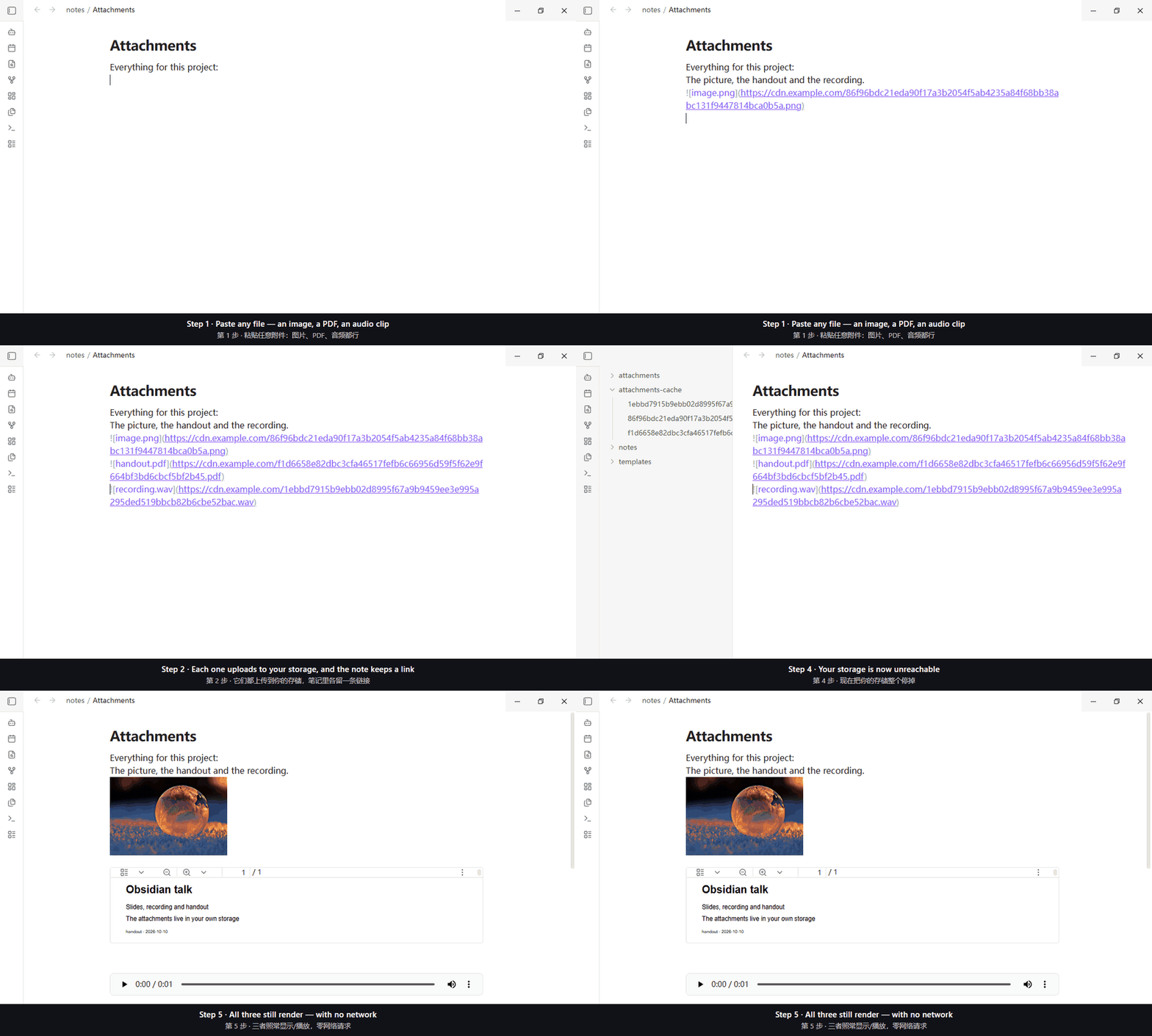
Recorded from the plugin actually running in Obsidian: paste an image → it is uploaded to your own storage → the note keeps a link. The local copy stays behind so the image still renders offline.
Why use it
The problem is normally split between two plugins, and each one leaves a gap you cannot work around:
- Upload plugins rewrite your note to point at a remote URL and usually delete the local file — so images break the moment you are offline.
- "Localize" plugins download remote images back into the vault — so you have to be online at least once before offline can work at all.
This plugin does both, in that order: it uploads, then keeps the local file as a cache. Your note points at your storage (portable, shareable, small vault) while rendering uses the local copy — so images are both yours and always visible, with zero remote requests when offline.
Features
- Any S3-compatible storage: Cloudflare R2, AWS S3, MinIO, Backblaze B2 or a self-hosted endpoint
- Uploads on paste or drag-and-drop, rewriting the note link to your storage. Keys are
content-addressed (
{hash}.{ext}) by default, so the same image is stored once and pasting it twice uploads nothing - Images render offline from the local copy, with zero remote requests
- Never loses or overwrites a file: a failed upload keeps the bytes locally and inserts a working
link plus the reason; a same-named file becomes
a 1.png, never replaced - Two optional features, both off by default: caching images from other sites (nothing happens until you say so, and you can pick individual images), and a cache size limit that cleans up least-recently-used copies in the background
- Import a credentials file instead of typing the keys. MinIO's “Download credentials” JSON is the shape it expects; the endpoint, access key and addressing mode are read from it, and the secret goes into your keychain. The file is read where it sits — nothing is copied into your vault, and no copy of it is kept anywhere
- Five commands — cache usage, index repair, cleanup, uploading what you already have, and picking off-site images one by one. See Commands
Works on desktop and mobile.
Requirements
- Obsidian 1.13.0 or newer, desktop and mobile. The floor comes from the declarative settings API the settings page is built with. On anything older the community catalogue answers No appropriate version found. — that is Obsidian's installer refusing, not this plugin failing.
- An S3-compatible bucket you control, plus an access key pair for it. Cloudflare R2, AWS S3, MinIO, Backblaze B2 and self-hosted endpoints all work — see Features.
- The bucket must allow anonymous reads, or you must set a public URL prefix (a CDN or a custom domain). Otherwise the links in your notes open for you but not for anyone else — Test connection checks exactly this.
Installation
From inside Obsidian (recommended): Settings → Community plugins → Browse → search for
Attachment Cloud Cache → install and enable.
Manually: download the three files from the
latest release
into <vault>/.obsidian/plugins/attachment-cloud-cache/ (⚠️ folder name = plugin id), then enable it
under Installed plugins.
Setup
In Settings → Attachment Cloud Cache:
- Endpoint, Bucket, Region — where your storage lives
- Public URL base — optional. Empty means links use the object address (
endpoint/bucket/key), which requires the bucket to allow anonymous reads; put a CDN or custom domain here if you use one (the field shows what empty would produce) - Access key ID (a plain text field; capitals are normal), then the Secret access key right below it
- Import from a credentials file — optional, and usually faster than typing. MinIO's console hands you a small JSON file when you create an access key ("Download credentials"); choose it here and the endpoint, access key and addressing mode are filled in for you. The secret key goes straight into your OS keychain and no copy of the file is kept
- Test connection — one signed request to your bucket, then one credential-free request to the exact URL your links would use, so you learn whether other people can open them
Commands
Five commands, all reachable from the command palette:
| Command | What it does |
|---|---|
| Show cache usage | How much the cache holds, and how much of it could be reclaimed. |
| Repair the local-copy index | Drops index entries whose files are already gone, so the index matches the disk again. |
| Clean up unused cache files | Deletes cache files no note points at any more. Deletion cannot be undone and the space is freed immediately. |
| Upload existing attachments | Uploads attachments already sitting in your vault and rewrites the links. Your original files are kept. |
| Cache images from other sites… | Lets you tick individual off-site images to fetch and upload. Needs the off-site feature turned on first. |
Things to know
- A dropped file's link lands at the caret, not at the pointer. No public API maps pointer coordinates to an editor position. Deliberate trade.
- After you change the storage URL, older links are not recognised on a new device. "Ours" is decided from the current settings plus the local index, so those links still render online but not offline, and are never downloaded automatically. Also deliberate.
- "Do not keep a local copy" means no images offline. The default, "move into the cache folder", is the one that works offline.
- The cache folder can be deleted at any time — images are rebuilt on demand.
- Moving to another device? Copy the plugin folder, but delete
.cache-index.jsonfirst. That file records where this device keeps its cached copies;data.jsonis what carries your settings. ⚠️ The secret access key is not in the folder — it lives in Obsidian's own keychain — so you re-enter that one field on the new device.
Privacy & security
- It normally talks only to your storage, and touches nothing outside your vault. No telemetry, no analytics, no ads.
- One optional feature reaches other sites — only if you turn it on and tell it to act. "Cache images from other sites" is off by default, and once on it still does nothing by default. To actually move an image off someone else's server you do one of two things: (1) set "When a note has an image from another site" to cache straight away — then opening such a note requests the image directly from that site, uploads it to your storage and rewrites the link; or (2) use the "Cache images from other sites…" command / the button in the settings, tick the specific images you want, and only those are fetched. That command, like "upload existing attachments", names the sites it would visit and only fetches after you confirm. The request carries nothing beyond the image's own address.
- The secret access key lives in the OS keychain, never in
data.json. The access key ID is written todata.json: it is an identifier, not a secret — it is part of the signed request and appears in server logs — and Obsidian's keychain accepts only lowercase IDs while access key IDs routinely contain capitals. - Importing a credentials file reads that file and nothing else. It is read where it already is (nothing is copied into your vault), and only the fields above are taken from it. Anything else in the file is reported back and ignored.
How far it is verified
- Automated tests (Node, no framework; a real HTTP server and the real filesystem where it matters) cover signing, key/path derivation, settings merging, the cache index, the upload chain (byte-identical, exactly one PUT, zero GETs), paste/drop decisions and cleanup safety — then a mutation check breaks each rule on purpose. An assertion that cannot fail is not an assertion.
- Real host, real provider: the shipped build runs in real Obsidian, and both directions of the
round trip are proven against a real MinIO instance — the object key is recomputed independently from
the bytes, the link opens anonymously, and the rendered
<img>points at the local copy. Reproduce withnpm run verify:real-storage(it uploads one object to your bucket). - Not verified: iOS has never been run, and Android has not been run on a real device — the code avoids APIs known to be missing there, but that is reasoning, not evidence. Non-ASCII object keys have tests but no real-provider run.
Getting help
- Something broke? Open an issue: https://github.com/udarent/obsidian-plugins-attachment-cloud-cache/issues
- Say what you saw: the exact message, your Obsidian version, and which storage provider you use. The errors are written to name the step that failed, so they usually place the problem on their own.
- ⚠️ Never paste your secret access key. Nothing a report needs is in it — the message, the endpoint and the bucket name are enough.
License
MIT — see LICENSE. An independent implementation written from scratch; it shares no code with any other plugin.
Attachment Cloud Cache(附件云端缓存)
English · 简体中文
把笔记里的附件上传到你自己的 S3 兼容存储,同时在本地留一份副本 —— 断网时图片照样能显示。
需要 Obsidian 1.13.0+(桌面端与移动端)—— 见环境要求。
下面写的都可用 —— 完整的上传/下载回环已在真实 MinIO 上被证实。 还没验证的: iOS 从未运行过;Android 也没在真机上跑过。
动图取自真实运行中的 Obsidian:粘贴一张图 → 上传到你自己的存储 → 笔记里留下链接,同时本地留一份副本,断网也能看。
为什么用它
这件事通常被两个插件分着解决,而各自留一个绕不过去的缺口:
- 上传类把笔记改成远端地址,而且往往删掉本地文件 —— 一断网图就没了;
- 「本地化」类要把远端图片下载回 vault —— 你必须先联网至少一次,离线才有意义。
本插件两件都做,顺序是:先上传,再把本地文件留作缓存。笔记指向你的存储(可迁移、可分享、 vault 小),渲染用本地副本 —— 于是图片既是你自己的,也随时看得见,离线时零远端请求。
功能
- 任何 S3 兼容存储:Cloudflare R2、AWS S3、MinIO、Backblaze B2,或自建端点
- 粘贴或拖入即上传,并把笔记里的链接改写成指向你的存储。默认按内容寻址(
{hash}.{ext}), 同一张图只存一份,粘两次不会重复上传 - 断网也能看图:渲染时用本地副本,离线时零远端请求
- 不丢图、不覆盖:上传失败会把字节留在本地、插入一条能用的链接并说明原因;同名文件自动变成
a 1.png,绝不替换 - 两个可选功能,默认都关:缓存站外图片(默认什么都不做,可逐张挑选),以及缓存上限(超限时在后台按 最近最少使用清理)
- 从凭据文件导入,不必手输密钥。它认的就是 MinIO「下载凭据」那份 JSON:服务地址、访问密钥与 寻址方式从文件里读,秘密进系统钥匙串。文件就在原地读 —— 不会拷进 vault,插件也不留副本
- 五条命令 —— 查看缓存占用、修复索引、清理、上传已有附件、逐张挑选站外图片。见命令
桌面端与移动端都支持。
环境要求
- Obsidian 1.13.0 或更新,桌面端与移动端。下限来自设置页所用的声明式设置 API。更低的版本在 社区目录里只会回一句 No appropriate version found. —— 那是 Obsidian 的安装机制在拒绝,不是插件 坏了。
- 一个你自己控制的 S3 兼容存储桶,以及一对访问密钥。Cloudflare R2、AWS S3、MinIO、 Backblaze B2 与自建端点都可以 —— 见功能。
- 存储桶要允许匿名读取,或者你得填一个公开访问前缀(CDN 或自定义域名)。否则写进笔记的链接 你自己打得开、别人打不开 —— 测试连接 检查的正是这件事。
安装
在 Obsidian 里装(推荐):设置 → 第三方插件 → 浏览 → 搜 Attachment Cloud Cache →
安装并启用。
手动安装:从最新 release
下载那三个文件,放进 <vault>/.obsidian/plugins/attachment-cloud-cache/(⚠️ 目录名 = 插件 id),
再在 已安装插件 里启用。
配置
在 设置 → Attachment Cloud Cache 里:
- 服务地址、存储桶、区域 —— 你的存储在哪
- 公开访问前缀 —— 可以留空。留空就用对象地址(
服务地址/存储桶/键),那要求存储桶允许 匿名读取;图片走 CDN 或自定义域名时把前缀填在这里(输入框里会显示「留空会用什么地址」) - 访问密钥 ID(普通输入框,含大写是正常的),再在它下面那一格填 秘密访问密钥
- 从凭据文件导入 —— 可选,但一般比手输快。MinIO 控制台在新建访问密钥时会给你一份 JSON (「下载凭据」),在这里选中它,服务地址、访问密钥与寻址方式就自动填好了。 秘密访问密钥直接进系统钥匙串,插件不留这份文件的副本
- 测试连接 —— 先向你的桶发一次签名请求,再不带任何凭据请求一次「你笔记里会写的那条 链接」,于是你能知道别人打不打得开
命令
一共五条,都在命令面板里:
| 命令 | 做什么 |
|---|---|
| 查看缓存占用 | 缓存里有多少、其中多少可以回收。 |
| 自检并修复本地副本索引 | 丢掉那些文件已经不在的索引记录,让索引和磁盘重新对上。 |
| 清理未使用的缓存文件 | 删掉已经没有笔记指向的缓存文件。删除无法撤销,空间立刻释放。 |
| 上传已存在的附件 | 把 vault 里已经存在的附件上传,并改写笔记里的链接。原文件会保留。 |
| 缓存站外图片(可挑选)… | 勾选具体的站外图片去下载并上传。需要先打开站外图片功能。 |
需要注意的
- 拖放文件的链接插在光标处,不是指针落点。 公开 API 里没有「指针坐标 → 编辑器位置」的映射。 这是有意取舍。
- 改了存储地址之后,「新设备」上认不出老链接。 判断「这张图是我们的」依赖当前设置加本地副本 索引,所以那些老链接照常在线显示、但离线不显示,也不会被自动下载。同样是有意的。
- 「不留本地副本」这一档会让断网时看不到图。 默认档是「移入缓存目录」,那一档才离线可用。
- 缓存目录可以随时整体删除 —— 再看那张图时按需重建。
- 换设备?把插件目录整体复制过去,但先删掉
.cache-index.json。 那个文件记的是这台设备的 缓存副本在哪,而data.json才装着你的设置。⚠️ 秘密访问密钥不在目录里 —— 它存在 Obsidian 自己的钥匙串中,所以要在新设备上重填那一项。
隐私与安全
- 默认情况下它只连你自己的存储,也不碰 vault 之外的文件。不含遥测、统计与广告。
- 有一个可选功能会访问其它站点,而且只有你打开它、并且明确让它做时才会。 「缓存站外图片」 默认关闭;打开后默认什么都不做。要真正去搬别的站点的图,你得做两件事之一: ① 把「遇到外链图片时」设成直接缓存 —— 那时打开含站外图的笔记,插件会直接向那些站点 请求图片,上传到你的存储并改写链接;② 用**「缓存站外图片(可挑选)」那条命令 / 设置页的按钮 勾选具体几张,只有勾中的会被处理。第二条命令与「上传已存在的附件」一样会列出即将访问的 站点**,只有你确认之后才会去取。请求里除图片地址本身不带任何其它内容。
- 秘密访问密钥存在操作系统钥匙串里,绝不写进
data.json。访问密钥 ID 会写进data.json: 它是标识符而不是秘密 —— 它本身就是被签名请求的一部分,也会出现在服务端日志里 —— 而且 Obsidian 的钥匙串只接受小写 ID,访问密钥 ID 常规就带大写。 - 导入凭据文件只读那一份文件。它就在原位置被读取(不会拷进 vault),也只取用上面那几项; 文件里其余的键会如实回报并忽略。
已验证到什么程度
- 自动化测试(跑在 Node 上、不用测试框架;该用真实的地方用真实 HTTP 服务与真实文件系统) 覆盖签名、key 与路径推导、设置合并、缓存索引、上传链路(字节一致、恰好 1 次 PUT、0 次 GET)、 粘贴/拖放判定与清理类命令的安全性质 —— 之后还有一道变异验证:把每条规则故意改坏。 不会失败的断言等于没有断言。
- 真实宿主与真实服务商:构建产物在真实 Obsidian 里能跑,而回环的两个方向都在真实 MinIO 上被
证实 —— 对象 key 由脚本从字节独立重算、链接匿名能打开、渲染出的
<img>指向本地副本。 可用npm run verify:real-storage复现(它会往你的桶里传一个对象)。 - 没验证的:iOS 从未运行过;Android 也没在真机上跑过 —— 代码避开了已知在那里缺失的 API, 但那是推理,不是证据。含非 ASCII 字符的对象 key 有测试覆盖,但没在真实服务商上跑过。
遇到问题
- 出问题了? 到 https://github.com/udarent/obsidian-plugins-attachment-cloud-cache/issues 提 issue。
- 请说清你看到的:报错原文、你的 Obsidian 版本、用的哪家存储服务。插件的报错都写明了失败在 哪一步,通常靠它就能定位。
- ⚠️ 绝不要把秘密访问密钥贴上来。 报告里没有一处需要它 —— 报错原文、服务地址和桶名已经足够。
授权
MIT —— 见 LICENSE。本插件是独立实现,从零写起,不与任何其它插件共享代码。
For plugin developers
Search results and similarity scores are powered by semantic analysis of your plugin's README. If your plugin isn't appearing for searches you'd expect, try updating your README to clearly describe your plugin's purpose, features, and use cases.