Auto Folder Collapse
approvedby dariocasciato
Automatically collapses subfolders when a parent folder is collapsed
Auto Folder Collapse
A plugin for Obsidian that automatically collapses all child folders when you collapse a parent folder. This helps keep your file explorer organized and clutter-free.
Installation
Downloading from the Obsidian.md Community Plugin Browser
- Open Obsidian and go to
Settings. - Navigate to the
Community pluginssection. - Click on
Browseand search forAuto Folder Collapse. - Click
Installand thenEnable.
Downloading from the GitHub Repository
- Download the plugin files from the GitHub repository.
- Copy the Plugin Folder to your Obsidian vault's plugins folder:
<vault>/.obsidian/plugins/. - Enable the plugin in Obsidian:
- Open Obsidian and go to
Settings. - Navigate to the
Community pluginssection. - Refresh the Community Plugin list.
- Enable the new Plugin.
- Open Obsidian and go to
Demo
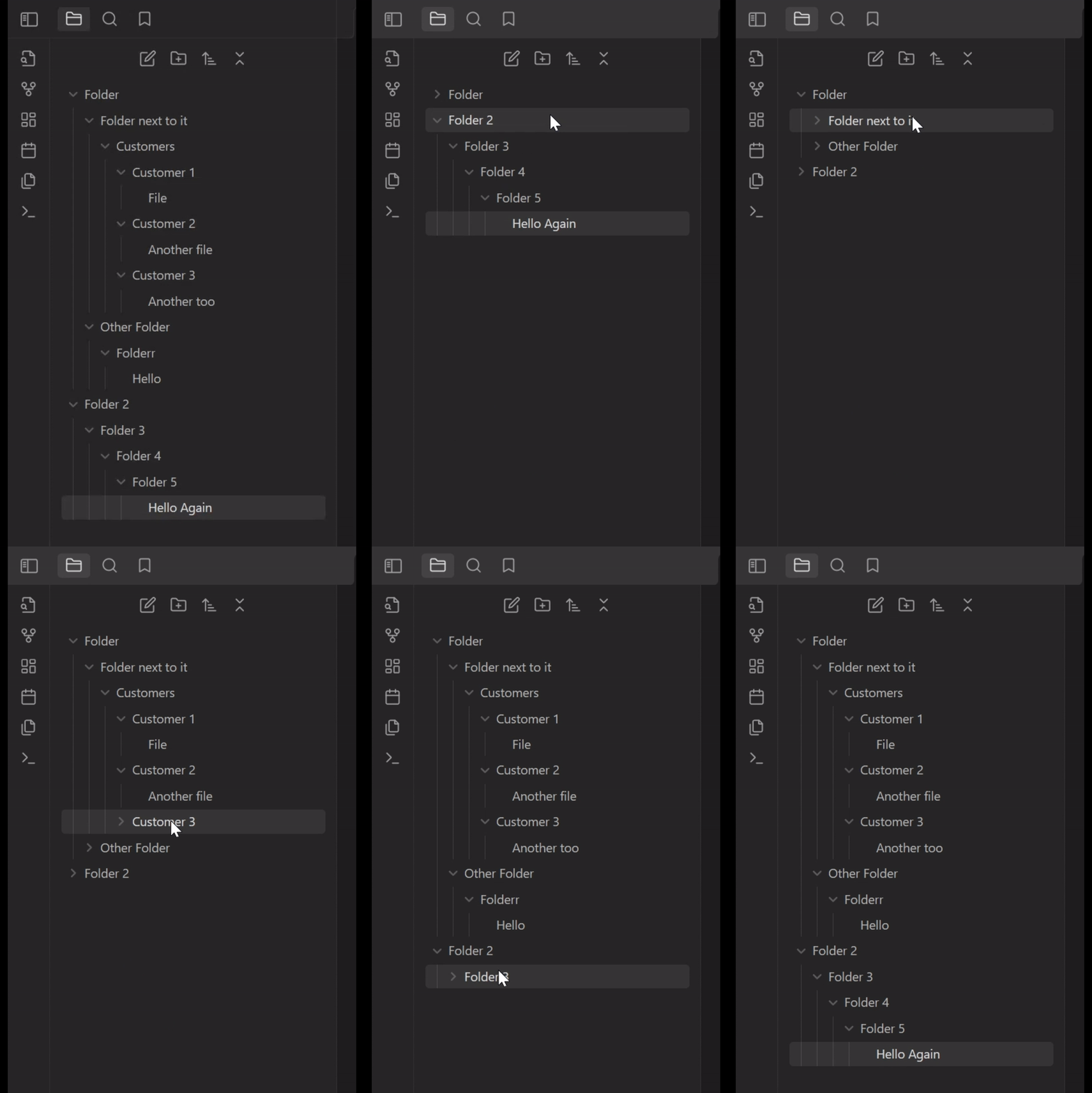
Usage
Once the plugin is enabled, it will automatically collapse all child folders when you collapse a parent folder. You don't need to do anything else!
The plugin offers two independent features, each controlled by a toggle in Settings → Auto Folder Collapse.
| Feature | Default | What it does |
|---|---|---|
| Auto-collapse children on parent collapse | Off | When you collapse a folder, every sub-folder inside it is collapsed too (original behaviour). |
| Exclusive accordion | Off | When you expand a folder, all other folders that are not its ancestors or descendants are automatically collapsed. This keeps the sidebar focused on the area you’re working in. |
Enable or disable either feature at any time; the change takes effect immediately.
Troubleshooting
If you encounter any issues with the plugin, try the following steps:
- Ensure you are using the minimum required version of Obsidian (
0.12.0). - Disable and re-enable the plugin in the Obsidian settings.
- Restart Obsidian.
If the problem persists, please report it on the GitHub Issues page.
Author
Developed by Dario Casciato.
License
This plugin is licensed under the MIT License.
For plugin developers
Search results and similarity scores are powered by semantic analysis of your plugin's README. If your plugin isn't appearing for searches you'd expect, try updating your README to clearly describe your plugin's purpose, features, and use cases.