Auto Link Suggester
approvedby hornat
Automatically suggests internal link completions when you type a filename from a specified folder in the editor, with support for exact prefix and fuzzy matching. - This plugin has not been manually reviewed by Obsidian staff.
✦ 双链接自动补全 ✦

我在小红书发布了许多obsidian的教程和插件开发进度,你的关注就是对我最大的支持
简体中文
Examples 快速示例
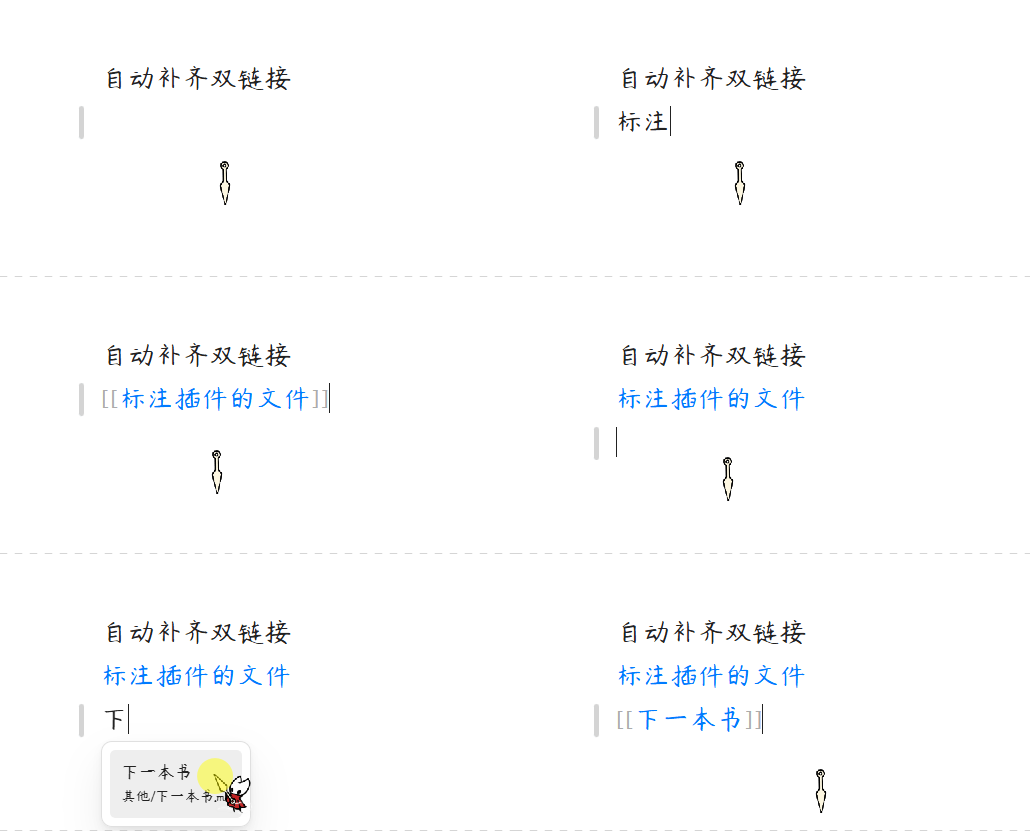
1、输入笔记名称自动补全双链
在编辑器中输入"日",自动弹出补全建议:
日记本
日常随笔
日记 - 2024
选择后自动生成 [[]] 双链语法。
2、模糊匹配发现隐性关联
开启模糊匹配后,输入"流"可关联到:
文件限流
信息流
工作流程
3、防误触开关
开启后,点击指向「指定文件夹」中文件的双链时,不再触发页面跳转,防止频繁误触。
4、智能中英文触发
| 输入 | 触发行为 |
|---|---|
日 | ✅ 立即触发(CJK 单字符) |
a | ❌ 不触发(英文需 ≥2 字符) |
ab | ✅ 触发补全 |
核心功能
1. 指定文件夹扫描 (Folder-Targeted Indexing)
- 按需建立索引:无需对整个知识库进行全局扫描,您可以自由指定一个或多个高频使用的核心文件夹(如日常随笔、人名库、项目列表等)。
- 自动去重与合并:即使指定的文件夹存在包含关系,内部的 Map 数据结构也能自动去重,确保缓存占用与检索效率处于理想状态。
2. 智能触发与防打扰机制 (Smart Trigger Rules)
- 精准词汇提取:插件会根据光标前的最后一个空格或标点符号自动切分,提取您当前输入的关键字,避免无谓的弹窗干扰。
- 双链状态识别:当检测到光标已经处于已有的双链中(如
[[...]]),补全器将自动静默,防止二次干扰。 - 中英文差异化触发:输入中文、日文等非 ASCII 字符时支持单字符触发;输入英文等 ASCII 字符时,自动过滤单字母输入,需达到 2 个字符才触发,平衡输入流畅度。
3. 多匹配模式切换 (Fuzzy & Prefix Matching)
- 前缀模式 (Prefix):默认仅检索以输入字词开头的笔记名称,适合结构清晰的规范化命名。
- 模糊模式 (Fuzzy):开启后支持任意位置的包含匹配(例如输入"流"即可关联到"文件限流"、"信息流"),帮您快速发现笔记间的隐性关联。
4. 无缝原生双链生成 (Official Path Resolution)
- 遵循用户偏好:调用 Obsidian 官方的
generateMarkdownLink接口,生成的链接格式(如:相对路径、绝对路径、最短路径)将完全契合您在 Obsidian 软件中配置的全局首选项。 - 内联图示过滤:自动识别并剔除可能因 API 默认生成的内嵌叹号(
!),保障双链的纯净呈现。
5. 守护 CPU 的性能设计 (Performance-Oriented Architecture)
- 多重防抖机制:无论是文件系统层面的"新建、重命名、删除"变动,还是您在后台输入文件夹配置的间歇,插件均内置了防抖控制器(Debounce)。合并多余计算,避免对硬盘和 CPU 造成高频读写压力。
- 列表限流展现:补全建议框单次至多渲染 10 条结果,降低频繁键入时的 UI 渲染开销。
用法
- 打开 Obsidian 设置,进入 Auto Link 自动补全双链 设置。
- 在「指定文件夹」文本框中,输入您希望启用自动补齐的文件夹路径(如
Notes、Work/Projects)。多个路径请用回车换行分隔。 - 在编辑区中输入该文件夹下笔记名称的部分字词,即可看到双链补全建议,选择后自动生成
[[]]双链语法。 - 可选:开启「模糊匹配」支持任意位置的包含匹配;开启「防误触」阻止点击双链时跳转。
赞赏支持
🎁 如果觉得有用,请作者喝杯咖啡

QQ 交流群:1094620986
English
Smart Double-Link Autocompletion — Designed for deep Chinese input experience in Obsidian
Examples
1. Type a note name to auto-complete double-links
Type "日" in the editor and get instant suggestions:
日记本
日常随笔
日记 - 2024
Select one to auto-generate [[]] link syntax.
2. Fuzzy matching discovers hidden connections
With fuzzy matching enabled, typing "流" matches:
文件限流
信息流
工作流程
3. Click Navigation Guard
When enabled, clicking a double-link pointing to files in your target folders will no longer trigger page navigation, preventing accidental jumps.
4. Smart CJK/ASCII Trigger
| Input | Behavior |
|---|---|
日 | ✅ Triggers immediately (single CJK character) |
a | ❌ Not triggered (ASCII requires ≥2 characters) |
ab | ✅ Triggers autocompletion |
Features
1. Folder-Targeted Indexing
- Selective Indexing: No need to scan the entire vault. Freely specify one or more high-frequency folders (e.g., daily notes, contacts, projects).
- Smart Deduplication: Even with overlapping folder paths, the internal Map structure auto-duplicates, keeping cache and retrieval optimal.
2. Smart Trigger & Anti-Disturb Logic
- Context-Aware Extraction: Automatically splits input based on the last space or punctuation before the cursor, extracting the current keyword without intrusive popups.
- Bracket Detection: When the cursor is already inside an existing
[[...]]link, the suggester stays silent. - CJK/ASCII Differentiation: Triggers on a single CJK character; requires at least 2 characters for ASCII input to balance fluency.
3. Fuzzy & Prefix Matching
- Prefix Mode: Default mode — only matches note names starting with your input. Ideal for structured naming conventions.
- Fuzzy Mode: Matches any note name containing your input as a substring (e.g., typing "流" matches "文件限流", "信息流").
4. Native Link Resolution
- Respects User Preferences: Uses Obsidian's official
generateMarkdownLinkAPI, so generated links follow your configured path format (relative, shortest, absolute). - Embed Cleaning: Automatically strips leading
!characters from generated links.
5. Performance-Oriented Architecture
- Double-Layer Debouncing: Debounce controls on file system events (
create/delete/rename) and settings saves, merging redundant operations. - Limited UI Render: The suggestion dropdown renders at most 10 items, reducing DOM overhead.
Usage
- Open Obsidian Settings and navigate to Auto Link Settings.
- In the "Target Folders" text box, enter the folder paths you want to enable autocompletion for (e.g.,
Notes,Work/Projects). Separate multiple paths with new lines. - While editing, type any part of a note name from those folders — a double-link suggestion will appear. Select it to auto-generate
[[]]link syntax. - Optional: Enable "Fuzzy Match" for substring matching anywhere in the name; enable "Click Guard" to prevent navigation when clicking double-links.
QQ Group:1094620986
For plugin developers
Search results and similarity scores are powered by semantic analysis of your plugin's README. If your plugin isn't appearing for searches you'd expect, try updating your README to clearly describe your plugin's purpose, features, and use cases.