Automatic List Management
approvedby omrilevigit
Automatically reorder checklists and numbered lists as you edit them.
Automatic List Management Plugin for Obsidian
This plugin automatically manages your lists in Obsidian, handling both numbered lists and checklists.
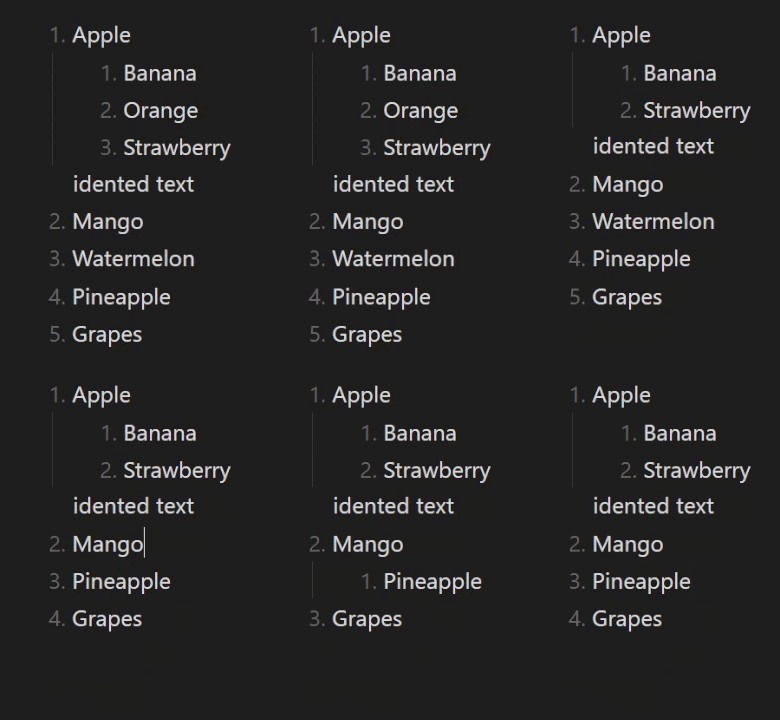
|
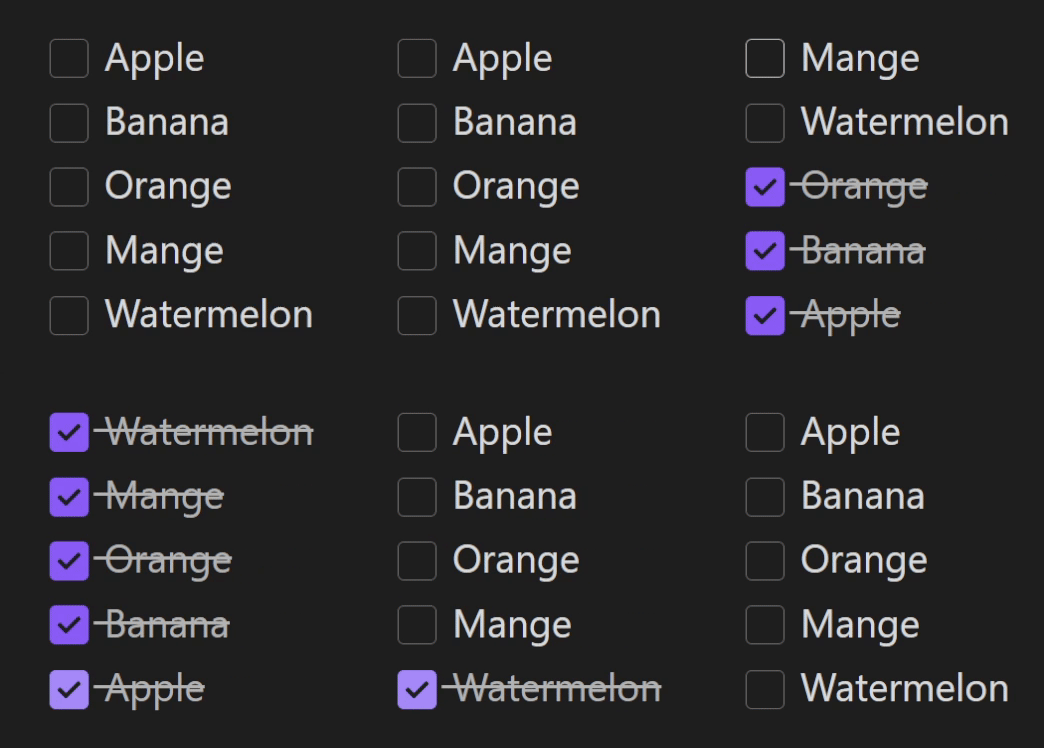
|
Features
Checklists
- Automatic reordering of checked/unchecked items
- Hierarchical reordering treats checkboxes and their indented content as unified blocks that move together
- Configurable sorting (checked items are sorted to the bottom or to the top)
- Smart handling when pasting or dragging content
- Works with mouse and keyboard interactions
Numbered Lists
- Automatic renumbering as you type
- Smart pasting that preserves list context
- Option to maintain or reset starting numbers
General
- Handles deeply nested lists
- High performance even with large documents
- Manual commands for control
Installation Steps
Step 3 is required for accurate parsing of indented lists.
- In Obsidian, go to Options → Community plugins → Browse and search for Automatic List Reordering.
- Click Install and enable the plugin.
- In the plugin settings, adjust the tab size to match your editor's settings (found under Options → Editor → Tab indent size/Indent visual width).
Configuration Options
Checklists
-
Auto-sort on changes: Sorts checklist items automatically when they are checked.
-
Hierarchical checkbox reordering: When enabled, checking a checkbox moves it along with all indented content (sub-tasks, descriptions, paragraphs) as a unified block. When disabled, checkbox lines move individually without their indented content.
-
Sorting position: Choose whether checked items should be placed at the top or bottom of the list.
-
Sort all special checkboxes: When enabled, tasks with any special checkbox characters will be sorted by ASCII. When disabled, only tasks marked for deletion will be sorted.
-
Checkbox delete characters: Specify which checkbox characters mark tasks for deletion. Tasks with these characters are always sorted below tasks with other characters, and can be removed by using the delete command.
Numbered lists
-
Auto-renumber on changes: Automatically update numbered lists as you edit without manual adjustments. Additional commands are available if you prefer to manually control which lists to renumber.
-
Smart pasting: Keeps the numbering intact when pasting content into an existing list, rather than adopting the numbering from the pasted text.
-
Start numbering from 1: When enabled, all numbered lists will be numbered starting from 1.
- Apple
- Banana
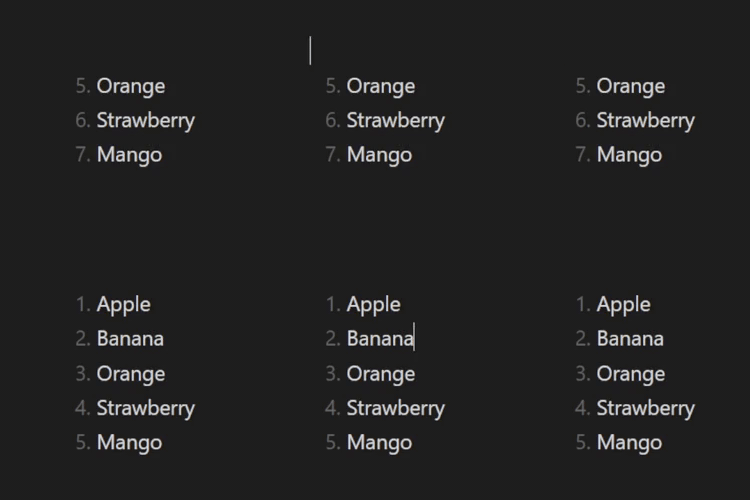
Regular pasting |
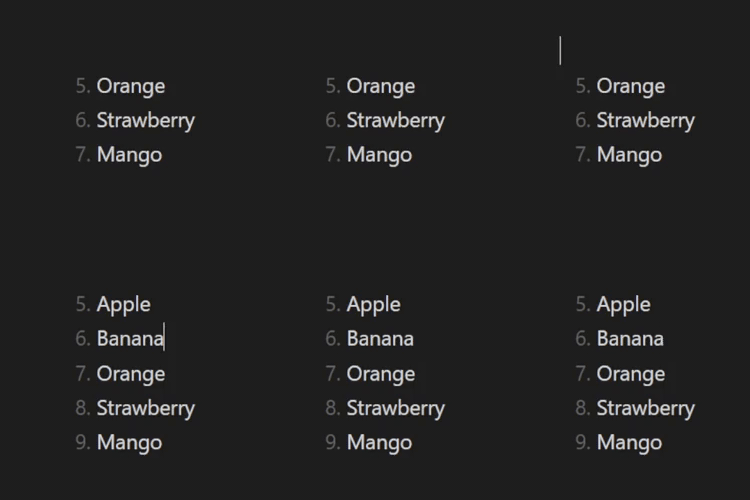
Smart pasting |
Available Commands
-
Reorder checkboxes: In selection or at cursor: Reorders checked/unchecked items within the checklist at your cursor position. If multiple checklists are selected, reorders all of them.
-
Reorder checkboxes: Entire note: Reorders all checked/unchecked items in every checklist throughout your note.
-
Delete all checked Items in note: Removes all tasks that contain the specified delete characters in their checkboxes throughout your note.
-
Renumber lists: In selection or at cursor: Renumbers the list that the cursor is within. If multiple lists are highlighted, renumbers both of them separately.
-
Renumber lists: Entire note: Renumbers every numbered list in your note.
Performance
The plugin was tested with documents containing lists with over 10,000 lines, and no performance issues were found on my machine.
Known bugs & Limitations
- Modifier keys: To avoid conflicts with keyboard shortcuts, the automatic update is temporarily disabled when modifier Keys (
Ctrl,Commandon Mac, orAlt/Option) held down during editing. - Obsidian's smart lists with numbered checkboxes: When using numbered lists with checklist items, Obsidian's default smart lists feature may cause incorrect numbering during checkbox reordering (e.g., lists starting from "2." instead of "1."). To prevent this, consider enabling the Auto-renumber on changes in plugin's settings - the two features work together without interfering with each other.
For plugin developers
Search results and similarity scores are powered by semantic analysis of your plugin's README. If your plugin isn't appearing for searches you'd expect, try updating your README to clearly describe your plugin's purpose, features, and use cases.