Blackboard
approvedby James Wolensky
Draw with native stylus and Apple Pencil directly in Canvas nodes and Markdown embeds. - This plugin has not been manually reviewed by Obsidian staff.
Blackboard
Native stylus and Apple Pencil drawing for Obsidian.
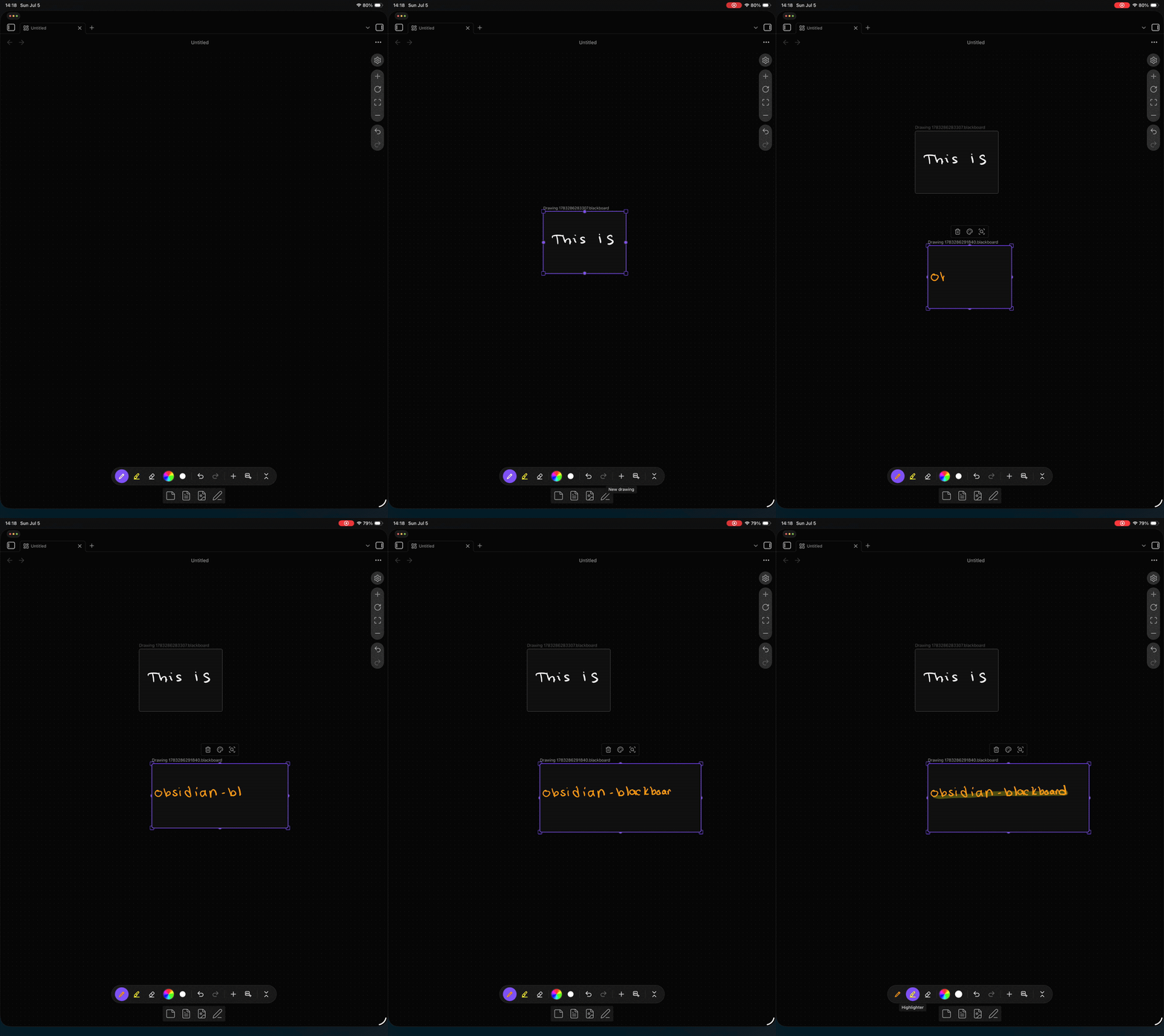
Blackboard adds a .blackboard file type with pressure-sensitive freehand drawing and palm rejection, and lets you draw directly inside Obsidian Canvas nodes and Markdown embeds — no separate editor to open first. It is built for iPad with Apple Pencil, and works on desktop with a mouse.
Features
- Pressure-sensitive drawing — Apple Pencil and stylus support with variable-width strokes via perfect-freehand.
- Draw in place — Pen-down draws immediately on a Canvas node or a Markdown embed; there is no click-to-open step.
- Palm rejection — A stylus always draws; a resting palm or finger never does. Touch is reserved for navigation (see below), so your hand can rest on the screen while you write.
- Touch navigation — In a standalone
.blackboardview, one finger pans and two fingers pinch-zoom the infinite canvas; on desktop, hold Space and drag to pan. The stylus keeps drawing throughout. - Pen, highlighter, eraser — Solid pen strokes, semi-transparent highlighter, and a stroke eraser.
- Blackboard or whiteboard — The board background is a single setting; keep it black or set it white (or any color) for a whiteboard.
- Shared floating toolbar — One toolbar follows the active drawing. Tool, color, and brush size are global across every drawing on the page; it collapses to a corner pill.
- Per-embed sizing — Each embed's display size is controlled by its host (the Canvas node's geometry, or the
|WxHsize on a Markdown embed), never baked into the file. Resizing scales the drawing without distortion; strokes are clipped to the node and never resize it. - Automatic SVG export (optional) — Export a vector
.svgalongside each drawing on save. - Plain-JSON files —
.blackboardfiles are human-readable JSON that diffs cleanly in Git.
How it compares
Blackboard focuses on fast, native pen drawing that lives inside your notes and canvases. Excalidraw is a full diagramming tool; Ink is another handwriting plugin. They're built for different things.
| Blackboard | Excalidraw | Ink | |
|---|---|---|---|
| Draw directly on a Canvas node (no open-to-edit step) | ✓ | ✗ | ✗¹ |
| Live drawing in a Markdown embed | ✓ | ✗ | ✓² |
| Strokes reliably persist on reload | ✓ | ✓ | ⚠️³ |
| Plain-text, git-diffable files | ✓ | ✗⁴ | ✗⁴ |
| Diagramming: shapes, arrows, text | ✗⁵ | ✓ | ✗ |
| Primary focus | pen drawing | diagramming | handwriting |
² Ink renders editable drawings in Markdown embeds today.
³ Ink drawings can disappear on reload — obsidian_ink#125 (open as of 0.3.4).
⁴ Excalidraw stores drawing data compressed by default; Ink stores the tldraw document model; Blackboard files are plain, human-readable JSON.
⁵ Blackboard has no diagramming tools. When a drawing is placed in an Obsidian Canvas, the Canvas itself provides cards, arrows, and text alongside it.
Need rich diagramming? Use Excalidraw — it's excellent at it.
Installation
Manual
- Download
main.js,manifest.json, andstyles.cssfrom the latest release. - Create the folder
<vault>/.obsidian/plugins/blackboard/. - Copy the three files into it.
- Enable Blackboard in Settings → Community plugins.
BRAT
- Install BRAT.
- Add Beta Plugin →
jameswolensky/obsidian-blackboard. - Enable Blackboard in Settings → Community plugins.
Usage
Create a drawing
Run Blackboard: New drawing from the command palette. This creates a .blackboard file and opens it.
The toolbar
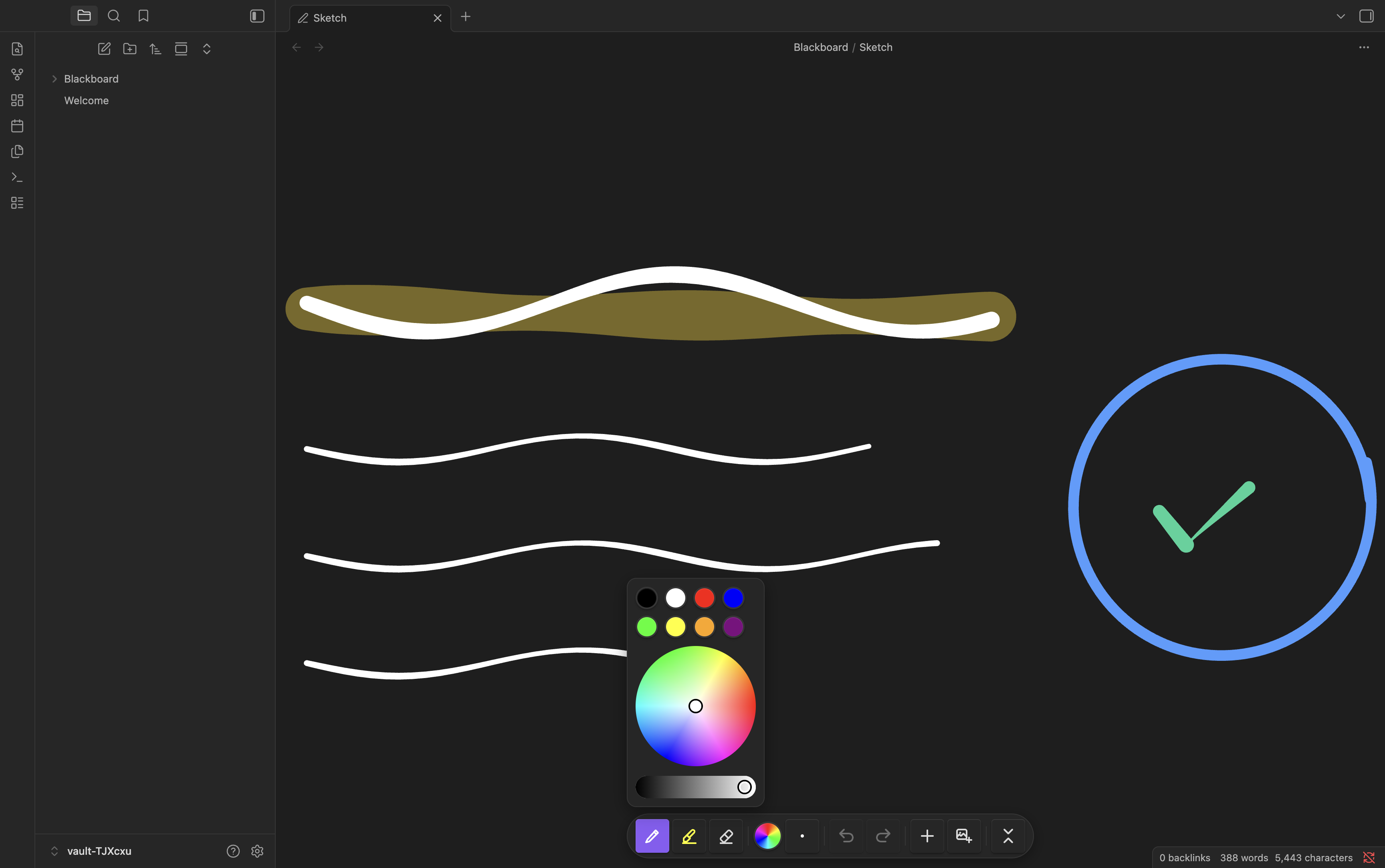
A single floating toolbar follows whichever drawing is active. It holds the pen, highlighter, and eraser; a color control (preset swatches plus a color wheel); a brush-size control; undo/redo; and a button to collapse it to a small pill. Tool, color, and size apply to every drawing on the page — pick a color once and it stays as you move between drawings and switch tools.
Embed in a Canvas
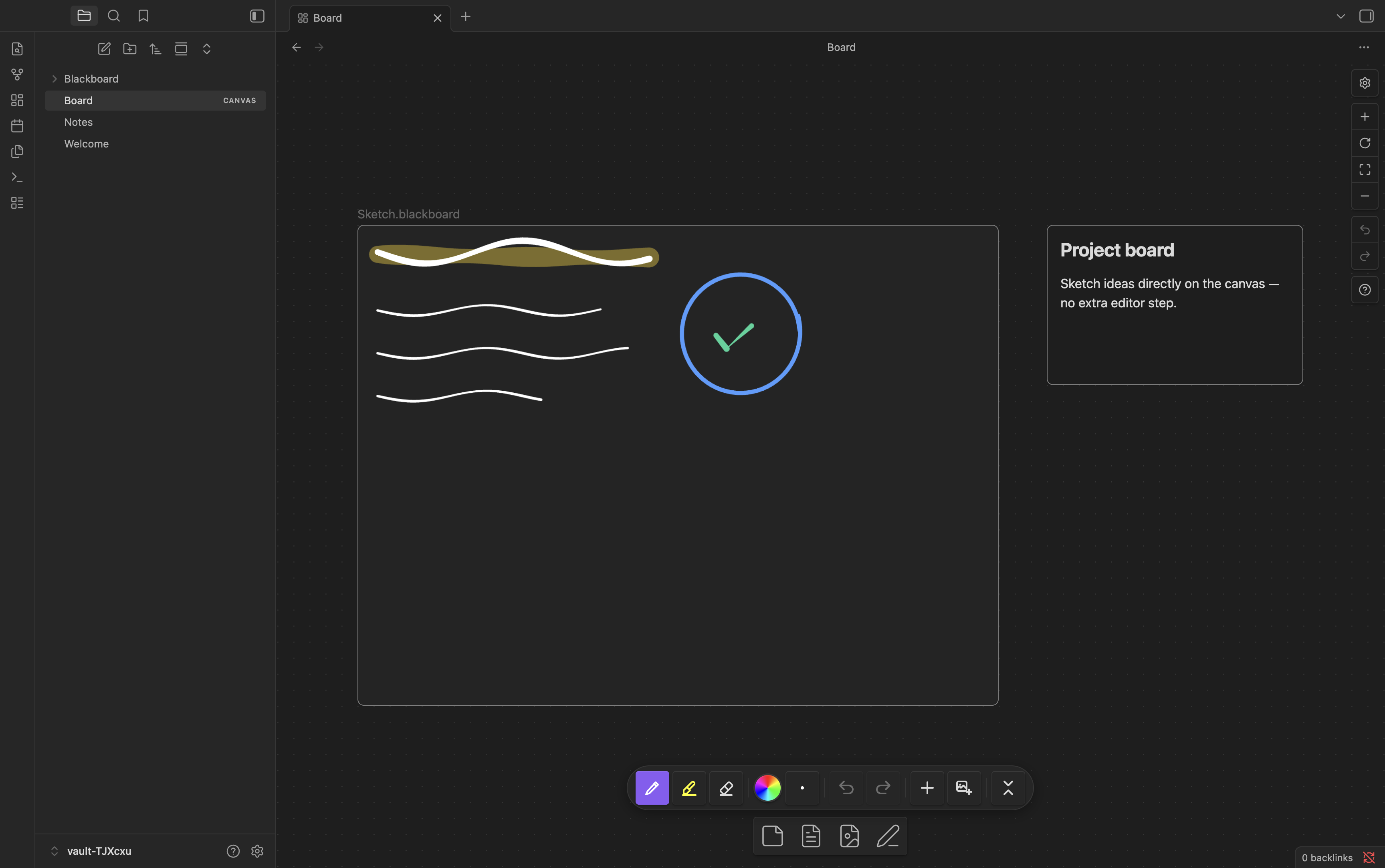
- Open an Obsidian Canvas.
- Use the Canvas card menu's drawing button, or Blackboard: Insert drawing, to add a drawing node.
- Draw on it directly with a stylus. Resize the Canvas node to scale the drawing.
Embed in a Markdown note
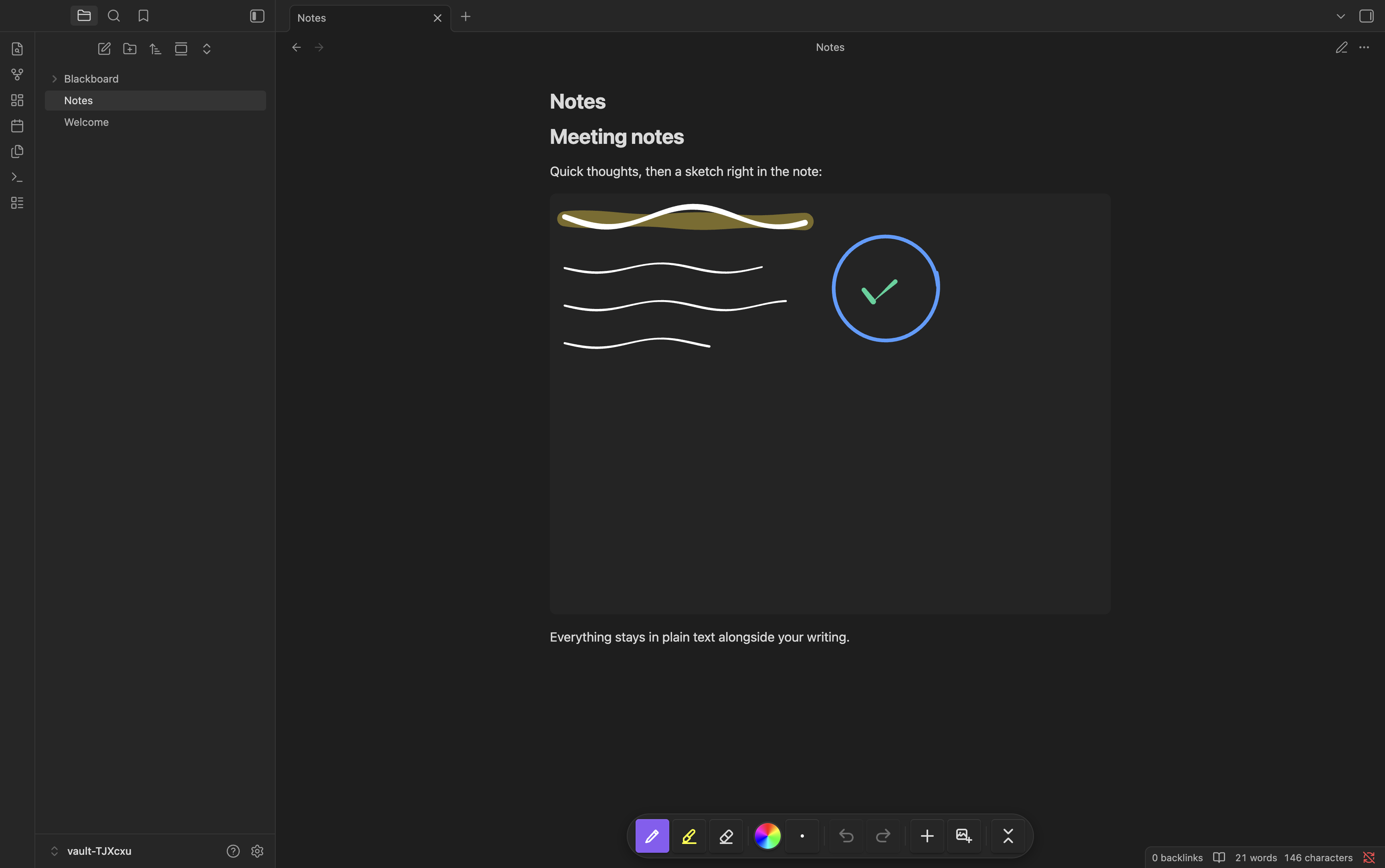
Embed a drawing like any file: ![[My Drawing.blackboard]]. Set a size with the standard Obsidian syntax, e.g. ![[My Drawing.blackboard|640x480]] or ![[My Drawing.blackboard|100%]]. You can draw on the embed directly.
Export
Enable Auto-export SVG in settings to write a .svg next to each drawing whenever it is saved (renames and deletes are kept in sync). Set SVG export path to collect exports in one folder.
Commands
| Command | Description |
|---|---|
| New drawing | Create a new .blackboard file and open it |
| Insert drawing | Create a drawing and embed it at the cursor in a note, or as a node in the active Canvas |
| Insert existing drawing | Pick an existing .blackboard file and embed it at the cursor / in the active Canvas |
Settings
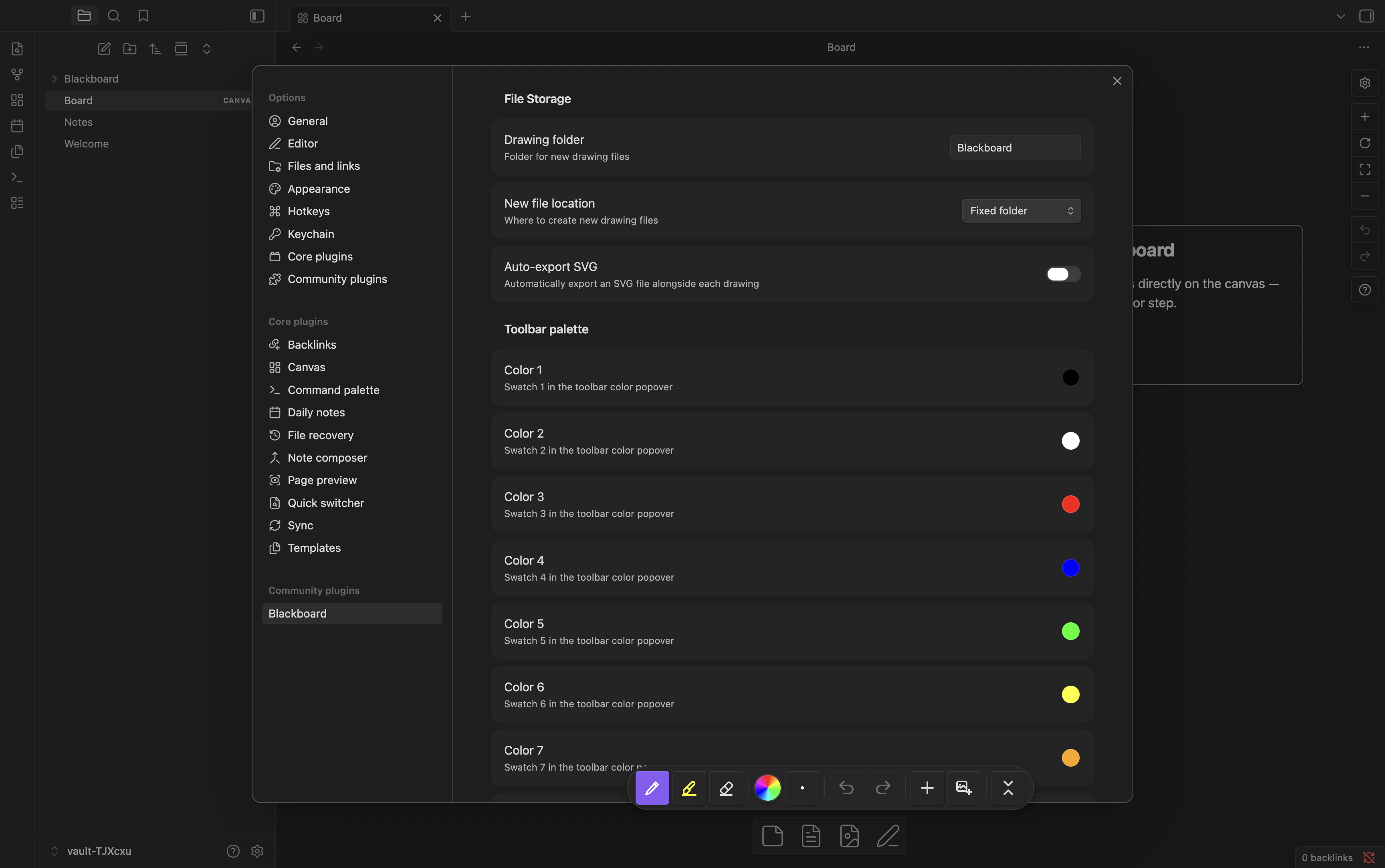
| Setting | Default | Description |
|---|---|---|
| Drawing folder | Blackboard | Folder for new drawing files |
| New file location | Fixed folder | Create new drawings in the fixed folder, or alongside the active file |
| Auto-export SVG | Off | Write an .svg alongside each drawing on save |
| SVG export path | (same folder) | Folder for exported SVGs (shown when Auto-export SVG is on) |
| Board background | #000000 | Color painted behind every drawing — set white for a whiteboard |
| Toolbar palette (Color 1–8) | see below | The eight swatches in the toolbar color popover |
| Show toolbar pill | On | Show the collapsed pen-icon pill on Canvas with no active drawing |
The default toolbar palette is #000000, #ffffff, #ff0000, #0000ff, #00ff00, #ffff00, #ffa500, #800080. Pen, highlighter, and eraser sizes and colors are chosen live from the floating toolbar; they are not separate settings.
Compatibility
| Platform | Input | Notes |
|---|---|---|
| iPad + Apple Pencil | Full pressure | Primary target |
| iPad (touch) | Navigation only | One finger pans, two-finger pinch zooms; the stylus draws |
| Android tablet + stylus | Pressure varies by device | Supported |
| Desktop (mouse) | Uniform width (no pressure) | Supported |
File format
.blackboard files are JSON:
{
  "version": 3,
  "width": 320,
  "height": 240,
  "strokes": [
    {
      "id": "abc123",
      "tool": "pen",
      "color": "#ffffff",
      "size": 2,
      "opacity": 1,
      "points": [[100, 200, 0.5], [101, 201, 0.6]],
      "hasPressure": true,
      "timestamp": 1711281600000
    }
  ],
  "background": { "color": "transparent" },
  "contentBounds": { "x": 80, "y": 180, "width": 60, "height": 50 }
}
Each stroke is an array of [x, y, pressure] points in drawing-space. width/height and contentBounds cache the strokes' bounding box for previews and are recomputed from the strokes; display size is decided by each embed, not the file. Files from earlier versions are read without loss.
Development
Requires Node.js 24 and npm.
npm install
npm run dev      # watch build
npm run build    # production build
npm test         # unit tests (Vitest)
npm run check    # typecheck + tests + build
iPad-specific rendering (Apple WebKit) can't be reproduced by the desktop/Electron test runner; verify anything iPad-specific manually in the iOS Simulator (requires Xcode). The static harnesses in test/webkit/ render the toolbar and engine in real WebKit for that.
See CONTRIBUTING.md for the contribution workflow and conventions.
Built with
- perfect-freehand (MIT) — pressure-sensitive stroke geometry
- iro.js (MPL-2.0) — the color wheel
License
MIT © James Wolensky
For plugin developers
Search results and similarity scores are powered by semantic analysis of your plugin's README. If your plugin isn't appearing for searches you'd expect, try updating your README to clearly describe your plugin's purpose, features, and use cases.