Bulk Image to File Importer
approvedby John McAnearney
Add images to a single file or create a new file for each image in bulk. - This plugin has not been manually reviewed by Obsidian staff.
Bulk mage to File Importer


What?
Allows you to bulk import images:
- As their own file without a template
- As their own file with a template
- Append images to an existing file
If an image with the same name already exists, it will not be uploaded to your vault again. It will just be referenced as expected.
Why?
Since I created this plugin to serve two specific purposes of my own, I feel that if I share those examples, it will help illustrate the use of this tool.
Example 1 - Trip write ups
When I go on trips, I like to write notes on them. I then like to add highlight photos of those trips to that note. Linking lots of pictures is quite laborious so f*ck that. This tool will add all the photos from my library to obsidian and my preferred note, all in one go.
Example 2 - Cataloging Items
I decided that I wanted to catalogue all my clothes so that I could create a digital wardrobe and create outfits using Obsidian - see my blog here on it.
Once again, uploading all these pictures, creating a note for them and adding all the metadata/frontmatter for them was extremely laborious - and I don't even own that many clothes.
Donations
If you're thinking of donating, please just donate to Obsidian. I think this is a great tool and we should support its development.
Usage
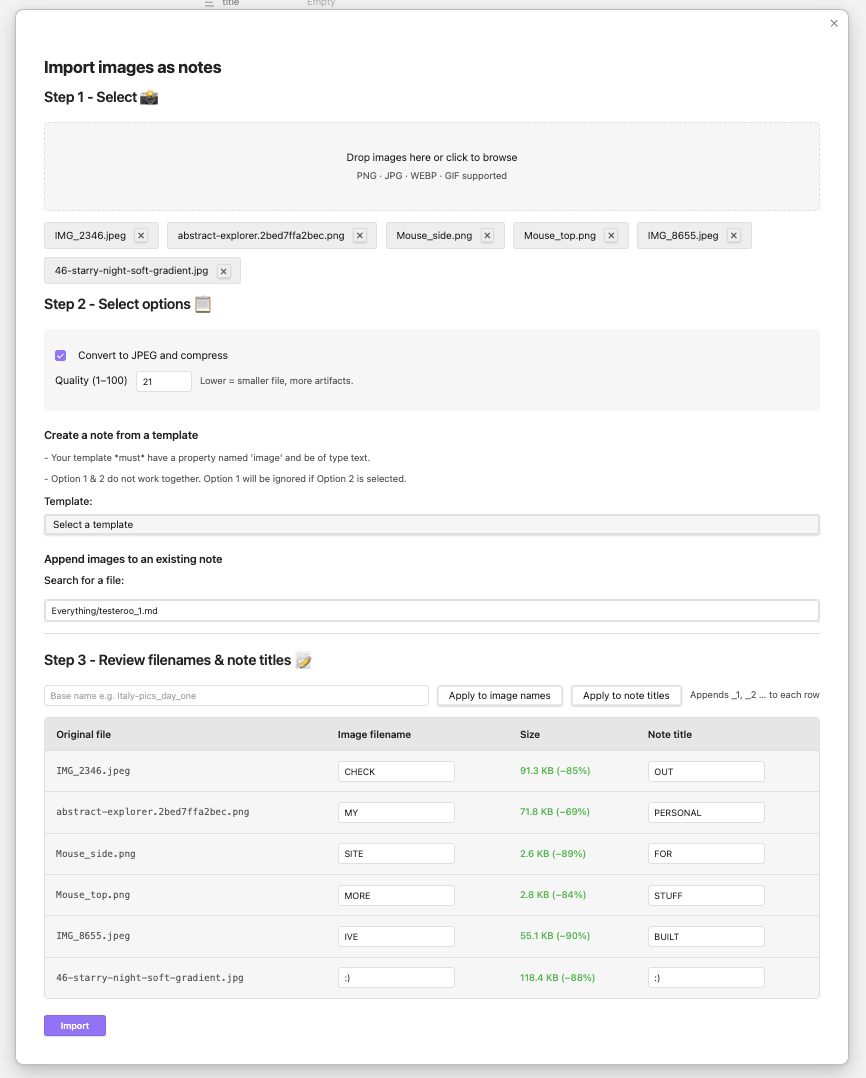
Main Application
Step 1 - Select Images
Simply drag multiple files over the grey area or click on the grey area to open the file selector and select multiple files.
You will then see all of your images. You can press the [X] button to remove them from the import
Step 2 - Select Options
Compression
Tick the box to convert the image to JPEG. This just saves space in your vault. Play about with the amount of compression before the image is unusable.
Once you change the compression value, you will see in the table at the bottom what the new file size will be.
Create note from template
Selecting a template will create the image's .md file with that template. This is useful when you are importing lots of clothes and you want them to have the same properties(frontmatter), for example.
Append Images
This option replaces the template option i.e., if you select a template and a note to add it to, the selected note's properties(frontmatter) will remain as is.
Step 3 - Review filenames
Here you can quickly change the names of all the files.
You can also use the two button on the first row to apply a common name to all of them. This will append '_1', '_2' and so on... to all the images.
E.g., italy_trip_day_2 --> italy_trip_day_2_1, italy_trip_day_2_2, italy_trip_day_2_3, italy_trip_day_2_4...
Settings
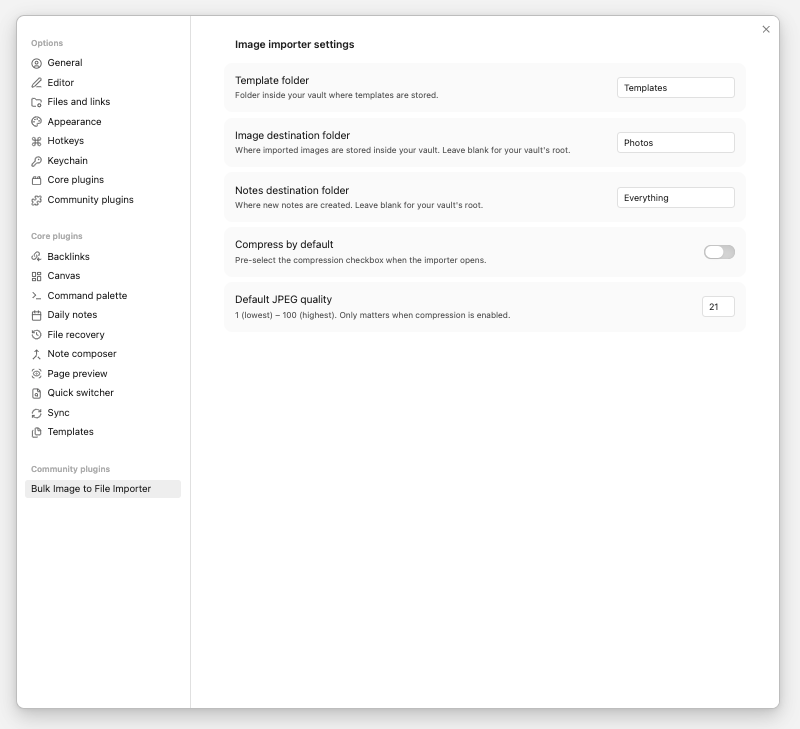
For plugin developers
Search results and similarity scores are powered by semantic analysis of your plugin's README. If your plugin isn't appearing for searches you'd expect, try updating your README to clearly describe your plugin's purpose, features, and use cases.