by theluckystrike
Save each manuscript chapter as a separate Markdown file.
Chapter Batch Export
Chapter Batch Export saves a Longform manuscript as separate Markdown chapter files. A root scene becomes a chapter. Its child scenes join that chapter in the order saved in the index. This gives a thesis author or technical writer separate input files for a later document conversion step.
The export stays inside your vault. It creates chapter notes and an index with links to the source scenes and output files. It does not run a document converter.
Features
Preview chapter files
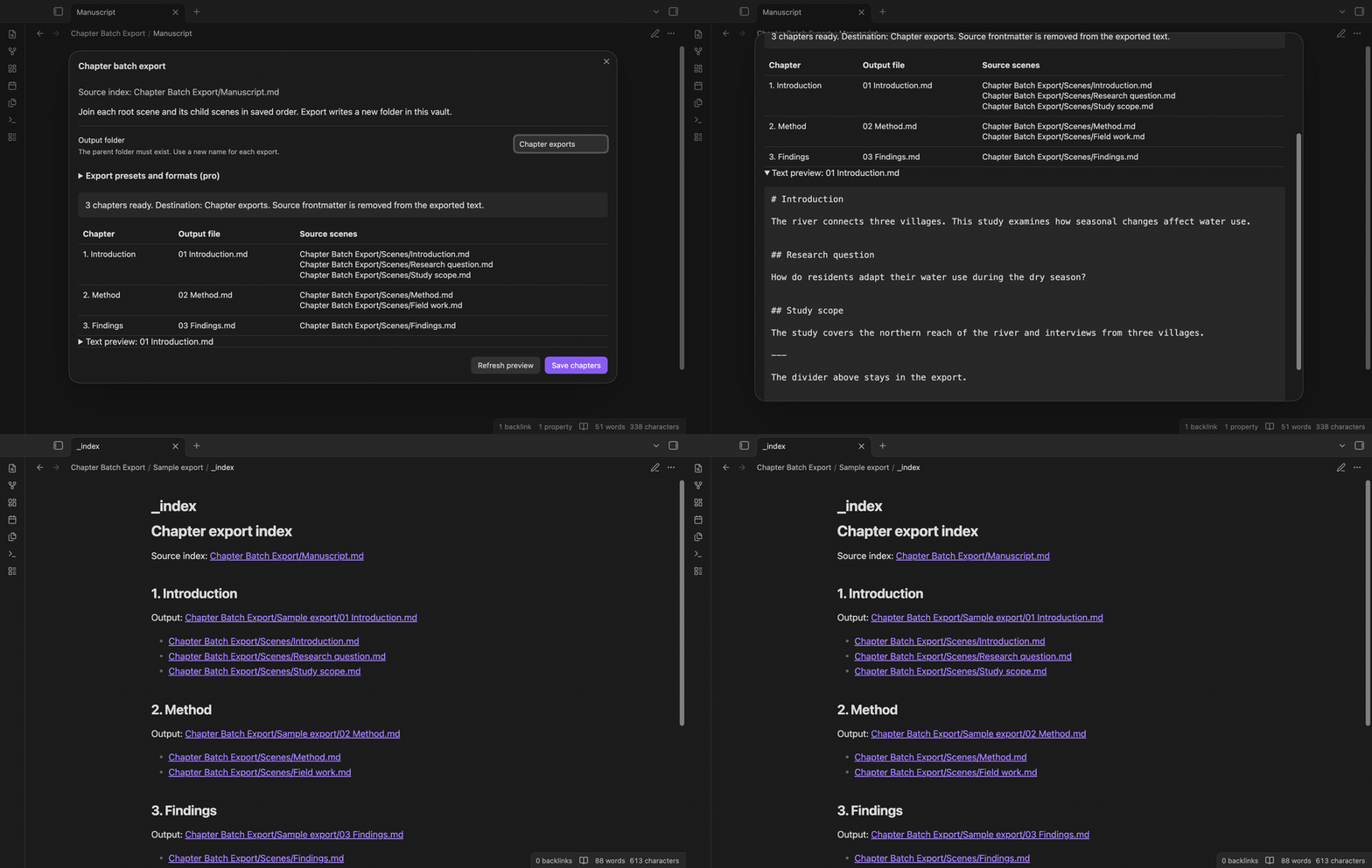
Open a Longform index and run “Preview chapter export”. The table shows the root chapter, its output filename and its source scene paths. The parent scene comes first, followed by its children. Nested scenes follow the same order. A chapter without children exports its own body.
The default filenames have a number and title, such as 01 Introduction.md. The preview shows the names that the export will use.
Join scene text
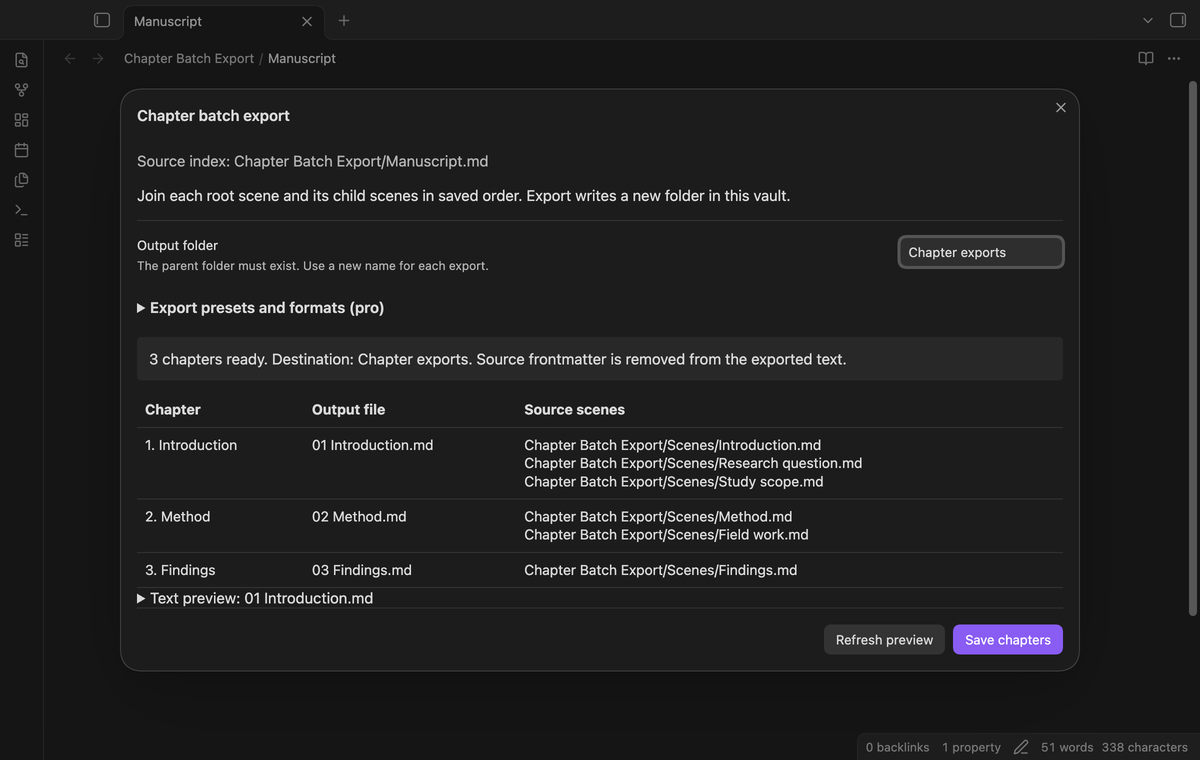
The exporter removes the initial frontmatter block from a scene. It keeps later dividers, Markdown headings, links and body text. Scene bodies are separated with blank lines. The free export adds a chapter heading above the joined text.
Expand “Text preview” to inspect the first selected chapter. This preview can help you find a scene that belongs under a different root in the manuscript index.
Check missing scenes
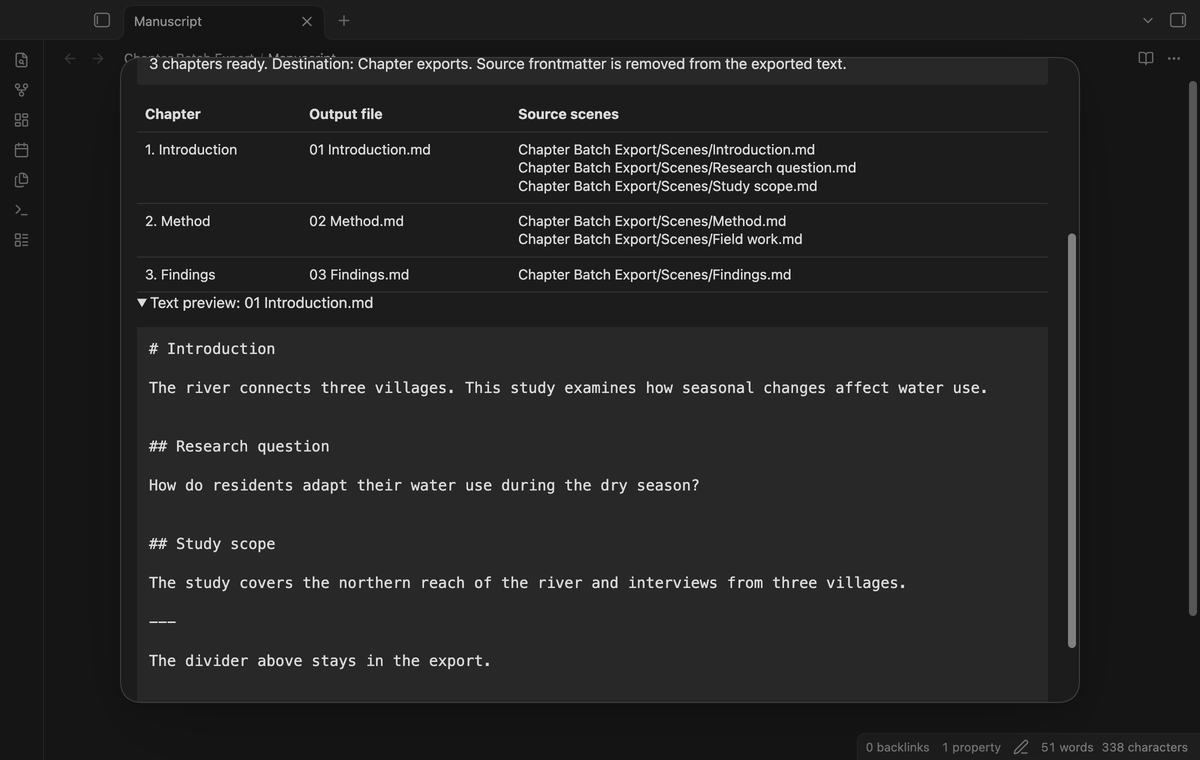
A missing scene appears with its expected vault path. “Save chapters” stays disabled when a selected chapter has a missing source. Fix the scene name or folder in your Longform project, then select “Refresh preview”.
The plugin uses exact paths. It does not search the vault for a note with a similar name. This prevents a different note from filling a missing scene by accident.
Create a linked export index
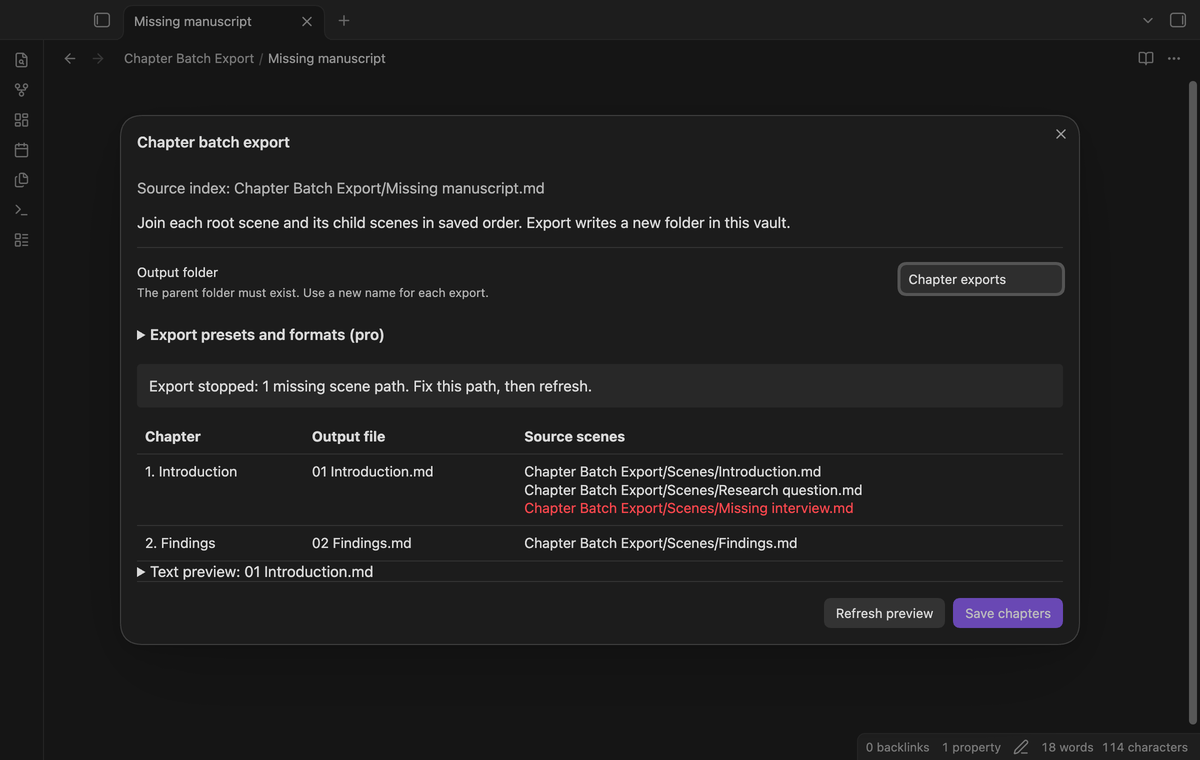
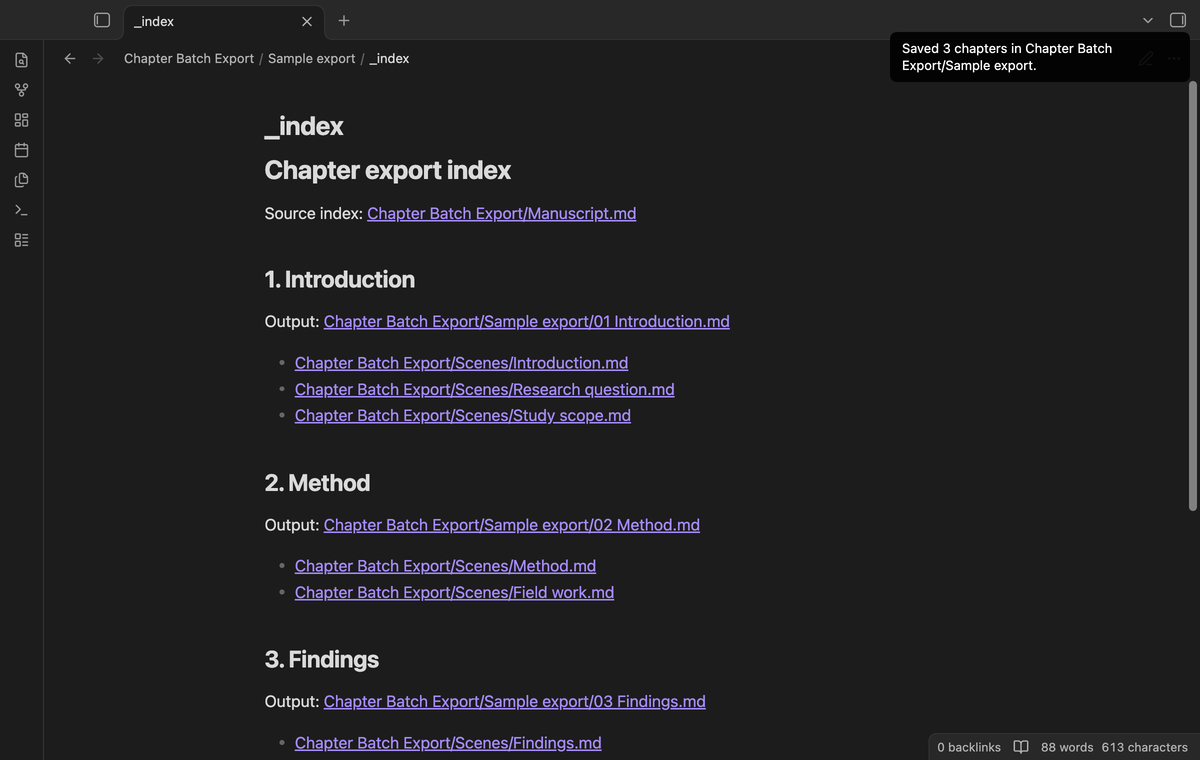
Select a new output folder and save the chapters. The exporter writes _index.md after the chapter files. This note links to the manuscript index, each exported chapter and its source scenes. Use it to trace a chapter back to the notes that formed it.
An existing output folder blocks the export. To make a second draft, use a different folder name. The source notes keep their text.
Select ranges and formats (Pro)
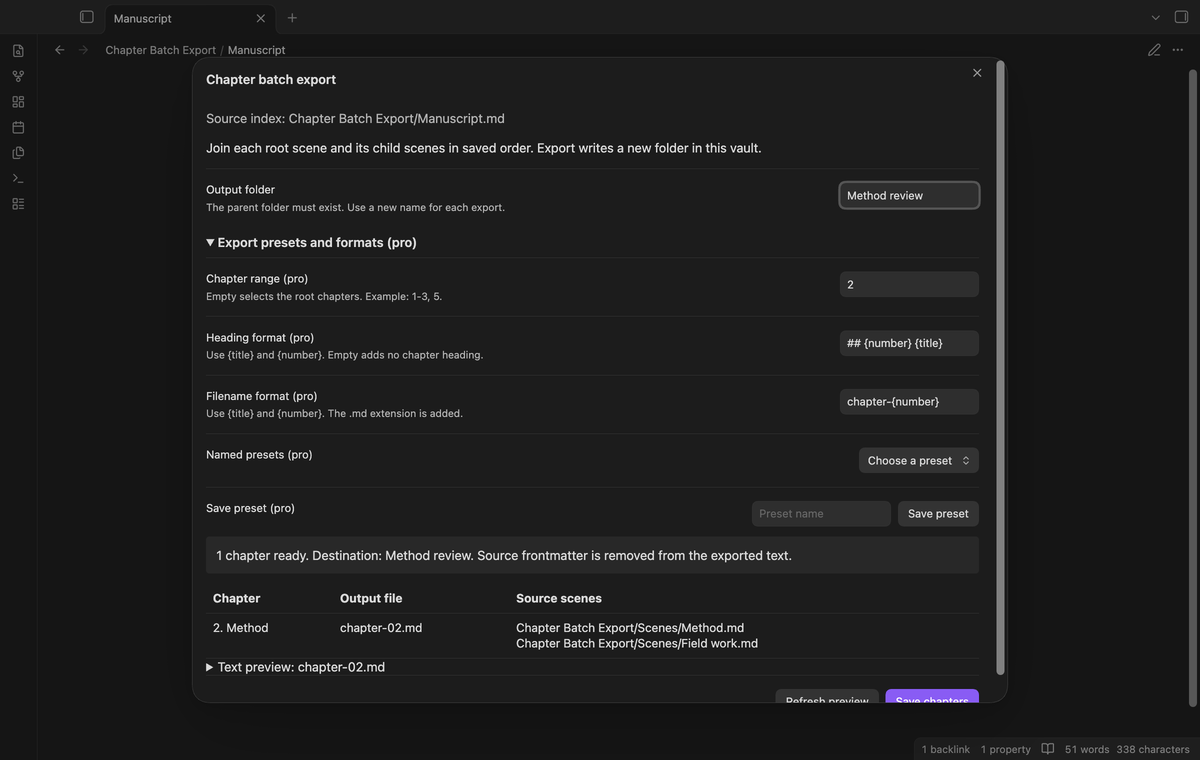
Set a root chapter range such as 1-3, 5. Numbers refer to the preview order, starting at one. The export keeps manuscript order, even if you enter numbers in a different order. An empty range selects the root chapters.
Heading and filename formats are separate. Use {title} for the root scene name and {number} for a number padded to two digits. An empty heading format adds no chapter heading. The exporter adds .md to the filename. Reserved filename characters become spaces; duplicate names receive a suffix.
Save named presets (Pro)
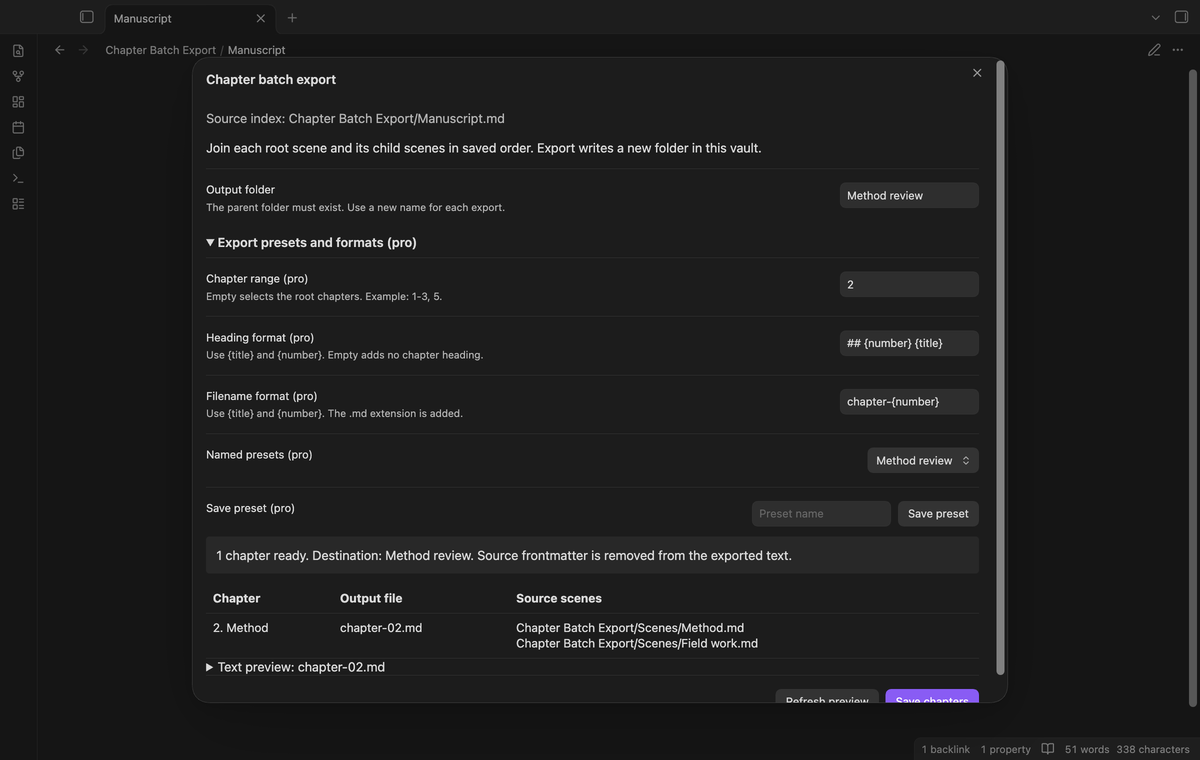
A preset stores the output folder, chapter range, heading format and filename format. Enter a name and select “Save preset”. Choose the preset from the list to load its values for the current manuscript. Saving the same name replaces that preset. Local settings hold up to 50 presets.
Presets stay saved when Pro is off. The free export uses its default formats and includes the root chapters.
Install
For manual installation, put main.js, manifest.json and styles.css in <vault>/.obsidian/plugins/chapter-batch-export/. Enable Chapter Batch Export in Community plugins. The minimum supported desktop version is Obsidian 1.13.4.
After directory publication, you can use Community plugins → Browse to search for Chapter Batch Export. Longform does not need to be enabled for this exporter to read an index in its supported format.
Usage
- Save your scene edits and open the manuscript index note.
- Open the command palette and select “Chapter Batch Export: Preview chapter export”.
- Check the output filenames, source paths and text preview.
- Set a new output folder. Its parent folder must exist.
- Select “Save chapters” and review the output index.
The index must have initial YAML frontmatter with longform.format: scenes, a sceneFolder string and a nonempty scenes array. Child arrays belong to the preceding scene string. Scene names omit .md, as in Longform. The scene folder is relative to the index folder. A slash means the project folder.
The exporter reads selected sources again before writing. If the preview plan changed, it asks for a new preview. Refresh after a source edit or a change to the export options.
Settings
The settings tab holds the default output folder and GitHub Sponsors controls. The export dialog has a separate foldout for Pro options. Free preview and full chapter export need no account.
Output folders are vault paths. Use a visible new folder with an existing parent. Parent path steps such as .. are refused. Pro formats accept a single line and the two supported tokens. Unknown tokens and out of range chapter numbers stop the preview.
FAQ
What is outside this version?
This version does not export PDF, DOCX or LaTeX. It does not run Pandoc or Longform compile workflows, templates or custom scripts. Single-scene projects are not supported. Trees above 64 levels or 10,000 entries are refused.
What happens if a write fails?
The error names the incomplete output folder. Files already created remain there for review. The exporter writes the index last. Use a new folder when you retry. Vault writes are separate operations, so the export is not a filesystem transaction. Avoid editing scenes during the write.
What did the tests not cover?
Phone and tablet use, Windows, a Linux desktop run, large manuscript performance, third party themes, external document conversion and simultaneous sync writes were not tested. Pro app tests and screenshots use a local test sponsorship response. A live payment and browser device sign in were not tested for this product.
Payment, account and network
The core features are free. Pro features need a GitHub Sponsors sponsorship of theluckystrike: $5 a month or more, or $15 once. A total payment of $15 meets the payment requirement for Pro without further payment. Sign-in and the checks below still apply. Your notes stay readable and editable with or without Pro.
GitHub handles the payment. Sponsor at https://github.com/sponsors/theluckystrike. You need no account for the free features. Pro needs the GitHub account that sponsors.
Until you select "Sign in with GitHub" in the settings, Chapter Batch Export makes no network requests. Sign in uses the GitHub device flow. Chapter Batch Export sends its public client ID and the scope read:user to https://github.com/login/device/code and shows you a code. While you enter the code at https://github.com/login/device, it asks https://github.com/login/oauth/access_token every few seconds to check the sign-in status. The scope permits profile reads only. GitHub needs this access to show the sponsorship tier. It grants no repository scope and no write access.
After sign in, Chapter Batch Export sends one query to https://api.github.com/graphql. It checks if the signed-in account sponsors theluckystrike. It asks for the tier and the total payment to theluckystrike. The plugin reuses a successful check for 7 days. Failed checks can retry after 6 hours. Select Refresh to request an earlier check. It sends no note content, file names or other vault data, and it has no telemetry.
After a successful check, Pro can work offline for up to 14 days. Sign out or a negative sponsorship answer turns Pro off. The plugin stores the GitHub token through the secret storage API of Obsidian. It does not put the token in its saved settings or its local sponsorship data. The local storage of this device keeps your GitHub login, the tier and the time of the last check. Sign out clears the token. You can also revoke the access in your GitHub settings, under Applications.
Support
Report a bug through this repository's issues page after publication. Include the app version, the error text and a small index with sample scene notes. Remove private manuscript text from the sample. A missing path report should include the scene folder and the scene name in the index. The publisher is theluckystrike at notemods.com.
For plugin developers
Search results and similarity scores are powered by semantic analysis of your plugin's README. If your plugin isn't appearing for searches you'd expect, try updating your README to clearly describe your plugin's purpose, features, and use cases.