CMDS Eagle
approvedby Yohan Koo
Connect Eagle asset libraries to your vault. Search and embed assets in notes, import files into a chosen library and folder, and upload images to cloud storage (ImgHippo, R2, S3, WebDAV). - This plugin has not been manually reviewed by Obsidian staff.


CMDS Eagle
Bring Eagle assets into your notes, with an explicit choice between local originals, portable previews, and cloud URLs.
Version 1.8.4 | Available in Community Plugins.
Obsidian 1.6.6+ | Desktop only.
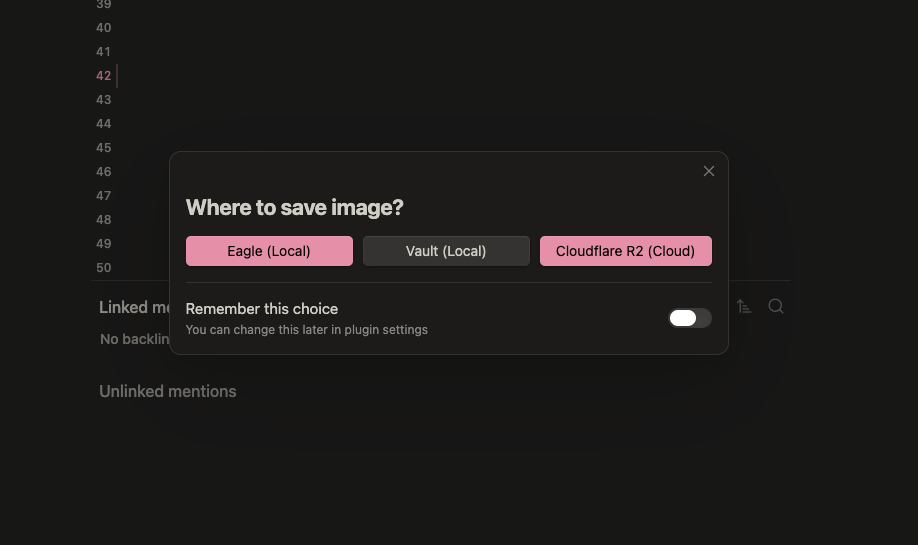 Choose where an image is stored. Earlier UI shown; current labels may differ.
What it does
- Search the open Eagle library and embed an image with its metadata.
- Import pasted/dropped images into a chosen Eagle library and folder.
- Choose six link modes independently of the image storage destination.
- Upload through configured cloud providers or map original-file paths across desktops.
Install and first use
Community: Settings → Community plugins → Browse → CMDS Eagle → Install → Enable.
Manual: Download main.js, manifest.json, and styles.css from release 1.8.4, place them in <vault>/.obsidian/plugins/cmds-eagle/, reload Obsidian, and enable. Back up existing settings; do not copy another user’s data.json.
Open Eagle, test the connection in settings, choose photo-info for a portable preview, then run Search Eagle library and embed in a sample note.
Read the manual
Privacy and limits
Eagle is a separately licensed desktop application. Local search needs no cloud account. Cloud uploads disclose image bytes to your provider. Migration commands can rewrite other notes and trash vault originals: back up first.
Development
npm install
npm run build
Build the plugin assets for local development. Preserved release history is in the manual.
Credits and license
Yohan Koo (CMDSPACE), https://cmdspace.work. MIT, LICENSE.
For plugin developers
Search results and similarity scores are powered by semantic analysis of your plugin's README. If your plugin isn't appearing for searches you'd expect, try updating your README to clearly describe your plugin's purpose, features, and use cases.