Co-Intelligence AI
approvedby epistemic-technology
A full AI chat experience with models from OpenAI, Anthropic, Google, and Perplexity. - This plugin has not been manually reviewed by Obsidian staff.
Co-Intelligence AI for Obsidian
Chat, search, and research with AI models in Obsidian:
- Full chat interface in main Obsidian window
- Chats saved to vault as Obsidian markdown
- Add notes and tags to chats as context
- Use models from OpenAI, Anthropic, Google, and Perplexity
- Easily switch between models during chats
- Automatically rename chats
- Define custom system prompts and switch between them
Demo
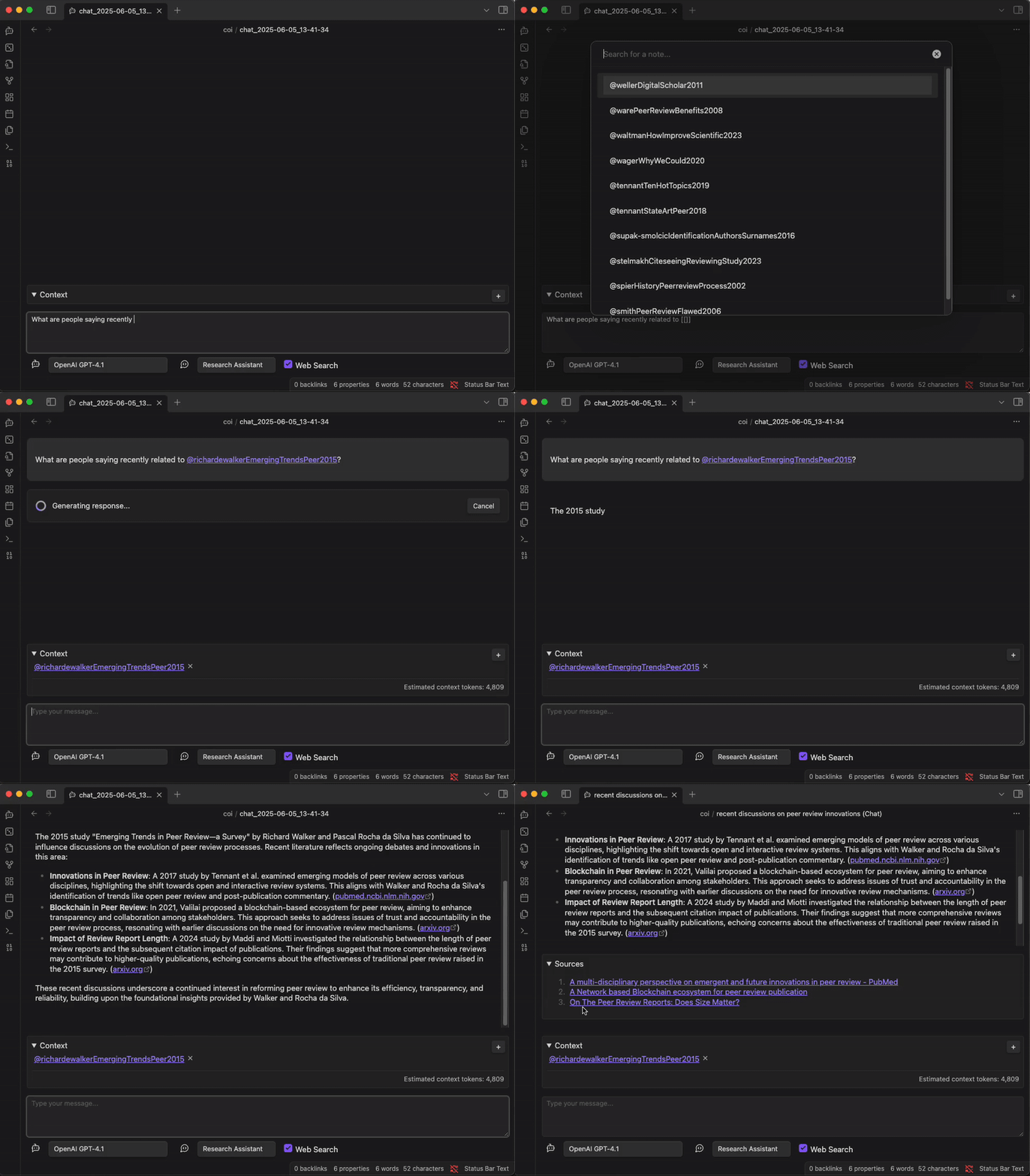
Getting Started
To use Co-Intelligence AI, you will need an API key from OpenAI, Anthropic, Google, or Perplexity.
Most models require a paid account. Some providers (notably Google's smaller Gemini Flash models) offer limited free-tier access, but free-tier availability and rate limits change frequently — check your provider's current pricing for details. Anthropic and Perplexity require a paid account to use their APIs.
Settings
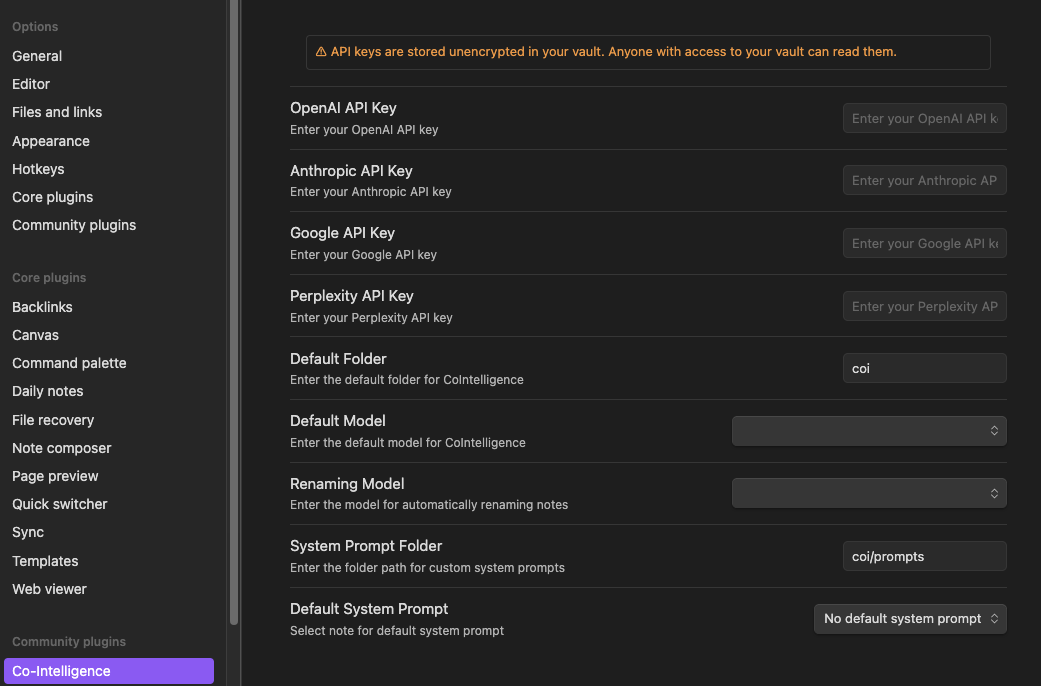
At least one API key is required to use Co-Intelligence AI. Other settings are optional:
- Default Folder: This is where chats are saved in your vault.
- Default Model: The model that will be selected by default when starting a new conversation.
- Renaming Model: The model that will be used to automatically rename chats. Generally you should use a smaller model like GPT-5.4 Nano in order to save tokens.
- System Prompt Folder: The folder where custom system prompts are stored.
- Default System Prompt: The system prompt that will be used by default when starting a new conversation.
Usage
To start a new chat, click the "New COI Chat" button in the ribbon or invoke the "Co-Intelligence: New Chat" command.
To add notes or tags as context, click the + button in the Context panel, or type [[ to begin inserting a note or # to begin inserting a tag. Notes and tags added to the context are sent to the model along with your messages. Model providers generally charge based on the total amount of input context supplied with requests, so an estimated number
of context tokens is given in the context panel.
For each message, you can select from available models to generate a response. It can be useful to switch between models during a chat. For example, it might make sense to use a reasoning model like Perplexity's Sonar Reasoning Pro or a frontier model like Claude Opus 4.7 for an initial request and a less intensive model such as GPT-5.4 Mini or Gemini 3 Flash for follow-up questions.
You can also select from available system prompts for each message. System prompts are used to guide how a model should respond to your messages. For example, you might want to use a system prompt that encourages the model to be more creative or to provide more detailed explanations. You might want to have a set of "personas" or "roles" that you can switch between during a conversation, such as a friendly assistant or professional critic. If you do not provide a system prompt, the model will be instructed to be a helpful assistant.
Some models can be directed to search the web for context in order to give more accurate and up-to-date responses. For these models, a "Web Search" checkbox is provided in the input options panel.
If responses include links, either as part of the text or as a separate stream, they will be added to the sources panel. For Perplexity models, sources are referenced by numbers (eg. [1], [2], [3], etc.). Numbered sources in the sources panel should correspond to their numbered references in the text.
Available Models
We have tried to provide a good range of models that have been tested with the application while trying to prevent the options from being overwhelming.
Currently, the following models are available:
| Provider | Model | Web Search? |
|---|---|---|
| OpenAI | GPT-5.5 | Toggle |
| OpenAI | GPT-5.4 | Toggle |
| OpenAI | GPT-5.4 Mini | Toggle |
| OpenAI | GPT-5.4 Nano | Toggle |
| Anthropic | Claude Opus 4.7 | No |
| Anthropic | Claude Sonnet 4.6 | No |
| Anthropic | Claude Haiku 4.5 | No |
| Gemini 3.1 Pro Preview | Toggle | |
| Gemini 3 Flash Preview | Toggle | |
| Gemini 3.1 Flash Lite | Toggle | |
| Perplexity | Sonar | Yes |
| Perplexity | Sonar Pro | Yes |
| Perplexity | Sonar Reasoning Pro | Yes |
| Perplexity | Sonar Deep Research | Yes |
Co-Intelligence AI is built using the AI SDK, and ultimately our ability to interface with models is dependent on the models supported by it.
Markdown View
Chats are saved to the Obsidian vault as markdown files. You can view and edit them directly by switching to Markdown View. You can switch to Markdown View by selecting "View as Markdown" from the dropdown menu in the top right corner of the chat window, or by using the "Toggle Chat View" command.
Co-Intelligence AI notes are regular markdown files and can be edited directly. However, please be aware of the following features necessary for Co-Intelligence AI Chat notes:
- Frontmatter:
is-coi-chat- This field is necessary for COI-AI to recognize a note as a Chat note.coi-chat-view- This field tells the application whether to display the note as a Chat or as Markdown.note-renamed- This field is checked when a note is manually renamed, so that it will no longer be automatically renamed by the application. If this is unchecked, it will be automatically renamed the next time a chat request is made, as long as there is a renaming model selected.linked-notes- This field contains a list of notes that are included in the context when chat requests are made.linked-tags- This field contains a list of tags taht are included in the context when chat requests are made.
- Note Body:
<!-- CHAT-THREAD-START -->and<!-- CHAT-THREAD-END -->- These tags tell the application where to begin parsing the chat thread. Anything outside of these tags will be ignored.user:andassistant:headings - These headings tell the application where user and assistant messages begin. They should not be edited if you want to be able to continue the chat.Sources- The application looks for the Sources section to parse the sources panel. If this heading is not present no sources will appear in the sources panel.
Also note that the application automatically shifts Markdown heading levels so that second-level headings (##) are the top level headings for messages. The display of messages could be corrupted if heading levels are changed.
Support
Obsidian Co-Intelligence is produced by Epistemic Technology.
I am an idependent software developer. If you find Co-Intelligence to be useful, please consider supporting my work.

Development
Setup
npm install
npm run dev      # Watch mode — rebuilds on file changes
npm run build    # Production build (also validates TypeScript types)
npm test         # Run tests with Vitest
Manual Testing
A test vault is included at test-vault/ so you can test the plugin in Obsidian without affecting your personal vault. To build and open it:
./scripts/open-test-vault.sh
The first time you open the vault, you'll need to enable community plugins in Settings > Community plugins. After that, the Co-Intelligence AI plugin will be pre-enabled.
The script symlinks the build output (dist/) into the test vault's plugin directory, so rebuilds are picked up automatically. For a live development workflow:
- Run
npm run devin one terminal - Run
./scripts/open-test-vault.shto open the vault - After changes rebuild, reload Obsidian (Cmd/Ctrl+P > "Reload app without saving")
The test vault includes sample folders and system prompts for exercising plugin features.
Contributing, Feedback, and Help
This is an open source project, using the MIT License. Pull requests for bug fixes or small improvements are welcome. If you want to get involved in a more substantial way, please Contact me.
To report a bug, request a feature, provide feedback, or ask for help, please open an issue.
The GitHub logo used in the settings panel is courtesy of GitHub. It was adapted from the logo used in the Obsidian Excalidraw Plugin. The Excalidraw plugin was also an important source of inspiration and design patterns for implementing the custom chat view.
For plugin developers
Search results and similarity scores are powered by semantic analysis of your plugin's README. If your plugin isn't appearing for searches you'd expect, try updating your README to clearly describe your plugin's purpose, features, and use cases.