Collapsible Code Blocks
approvedby bwya77
Makes code blocks collapsible in preview mode as well as enabling scroll-able code blocks.
Collapsible Code Blocks

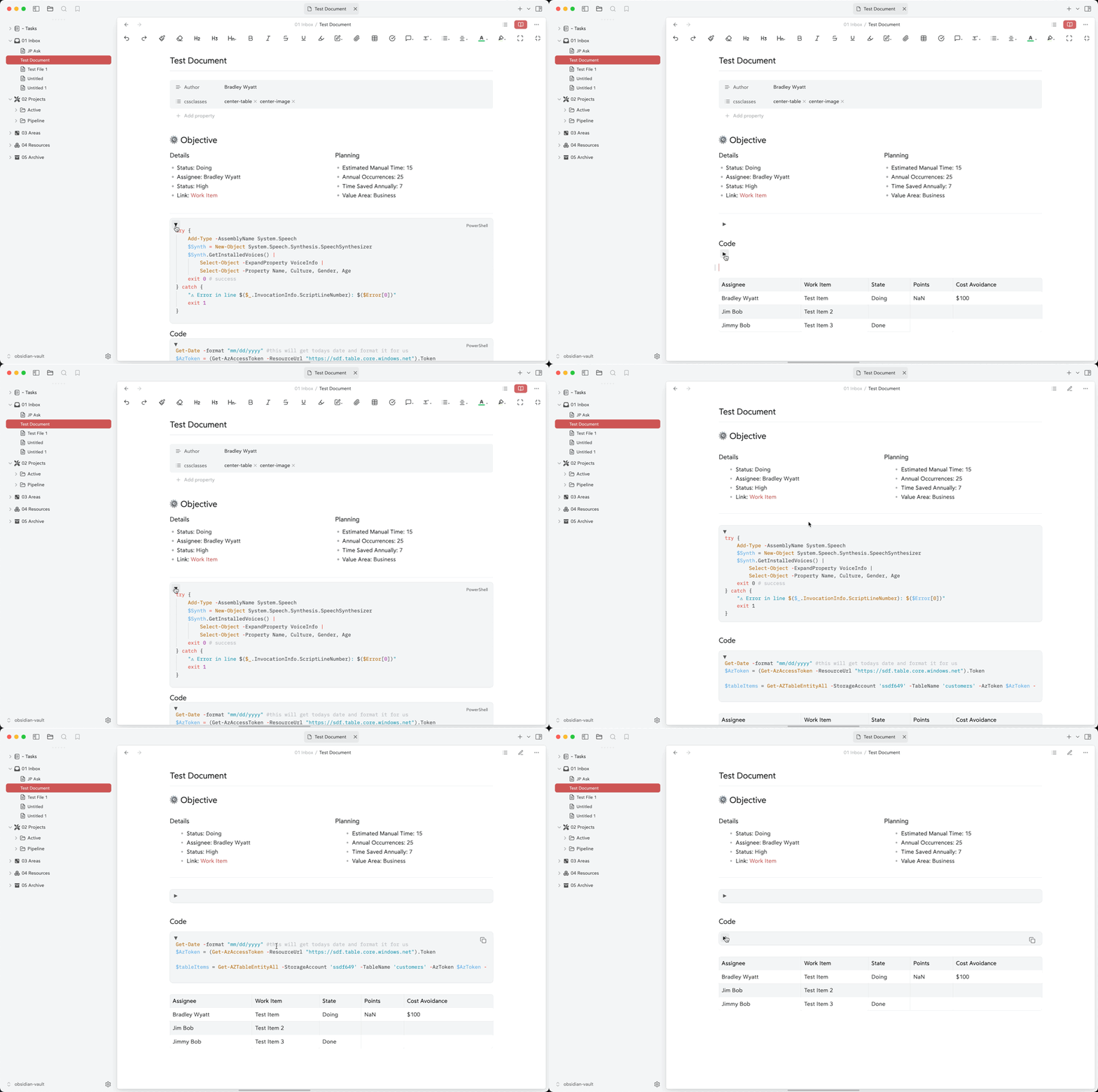
Make code blocks collapsible in preview mode with customizable collapse/expand behavior and horizontal scrolling options. This plugin enhances the readability of your notes by allowing you to collapse long code blocks when you don't need to see their full content.
Features
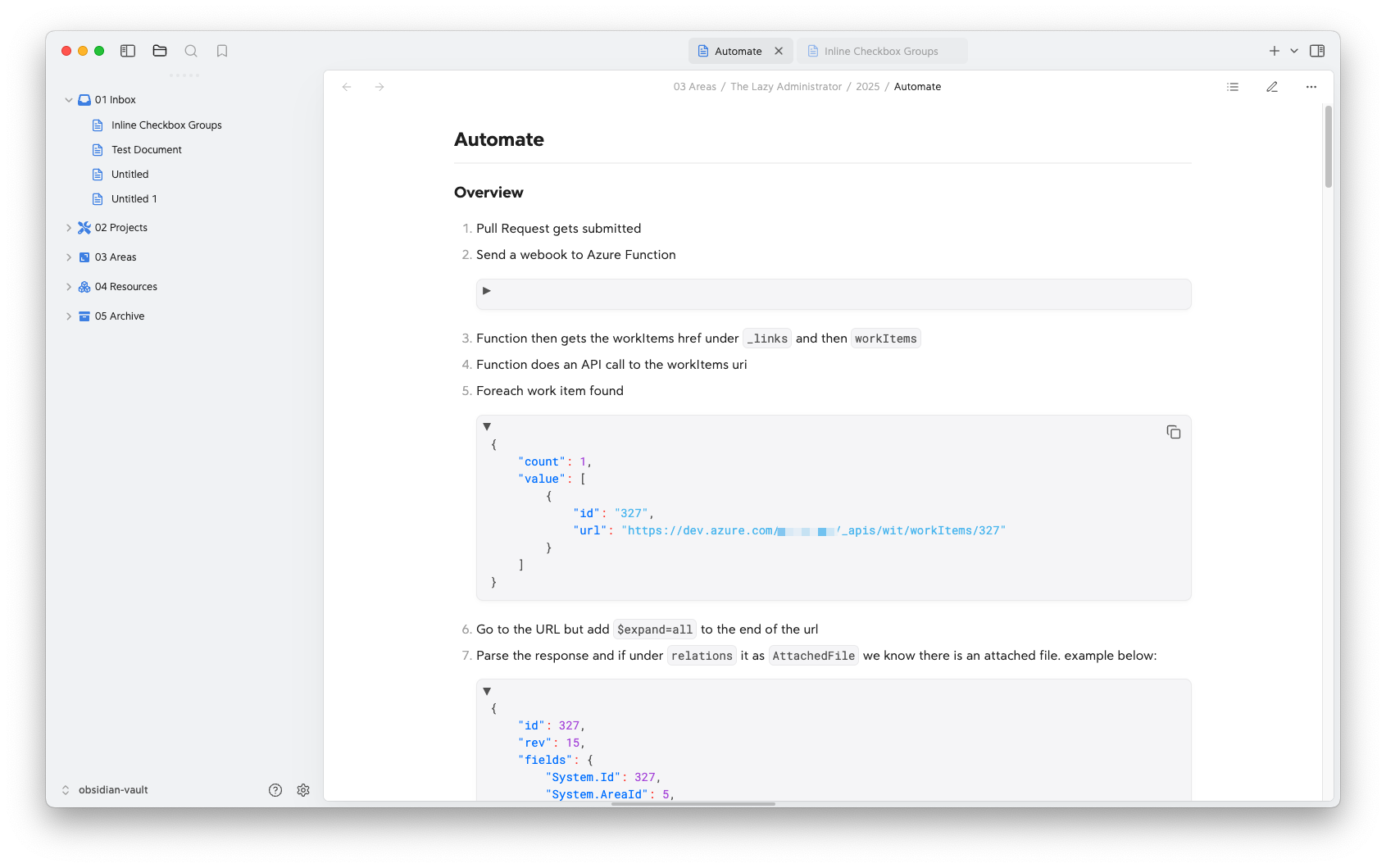
- Toggle code blocks between collapsed and expanded states
- Customizable collapse/expand icons
- Optional horizontal scrolling for code blocks
- Configure number of visible lines when collapsed
- Default collapse state setting
- Control if a code block should be expanded or collapsed on a per-note basis by setting code-blocks to
collapsedorexpandedin the frontmatter - Smooth animations for collapse/expand transitions
- Maintains proper layout with surrounding content
Installation
- Open Obsidian Settings
- Navigate to Community Plugins and disable Safe Mode
- Click Browse and search for "Collapsible Code Blocks"
- Install the plugin
- Enable the plugin in your Community Plugins list
Usage
Once installed, code blocks in preview mode will automatically have a toggle button in their top-left corner. You can:
- Click the toggle button to collapse/expand the code block
- Use the keyboard (Enter or Space) when the toggle button is focused
- Configure default behavior in plugin settings
Code Block Interaction
- Click the toggle button (▼/▶) to collapse or expand the code block
- When collapsed, only the specified number of lines will be visible
- Horizontal scrolling can be enabled/disabled globally
- Code blocks maintain their collapsed/expanded state when switching between notes
Settings
The plugin offers several customization options:
- Default Collapsed State: Choose whether code blocks should start collapsed
- Collapse/Expand Icons: Customize the icons shown for collapse/expand states
- Horizontal Scrolling: Toggle horizontal scrolling for code blocks
- Collapsed Lines: Set how many lines remain visible when collapsed
- Frontmatter Setting: Set the frontmatter key to control the default state of code blocks
Frontmatter Setting
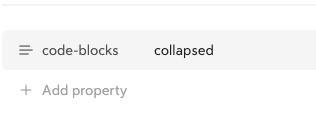
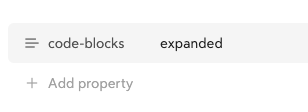
Set a note to always have code blocks expanded or collapsed by default by adding the following to the note's frontmatter (note: this will override the global default setting):
Collapsed
code-blocks: collapsed
Expanded
code-blocks: expanded
Examples
Here's how a code block appears with the plugin enabled and the code block expanded:
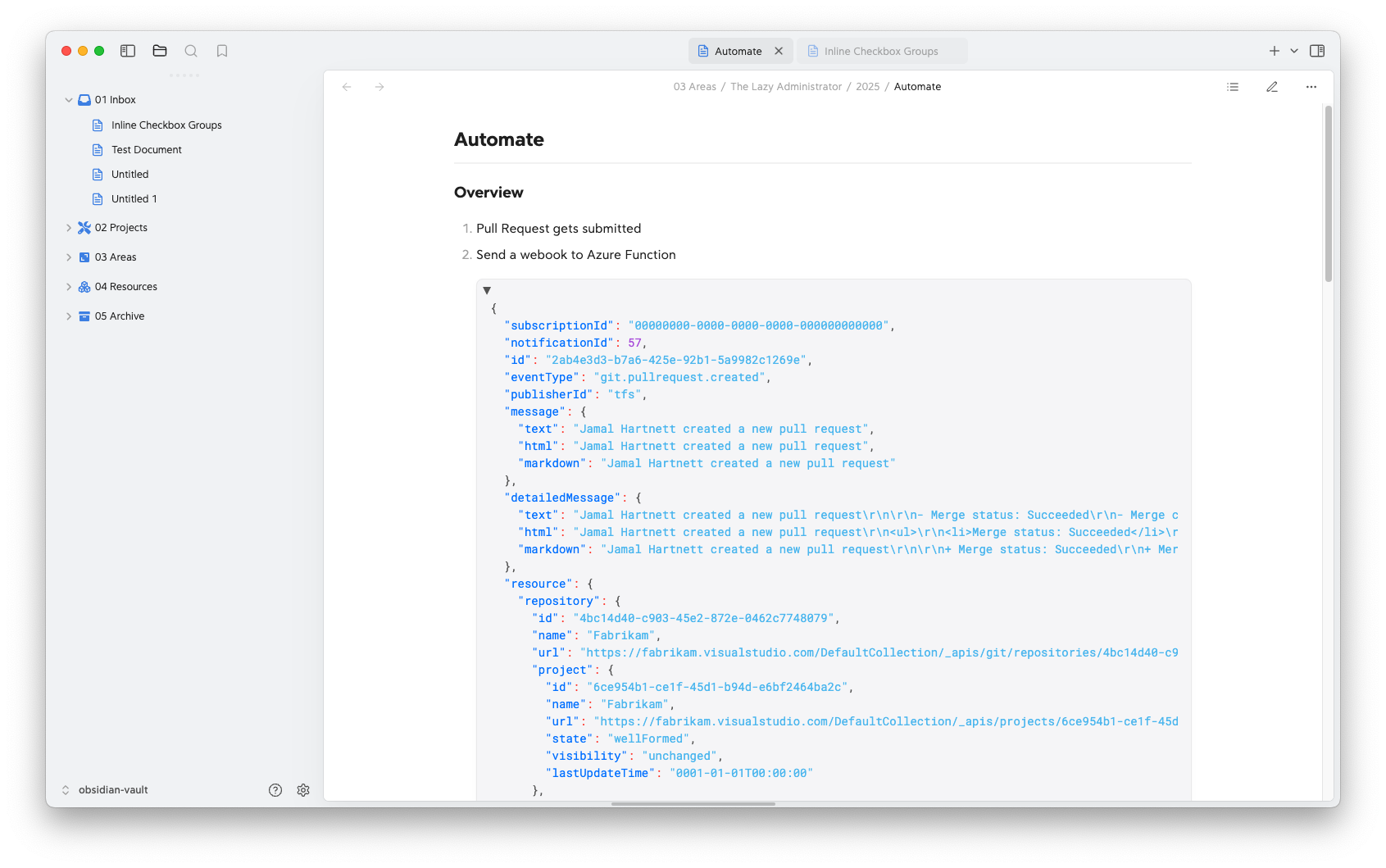
Here's how a code block appears with the code collapsed and set to show 0 lines.
Support
If you encounter any issues or have suggestions:
- Create an issue on GitHub
- Support the development:
Development
Want to contribute? Here's how to get started:
-
Clone the repository:
git clone https://github.com/bwya77/collapsible-code-blocks.git -
Install dependencies:
npm install -
Start development build:
npm run dev
Testing Your Changes
- Create a symbolic link to your vault's
.obsidian/plugins/directory - Enable the plugin in Obsidian's community plugins settings
- Use the developer console (Ctrl+Shift+I) to debug
License
For plugin developers
Search results and similarity scores are powered by semantic analysis of your plugin's README. If your plugin isn't appearing for searches you'd expect, try updating your README to clearly describe your plugin's purpose, features, and use cases.