by kevinsong0
Export notes to Word documents with a Chinese contract layout: A4, FangSong and Times New Roman, cover page, and page numbers.
Contract Word Export
Export an Obsidian note to a .docx file that follows a Chinese contract layout. The plugin is self-contained: no Python, no external converter, and it works on desktop and mobile.
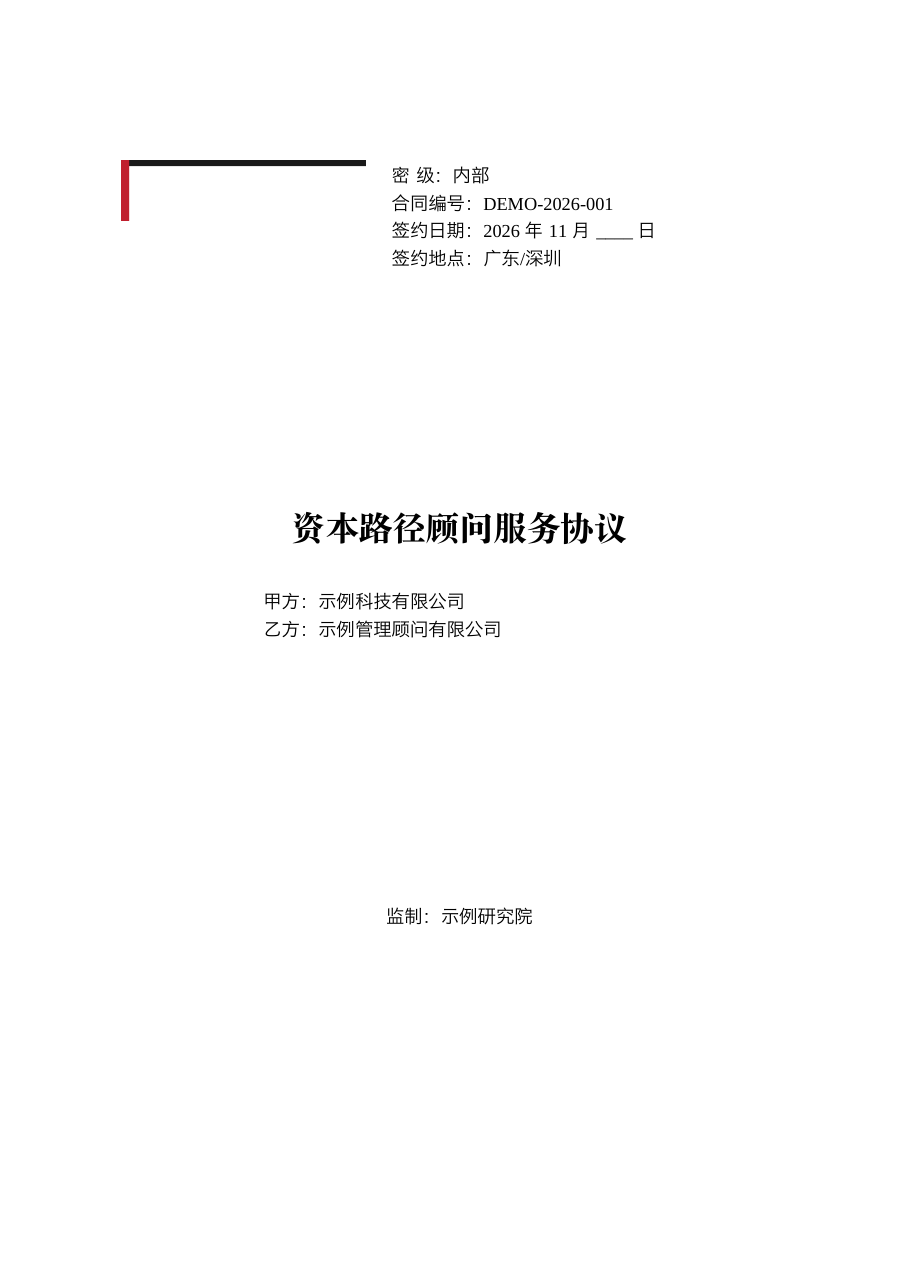
Layout
- A4, margins 37 / 35 / 28 / 26 mm.
- Body text 12 pt, exact 18 pt line spacing, 2-character first-line indent, justified.
- Headings 22 / 15 / 15 / 12 pt, bold.
- Tables 10.5 pt, centered, thick outer border, thin inner borders, grey header row.
- Optional cover page, body page numbers restart at 1.
- Signature blocks written with ideographic spaces become a two-column block.
- Images are embedded from the vault; wiki links and wiki embeds are resolved.
- Merged table cells (
colspan/rowspan) are supported.
Install
Once the plugin is in the community directory: Settings → Community plugins → Browse → Contract Word Export → Install → Enable.
Manual install: copy main.js, manifest.json, and styles.css from a release into <vault>/.obsidian/plugins/contract-word-export/, then enable the plugin.
Use
Open a Markdown note, then use one of:
- the ribbon button;
- the command Export current note to Word (6.0 contract layout);
- the note's right-click menu, or the editor context menu.
The .docx is written into the vault. Set an Export folder in the plugin settings, or leave it empty to save next to the note.
Cover page
Add cssclasses: contract-pdf to the note properties. The first five blocks of the note must be, in order:
- the logo image;
<div class="contract-cover-meta">with one<p>per line;- the agreement title as
# Heading 1; <div class="contract-cover-parties">with one<p>per party;<div class="contract-cover-supervisor">.
Example:
---
cssclasses: contract-pdf
---

<div class="contract-cover-meta">
<p>密 级:内部</p>
<p>合同编号:____</p>
<p>签约日期:____ 年 __ 月 __ 日</p>
<p>签约地点:____</p>
</div>
# 顾问服务协议
<div class="contract-cover-parties">
<p>甲方:____</p>
<p>乙方:____</p>
</div>
<div class="contract-cover-supervisor">
<p>监制:____</p>
</div>
If the five blocks are incomplete, the note is exported without a cover and the plugin shows a warning.
Body page numbering
Place this paragraph where the numbered body starts:
<p class="body-start-note">(以下为正文)</p>
The paragraph ends the front section and starts a new section whose page numbers begin at 1. Without it the whole note keeps continuous numbering.
Other blocks
- Signature block: write two paragraphs, one per party, separated by at least four ideographic spaces (
- Page break:
<div class="contract-page-break"></div>. - Party information: wrap it in
<div class="party-block">to indent the block. - Numbered lists: use
hanging-indentincssclassesto switch from first-line indent to a hanging indent. - Links:
[[Note]]renders as the note name,[[Note|text]]astext. - Tables: Markdown tables and raw HTML tables are both supported.
Fonts
The font names are written into the document; the fonts themselves are not embedded.
- Default Chinese font:
FandolFang(the 6.0 layout reference). Change it toFangSong,STFangsong, or another installed font in the settings. - Default Latin font:
Times New Roman.
If a font is not installed on the machine that opens the document, Word substitutes another font and pagination can change.
Development
npm install
npm test        # build and run the conversion test
npm run build   # type-check and bundle main.js
The test fixture test/fixtures/contract-6.0.md covers the cover, headings, lists, tables, images, signatures, and page numbering. npm test writes test/tmp/out-js.docx; open it in Word or LibreOffice to inspect the layout.
License
MIT. See LICENSE.
For plugin developers
Search results and similarity scores are powered by semantic analysis of your plugin's README. If your plugin isn't appearing for searches you'd expect, try updating your README to clearly describe your plugin's purpose, features, and use cases.