Copy As PlainText
approvedby finickyspider
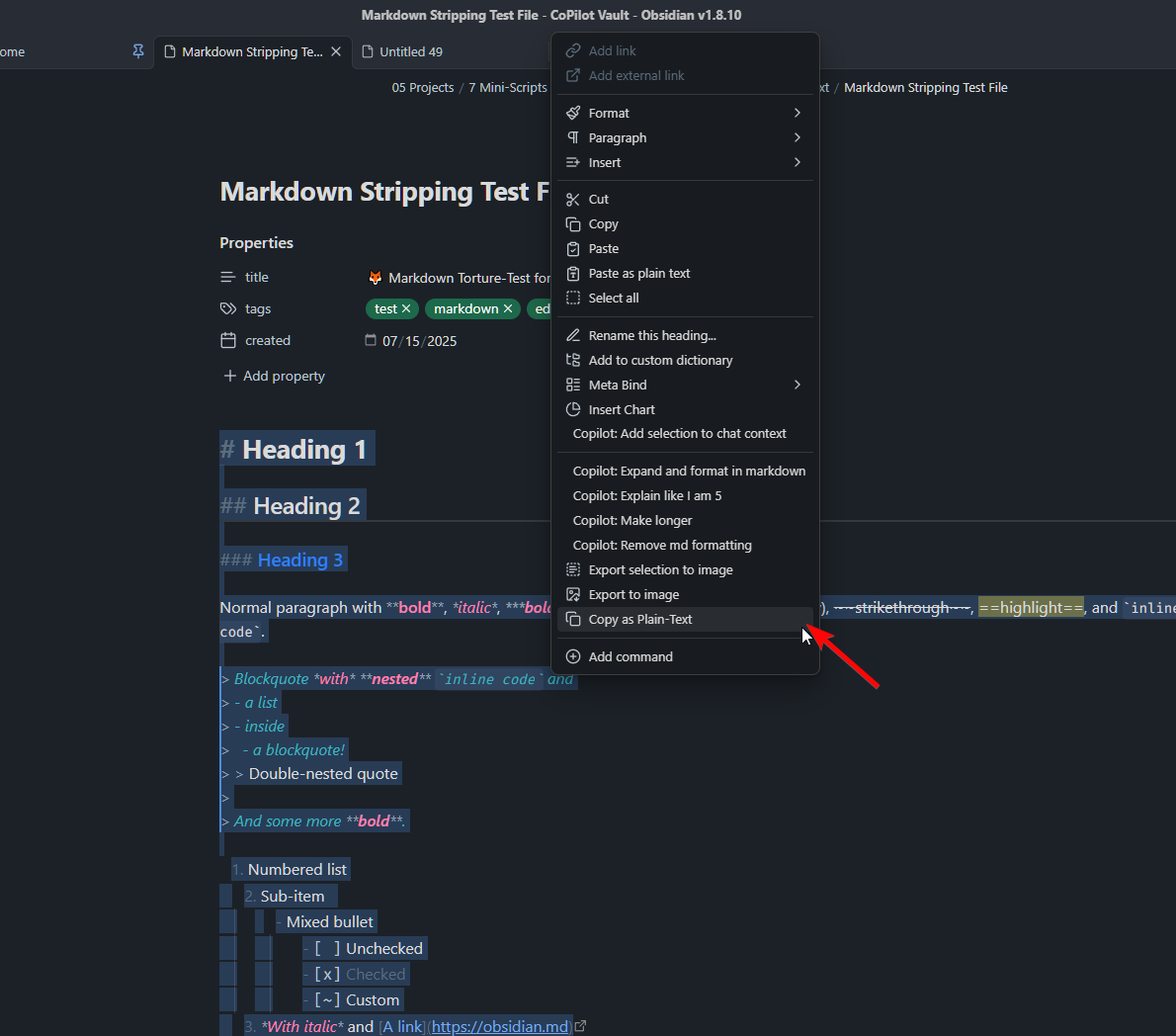
Adds a copy as plaintext command to the command palette and context menu.
Copy As PlainText
Clean, one-click plain-text copy from Obsidian!


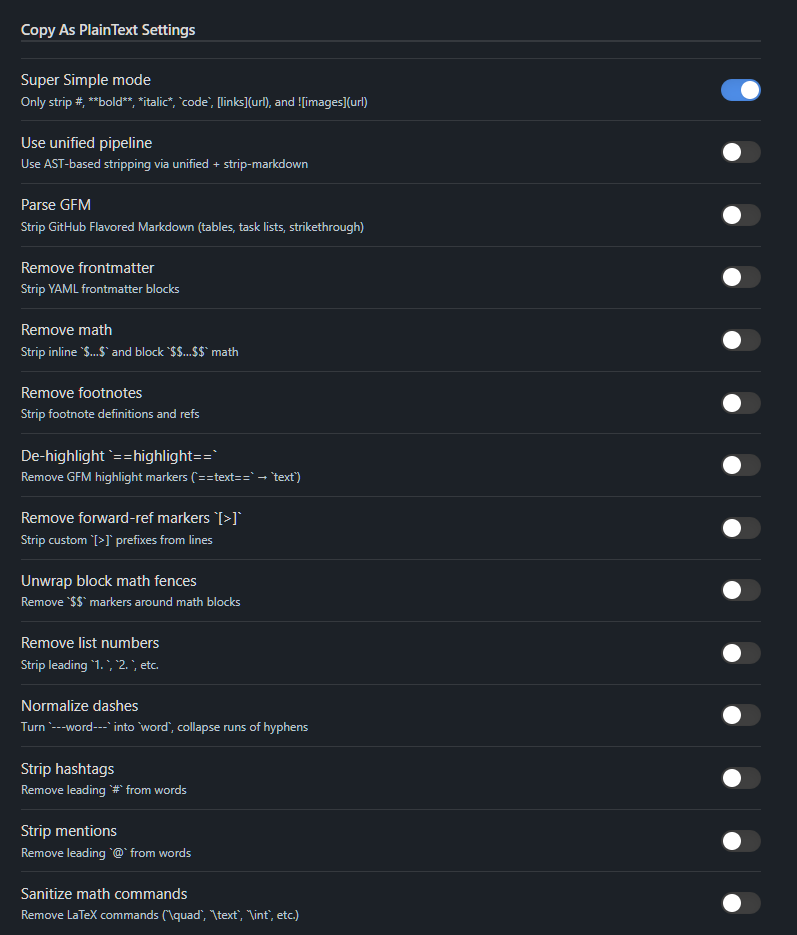
[!IMPORTANT] If you want to use any advanced/fine-tuning settings, make sure to disable Simple Mode in the plugin options. If Simple Mode is on, all advanced options are ignored.
Table of Contents
What It Does
- Adds a “Copy as Plain-Text” command to:
- The editor’s right-click context menu
- The Command Palette
- Offers two stripping modes:
- Super Simple (regex-based) — strips common markers like
#,**bold**,*italic*,`code`,[links](url), - Unified/Remark (AST-based) — full GFM support (tables, task lists, footnotes, math, frontmatter, HTML blocks)
- Super Simple (regex-based) — strips common markers like
- Fine-tunable settings let you enable/disable:
- GFM tables & task lists
- YAML frontmatter
- Inline and block math
- Footnotes & inline refs
- Highlight markers (==text==)
- Custom markers ([~], [>])
- List numbers (1., 2., …)
- Dashes wrapping words (---word---)
- Hashtags (#tag) and mentions (@user)
- LaTeX commands (\quad, \int, etc.)
Features
- Strip basic Markdown: headings, emphasis, links, images, inline code
- Unified AST processing for robust handling of tables, footnotes, math, HTML blocks
- Super Simple mode for minimal regex stripping, ideal for quick, predictable plain-text
- Context menu integration for one-click copying
- Command Palette entry for keyboard-driven workflow
- Customizable: toggle each stripping step on or off in plugin settings
Installation
Community
- Search for 'Copy As PlainText' in Obsidian’s Community Plugins browser.
Manual Installation - Click to expand
Manual
- Download the latest ZIP from the Releases page
- Extract into your vault’s plugin folder:
'YourVault/.obsidian/plugins/' - Open Obsidian → Settings → Community Plugins → Reload or toggle “Copy As PlainText” on.
Usage
- Select the text in any Markdown note.
- Right-click → Copy as Plain-Text, or open the Command Palette (Ctrl/Cmd+P) → Copy as Plain-Text.
- Paste anywhere, your selected text will be stripped of Markdown formatting.
- Optionally, open Settings → Plugin Options to tweak which syntax elements to strip or preserve.
Screenshots
Settings Panel
Context Menu
Known Issues & Quirks
- Performance: AST-based stripping can be slower on very large selections—use Super Simple mode for speed.
- Edge-case syntax: Some niche Markdown plugins or custom syntax may not be recognized by the AST pipeline.
- Backslash escapes: By default, backslash-escaped characters (e.g. *, [ ) are unescaped; toggle settings if you need to preserve literal backslashes.
- Table layout: The AST pipeline removes table structure; if you need plain rows or pipes, consider disabling table stripping in settings.
FAQ
Q: Why don’t my settings seem to do anything?
A: Make sure Simple Mode is turned off in the plugin settings, otherwise, advanced options are ignored.
Q: Can I copy images as plain text?
A: Yes. Markdown image links are stripped down to the alt/title text.
Q: Does it handle custom Markdown plugins?
A: The AST-based mode covers most standard Markdown. Some third-party plugin syntax might not be recognized. Though during my torture tests it covered most things. Let me know if you have requests for specific plugin stripping Here
Q: What’s the difference between Simple Mode and Unified/Remark?
A: Simple Mode is a fast, lightweight text-only method that strips Markdown using simple rules (think regex). It’s quick and works well for basic notes, but can make mistakes with complex formatting (code blocks, nested styling, HTML, tables, etc.). Unified/Remark parses the Markdown properly and removes formatting reliably. It’s slower, but the results are more accurate.
Support & Feedback
I'd love to hear from you, if you have feature requests, issues, questions, or just want to talk about it! I'm always happy to help tweak things or create niche features is needed.
- GitHub Issues: Report bugs or request features
License

Built with ❤️ for Obsidian users who just want clean, copy-ready text.
If this script helped you, you can support it here:

Thanks for visiting ☕
For plugin developers
Search results and similarity scores are powered by semantic analysis of your plugin's README. If your plugin isn't appearing for searches you'd expect, try updating your README to clearly describe your plugin's purpose, features, and use cases.