Cover Image Picker
approvedby wolfgang-otter
Pick, resize and store cover images directly from YAML frontmatter properties. Works on iOS. - This plugin has not been manually reviewed by Obsidian staff.
Cover Image Picker
Pick, resize and store images straight from and into a note's YAML frontmatter properties — including on iOS, where handling frontmatter images is quite a tedious process otherwise. I created the plugin to solve this recurring problem I faced when inventorying things and taking pictures on my phone that I would want to be set as cover images.
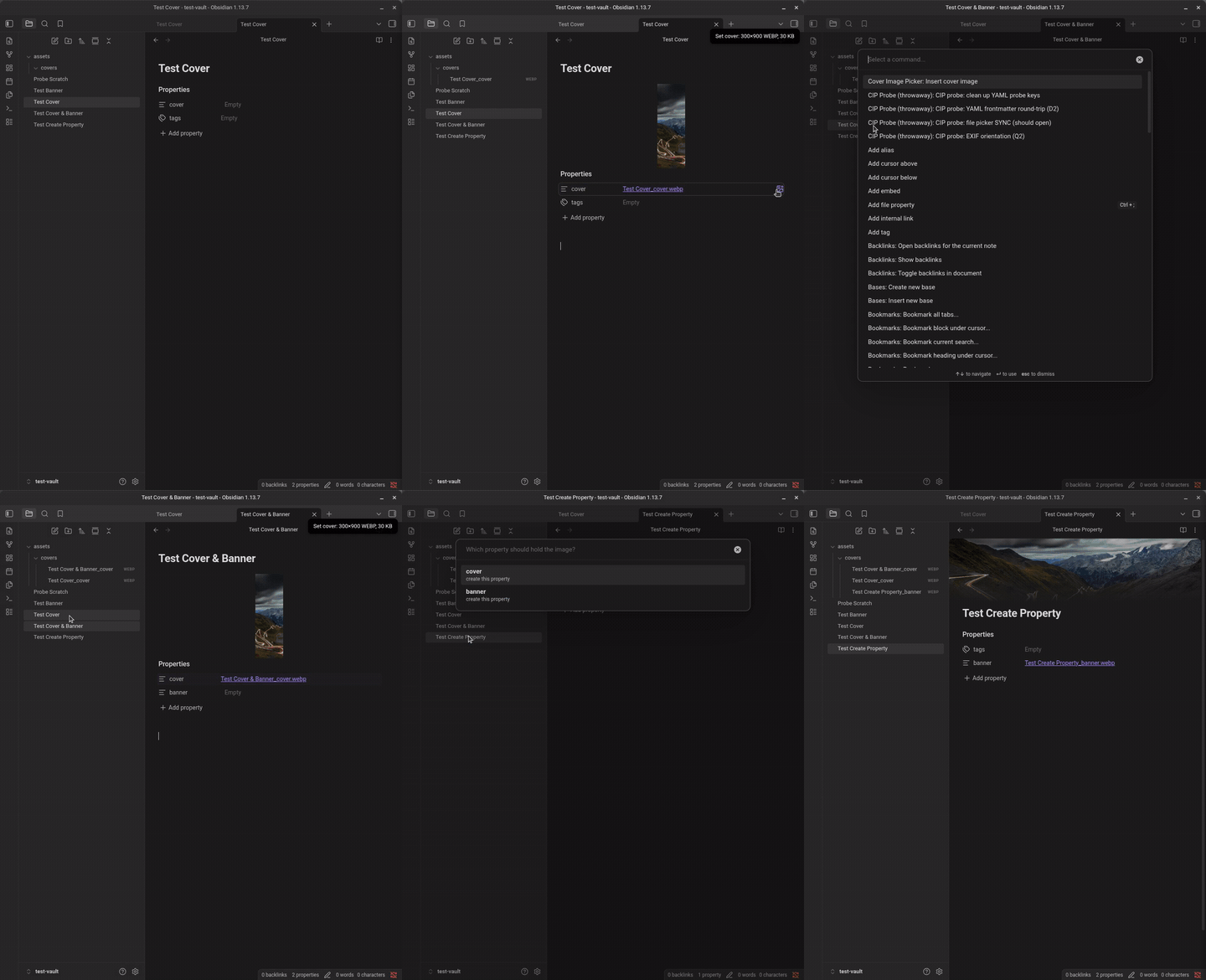
Demo image credit: Samuele Bertoli. Watch as MP4 for a sharper version.
What it does
Choose a photo, and the plugin resizes it, re-encodes it, renames it, saves it where specified, and puts the link into the property — all in one step.
- Minimally scoped by design. Only the property names configured (
cover,bannerby default) are ever touched. All other properties should behave normally, thus it should not interfere with other plugins too much. - Works on iOS. WebP cannot be encoded in WebKit, so iOS transparently falls back to JPEG at the same quality setting.
- Strips EXIF. Re-encoding through a canvas drops all metadata, including GPS coordinates, as a side effect of how the image is processed.
- Offline. No network requests, no telemetry, no external services.
Requirements
Obsidian 1.13.0 or later, on desktop or mobile (however, I only tested it on iOS).
Install
From the community catalogue — Settings → Community plugins → Browse → search for "Cover Image Picker".
Manually — download main.js, manifest.json and styles.css from the
latest release into
<Vault>/.obsidian/plugins/cover-image-picker/, then reload Obsidian and enable
the plugin under Settings → Community plugins.
Use it
On desktop, drag and drop an image into a configured frontmatter property, set the edit button to show for configured properties or run Insert cover image from the command palette. On mobile, set the edit button to show for configured properties, run it from the command palette or add it to the toolbar in Settings → Toolbar — it then works in source mode exactly like the built-in image button.
The command works out which property to write to:
- the property your cursor is in, if you are editing frontmatter in source mode
- the property you last touched in this note
- the only configured property in the note, if there is just one
- otherwise it asks, and offers to create one if none exists
The photo picker opens first, and any question comes after — this is deliberate, and it is also what keeps the picker working inside WebKit's user-gesture rules.
In Live Preview, matching property rows get an image button. A property that already holds an image opens a menu instead — replace, open, take a photo, or clear.
On desktop you can also drag an image straight onto a matching property row, in Live Preview or in source mode. Dropping anywhere else behaves exactly as it does without the plugin.
On mobile, Take a photo as cover image captures straight from the camera. Add it to the toolbar in Settings → Toolbar, or use the menu on a property that already has an image.
Settings
| Property names | Which properties to act on. Exact or prefix matching. |
| Location | A specific folder, next to the note, the vault root, or Obsidian's own attachment folder. |
| Filename | Template with {{noteName}}, {{property}}, {{originalName}}, {{date}}, {{time}}, {{timestamp}}. |
| Resize | Fit a box (cover / contain / stretch), a single axis, or don't resize. |
| Format | WebP, JPEG or PNG, with quality. |
| Per-property sizes | Give banner its own dimensions while cover keeps the default. |
| Property rows | The inline button and the drop target, toggled independently. |
| Link format | Wikilink, markdown, or a plain path. |
Wikilink is the default and recommended: Obsidian registers it as a real link, so moving or renaming the image updates the property automatically. The other two formats lose that.
Privacy and permissions
This plugin is fully offline. It makes no network requests of any kind, collects no telemetry, and uses no external services. Everything happens inside your vault.
It reads and writes only:
- the image file it creates, in the folder you configure
- the frontmatter property you point it at
Re-encoding an image through a canvas discards its metadata as a side effect, so EXIF — including GPS coordinates — does not survive into your vault.
Develop
npm install
npm run dev     # watch build
npm run check   # typecheck + lint + tests
Architecture, the platform constraints behind it, and the phase plan are in
docs/implementation-plan.md. The Phase 0
diagnostics that settled those constraints are in probes/.
Contributing
Bug reports are the most useful thing you can send — most bugs so far only showed up on a device I do not have. See CONTRIBUTING.md.
License
For plugin developers
Search results and similarity scores are powered by semantic analysis of your plugin's README. If your plugin isn't appearing for searches you'd expect, try updating your README to clearly describe your plugin's purpose, features, and use cases.