Daily Echoes
approvedby Wojciech Polak
Revisit your daily notes from previous years: on this day, this week, this month, or this day of the month. - This plugin has not been manually reviewed by Obsidian staff.
Daily Echoes for Obsidian
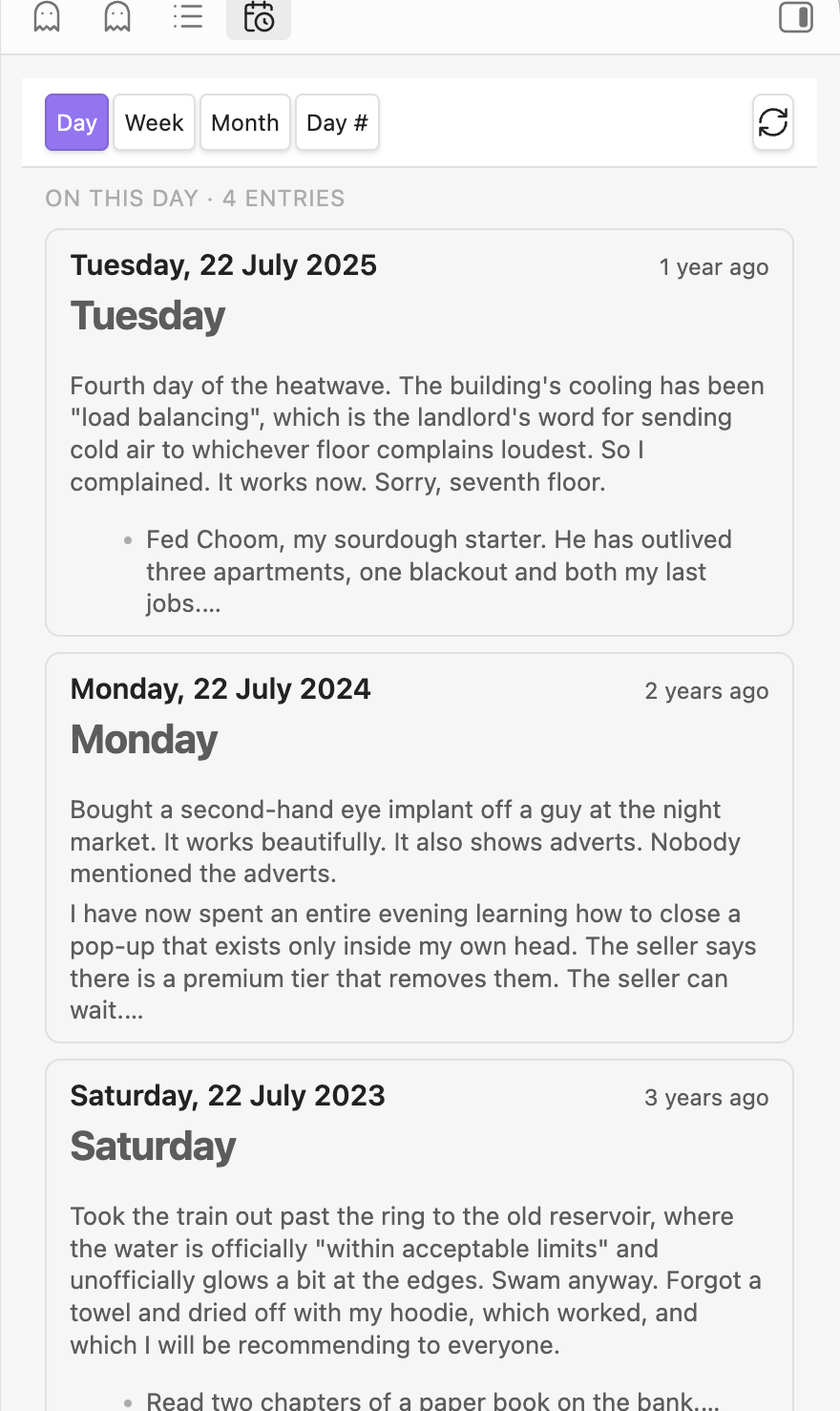
An Obsidian plugin that resurfaces your daily notes from previous years in the sidebar, so you can revisit what you were doing on this day, this week, this month, or on this day-of-month across the years.
It is the Obsidian counterpart to the standalone On This Day web app. Same idea, except it reads your Obsidian daily notes instead of ICS calendars.
The repository title includes "for Obsidian" for clarity. Inside Obsidian the plugin is listed as Daily Echoes.
Why
Other "on this day" plugins tend to match every document in the vault, and they give you a single "today" view. This one:
- Shows only your daily notes by default, with an optional switch to include other documents.
- Offers four time windows: Day, Week, Month, and Day-of-Month.
- Reads your dates straight from the core Daily notes settings, so there is nothing extra to configure and no date convention baked into the code.
How it works
The plugin uses your Daily notes (or Periodic Notes) configuration to find daily
notes and parse each note's date from its filename. With the Daily notes format
YYYY/YYYY-MM-DD and folder Log, for example, a note at
Log/2021/2021-07-20.md is understood as 20 July 2021.
An entry has to live under the configured daily-notes folder and parse as a valid date. The plugin ignores everything else.
Modes
| Mode | Shows earlier entries that fall on |
|---|---|
| Day (default) | the same month and day-of-month as today |
| Week | within 3 days either side of today's date (7-day window) |
| Month | the same calendar month as today |
| Day-of-Month | the same day number (e.g. the 20th) of any month |
Every entry is labelled with how long ago it was (e.g. 2 years ago).
Usage
- Click the calendar-clock ribbon icon, or run the "Daily Echoes: Open view" command, to open the panel in the right sidebar.
- Switch modes from the panel header, or use the per-mode commands.
- Click an entry to open that note. ⌘/Ctrl-click opens it in a new tab.
Settings
- Default mode: which window opens first. Defaults to Day.
- Include other notes: also include notes that aren't daily notes, dated by a frontmatter date, the filename, or file creation time. Off by default.
- Include current year: also show earlier entries from the current year. Today's own note stays excluded either way. Off by default.
- Preview: none, a truncated snippet, or the full note.
Privacy
Everything happens locally. The plugin makes no network requests and collects no telemetry. It reads your daily notes through the paths the core Daily notes settings already define. It walks every markdown file in the vault only when you turn on Include other notes, because that setting asks it to date notes outside the daily-notes folder.
Installation
From the community plugins browser
Once published, look for "Daily Echoes" under Settings → Community plugins → Browse.
Manual
- Build the plugin (
npm ci && npm run build) or download a release. - Copy
main.js,manifest.json, andstyles.cssinto<your-vault>/.obsidian/plugins/daily-echoes/. - Reload Obsidian and enable the plugin in Settings → Community plugins.
Development
npm install
npm run dev     # watch build
npm run build   # type-check + production build
npm run lint    # oxlint
npm run format  # oxfmt
npm run test    # vitest (test:watch for watch mode)
npm run check   # lint + format check + build + test
npm run deploy  # build, then install into a local vault for testing
Linting and formatting use the oxc toolchain (oxlint + oxfmt).
npm run deploy copies the built plugin straight into a vault. Create a
gitignored .env in the repo root pointing at your vault's plugins folder:
OBSIDIAN_VAULT_PLUGINS="/path/to/YourVault/.obsidian/plugins"
The destination subfolder comes from manifest.json's id. Run
./scripts/install-to-vault.sh --dry-run to preview without writing.
Contributing
See CONTRIBUTING.md.
License
For plugin developers
Search results and similarity scores are powered by semantic analysis of your plugin's README. If your plugin isn't appearing for searches you'd expect, try updating your README to clearly describe your plugin's purpose, features, and use cases.