by zihoou
Open and create daily, weekly, and monthly notes from a theme-aware popup calendar.
Daily Notes Popup Calendar
English · 中文
An Obsidian plugin that shows a floating monthly calendar. It keeps Obsidian's original "Open today's daily note" ribbon action and adds a separate monthly calendar entry in the left ribbon.
Preview
| Chinese / Dark | English / Light |
|---|---|
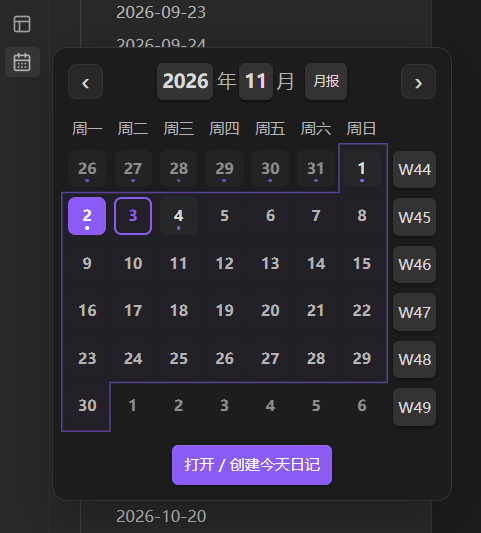 | 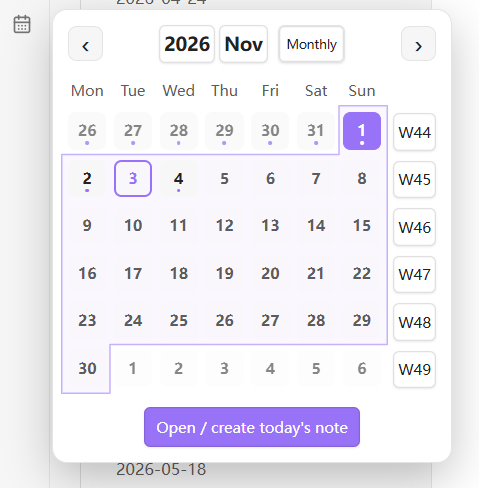 |
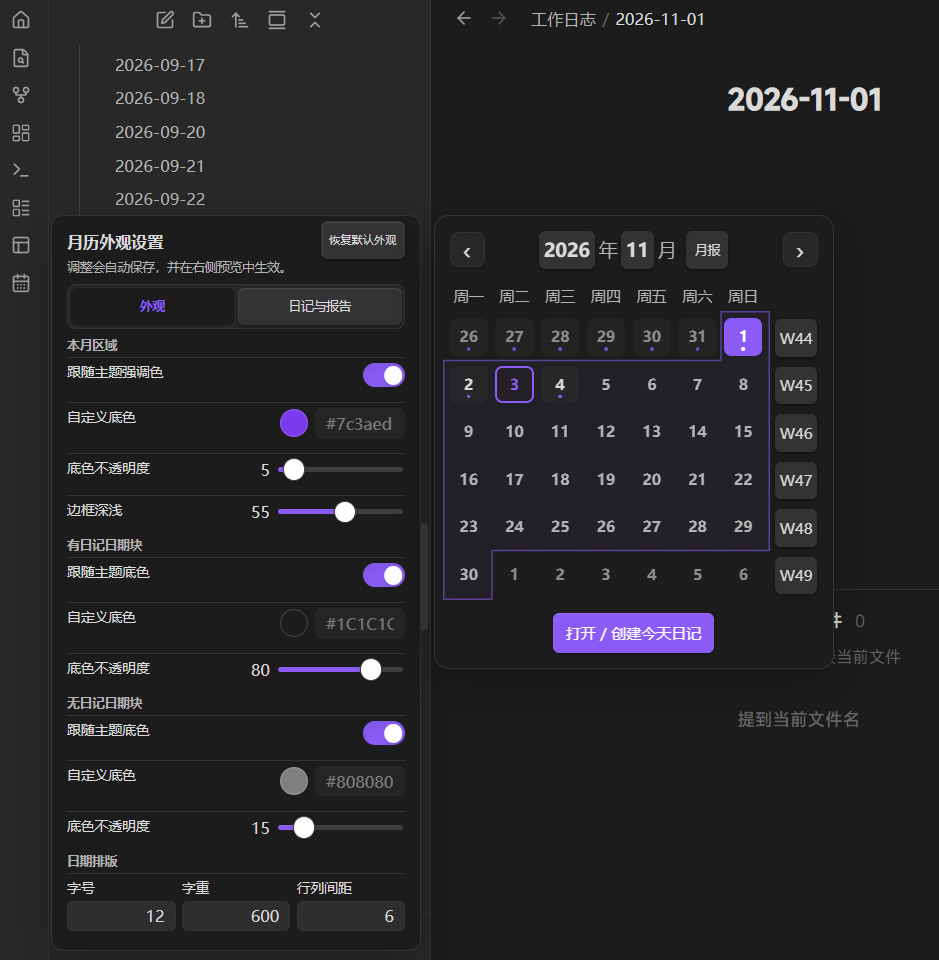
Appearance settings with live preview
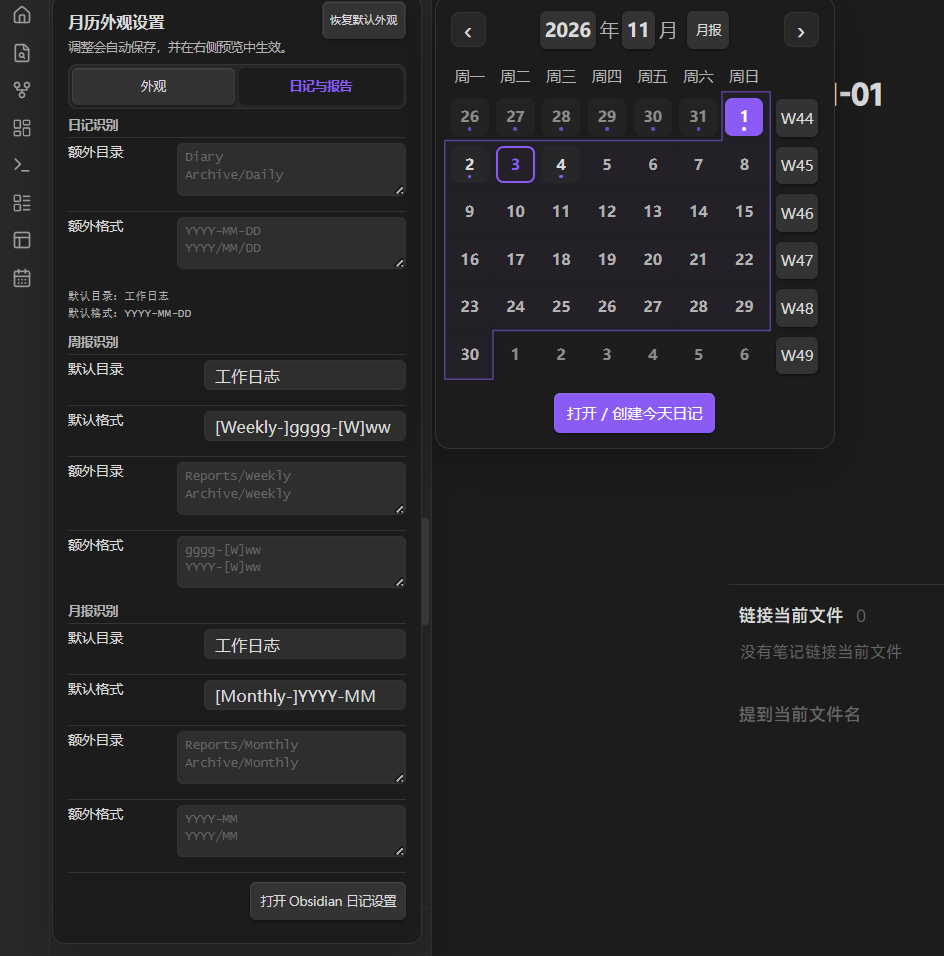
Daily, weekly, and monthly note recognition
Features
- Left-click the calendar icon to open the floating monthly calendar; right-click to open the settings with a live preview.
- Shows the current month's dates and distinguishes today, the currently open daily note, and dates that already have daily notes.
- Click a date to open or create the corresponding daily note, with quick year and month pickers.
- Open or create a weekly note via the
Wwwbutton for each week, and a monthly note via the button next to the month. - Automatically reads the folder and format from Obsidian's core Daily Notes plugin.
- Daily, weekly, and monthly notes all support additional folders and additional naming formats.
- Default weekly note format:
Weekly-YYYY-Www; default monthly note format:Monthly-YYYY-MM. - Appearance and note settings are on separate tabs; the interface supports both Chinese and English and follows the Obsidian theme.
Installation
Manual installation
- Create the folder
.obsidian/plugins/daily-notes-calendar/in your vault. - Copy
main.js,manifest.json, andstyles.cssinto that folder. - Restart Obsidian and enable Daily Notes Popup Calendar under "Settings → Community plugins".
- Make sure the core "Daily notes" plugin is enabled under "Settings → Core plugins".
Usage
- Left-click the calendar icon: open or close the monthly calendar.
- Right-click the calendar icon: open or close the settings panel with live preview.
- Click a date: open an existing daily note, or create one according to your Obsidian daily notes settings.
- Click a week number / monthly note button: look for an existing report using the default and additional rules first; only create a new one if none is found.
Use the "Appearance" tab in settings to adjust colors and layout, and the "Daily Notes & Reports" tab to configure folders and naming formats. For fixed text in Moment.js format strings, wrap it in square brackets, e.g. [Weekly-]gggg-[W]ww.
Development
Requires Node.js.
npm install
npm run build
Rebuild automatically while developing:
npm run dev
License
For plugin developers
Search results and similarity scores are powered by semantic analysis of your plugin's README. If your plugin isn't appearing for searches you'd expect, try updating your README to clearly describe your plugin's purpose, features, and use cases.