Dark PDF Export
approvedby ZazenCodes
Export notes as clean dark-mode PDFs using the native PDF exporter. - This plugin has not been manually reviewed by Obsidian staff.
Dark PDF Export
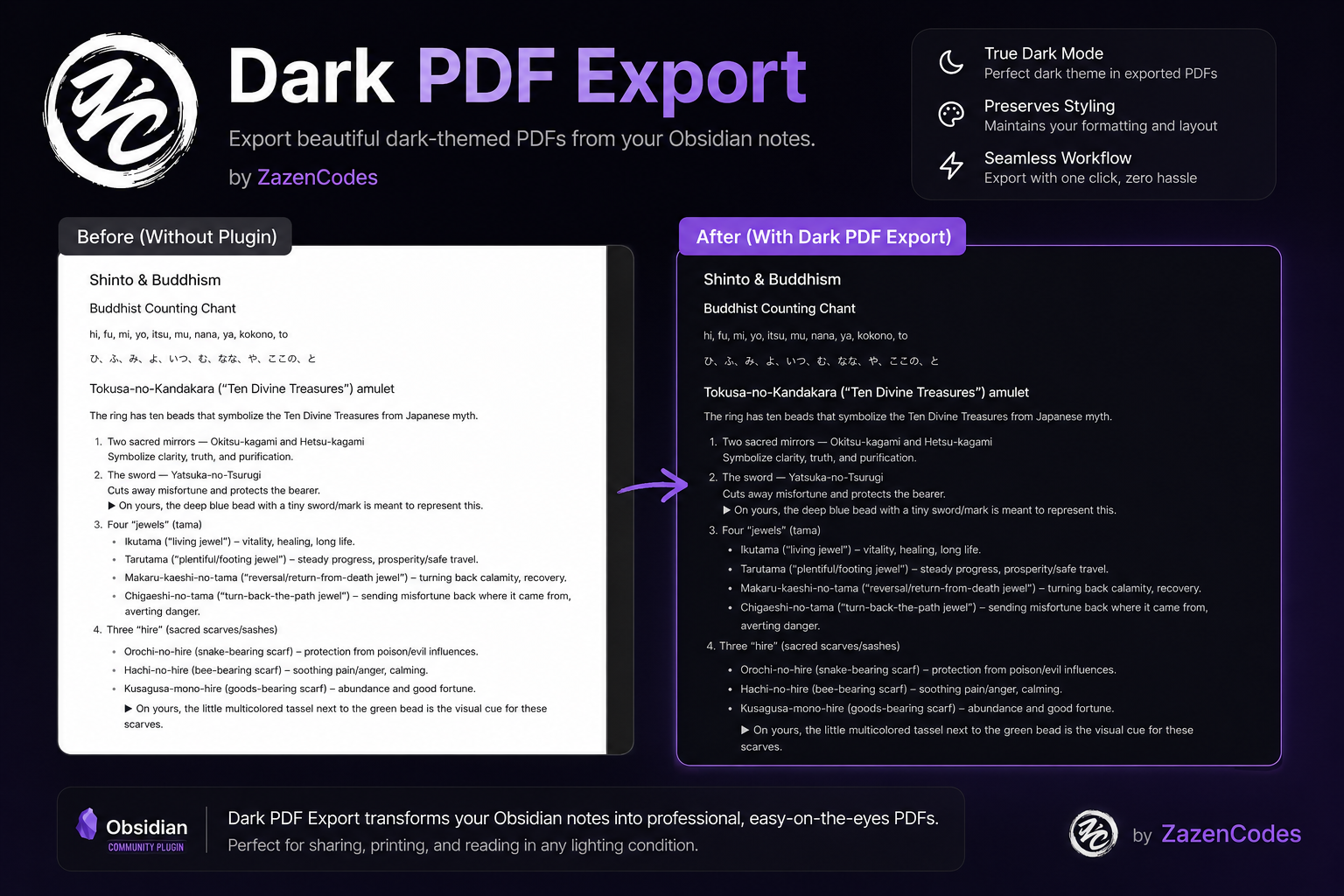
Dark PDF Export is a desktop plugin for Obsidian by ZazenCodes.
It applies a stable dark stylesheet to Obsidian's native Export to PDF workflow.
Styles can be customized interactively using the Style Settings community plugin.
🔗 Get it on Obsidian Community Plugins
Use
Install "Dark PDF Export" from the Obsidian community plugins marketplace or install manually.
Enable the plugin, open a note, and use Obsidian's native Export to PDF command. Dark PDF styling is enabled by default when the plugin is first turned on.
The plugin settings page under Settings → Community plugins → Dark PDF Export contains:
- Enable dark PDF styling turns dark PDF export styling on or off.
- Page margin sets the space around content on every exported page. It accepts one to four CSS lengths (e.g.
14mm 12mm) and defaults to14mm 12mm.
Customizing Styles
Use the Style Settings community plugin. Dark PDF Export automatically registers a configuration panel under Settings → Style Settings → Dark PDF Export.
You can visually customize color swatches using native color pickers for:
- Page background (
--dark-pdf-background): The base background color for the PDF page. - Surface background (
--dark-pdf-surface): Background for code blocks, inline code, and callouts. - Border color (
--dark-pdf-border): Borders for tables, blockquotes, and dividers. - Body text (
--dark-pdf-text): Main paragraph and list text. - Headings (
--dark-pdf-heading): Headings H1 through H6 and inline titles. - Muted text (
--dark-pdf-muted): Faint metadata, footnotes, and secondary text. - Links and accents (
--dark-pdf-accent): Internal/external links and highlighted accents.
Changes made in Style Settings take effect immediately on your next export without requiring a vault reload.
Page margin is configured on the plugin's own settings page rather than through Style Settings, because @page rules cannot read the body-level CSS variables that Style Settings writes.
Manual installation
- Download
main.js,manifest.json, andstyles.cssfrom the same GitHub release. - Create
<vault>/.obsidian/plugins/dark-pdf-export/. - Copy all three files into that folder.
- Restart or reload Obsidian, then enable Dark PDF Export under Settings → Community plugins.
The folder name must match the plugin ID: dark-pdf-export. The plugin requires desktop Obsidian 1.12.0 or newer.
Privacy and safety
Dark PDF Export works locally. It has no account, ads, telemetry, analytics, or network requests. It does not read or modify notes, attachments, vault metadata, themes, snippets, appearance settings, or other plugins' settings. Plugin settings are stored only through Obsidian's supported plugin data API; the runtime contains no hard-coded vault or .obsidian path.
Development
Node.js 24 and npm are used for reproducible development and CI.
npm ci
npm run typecheck
npm run lint -- --max-warnings=0
npm test
npm run build
npm run release:validate -- 1.0.1
npm run dev starts the esbuild watcher. Production builds are minified and write the main.js bundle. A release consists of main.js, manifest.json, and styles.css from one production build.
Releases
- If compatibility changed, update
minAppVersioninmanifest.jsonand commit that compatibility change first. - Run
npm version patch,npm version minor, ornpm version major. The version hook updatesmanifest.jsonand maps the release to its minimum Obsidian version inversions.json. npm tags use the exact unprefixedx.y.zversion. - Run the complete development checks above and push the source commit and tag.
- The release workflow validates the package, manifest, tag, and compatibility mapping before building. A mismatch stops the workflow.
- The workflow creates a draft GitHub release with the three required assets. Review its notes and assets before publishing it.
Before the initial Community directory submission, complete Obsidian's current plugin self-critique, publish the 1.0.0 release, and submit the repository. The Community directory runs automated review; fix any findings in source and publish a new incremented release rather than reusing a version number.
Support
Report bugs and compatibility problems through GitHub Issues. Include your Obsidian version, plugin version, operating system, and a minimal CSS or export example when relevant.
License
MIT © ZazenCodes.
For plugin developers
Search results and similarity scores are powered by semantic analysis of your plugin's README. If your plugin isn't appearing for searches you'd expect, try updating your README to clearly describe your plugin's purpose, features, and use cases.