by siulved54
Convert Dataview queries into Bases blocks, and report which queries in your vault can be converted.
Dataview to Bases
Convert Dataview queries into Bases blocks, and see which queries in your vault can be converted. A migration helper for people moving off Dataview, which has had no release in over a year, to the Bases core feature.
It also moves Dataview inline fields (status:: done) into properties, so Bases can see them.
It converts the common queries (TABLE, LIST, FROM, WHERE, SORT, LIMIT, GROUP BY) and tells you plainly why it leaves the rest alone. It never converts anything on its own, and the vault scan never edits a note.
Commands
| Command | What it does |
|---|---|
| Convert Dataview query at cursor to Bases | Replaces the dataview block under the cursor with a base block. |
| Convert all Dataview queries in this note | Converts every convertible query in the note and leaves the others as they are. |
| Scan vault for Dataview queries | Writes a report note: for each note, each query and whether it is convertible, partly convertible or not, with the reasons. Also lists the notes that have inline fields. Edits nothing else. |
| Move inline fields to properties in this note | Copies the note's inline fields into its properties (and, by default, removes the field lines from the text). |
| Move inline fields to properties in the vault… | Shows every note with inline fields and the property each would become. Tick the notes you want, then apply. |
| Undo the last move of inline fields | Puts the notes from the last move back as they were. |
Each conversion is one change in the editor, so a single Undo brings every query back. By default the original query stays under the new block inside a comment (hidden in reading view; its tags and links do not count for the note). Turn that off in the settings.
Moving inline fields to properties
Bases reads only properties, so a query on status:: done written in the text shows nothing for that note. The move commands turn inline fields into properties:
- A field on a line of its own (
status:: done) and a field inside a sentence ([due:: 2026-10-10]or(rating:: 4)) are both found. Code blocks, inline code, math, comments and the front matter are skipped. A field in a list item or a quote is moved only when it is in brackets. - The key is kept as you wrote it when it is a valid property name (
Status,due_date,año). Otherwise it is written the way Dataview reads it: lowercase, spaces as hyphens (Due Datebecomesdue-date). - Values get a type: numbers,
trueandfalse, dates and date-times (2026-10-10,2026-10-10T09:30) and links ([[Some note]], kept as a link in the property). A value of several links separated by commas becomes a list.tags,aliasesandcssclassesbecome lists. Anything else stays text, exactly as written. - A key that appears more than once in a note becomes one list property.
- A property the note already has is never overwritten. If its value is different, the field is reported as a conflict and stays in the text; if it is the same, the field is just dropped. A field with no value is skipped.
- With the setting Remove the fields from the text (on by default), fields on a line of their own are taken out of the text. Fields inside a sentence are prose, so they always stay and are only copied.
The vault command shows a preview first: each note, the fields found, the property each becomes and the conflicts, with a checkbox per note. Nothing changes until you press the button. Undo the last move of inline fields puts back every note of the last move; a note you edited after the move is left as it is.
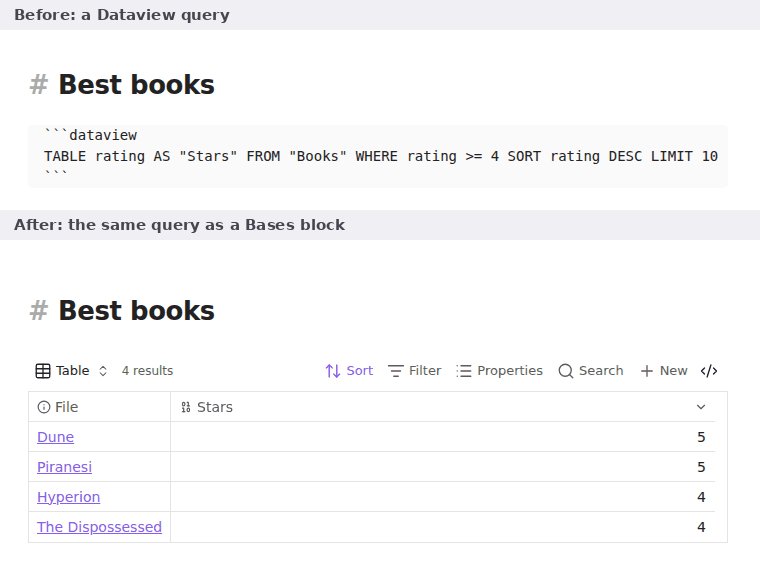
Example
```dataview
TABLE rating AS "Stars" FROM "Books" WHERE rating >= 4 SORT rating DESC LIMIT 10
```
becomes
```base
filters:
  and:
    - 'file.inFolder("Books")'
    - 'note.rating >= 4'
properties:
  file.name:
    displayName: File
  note.rating:
    displayName: Stars
views:
  - type: table
    name: Table
    limit: 10
    sort:
      - property: note.rating
        direction: DESC
    order:
      - file.name
      - note.rating
```
What converts
TABLE(withASaliases andWITHOUT ID) becomes a table view;LISTbecomes a list view.FROMwith folders, files,#tags,[[links]](notes that link to it),[[]](notes that link to this one), andand,or,-/!and parentheses.WHEREwith comparisons,and/or/!,= null, dates (date(today),dur(7 days)) and the common functions:contains,icontains,lower,length,default,choice,startswith,endswith,replace,split,join,round,floor,ceil,abs,min,max,dateformat,striptime,number,linkand a few more.SORTwith several keys,LIMITwith a number,GROUP BYone field.file.name,file.link,file.path,file.folder,file.ext,file.size,file.ctime,file.mtime,file.cday,file.mday,file.tags,file.outlinks,file.inlinksandthis.file.*.- Columns that are not plain properties become formulas, named after what they were.
What does not convert
Left unchanged, with the reason in the notice or the report:
TASKandCALENDARqueries,dataviewjsblocks and inline= …queries.FLATTEN, andFROM outgoing(…)orcsv(…)sources.- Functions Bases has no equivalent for, such as
upper,sum,regexmatch,mapandfilter;file.tasks,file.lists,file.day,file.starred.
Differences you should check
A query is reported as partly convertible when the result may not match Dataview. The notice and the report say which of these applies:
- Inline fields. Bases reads only properties in the frontmatter. If a field the query uses is written inline somewhere in your vault (
status:: done,[due:: 2026-10-10]), the query is reported as partly, because the converted table would be empty or wrong for those notes. Move the field into the frontmatter, or keep Dataview for that query. contains()on a property. On a list property, Dataview also matches part of an item (contains(authors, "Smi")finds "Smith"), while Bases matches whole items only.econtainsconverts exactly.GROUP BY. Dataview shows one row per group; Bases lists every note under its group heading.this.field. Properties of the current page are mapped tothis.note.field; check the result.- Property spelling. Dataview matches
Due Dateasdue-date. Bases uses the property name exactly as written in the query, so names with a hyphen or a space are reported as partly and converted to a formula that reads the name as written. - Clause order. Dataview runs
LIMITwhere you wrote it (LIMIT 10 SORT xsorts only ten notes); Bases always filters, sorts, then limits.
Translated without a warning: x = null stays x == null (so 0, false and an empty text are values, as in Dataview), default(x, y) only replaces a missing value, contains(file.tags, "#x") becomes file.hasTag("x"), and dateformat() formats are translated to the common Bases ones (unusual tokens are reported as not convertible).
The converted block is what Bases reads, so you can edit it after converting, and Bases shows the result right away in the note.
Settings
| Setting | Default | What it does |
|---|---|---|
| Keep the original query | on | Leaves the query under the new block in a hidden comment. |
| Report note | Dataview to Bases report.md | Where the vault scan writes its report. Replaced on every scan. |
Notes
- Needs a version of Obsidian with Bases (1.10 for the list view). The plugin only writes text; it does not need Dataview installed.
- No network use, no data leaves your vault.
Installation
In Obsidian, open Settings → Community plugins → Browse and search for "Dataview to Bases".
More plugins by Siulved54
| Plugin | What it does | Source |
|---|---|---|
| Shared Blocks | Write a block of text once and reuse it in any note. Edit the source and every reference re-renders live. | shared-blocks |
| Text Case and Cleanup | Change case, make camelCase or slugs, sort lines and remove duplicates, and repair text pasted out of a PDF, without touching code or URLs. | text-format |
| Typography as You Type | Curly quotes, dashes and ellipses as you type, kept out of code and maths, with Backspace to take one back. | smart-typography-plugin |
| Section Numbering | Number headings as an outline (1, 1.1, 1.2) and keep every link to them working when they renumber. | section-numbering |
| Spreadsheet to Table | Paste cells from Excel or Google Sheets as a Markdown table with a real header, insert CSV files, and copy tables back out. | spreadsheet-to-table |
| Hybrid Line Numbers | Relative and hybrid line numbers for Vim-style jumps, where a folded section counts as one line. | hybrid-line-numbers |
| List Item Callouts | Colour a single list item as a callout by starting it with a character such as &, ! or ?. | list-item-callouts |
| Folder Counts | See how many notes or files each folder holds, right in the file explorer, with a vault total and folder exclusions. | folder-counts |
| Note Reading Time | Reading time of the current note or your selection in the status bar, optionally saved to a property. | note-reading-time |
| Task Rollover | Roll unfinished tasks from your last daily note into today's when it is created, with a real undo. | task-rollover |
| Zoom Into Section | Zoom into a heading or list item to see only it and its contents, with a breadcrumb bar to climb back out. | zoom-into-section |
| Link Title on Paste | Paste a web address and get a Markdown link with the page's title, fetched in the background and undone in one step. | link-title-on-paste |
| Update Radar | Checks your installed community plugins for updates in the background, shows what changed, and flags the ones that look abandoned. | community-update-checker |
| Line Editing Commands | Duplicate, join, sort and reverse lines, insert blank lines and jump to a line number, with multi-cursor support. | line-editing-commands |
| Note Mover Rules | Move notes into folders by ordered rules on tags, properties, titles and paths, with a preview before any bulk move. | note-mover-rules |
| Tab History | Keeps each tab's back and forward history across restarts, and adds commands to move, maximize and close tabs. | tab-history |
| URL Cards | Shows web addresses as cards with title, description and image, and reads existing cardlink blocks. | url-cards |
| Vim Config | Loads a vimrc-style file from your vault so your key mappings and editor commands are ready when vim mode starts. | vim-config |
| Task Archive | Moves completed tasks, with their sub-items, into an archive section or note. | task-archive |
All of them are in the community directory: Settings -> Community plugins -> Browse, then search for the name.
For plugin developers
Search results and similarity scores are powered by semantic analysis of your plugin's README. If your plugin isn't appearing for searches you'd expect, try updating your README to clearly describe your plugin's purpose, features, and use cases.