External Links View

approved

by theamritanair

View all external links from your notes in one organized place, sorted by their source notes.

3 stars460 downloadsUpdated 5mo ago0BSD
View on GitHub

External Links View

View all external links from your notes in one organized place, sorted by their source notes.

Features

  • 📋 Collects all external links from your vault in one view
  • 🗂 Organizes links by their source notes
  • 🔗 Clickable links that open in your default browser
  • ⚙️ Settings to exclude specific URL patterns
  • 🎯 Quick access via ribbon icon or command palette
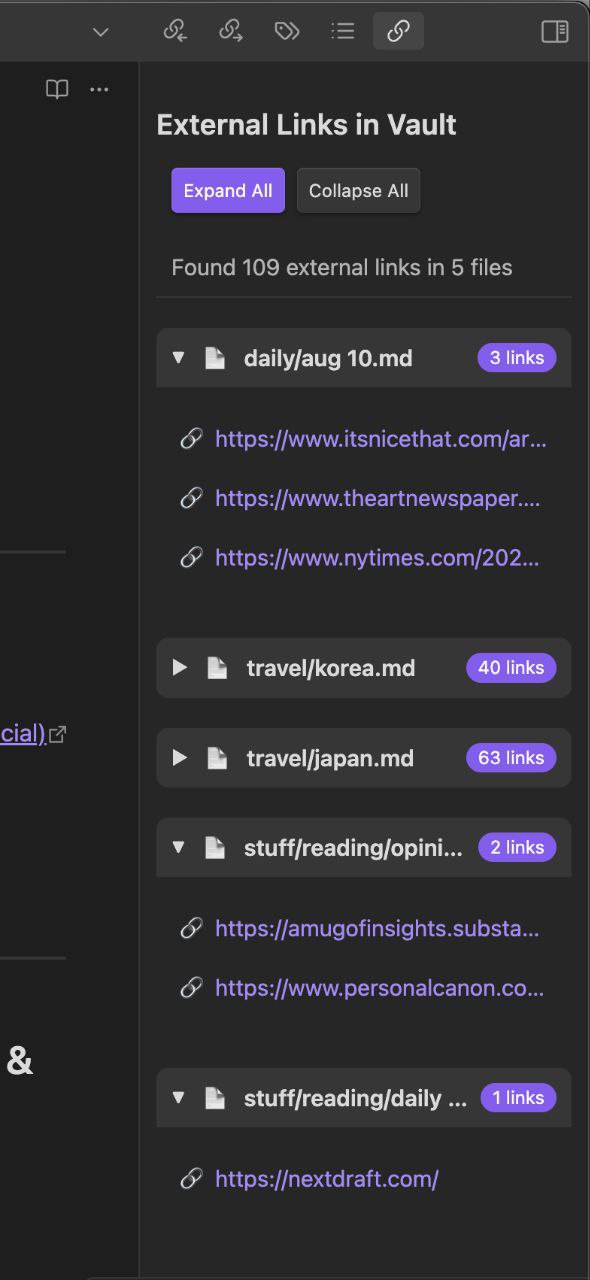
External Links View Screenshot

How to Use

  1. Install the plugin from Obsidian's Community Plugins
  2. Click the chain link icon in the ribbon to open the External Links view
  3. Alternatively, use the command palette and search for "Show External Links"

The plugin will show all external links found in your notes, organized by the note they appear in. Click any link to open it in your browser.

Settings

You can configure the following settings:

  • Exclude patterns: Add regex patterns to exclude certain URLs from appearing in the view. Enter one pattern per line.

Development

This plugin is built with TypeScript and uses the Obsidian API. To build from source:

  1. Clone this repository
  2. Run npm install to install dependencies
  3. Run npm run build to build the plugin
  4. Copy built files to your Obsidian plugins folder
  • Make a copy of this repo as a template with the "Use this template" button (login to GitHub if you don't see it).
  • Clone your repo to a local development folder. For convenience, you can place this folder in your .obsidian/plugins/your-plugin-name folder.
  • Install NodeJS, then run npm i in the command line under your repo folder.
  • Run npm run dev to compile your plugin from main.ts to main.js.
  • Make changes to main.ts (or create new .ts files). Those changes should be automatically compiled into main.js.
  • Reload Obsidian to load the new version of your plugin.
  • Enable plugin in settings window.
  • For updates to the Obsidian API run npm update in the command line under your repo folder.

Releasing new releases

  • Update your manifest.json with your new version number, such as 1.0.1, and the minimum Obsidian version required for your latest release.
  • Update your versions.json file with "new-plugin-version": "minimum-obsidian-version" so older versions of Obsidian can download an older version of your plugin that's compatible.
  • Create new GitHub release using your new version number as the "Tag version". Use the exact version number, don't include a prefix v. See here for an example: https://github.com/obsidianmd/obsidian-sample-plugin/releases
  • Upload the files manifest.json, main.js, styles.css as binary attachments. Note: The manifest.json file must be in two places, first the root path of your repository and also in the release.
  • Publish the release.

You can simplify the version bump process by running npm version patch, npm version minor or npm version major after updating minAppVersion manually in manifest.json. The command will bump version in manifest.json and package.json, and add the entry for the new version to versions.json

Adding your plugin to the community plugin list

How to use

  • Clone this repo.
  • Make sure your NodeJS is at least v16 (node --version).
  • npm i or yarn to install dependencies.
  • npm run dev to start compilation in watch mode.

Manually installing the plugin

  • Copy over main.js, styles.css, manifest.json to your vault VaultFolder/.obsidian/plugins/your-plugin-id/.

Improve code quality with eslint (optional)

  • ESLint is a tool that analyzes your code to quickly find problems. You can run ESLint against your plugin to find common bugs and ways to improve your code.
  • To use eslint with this project, make sure to install eslint from terminal:
    • npm install -g eslint
  • To use eslint to analyze this project use this command:
    • eslint main.ts
    • eslint will then create a report with suggestions for code improvement by file and line number.
  • If your source code is in a folder, such as src, you can use eslint with this command to analyze all files in that folder:
    • eslint .\src\

Funding URL

You can include funding URLs where people who use your plugin can financially support it.

The simple way is to set the fundingUrl field to your link in your manifest.json file:

{
	"fundingUrl": "https://buymeacoffee.com"
}

If you have multiple URLs, you can also do:

{
	"fundingUrl": {
		"Buy Me a Coffee": "https://buymeacoffee.com",
		"GitHub Sponsor": "https://github.com/sponsors",
		"Patreon": "https://www.patreon.com/"
	}
}

API Documentation

See https://github.com/obsidianmd/obsidian-api

For plugin developers

Search results and similarity scores are powered by semantic analysis of your plugin's README. If your plugin isn't appearing for searches you'd expect, try updating your README to clearly describe your plugin's purpose, features, and use cases.

External Links View | SimilarPlugins