Extreme Editor
approvedby Extreme
Refine selected text or entire notes with OpenAI-compatible providers, select prompts automatically by folder, and review results before applying changes. - This plugin has not been manually reviewed by Obsidian staff.
Extreme Editor




English | 简体中文
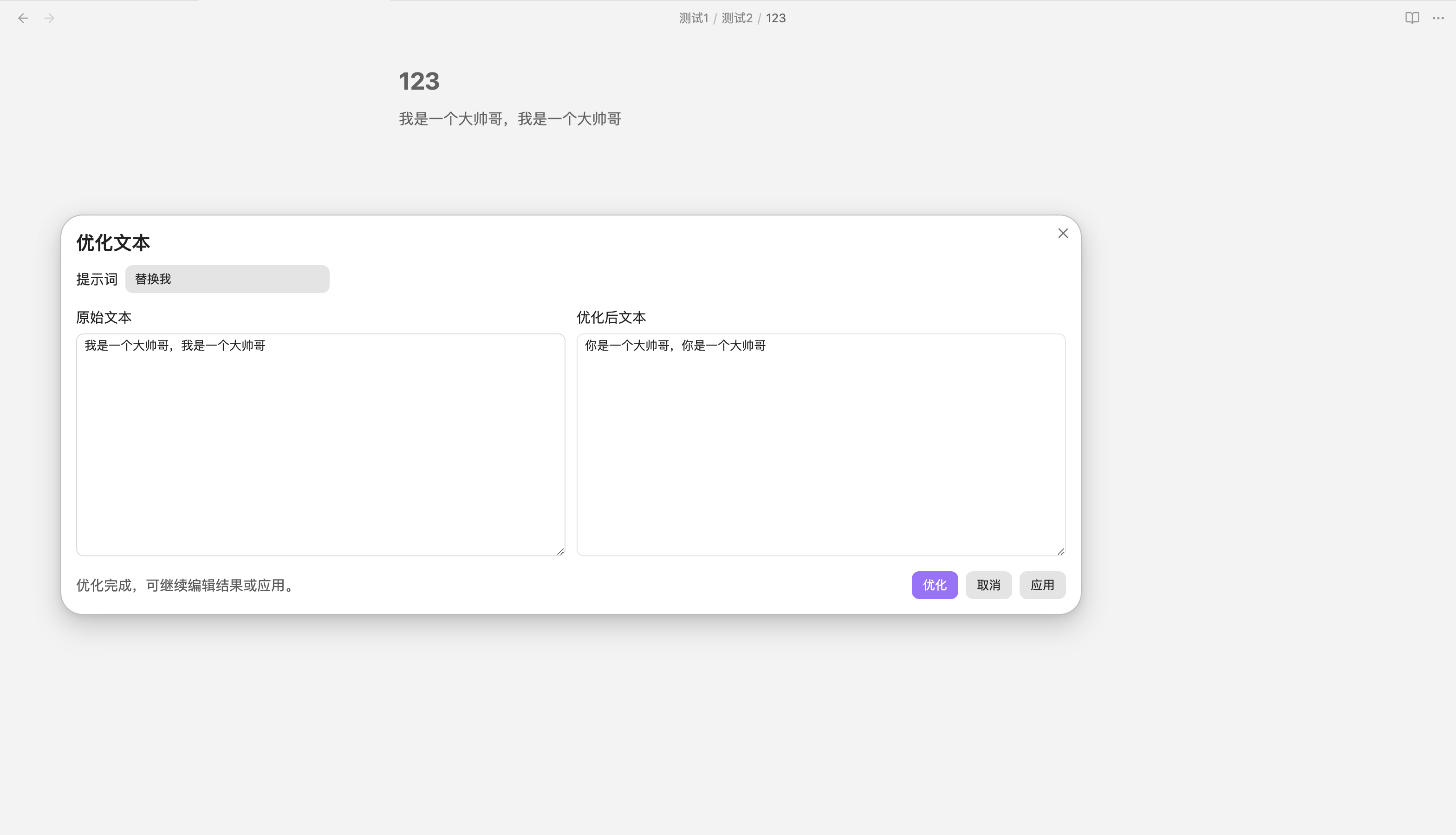
Extreme Editor is a lightweight text optimization plugin for Obsidian. It selects a prompt based on the current note's folder and uses an LLM to optimize the text.
Features
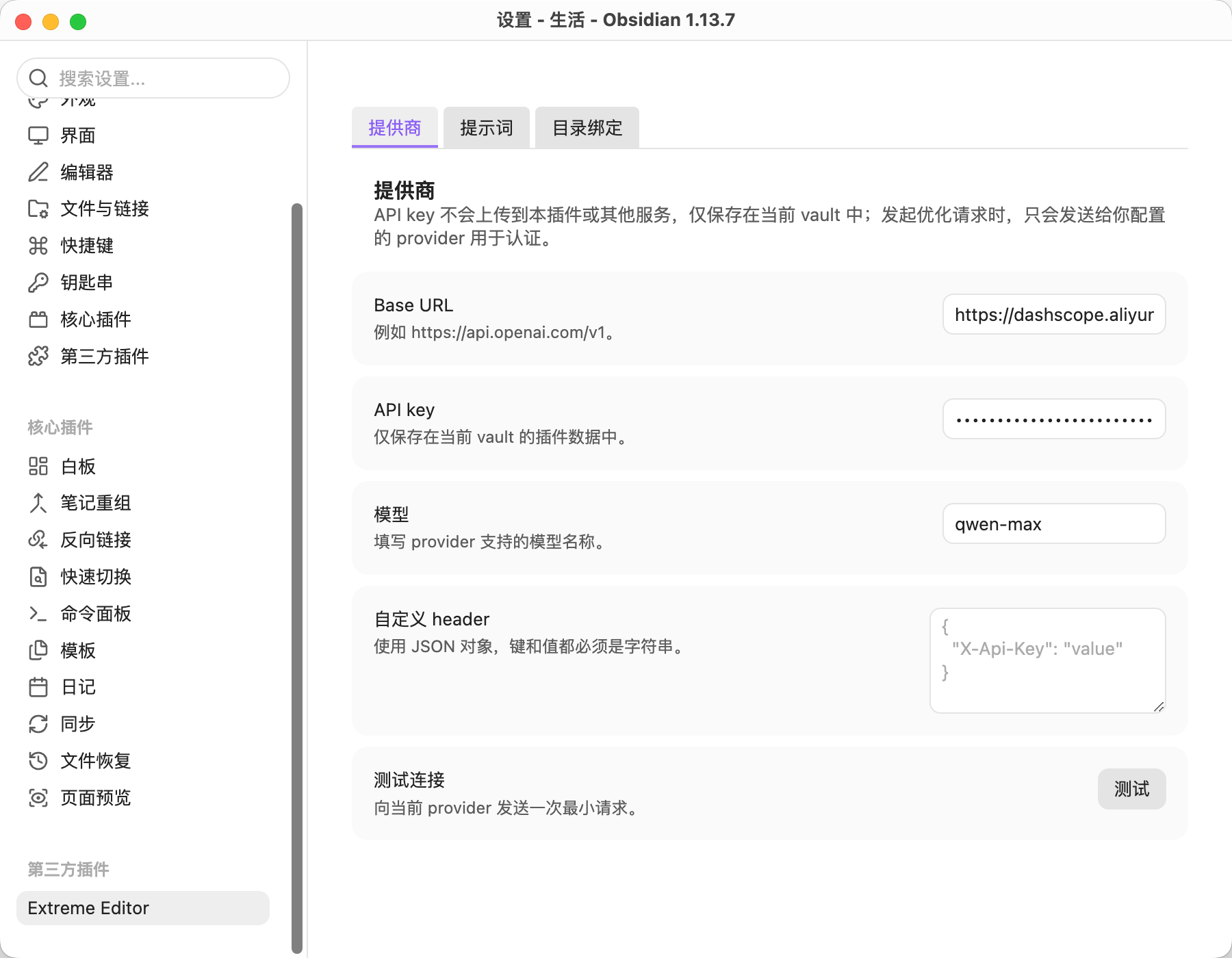
- Configure an OpenAI-compatible provider with a Base URL, API key, model, and custom headers.
- Optimize selected text or an entire note.
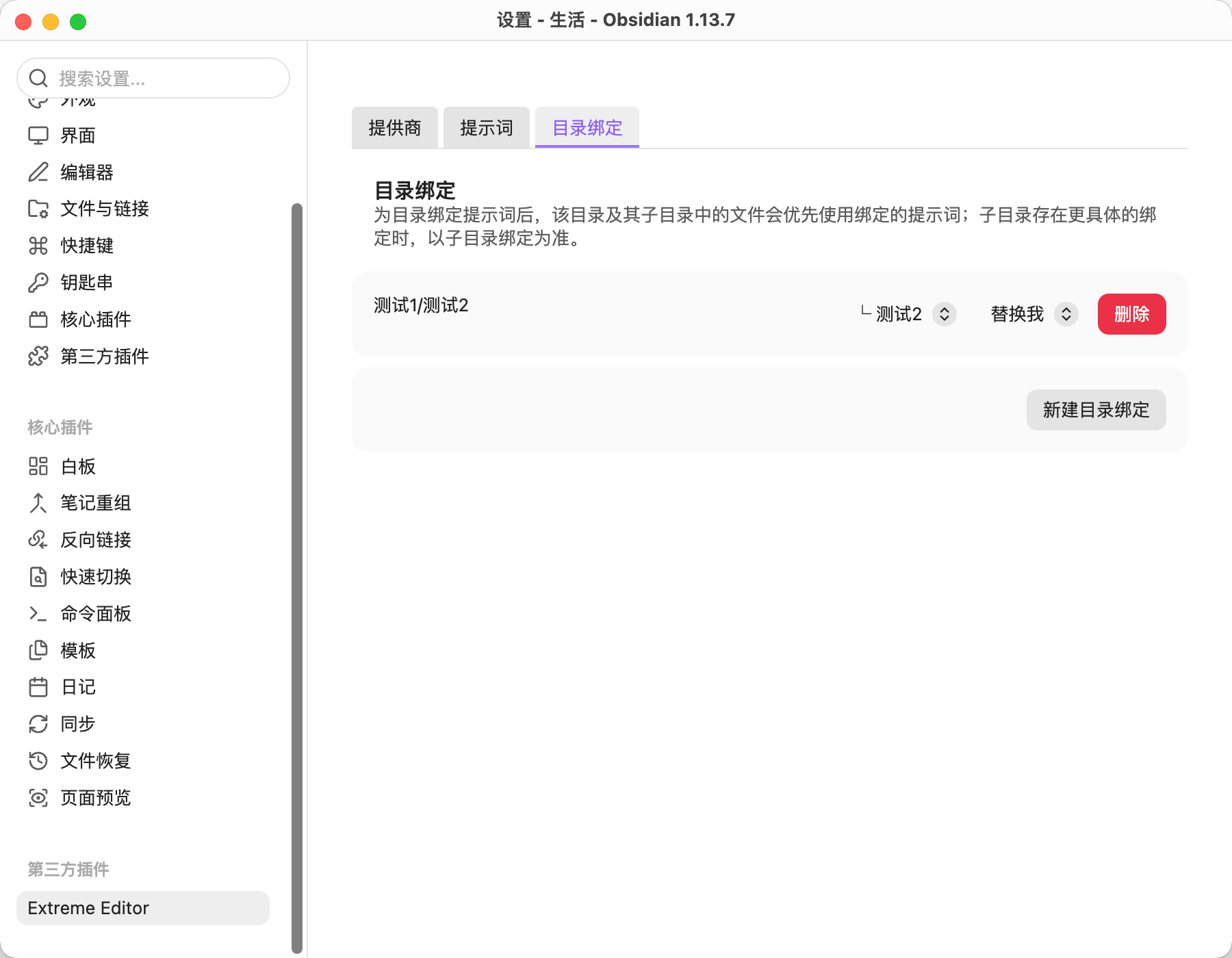
- Automatically select prompts through folder-to-prompt bindings. Subfolders inherit their parent folder's binding, and the most specific binding takes priority.
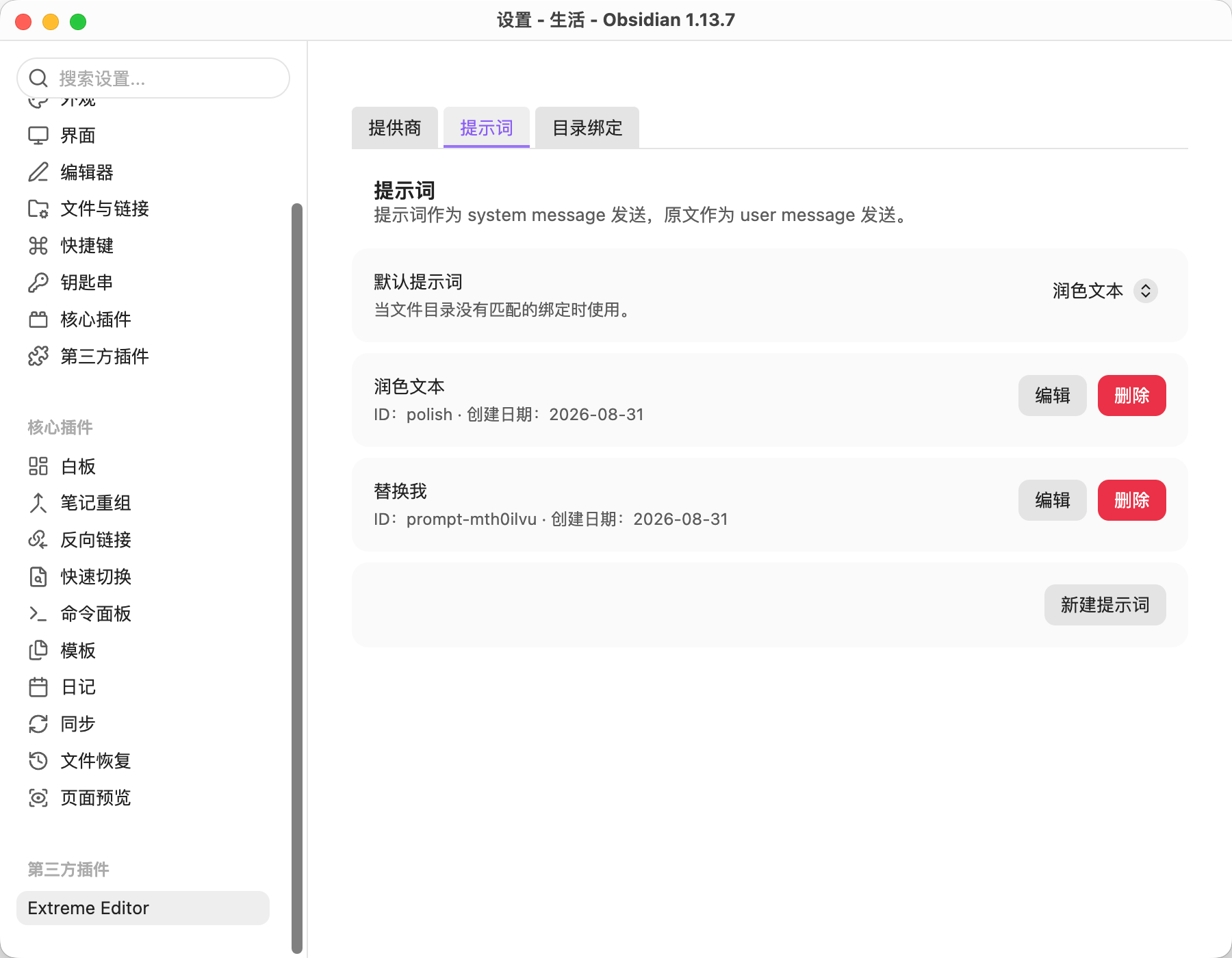
| Provider configuration | Prompt management | Folder bindings |
|---|---|---|
 |  |  |
Configuration
- Open Settings → Extreme Editor.
- In the Provider tab, enter the API base URL, such as
https://api.openai.com/v1. - Select or create an Obsidian Keychain entry for the API key, then enter the model name. If additional request headers are required, enter them as a JSON object.
- Select Test to verify the current configuration. This sends one minimal model request and may incur service charges.
- In the Prompts tab, create prompts and set the default prompt.
- In the Folder bindings tab, select a folder from the current vault's folder tree and associate it with a prompt. You can also select the vault root.
- Search for Extreme Editor in Obsidian's hotkey settings and assign a hotkey to the plugin.
Custom header example:
{
  "X-Api-Key": "value"
}
Usage
- Select text in the Markdown editor, or leave the selection empty to process the entire note.
- Open the command palette and run Extreme Editor: Optimize text with prompt. To use a hotkey, assign one under Settings → Hotkeys.
- Confirm the prompt shown at the top of the dialog, then select Optimize. Temporarily switching prompts does not change the folder binding.
- Preview the result and, if necessary, edit the text on the right.
- Select Apply to write the result back, or select Cancel to close the dialog without modifying the note.
Privacy and external services
- The plugin does not scan or send vault content at startup and includes no telemetry or analytics.
- Only when you explicitly select Optimize are the current selection or entire note, the active prompt, the model name, and authentication headers sent to your configured provider.
- Selecting Test sends only minimal text for connection verification.
- The API key is stored through Obsidian's Keychain (
SecretStorage); plugin data contains only the selected secret ID. Other settings, including custom header values, remain in the current vault's plugin data, so do not place credentials in custom headers. - Closing the dialog while a request is in progress discards the returned result and does not modify the note.
Development
The plugin requires Obsidian 1.11.5 or later. The development environment requires Node.js 18 or later and npm:
npm install
npm test
npm run lint
npm run build
npm run build generates main.js in the project root. Local installation and releases require main.js, manifest.json, and styles.css.
For local installation, place these three files in <Vault>/.obsidian/plugins/extreme-editor/, reload Obsidian, and enable the plugin under Settings → Community plugins.
For detailed product and implementation decisions, see docs/plugin-design.md.
For plugin developers
Search results and similarity scores are powered by semantic analysis of your plugin's README. If your plugin isn't appearing for searches you'd expect, try updating your README to clearly describe your plugin's purpose, features, and use cases.