Fokus Sync
approvedby Fokus
Two-way sync between your vault and Fokus notes, with tags, buckets, and embedded images. - This plugin has not been manually reviewed by Obsidian staff.
Fokus Sync
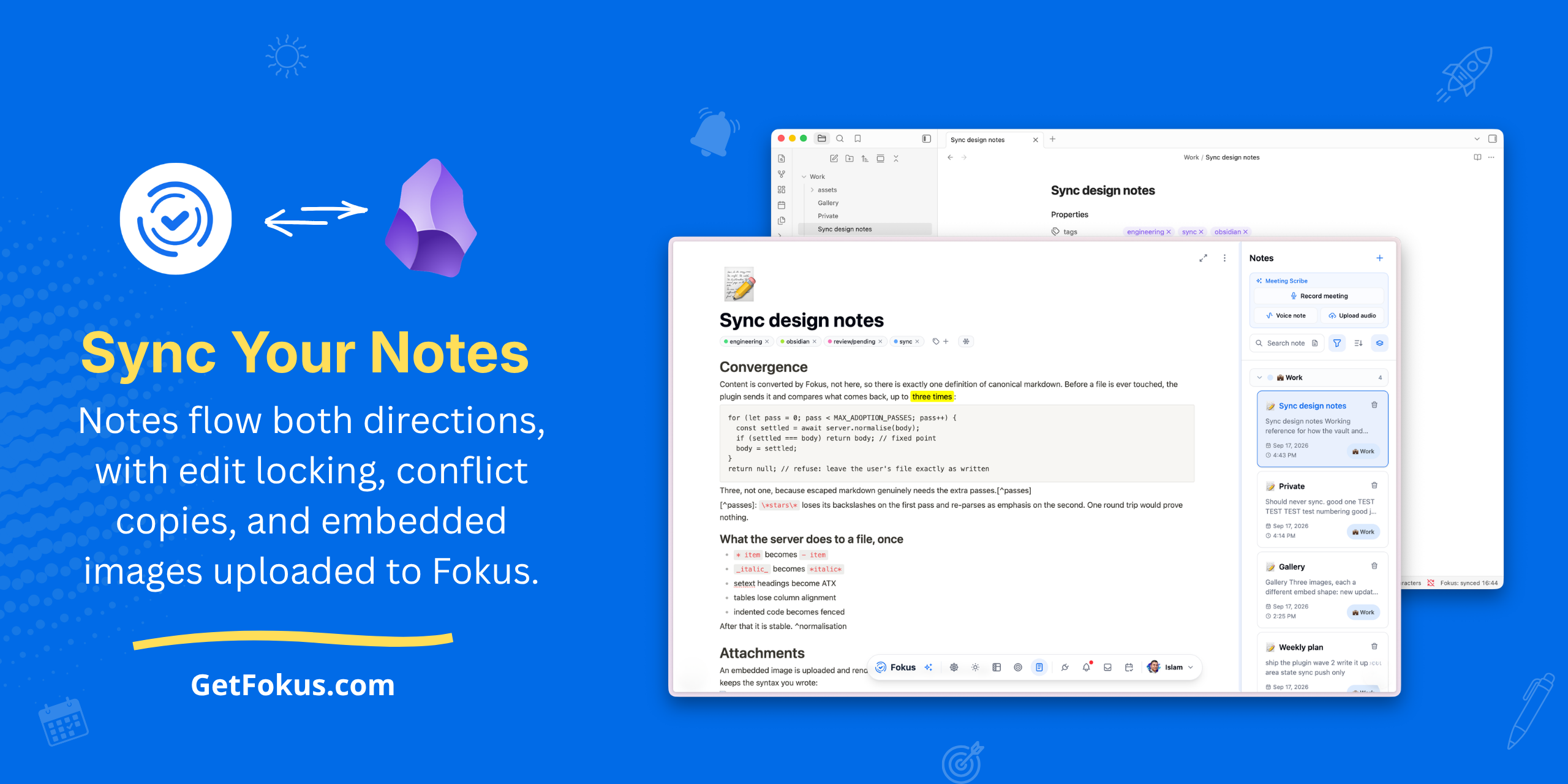
Sync your Obsidian vault notes into Fokus.
Notes flow both directions, with edit locking, conflict copies, and embedded images uploaded to Fokus.
Desktop only for now.
✨ Why sync to Fokus
A vault is very good at writing things down and not good at being asked questions. Once a note is in Fokus it joins everything else you track there:
- 🔍 Search that understands meaning. Notes are embedded, so asking about "the decision on rate limits" finds the note that talks about throttling — even though it never uses the word.
- 🧭 Captain Fokus can read them. The assistant searches your notes when it answers, so what you wrote in the vault informs planning, summaries and recall instead of sitting in a folder it cannot see.
- 🔗 Attach a note to real work. A note can belong to a task or an objective, so the thinking lives next to the thing it is about.
- 🗂️ Buckets and tags. Each synced folder maps to a bucket, and
#tagsbecome Fokus tags, so vault notes file themselves alongside everything else. - 🕸️ Connected, not isolated. Notes become part of the knowledge graph Fokus builds across your tasks, objectives, people and calendar.
- 📱 Readable anywhere. Web, desktop and mobile — including on a phone, where Obsidian sync is not something you want to set up.
Your vault stays the place you write. Fokus becomes the place it can be found.
🔐 What it sends where
Every synced note is sent to your own Fokus account at https://api.getfokus.com.
Endpoints used: /v1/notes (note content), /v1/uploads (embedded images),
/v1/tags (tag names), /v1/workspaces, and /integrations/obsidian/* (the
vault registration and its folder settings). Nothing else leaves the vault, and
there is no telemetry.
Your access token goes into Obsidian's secret storage, which is the operating
system's keychain — macOS Keychain, Windows DPAPI, libsecret on Linux. Only the
name of the entry is written to .obsidian/plugins/fokus-sync/data.json, so the
token is not in your vault and does not travel with it through iCloud, Dropbox or
git.
Obsidian's keychain is shared between plugins by design, so another plugin you install could read the entry. Use a token you can revoke on its own, and revoke it if you stop using this plugin.
🔑 Getting a token
In Fokus, go to Settings → Integrations → Obsidian, create a token under API tokens, and paste it into the plugin's settings. The value is shown once; if you lose it, revoke that token and create another. Name it after this vault so you can tell which one to revoke later.
A token grants full access to your account for 90 days, so revoke any you are no longer using.
🧩 How the mapping works
Each synced file gets a fokus-id in its frontmatter. That key is the mapping:
it survives renames, moves, a plugin reinstall, and the vault being opened on
another machine. The plugin's own data.json is only a cache — delete it and the
links rebuild from the frontmatter.
Set fokus-sync: false in a note's frontmatter to keep it out of sync.
Duplicating a note copies its fokus-id too. The plugin notices, leaves the
original alone, and gives the copy an id of its own — otherwise the two files
would overwrite each other's note forever.
🏷️ Tags and buckets
#tags in the body and tags: in frontmatter both become Fokus tags, matched by
name and created if they don't exist. Tags inside code — a # heading in a
fenced block, a #1570EF colour, a #define — are ignored, because they aren't
things you tagged.
Which Fokus bucket a note lands in is configured in Fokus, on the Obsidian
connection, as a vault-folder → bucket mapping. The most specific folder wins, so
mapping both Work and Work/Clients files a client note in the client bucket.
🖼️ Images and attachments
An embedded image is uploaded to Fokus and rendered there, while the file in
your vault is left exactly as you wrote it — ![[diagram.png]] stays
![[diagram.png]]. The plugin keeps a private map from your embed to the
uploaded URL and translates in both directions, so the two views never have to
agree on syntax.
png, jpg, gif, webp, svg and pdf are uploaded; that list matches what
the server accepts, so nothing is attempted that would be refused. An embed
inside a fenced code block is an example of the syntax, not an attachment, and is
left alone.
Replacing an image with a new version under the same filename is noticed and re-uploaded the next time that note syncs. An upload that fails — offline, rate-limited, a file that has gone missing — leaves the embed as text in Fokus and is retried; it never silently drops the image.
Uploads are paced to stay inside the server's limit, so a note with dozens of images takes a few minutes to finish rather than being refused part-way. The edit lock is renewed while that runs.
⬇️ What comes back down
Only notes that started in your vault. A note written natively in Fokus stays there — this sync never invents a filename or picks a folder for you.
While you are editing a note, the plugin holds an edit lock, so Fokus shows it read-only instead of racing you. The lock expires on its own, so a crash or a closed laptop never leaves a note stuck.
⚔️ When both sides changed
Nothing is discarded. Your file keeps what you have in front of you, and the
Fokus version is written beside it as Note (conflict 2026-09-17).md. That copy is
marked fokus-sync: false, so it is never itself synced — it is just a file you
can read, merge from, and delete. Both sides then converge on your local version.
🗑️ Deleting
Deleting a file stops it syncing; its Fokus note is left exactly as it is. A file
can vanish for reasons that are not a decision to delete anything — a move out of
a synced folder, a vault-sync hiccup, a stray keystroke — and acting on that is
not recoverable. Put the file back with its fokus-id intact and it re-links.
⌨️ Commands
- Sync now — push whatever is currently queued.
- Check Fokus for changes — pull immediately rather than waiting for the poll.
- Sync every note in the selected folders — a first full sync. It asks first and tells you how many notes are in scope and how many aren't in Fokus yet; it is never automatic.
The queue is persisted, so quitting or crashing mid-sync resumes where it stopped rather than dropping the rest.
⚠️ Limitations
Preserved exactly, but Fokus has no feature for them, so they show as the characters you typed rather than as a rendered thing:
| You wrote | In Fokus |
|---|---|
[[Note]], [[Note|alias]] | plain text, not a link |
[^1] and its definition | plain text, not a footnote |
^block-id | plain text, not an anchor |
> [!warning] callout | a plain blockquote, [!warning] included |
$x$, $$x$$ | plain text, not maths |
%%comment%% | visible — Obsidian hides these, Fokus does not |
| Dataview, Templater, Tasks syntax | plain text |
Nothing there is lost — it comes back to the vault exactly as you wrote it.
Rewritten once, the first time a file syncs. After that the file is stable:
* itembecomes- item;_italic_becomes*italic*- setext headings become
#headings; indented code becomes fenced - tables lose column alignment (
:--becomes---) H~2~ObecomesH~~2~~O— a single tilde is read as strikethrough
Genuinely lossy. These are the ones to avoid in a synced folder:
\*escaped stars\*lose their backslashes and become emphasis[text](<path with spaces.md>)loses its angle brackets and the link with them — it becomes plain text- a plain bullet in a list that also contains a task becomes a task
Refused rather than flattened. A note holding mentions, drawings, handwritten pages or collapsible sections cannot be represented in markdown, so Fokus rejects a write from the vault instead of destroying them.
Not supported at all: non-.md files including Canvas; renaming a file when
its Fokus title changes; moving a file when its bucket changes; deleting on
either side (it only ever unlinks); Obsidian mobile.
docs/sample-note.md is an example note covering all of this, and is the one
shown in the screenshot above.
📝 Formatting
Content is converted by Fokus, not by this plugin, so there is one definition of canonical markdown and your file cannot drift from it.
Before your file is touched, the plugin checks that it settles — it sends the
note and re-sends what comes back until the result stops changing. A file that
never settles is refused: its body is left exactly as you wrote it, and it
stays refused until you edit it. Only a fokus-id is added, so the refusal is
remembered and the note is not created twice.
🛠️ Development
npm install
npm run dev          # watch build into main.js
npm run build        # typecheck + production bundle
npm test             # unit + engine tests (no backend needed)
npm run test:e2e     # the real engine against a local backend
npm run types:check  # tsc only
npm run format:check # prettier
npm run test:e2e needs the Fokus backend running locally
(cd backend && docker compose up -d) and refuses to run against anything but
localhost — it creates and rewrites notes.
Testing shape
The engine talks to a VaultPort and a FokusPort and imports neither Obsidian
nor the network. The e2e harness swaps in a real temp-directory vault and Node
fetch, so the code under test is the code that ships.
src/main.ts imports Obsidian and cannot be loaded by the unit suite, so
behaviour wired only there is asserted against the built main.js in
tests/bundle.test.ts. The settings tab, the file watcher, frontmatter writes
and unload cleanup need checking by hand in Obsidian.
📄 Licence
MIT
For plugin developers
Search results and similarity scores are powered by semantic analysis of your plugin's README. If your plugin isn't appearing for searches you'd expect, try updating your README to clearly describe your plugin's purpose, features, and use cases.