Folder Nodes
approvedby ZhengYX
Turn every folder into a same-named node with visual navigation, selection creation, and scalable ordering. - This plugin has not been manually reviewed by Obsidian staff.
Folder Nodes
Folder Nodes represents a complete structural node as a folder plus its same-named Node Note, A/A.md. A managed folder or Markdown without its counterpart remains visible as an Incomplete node until you complete it or mark it unmanaged.
Screenshots
Node contents
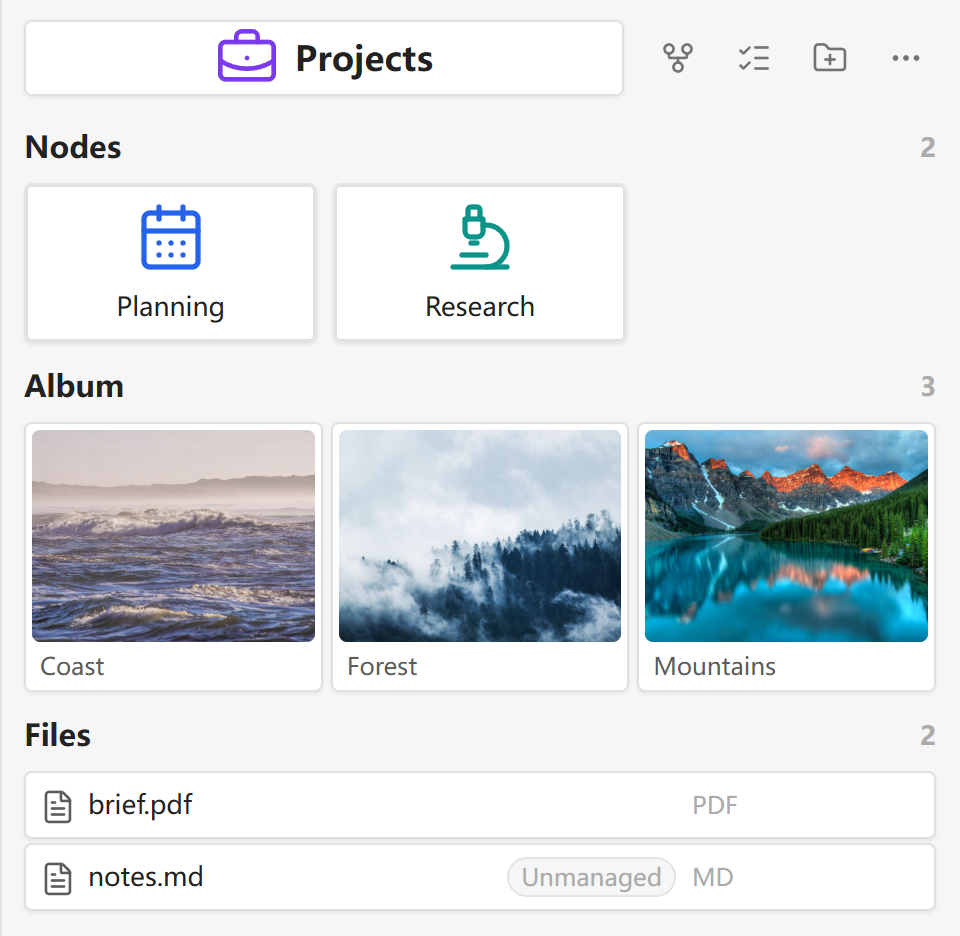
Browse child nodes, visual media, ordinary files, and explicit unmanaged boundaries from one sidebar.
File Explorer
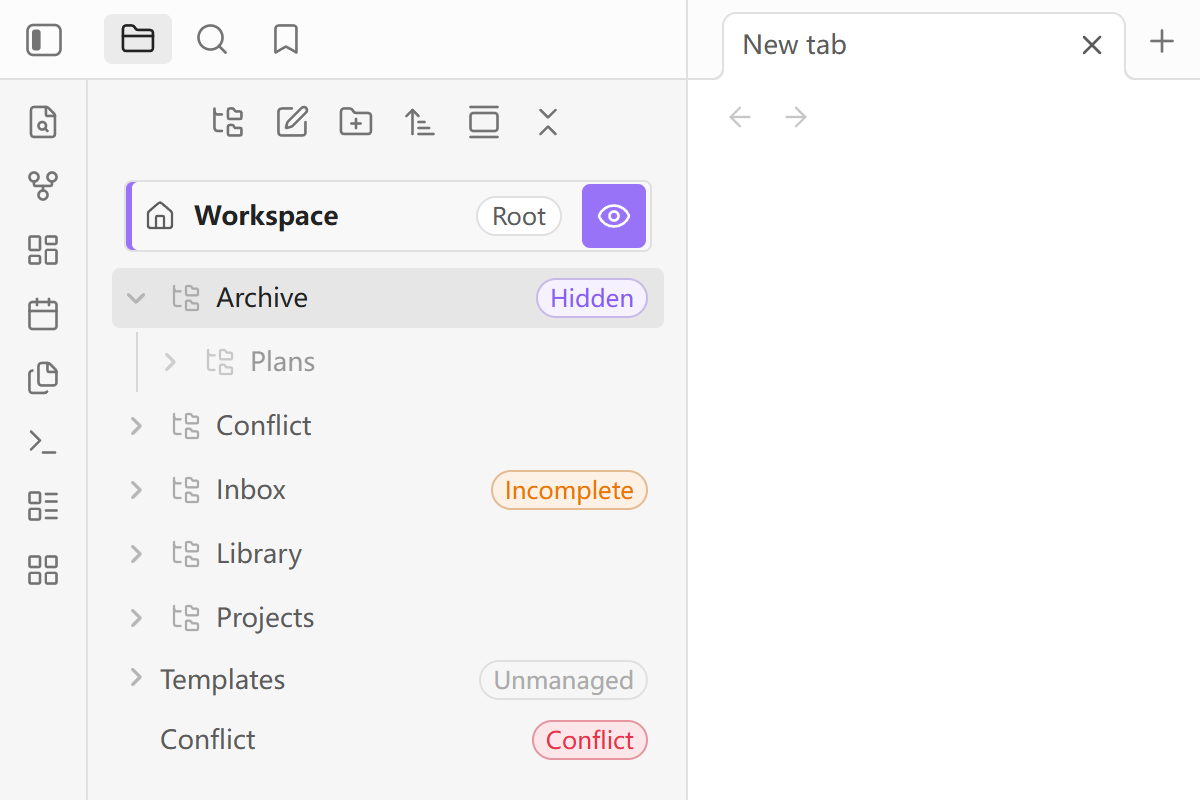
Navigate the Root and nested Folder Nodes in Obsidian's familiar file tree. The Root eye reveals property-hidden subtrees for the session, while aligned badges distinguish Hidden, Incomplete, Unmanaged, and Conflict states.
Node Graph
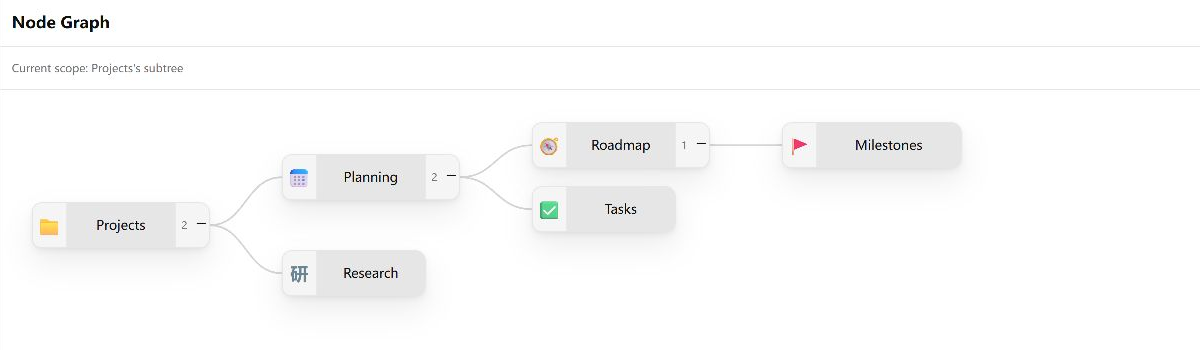
Explore a node's structure in Global, Subtree, or Local scope, expand branches on demand, and switch between 2D and 3D views.
Icons & appearance
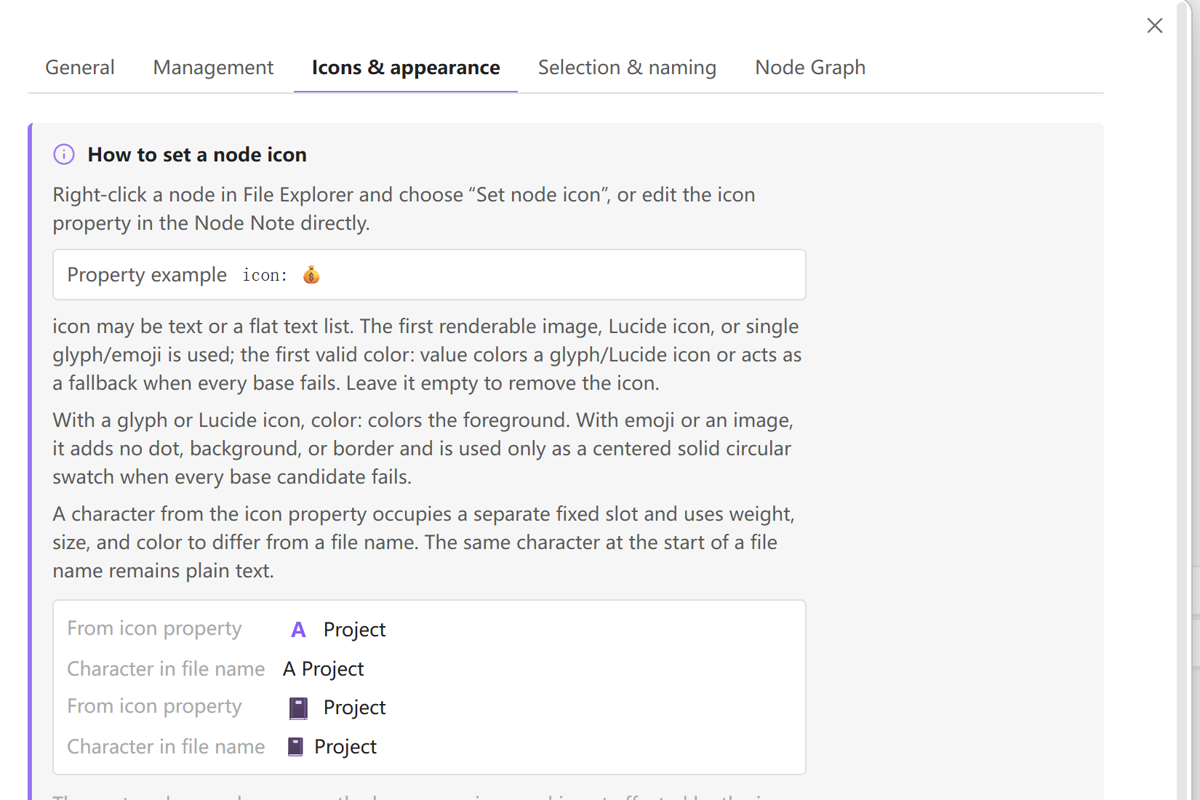
The settings card explains where icons come from and directly compares icon: A or icon: 📓 with the same character at the start of a file name. An optional title icon stays in its own aligned slot before the Node Note title.
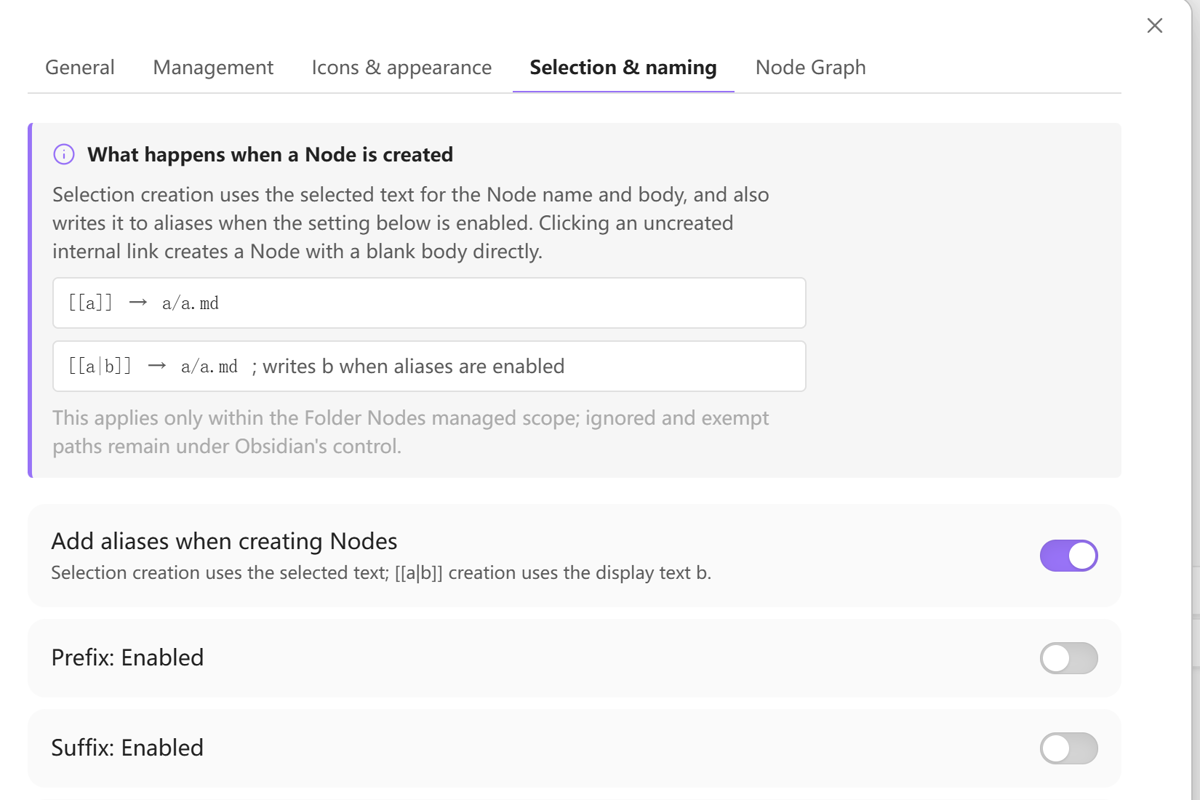
Predictable Node creation
See exactly how selected text and uncreated links map to Node paths, note bodies, and aliases before changing naming options.
Features
- Create, rename, move, merge, reorder, and safely trash complete Folder Nodes.
- Keep Obsidian's native New note and New folder actions beside New node. Native creation produces an incomplete folder or Markdown half; New node creates the complete pair atomically. File Explorer folder actions operate the whole folder, while tab actions move, delete, or merge only the Node Note. Renaming either half keeps an existing folder/Node Note pair synchronized, and explicitly labelled containing-node actions remain available from a Node Note tab.
- Create a child node from selected editor text through the command palette or editor context menu. The confirmation stays concise—creation location, new node name, and alias policy—while the plugin still builds the exact Vault-relative wikilink internally, writes the selection into the new note, and replaces the source selection transactionally. Inside one Markdown table cell, the generated alias separator is escaped as
\|; cross-cell and cross-row selections stop without writing. - In managed scope, click an uncreated internal link to create the complete Node directly.
[[a]]createsa/a.md; with aliases enabled,[[a|b]]also writesbtoaliases. - Navigate the global Node Tree through File Explorer: use the pinned, non-collapsible Root row and its eye button to reveal or hide property-hidden subtrees for the current session; click a folder name to open its Node Note; show a passive dot instead of a useless disclosure arrow when the hidden canonical note is the node's only child; and restore the arrow as soon as visible content appears. Desktop adds before/into/after drag placement; Android uses Obsidian's native folder move plus Folder Nodes' Move, Move up, and Move down actions.
- Browse the current node through independently paged Nodes, static Album, and compact Files sections with 200-item batches. Ancestor-only breadcrumbs and one clickable current-node card avoid duplicate identity, common actions stay in the header, empty sections disappear, and section disclosure state lasts for the current view session. Every entry has menu access; desktop supports child-node and single-file drag placement, while Android uses the equivalent move/reorder menus. Multi-selection inserts or copies links. GIFs use still thumbnails; video and audio never receive inline playback controls.
- Explore Folder Nodes in one progressively disclosed Node Graph workspace view. Structure is always the hierarchy; Show links is an independent switch that is off by default and overlays resolved canonical-note links without moving nodes. Use readable left-to-right 2D (or top-to-bottom), layered 3D, Global/Subtree/Local scopes, per-branch expansion handles, range expansion, native search, focus, and Fit. Direct and whole-branch actions select their card; range collapse transfers a hidden selection to its nearest visible ancestor.
- Resolve one Obsidian-native
iconText/List as ordered Vault-image, Lucide, or single-glyph candidates plus an optionalcolor:value, with local fallback, ancestor inheritance, before/after/hidden File Explorer placement, and optional note-title display outside editable title text. Property icons use a fixed frameless slot; glyph weight, size, and color distinguish them from file-name characters, while emoji retain the selected installed color-font or platform appearance. - Use the root Node Note as an optional homepage, open it by command or from Node Contents, and optionally open it after Vault startup.
- Recognize complete and incomplete nodes immediately without initialization. Management provides preview-first bulk organization, an explicit preview-first legacy-property migration, and strictly read-only Health for structure, Folder Nodes properties, and icon declarations.
- Show both folder-only and Markdown-only halves as orange Incomplete states with explicit completion and Set as unmanaged actions. True pair conflicts use a red Conflict badge and fail closed.
- Configure two unmanaged-content groups without hiding anything: unmanaged Markdown files and unmanaged folders. Both accept exact paths and plain-language name-start rules;
.and_are the defaults. The active Vault configuration folder,.git, and.trashare always protected; rootAGENTS.mdandCLAUDE.mdare unmanaged Markdown paths by default. - Store Folder Nodes behavior in one concise Node Note property:
folder-nodesis a Text List containing only non-default tokens such asorder=manual,rank=1024, andhidden=true. A hidden node removes its complete subtree from File Explorer, Node Contents, and Folder Nodes Graph only; Obsidian Search, Quick Switcher, backlinks, native Graph, links, and direct access remain unchanged. General can ignore all hidden markers without deleting them, while the Root-row eye or command palette reveals them for the current session. - Use natural name order without metadata or scalable manual order with a parent mode flag and sparse ranks on child notes.
- Follow Obsidian's language automatically or override the interface with English or Simplified Chinese.
- Keep all processing local and write no permanent node ID,
_pkwfmetadata, manifest, path, parent, or complete child list.
Requirements and compatibility
- Obsidian 1.12.7 or later.
- Desktop Obsidian and Android Obsidian. Node Graph keeps narrow-screen, coarse-pointer, and touch-compatible controls; Android release acceptance uses the current emulator. Android physical devices and iOS are out of scope.
- A complete structural node still uses exactly one same-named Node Note. A managed folder or Markdown without its counterpart is an incomplete node; unmanaged Markdown and folder rules define explicit boundaries for plugin-owned structural actions.
Installation
Community Plugins
Open Settings → Community plugins → Browse, search for Folder Nodes, install it, and enable it. If it is not available in your catalog, use the manual installation below.
Manual installation
Download one matching release and place main.js, manifest.json, and styles.css in Vault/.obsidian/plugins/folder-nodes/. Reload Obsidian, then enable Folder Nodes under Community plugins. Do not mix runtime files from different versions.
Upgrade
Preserve Vault/.obsidian/plugins/folder-nodes/data.json when it exists. Replace only main.js, manifest.json, and styles.css; delete data.json only when you explicitly want to reset plugin preferences and unmanaged rules.
Usage
- Back up the Vault and open Settings → Folder Nodes → General.
- Review the Incomplete node and Unmanaged labels in File Explorer. Complete individual halves directly, or open Organize incomplete nodes for an optional exact-path bulk preview.
- Use File Explorer, node context menus, or the command palette to create and navigate nodes. The eye beside Root toggles hidden subtrees for this session without editing YAML.
- Select editor text and choose Create Folder Node from selection from the editor context menu or command palette. Confirm the creation location, short node name, and alias policy before creation.
- In managed scope, click an uncreated
[[a]]or[[a|b]]link to create and open its complete Folder Node directly. - Open Node contents for child nodes, a static image/video Album, and compact ordinary files. Right-click an entry, use its More actions button, or press Shift+F10 for the same menu.
- Open Node Graph from Node Contents, the command palette, or a Folder Node/Node Note context menu. Global initially shows Root and its direct children; Subtree shows the selected node and its direct children; Local adds one parent for context and lets expansion continue only through the selected node's subtree. Use the right handle to reveal direct children, Alt-click to expand the whole branch, or the range menu for 1, 2, 3, all, or collapse-to-level-1. Click the title or icon to select; expansion handles and context menus also select their card. Expansion preserves the viewport and keyboard toggle focus. Double-click the title or press Enter to open the canonical Node Note. The current scope names its root separately from the View subtree and View local graph actions: selecting another card leaves the scope unchanged until you invoke an action. The context menu offers Reveal in File Explorer and explicit whole-branch expansion and collapse. Search reveals hidden ancestors and centers the result; clearing it restores the pre-search expansion. In Local scope, Show links adds direct resolved-link neighbors while it is enabled; Global and Subtree keep the current structural node set and overlay only links whose endpoints are already visible.
- On desktop, drag a Folder Node before, into, or after another node to reorder or reparent it, or drag one Album/Files item into a node or breadcrumb. On Android, use Obsidian's native folder move or Folder Nodes' Move, Move up, and Move down menu actions instead.
- Use Obsidian's native file/folder actions when you mean the selected file or folder. From a Node Note tab, choose Move/Delete/Merge containing node only when the whole folder subtree is intended.
Settings
- General controls interface language, whether hidden markers apply, and whether the root Node Note acts as a homepage and opens after startup.
- Management contains the two unified unmanaged-content rule groups, preview-first bulk organization, explicit property migration, and read-only Health.
- Icons & appearance controls inheritance, File Explorer placement, and note-title display. Its comparison card shows the difference between a property icon and the same character in a file name. Icon size and alignment follow Obsidian rather than an arbitrary size setting.
- Selection & naming explains both Node-creation paths and groups Prefix and Suffix separately. Each enabled timestamp source has its own validated Obsidian/Moment format and live preview; hidden controls stay out of the way when a group or source is inactive.
- Node Graph provides only the total switch, default dimension, 2D layout direction, and large-graph thresholds. Structure is always present; each new graph opens with Show links off. Persistent include/exclude rules are intentionally absent: the same
hidden=truesubtree marker controls File Explorer, Node Contents, and Node Graph. - Follow Obsidian uses Obsidian's current interface language. Manual English or Simplified Chinese selection overrides the plugin interface without changing filenames or Markdown properties.
- Naming sources are current file, current Folder Node, nearest current heading, timestamp, and custom text. Prefixes and suffixes affect only the basename and may format the same captured creation instant differently, for example
YYYY-MM-DDandHHmmss. With aliases enabled, selection creation writes the selected text, while uncreated[[a|b]]link creation writes the display textb.
Folder Nodes property
folder-nodes is a flat Obsidian Text List. Defaults are omitted, and the property is removed when no tokens remain.
folder-nodes:
  - order=manual
  - rank=1024
  - hidden=true
Published legacy fields—folderNodeChildrenSort, folderNodeSiblingRank, and folderNodeHidden—remain readable. Use Management → Migrate Folder Nodes properties to preview exact affected notes, update every device first, and then confirm. Nothing migrates at startup. Equivalent old/new values can normalize safely; conflicts, invalid values, duplicate keys, a changed preview, or ambiguous YAML fail closed. Migration preserves unrelated frontmatter, note bodies, line endings, BOM, and recognized future key=value tokens.
Icon property
icon stays compatible with Obsidian Properties: use one string or a flat list of strings, not nested YAML. The first renderable base candidate wins; a missing image continues to the next item. With a glyph or Lucide icon, the first valid color: item colors the foreground. Emoji and images keep their native pixels and receive no added dot, background, or border; for them, color: is used only when every base candidate fails, becoming a centered solid circular swatch.
icon:
  - "[[Assets/project.svg]]"
  - "lucide:folder-tree"
  - 文
  - "color:#7c3aed"
The picker loads the complete current list and supports add, remove, reorder, presets, and live File Explorer/Contents previews. Unknown or multi-grapheme values are shown as invalid and cannot be saved; a single letter, CJK character, symbol, or emoji remains valid. Inheritance starts only after the local list is exhausted.
Icons & appearance lists System default plus supported color Emoji fonts detected on the current device: Segoe UI Emoji, Apple Color Emoji, Noto Color Emoji, Twemoji Mozilla, and OpenMoji. A complex-sequence preview makes missing glyphs or split Emoji visible before use. A font that disappears after sync or uninstall falls back to the platform stack, and Detect local fonts again refreshes the list. Advanced CSS snippets may still override --folder-nodes-glyph-font and --folder-nodes-emoji-font.
Limitations
- Structural identity is the current normalized Vault path, not a permanent ID. An external delete followed by an unrelated create is not guessed to be a rename.
- HTML5 drag-and-drop is desktop-only. Android intentionally exposes no draggable handles or drop targets; use native folder move and the plugin's move/reorder actions.
- Node visuals support Vault images and a lightweight semantic icon slot, but do not fetch remote images, recolor inline SVG, infer initials from node names, accept nested
iconobjects, render PDF first pages, preview HEIC/HEIF, generate video frames, animate GIFs, or provide video/audio playback. - The Contents View can move one ordinary file at a time into a displayed node or breadcrumb folder and can select multiple files for link insertion/copying, but it does not independently order files, transactionally move multiple files, accept cross-view internal drops, or become a second complete Vault tree.
- Merge fails closed on path or frontmatter conflicts instead of presenting a complex conflict-resolution UI.
- Alternate canonical names such as
README.md,index.md, or_A.mdand arbitrary property inheritance are not supported. Unmanaged folders are explicit whole-subtree boundaries, not partially managed nodes. - Very large graphs switch to Canvas while retaining every visible structure edge; only the optional link overlay is bounded. 2D preserves readable minimum zoom, while 3D renders distant nodes as dots and shows full cards for focus or hover. Scope and progressive expansion remain available instead of placing dense-overview notices over the graph.
Privacy and security
Folder Nodes runs locally and makes no network requests. Health and preview scans inventory local Vault paths and property declarations, while Node Graph reads local Folder Node structure, Metadata Cache, and the shared reference index without uploading note contents or starting another whole-Vault link scanner. Documented user actions can create, modify, move, rename, merge, or trash notes and folders. Bulk organization and property migration are preview-first and revalidated before commit; structural writes are serialized, collisions block commits, and ambiguous operations fail closed. Rollback actions stay bound to the original Vault objects and refuse changed or replaced entries instead of touching a new occupant at the same path. Complete-node deletion uses Obsidian's system-trash path. The plugin writes generated Markdown links to the system clipboard only after an explicit copy action and never reads the clipboard. Preferences and unmanaged rules stay in plugin data.json; structural tokens stay in Node Note folder-nodes lists. Graph workspace state persists only scope, focus, dimension, and whether links are shown. Branch expansion and search snapshots last only for the current session and reset to the safe one-level default after restart. No node content, path, visual, or diagnostic is uploaded.
Development
Use Node.js 24.19.0 and npm 11.17.0.
npm ci
npm run check
npm run release:check
Stable project documents:
- Product requirements
- UX specification
- Architecture
- Testing strategy
- Changelog
- Contributing guide
- Security policy
Support
Use GitHub Issues for reproducible bugs and concrete feature requests. Include the Folder Nodes version, Obsidian version, operating system, synthetic folder structure, and exact action. Remove private Vault paths and note content before posting. Report vulnerabilities privately through the security policy.
License
MIT © ZhengYX
For plugin developers
Search results and similarity scores are powered by semantic analysis of your plugin's README. If your plugin isn't appearing for searches you'd expect, try updating your README to clearly describe your plugin's purpose, features, and use cases.