Freedraw PDF
approvedby vida sana
Freehand PDF annotation workspace for Obsidian with vault-backed sidecar saves. - This plugin has not been manually reviewed by Obsidian staff.
Freedraw PDF
Write and draw on PDFs in Obsidian. Freedraw PDF lets you add handwritten notes, highlights, text, and images, insert extra writing pages, and export an annotated copy. Your original PDF stays unchanged.
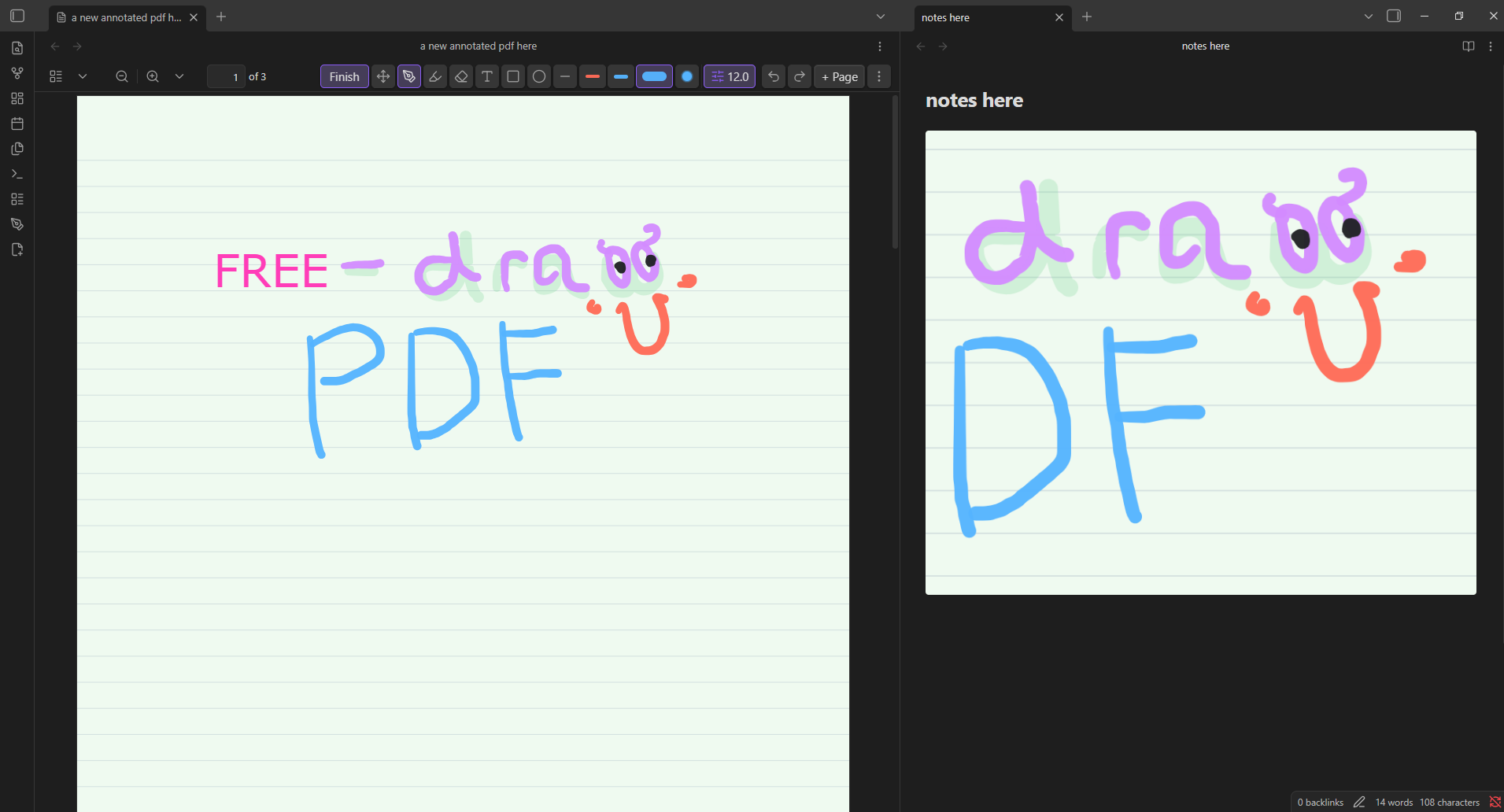
The PDF is open on the left. On the right, an Obsidian note displays an annotated region from the same document.
What you can do
- Write with a pressure-aware pen or highlighter, with separate colour and width settings.
- Add text boxes, lines, rectangles, ellipses, and images.
- Move, resize, duplicate, and reorder annotations. Erase whole objects or parts of a stroke.
- Insert blank, ruled, grid, or dotted pages between PDF pages, with a choice of paper colours and sizes.
- Show an annotated page or selected region inside a Markdown note.
- Export the document, added pages, and annotations as a separate PDF.
Install
Freedraw PDF requires Obsidian 1.12.0 or later.
- Download the plugin ZIP from the latest release and extract it. You can also download
main.js,manifest.json, andstyles.cssindividually. - In your vault, create the folder
.obsidian/plugins/freedraw-pdf. - Put those three files directly inside that folder.
- Reload Obsidian, then open Settings → Community plugins and enable Freedraw PDF.
Use the plugin assets from the release, rather than GitHub's automatically generated source-code archives.
Start annotating
Open a PDF and choose Annotate from its toolbar or the command palette. Select a tool, then write or place an annotation on the page. Choose Finish when you want to return to reading.
The toolbar sits inside Obsidian's PDF toolbar when available. You can choose a floating toolbar in the plugin settings.
To add writing space, open the page menu and insert a template page. The Pages menu lets you navigate, rename, duplicate, and manage pages. For sharing, use the export command in the overflow menu.
If you want to scroll with your finger and write with a pen, set Finger input to Pan with finger. Pen, highlighter, eraser, and text preferences are also available in the plugin settings.
Include annotations in your notes
Use the embed command to copy an annotated page or selected region into a Markdown note. The embed reads the saved annotations, so you can return to the PDF and keep editing.
You can also write an embed block yourself:
```freedraw-pdf
path: Documents/example.pdf
page: 1
width: 720
```
Change path to the PDF's location within your vault and page to the page you want to show.
Saving and exporting
Freedraw PDF stores editable annotations in a companion .annot.json file beside the PDF. Keep both files when backing up or transferring your work. Imported annotation images are stored with the annotation data.
Export creates a separate, flattened PDF. The exported annotations are part of the page image; keep the original PDF and annotation file if you want to edit them again in Freedraw PDF.
The plugin does not require an account or use analytics. Your vault's storage, backup, and sync settings determine where its files are kept.
Help and feedback
If the toolbar is missing, check Toolbar placement in the plugin settings. If finger scrolling draws unwanted marks, select Pan with finger.
Stylus input, palm rejection, and touch gestures can behave differently across devices. Check the open issues for existing reports, or describe the problem with your Obsidian version, plugin version, device, and steps to reproduce it. Share a sample PDF only if it contains no private information.
For security concerns, follow the security policy.
Contributing
See the contributor guide for local setup, checks, and contribution guidelines. The repository includes development changes that may not be available in the latest published release. Published changes are listed in GitHub Releases.
License
Freedraw PDF is released under the MIT License. Stroke rendering uses perfect-freehand, also licensed under MIT.
For plugin developers
Search results and similarity scores are powered by semantic analysis of your plugin's README. If your plugin isn't appearing for searches you'd expect, try updating your README to clearly describe your plugin's purpose, features, and use cases.