Fullscreen Image
approvedby Robert Fleming
Click any image to expand it fullscreen, with pinch, wheel, and button zoom plus drag to pan. - This plugin has not been manually reviewed by Obsidian staff.
Fullscreen Image
Click an image in a note to view it in a clean, distraction-free lightbox. Zoom with the on-screen buttons, mouse wheel, pinch, or double-click; drag to pan when zoomed in.
Fullscreen Image is deliberately small and local-first. It does not modify your notes, collect telemetry, or make network requests.
Companion image plugins
- Image Kit — size, align, and caption individual images from one toolbar.
- Simple Gallery — arrange photos into galleries with captions and sections.
Features
- Opens note images in a screen-sized lightbox or, optionally, within the active workspace pane.
- Fits every image to the available viewport without stretching it.
- Supports mouse, keyboard, touch, trackpad, and pinch-to-zoom controls.
- Keeps panning inside the image bounds so the image cannot be dragged away.
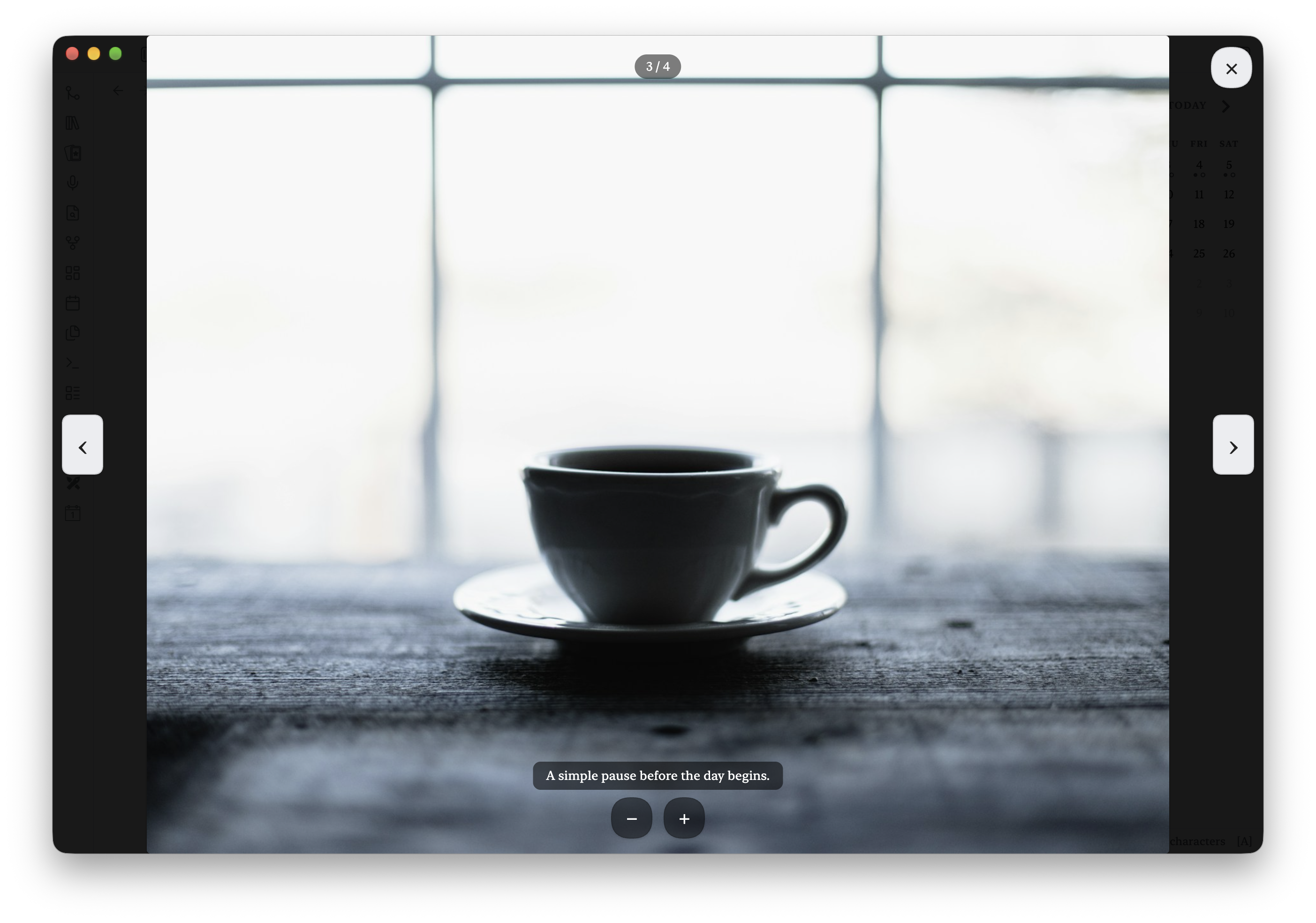
- Navigates a Simple Gallery block's images with on-screen arrows, a position counter, and the left/right arrow keys.
- Shows the image's caption (its note's real
<figcaption>, e.g. a Simple Gallery caption) in a translucent bar beneath the photo, in the caption's own typography, updating as you arrow through a gallery. Honors Simple Gallery's caption-visibility choices, including "Fullscreen only" and "Gallery only". - Restores keyboard focus when the viewer closes.
- Works without external services on desktop and mobile.

See it in action
Open any note image
Images in Reading view and Live Preview show a zoom cursor. Click or tap one to open the viewer.
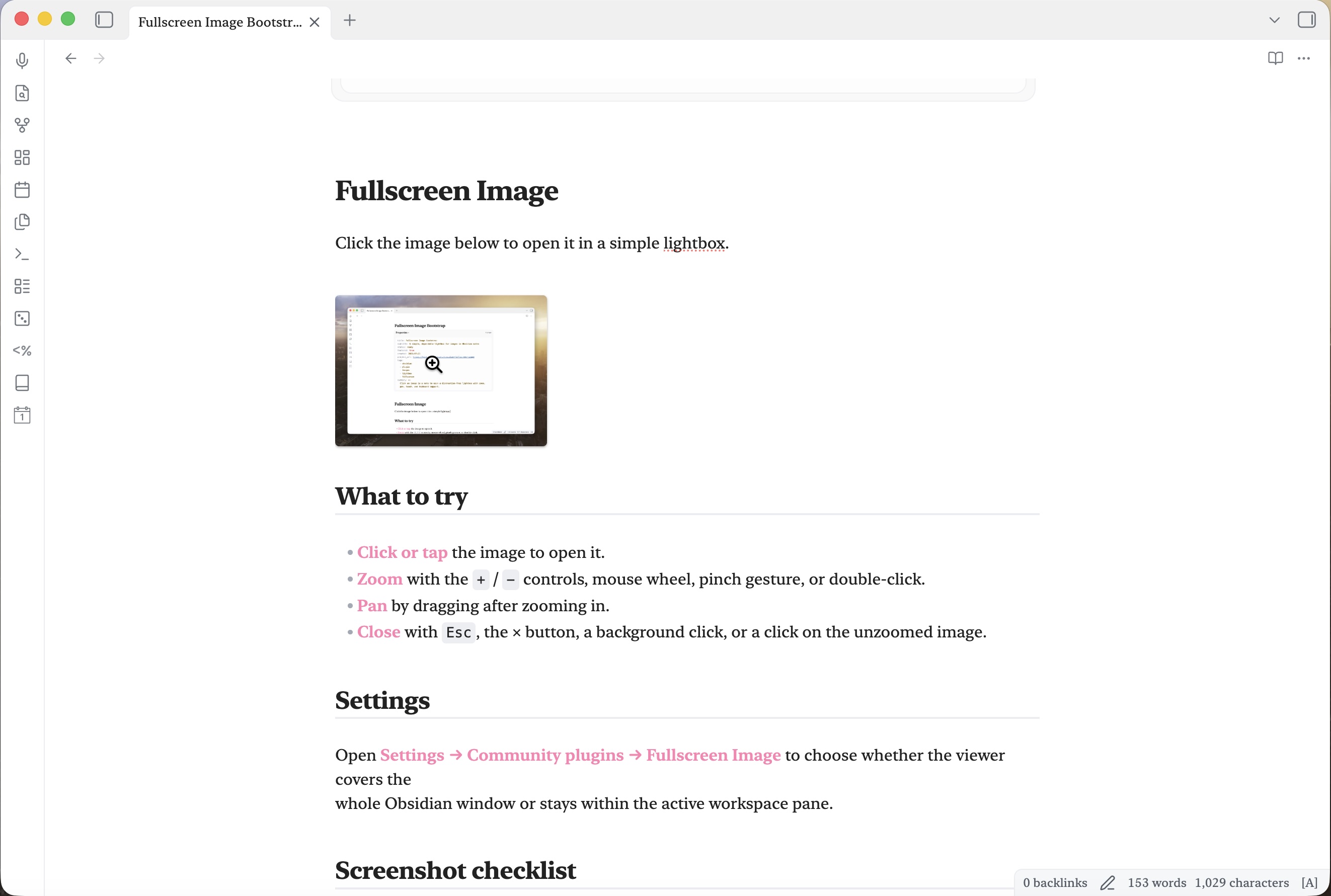
Focus on the image
The lightbox fits the image to the window, keeps the controls out of the way, and supports zooming and panning without leaving the note.
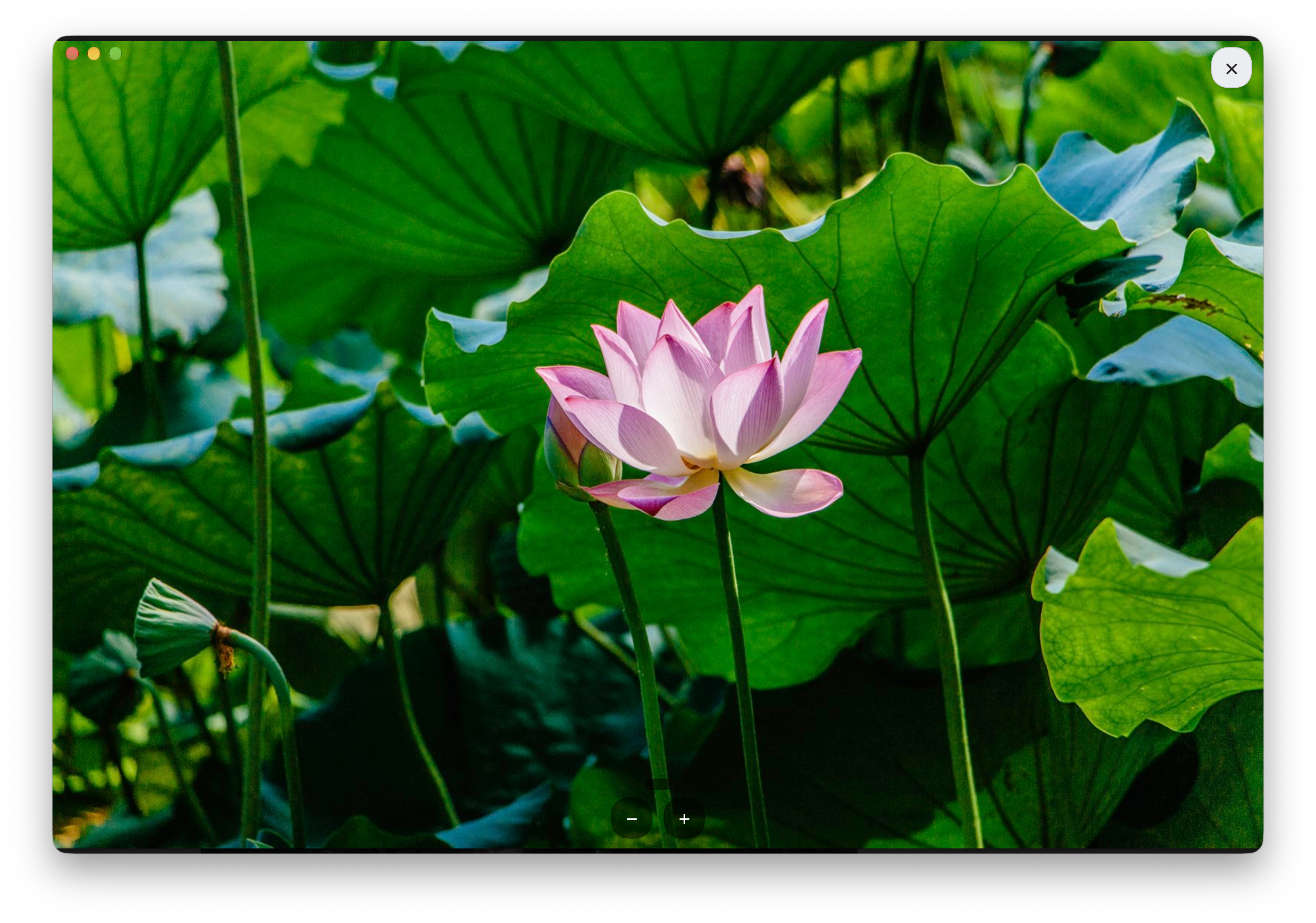
Browse a whole gallery
Move through Simple Gallery photos with arrows, a position counter, captions, and zoom controls.
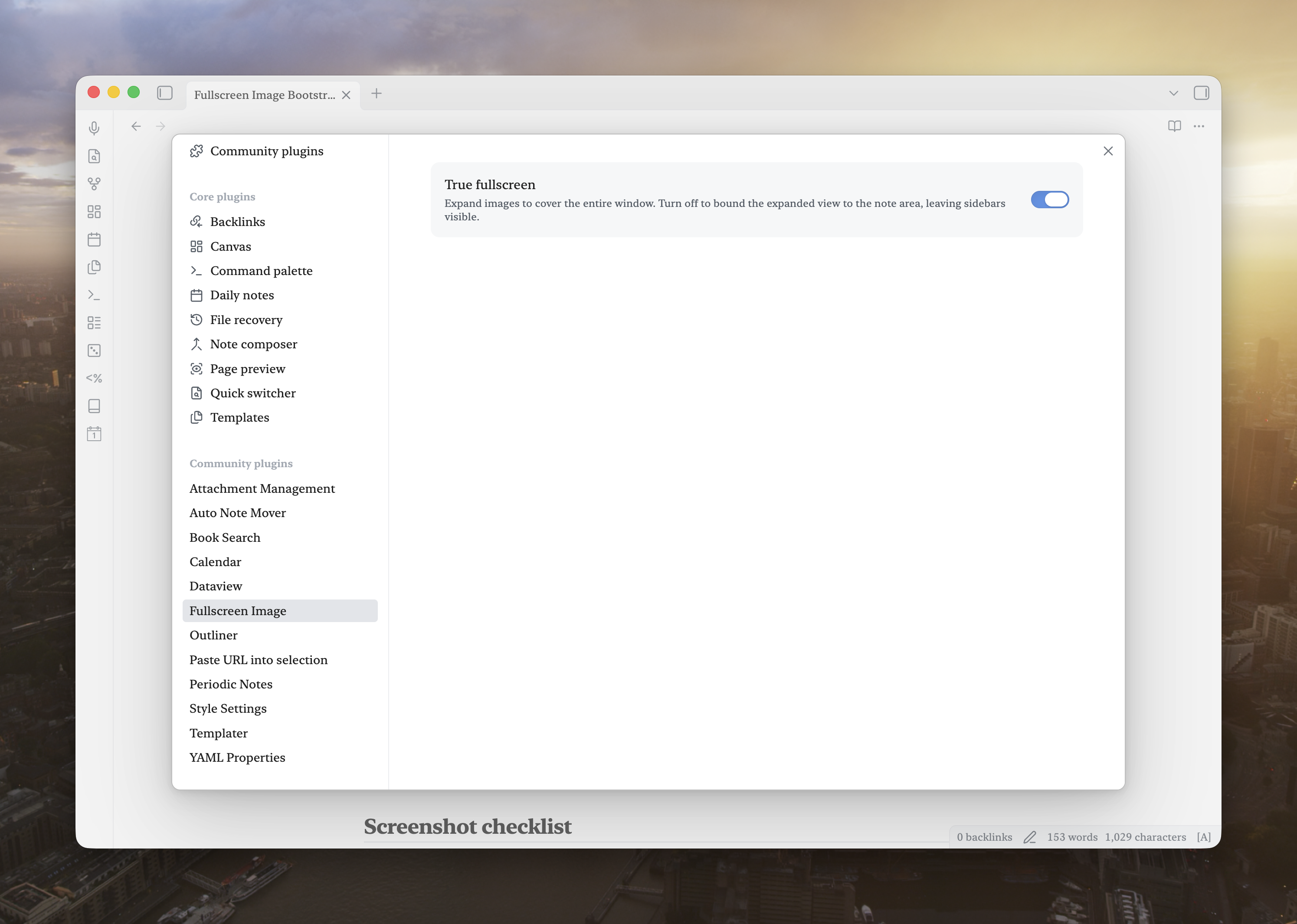
Keep the choice simple
Choose whether the viewer covers the entire Obsidian window or stays inside the active workspace pane.
Usage
- Click/tap an image — opens it in the viewer, fitting it to the available viewport regardless of the size it has in the note.
- Zoom —
+/−buttons, mouse wheel, pinch (touch), or double-click/double-tap to toggle between fit and 2x zoom. - Pan — drag once zoomed in. The viewer keeps the image within the visible area.
- Close — X button, Escape key, click/tap the background, or a single click/tap on the image while it's at its default (non-zoomed) size.
Scope
Works for images rendered in Reading view and Live Preview, including embedded/transcluded images. It intentionally ignores interface icons and other non-note images. Images inside iframes and Canvas file nodes are not supported.
Settings
- Use the full screen — When enabled (the default), the viewer covers the entire Obsidian window. Disable it to keep the viewer inside the active workspace pane.
- Show caption — When enabled (the default), the image's caption from its note is shown beneath the expanded image. Images without a real caption show nothing; alt text and filenames are never used.
Installation
Community Plugins
Once accepted, install Fullscreen Image from Settings → Community plugins → Browse.
Manual installation
Copy main.js, manifest.json, and styles.css from a release into:
<vault>/.obsidian/plugins/fullscreen-image/
Then reload Obsidian and enable Fullscreen Image under Community plugins.
Development
Requires Node.js 20 or newer.
npm install
npm run dev     # esbuild watch mode
npm run build    # type-check + production build
npm run lint
Release checklist
- Run
npm run buildandnpm run lint. - Test an image in both Reading view and Live Preview, with a mouse and touch input if available.
- Run
npm version patch,npm version minor, ornpm version major. The version script keepsmanifest.jsonandversions.jsonin sync. - Push the resulting numeric tag (for example
0.1.1). GitHub Actions builds the plugin and attachesmain.js,manifest.json, andstyles.cssto the GitHub Release.
On the maintainer workstation, use the USA OS plugin release command. It pushes the exact
main commit to private Forgejo and public GitHub, verifies both tips, and atomically updates
the primary vault's runtime copy while preserving its settings.
Contributing
Bug reports and pull requests are welcome. Please keep the plugin focused: it should remain a
simple, dependable image viewer that respects local-first Obsidian workflows. Before opening a
pull request, run npm run build and npm run lint.
Support
If Fullscreen Image improves your workflow, you can support its continued development on Buy Me a Coffee.
Acknowledgements
Robert Fleming directed and reviewed this work. Recent refinements, documentation, and screenshot preparation were developed in collaboration with OpenAI Codex, powered by GPT-6. Thank you to the AI collaborators who helped bring these ideas into a usable community plugin.
License
MIT
Screenshot demo
A ready-to-use screenshot kit includes demo notes and capture instructions.
Feedback
Bug reports are welcome in this repository’s issue tracker when available. Include your Obsidian and plugin versions, desktop or mobile, a short reproduction, and expected versus actual behavior. Use a small sample note without personal content. This is a spare-time project; fixes and replies have no guaranteed schedule. Contributions and forks are welcome; donations are optional.
For plugin developers
Search results and similarity scores are powered by semantic analysis of your plugin's README. If your plugin isn't appearing for searches you'd expect, try updating your README to clearly describe your plugin's purpose, features, and use cases.