Dedao Brain Sync
approvedby Andy Zheng(公众号:关山的月儿)
得到大脑官方推荐|很好用的【得到大脑 / Get笔记 / GetNote / Getbiji <-> Obsidian】双向同步插件 - This plugin has not been manually reviewed by Obsidian staff.
⭐ 官方推荐|得到大脑 / Get笔记 🔄 Obsidian 双向同步





把得到大脑(原Get笔记)里的灵感、摘录、链接、录音和 AI 总结与 Obsidian 双向同步,变成可长期整理、搜索和链接的本地 Markdown 知识库。
想了解这个项目的由来和背景,可以阅读这篇文章:我做的得到大脑OB插件,上架官网了😃。
🎉 1.5.8 最新更新
- 🟢 连接状态一眼可见:设置页用灰、绿、红状态灯区分未验证、连接正常和连接异常;自动同步失败时同时保留“上次同步失败”提示。
- ⏱️ 自动同步成为主要路径:首次配置会引导启用定时自动同步,并以最近一次自动同步结果判断连接健康状态。
- 📎 附件控制更准确:修复附件全开 / 全关;音频文件与音频口水稿可以独立控制,关闭音频下载时仍可保留转写文本。
- 🛡️ 同步更稳妥:补齐全部订阅知识的分页同步,并将路径冲突等异常明确记录为失败,避免静默遗漏。
这是一次稳定性与设置体验更新。现有配置和本地数据无需迁移;升级后建议打开设置页确认连接状态灯及自动同步状态。
README 仅保留当前版本的核心亮点;完整版本历史请查看 GitHub Releases。
✨ 为什么好用
- 🔄 真正双向同步:得到大脑 → Obsidian 持续同步;Obsidian → 得到大脑支持手动选择 Markdown 创建笔记。
- 🧠 不只是一次性导出:把笔记同步成独立 Markdown 文件,持续进入你的本地知识库,而不是导出完就结束。
- ⚡ 同步稳定可续传:支持增量同步、同步断点、最近 N 天、指定日期、指定笔记、指定知识库等多种范围控制。
- 🔎 直接在 Obsidian 搜得到大脑:侧边栏全文搜索,命中后可直接打开本地笔记或一键同步到本地。
- 🖱️ 选中文字即可搜索:编辑器中选中文字,通过右键菜单直接发起得到大脑搜索。
- 📚 知识库同步更完整:支持指定知识库同步,也可通过命令一次同步全部已订阅知识库。
- 🗂️ 本地结构可控:支持分类目录、文件名前缀、按创建日期组织路径,以及已有笔记的路径迁移 / 回迁。
- 🏷️ 筛选更丰富:可按更新时间、起始日期、笔记类型、标签、知识库等条件控制同步范围。
- ⏱️ 自动同步:支持定时同步和启动时同步,不需要每次手工执行。
- 📜 同步过程可追溯:保留最近 30 天同步历史,包括范围、耗时、状态以及逐篇新增 / 更新 / 跳过 / 失败结果。
- 📱 桌面端 + 移动端:插件本身不是 Desktop Only;OpenAPI 模式适合桌面和移动端 Obsidian。
🧰 功能一览
| 功能 | 说明 |
|---|---|
| 🔄 增量同步 | 识别远端新增 / 更新内容,避免每次全量重拉 |
| 🔎 搜索侧边栏 | 在 Obsidian 内全文检索得到大脑笔记 |
| 🖱️ 选中文本搜索 | 编辑器中选中文字,右键直接搜索得到大脑 |
| ⏳ 按时间同步 | 支持同步起始日期或最近 N 天 |
| ☑️ 按笔记同步 | 从远端列表中选择需要同步的笔记 |
| 📚 按知识库同步 | 选择指定知识库进行同步 |
| 🌐 全部订阅知识同步 | 命令面板可一次同步全部订阅知识库 |
| 🕒 定时同步 | 按指定间隔自动同步,可限定类型、标签和知识库 |
| 🚀 启动时同步 | 定时同步启用后,可在 Obsidian 启动时自动执行一次 |
| ⬆️ 本地上传 | 手动选择本地 Markdown 创建到得到大脑 |
| 🏷️ 标签筛选 | 使用标签白名单限制同步内容 |
| 📎 附件下载 | 可分别控制图片 / 音频 / 视频 / 文档附件 |
| 🗂️ 日期路径 | 按创建日期组织目录,并支持历史文件迁移 / 回迁 |
| 📜 同步历史 | 保存最近 30 天同步记录和逐条结果 |
| 🎛️ Ribbon 快捷入口 | 可显示 / 隐藏同步与搜索快捷按钮 |
🖼️ 截图
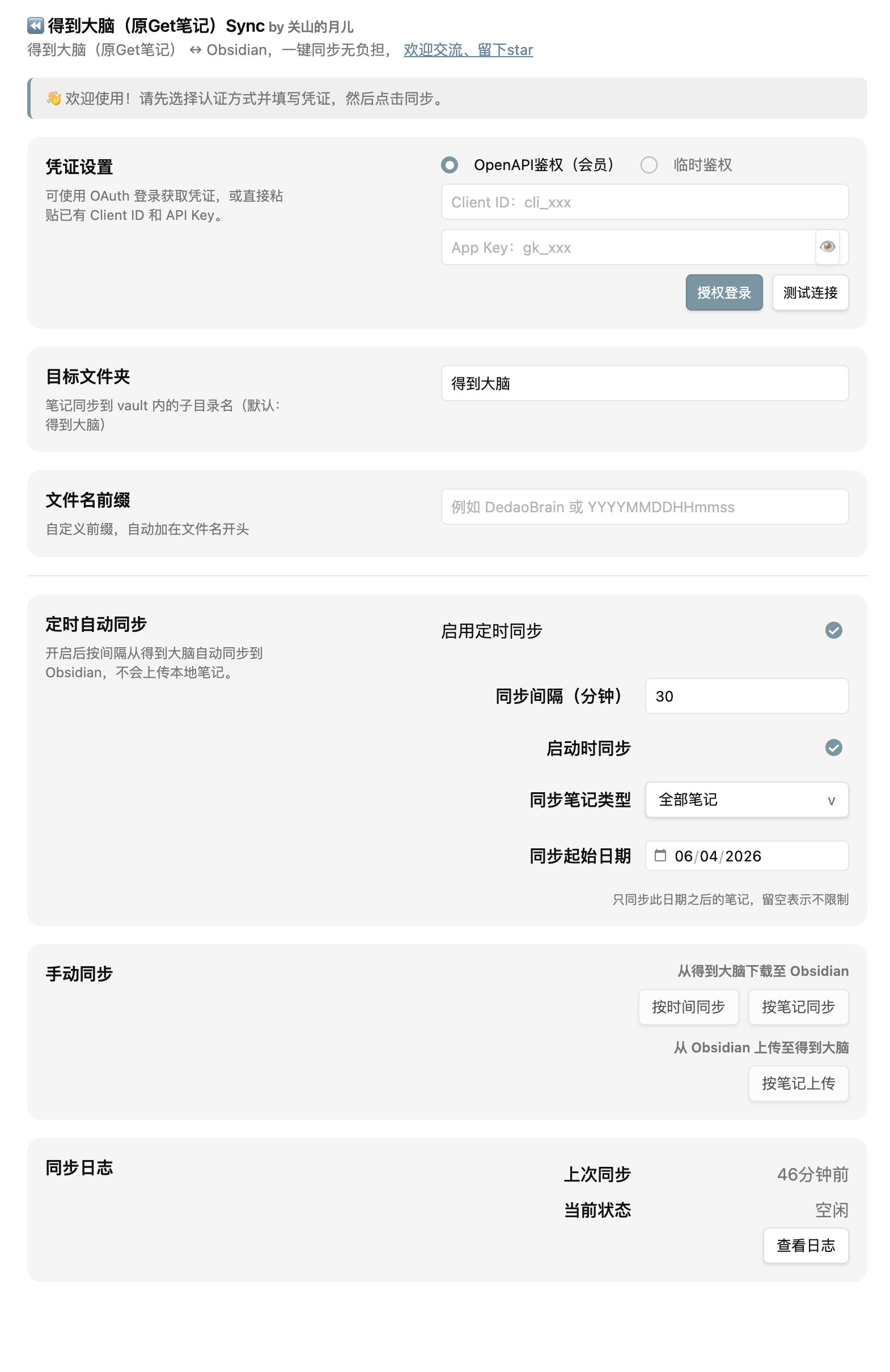
⚙️ 设置页面
统一配置鉴权、目标文件夹、同步方式、附件、自动同步及同步历史。
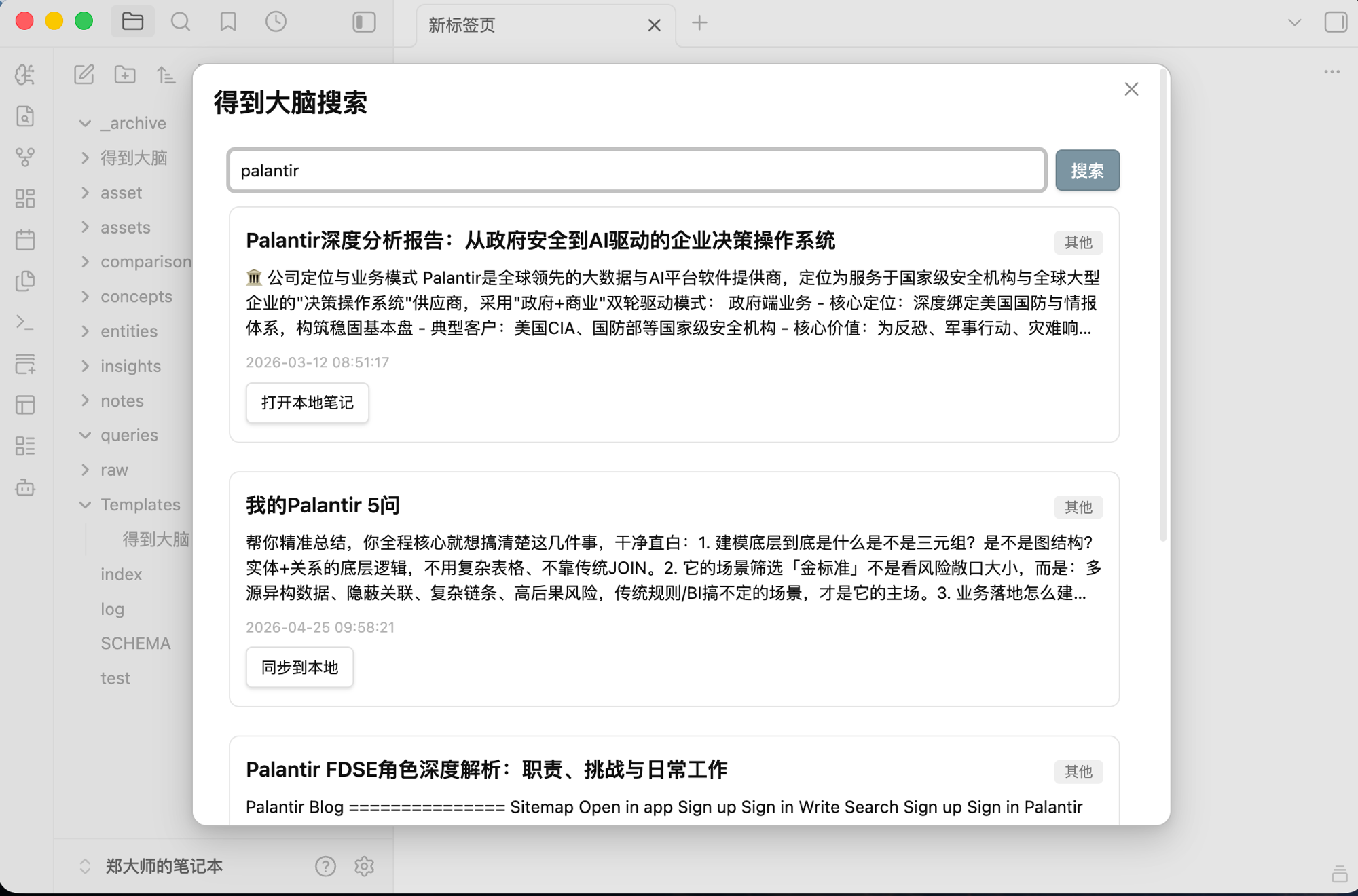
🔎 搜索侧边栏
在 Obsidian 中直接搜索得到大脑笔记,命中后一键打开或同步到本地。
📦 安装
💜 通过 Obsidian 社区插件
- 打开
设置 → 第三方插件 → 浏览。 - 搜索
Dedao Brain Sync、得到大脑、GetNote或Get笔记。 - 安装并启用插件。
🛠️ 手动安装
- 从 最新版本 下载
main.js、manifest.json、styles.css。 - 放入:
<your-vault>/.obsidian/plugins/getnote-importer/
- 重启 Obsidian 并启用
Dedao Brain Sync。
插件 ID 仍为
getnote-importer,用于兼容 Obsidian 社区历史 listing 和旧版数据;显示名称已统一为Dedao Brain Sync。
🔑 获取 API 凭证
⚠️ 得到大脑 OpenAPI 当前需要 得到大脑 PRO 会员。免费用户无法通过 OpenAPI 获取完整数据,可在桌面端尝试 Web 模式。
凭证只保存在本地 Obsidian 插件数据中,用于访问你选择的接口模式。
🟢 OpenAPI 模式(推荐长期使用)
- 打开得到大脑。
- 进入
设置 → 开放平台。 - 创建应用并获取
Token与Client ID。 - 在
设置 → Dedao Brain Sync中选择 OpenAPI 鉴权并填写凭证。 - 点击测试连接确认可用。
🟡 Web 模式(桌面端快速使用)
桌面版 Obsidian 可以使用插件内的 Web 登录流程获取会话 Token,并在会话失效时尝试自动刷新;也仍然支持手动粘贴 Token。
独立图文步骤见:Web 模式手动 Token 指南。
Web Token 属于浏览器会话凭证,可能过期。如果出现
401、403或会话过期提示,请重新登录或刷新 Token。Web 自动登录 / 自动续期依赖桌面环境,移动端建议优先使用 OpenAPI。
🔄 使用
⬇️ 从得到大脑同步到 Obsidian
在设置页发起同步,或在命令面板运行:
Dedao Brain Sync: 同步笔记
可以进一步选择按时间、按笔记或按知识库执行同步。
🌐 同步全部订阅知识库
命令面板提供独立命令,可一次同步全部已订阅知识库。知识库列表会分页获取,避免只处理首屏订阅内容。
🔎 搜索得到大脑
- 点击搜索 Ribbon,在 Obsidian 侧边栏直接搜索远端笔记。
- 已经同步到本地的结果可以直接打开。
- 本地不存在时可以一键同步。
- 在编辑器中选中文字,右键可直接发起搜索。
🕒 定时同步
开启定时同步后,插件会按设定间隔从得到大脑同步到 Obsidian,也可设置启动时同步。
定时同步只负责下载远端变化,不会自动上传本地笔记。
⬆️ 从 Obsidian 创建到得到大脑
在设置页或命令面板打开本地上传,选择一个或多个 Markdown 文件。
当前反向同步是 手动、选择型、创建型:
- 目前主要支持
plain_text和link类型。 - 已有
uid且确认远端仍存在的笔记会跳过,避免重复创建。 - 不会自动覆盖得到大脑已有笔记。
- 不会被定时同步自动触发。
- 上传标签会去重,并限制数量。
📁 输出结构
默认目标目录为 得到大脑,实际结构会根据笔记类型、知识库和日期路径设置变化。
vault/
└── 得到大脑/
    ├── 2026/
    │   └── 08/
    │       ├── 纯文本/
    │       │   └── 会议记录.md
    │       ├── 链接笔记/
    │       │   └── 一篇文章.md
    │       └── 知识库/
    │           └── 我的知识库/
    │               └── 专题笔记.md
    └── ...
每个 Markdown 文件都会写入 frontmatter,后续同步会用其中的远端标识识别同一篇笔记。
---
uid: "1908723638246504120"
title: "会议记录"
created: 2026-04-30 12:45:24
modified: 2026-04-30 13:00:07
source: 得到大脑
note_type: recorder_audio
tags: ["work"]
---
🏷️ 文件命名与日期路径
✏️ 文件名前缀
支持日期 / 时间占位符:
| 占位符 | 含义 | 示例 |
|---|---|---|
YYYY | 年 | 2026 |
MM | 月 | 08 |
DD | 日 | 30 |
HH | 小时 | 14 |
mm | 分钟 | 30 |
ss | 秒 | 05 |
例如:YYYY-MM-DD → 2026-08-30_会议记录.md
📅 按创建日期整理路径
开启后可使用类似 YYYY/MM 的目录规则:
得到大脑/2026/08/纯文本/会议记录.md
日期取笔记的创建时间,而不是更新时间。修改或关闭日期路径时,插件会先预检,再迁移 / 回迁历史文件与相关附件。
迁移支持重复执行;遇到目标冲突、无效元数据、共享附件或可能导致链接失效的情况时,会优先跳过,而不是强行覆盖。
⚙️ 主要设置
| 设置项 | 默认值 / 说明 |
|---|---|
| 🔐 鉴权方式 | OpenAPI |
| 📁 目标文件夹 | 得到大脑 |
| 🏷️ 文件名前缀 | 空 |
| 📅 日期路径 | 关闭,默认格式 YYYY/MM |
| ⏳ 手动同步范围 | 最近 30 天 |
| 🕒 定时同步 | 默认关闭 |
| ⏱️ 同步间隔 | 30 分钟 |
| 🚀 启动时同步 | 定时同步启用后默认开启 |
| 📎 下载附件 | 默认开启 |
| 🖼️ 图片 / 🎵 音频 / 🎬 视频 / 📄 文档 | 默认全部开启 |
| 🔎 搜索 Ribbon | 默认显示 |
| 🔄 同步 Ribbon | 默认显示 |
| 📜 同步历史 | 保留最近 30 天 |
🔒 隐私
- 🔐 API 凭证保存在本地 Obsidian 插件数据中。
- 🏠 插件不依赖额外的第三方中转后端。
- ⬇️ 下载同步的数据从得到大脑直接写入你的 vault。
- ⬆️ 只有你主动选择上传的 Markdown 才会发送到得到大脑。
- 📎 附件只从得到大脑接口返回的地址下载。
- 🛡️ 本地路径迁移遇到冲突或无法安全处理的文件时,会优先跳过而不是覆盖。
⚠️ 已知限制
- OpenAPI 依赖得到大脑开放平台可用性,并需要 PRO 权限。
- Web 模式依赖网页版接口和登录会话,接口变化或 Token 失效都可能影响使用。
- Web 自动登录 / Token 刷新主要面向桌面端。
- 反向同步目前是创建型,不会自动覆盖远端已有笔记。
- 反向同步目前主要支持纯文本与链接类型。
- 部分附件能力取决于得到大脑详情接口是否返回有效附件地址。
- 得到大脑接口字段发生变化时,部分类型的解析可能需要插件跟进适配。
👨💻 开发
npm install
npm run typecheck
npm run lint
npm test
npm run build
发布前会检查类型、Lint、测试、构建以及版本号一致性。
发布产物:
main.jsmanifest.jsonstyles.css
💬 支持与反馈
- 🐛 Bug:GitHub Issues
- 💡 功能建议:GitHub Issues
- 📝 用户问题收集:Dedao Brain Sync 需求问题收集问卷
如果这个插件对你有帮助,欢迎点一个 ⭐ Star。
👋 关于作者
企业 AI 从业者,野生 AI 博主,AGI 信徒,AI 发烧友。
欢迎通过 GitHub Issue、反馈问卷或公众号继续交流。

📄 License
For plugin developers
Search results and similarity scores are powered by semantic analysis of your plugin's README. If your plugin isn't appearing for searches you'd expect, try updating your README to clearly describe your plugin's purpose, features, and use cases.