Git File Sync
approvedby ClaudiaFang
Both mobile and desktop. Selectively sync the notes you choose—not your whole vault—with GitHub, GitLab, or Gitea. No local Git repository required. - This plugin has not been manually reviewed by Obsidian staff.
Git File Sync
Selective, file-by-file sync between your Obsidian vault and GitHub, GitLab, or Gitea.




Review changes, choose exactly what to sync, and apply them through a clear Source Control workflow — without syncing your entire vault.
Unlike full-vault sync solutions, Git File Sync gives you control over exactly which files leave your device. Keep personal notes private while selectively synchronizing project files through a real Git repository. No local .git repository or Git CLI is required.


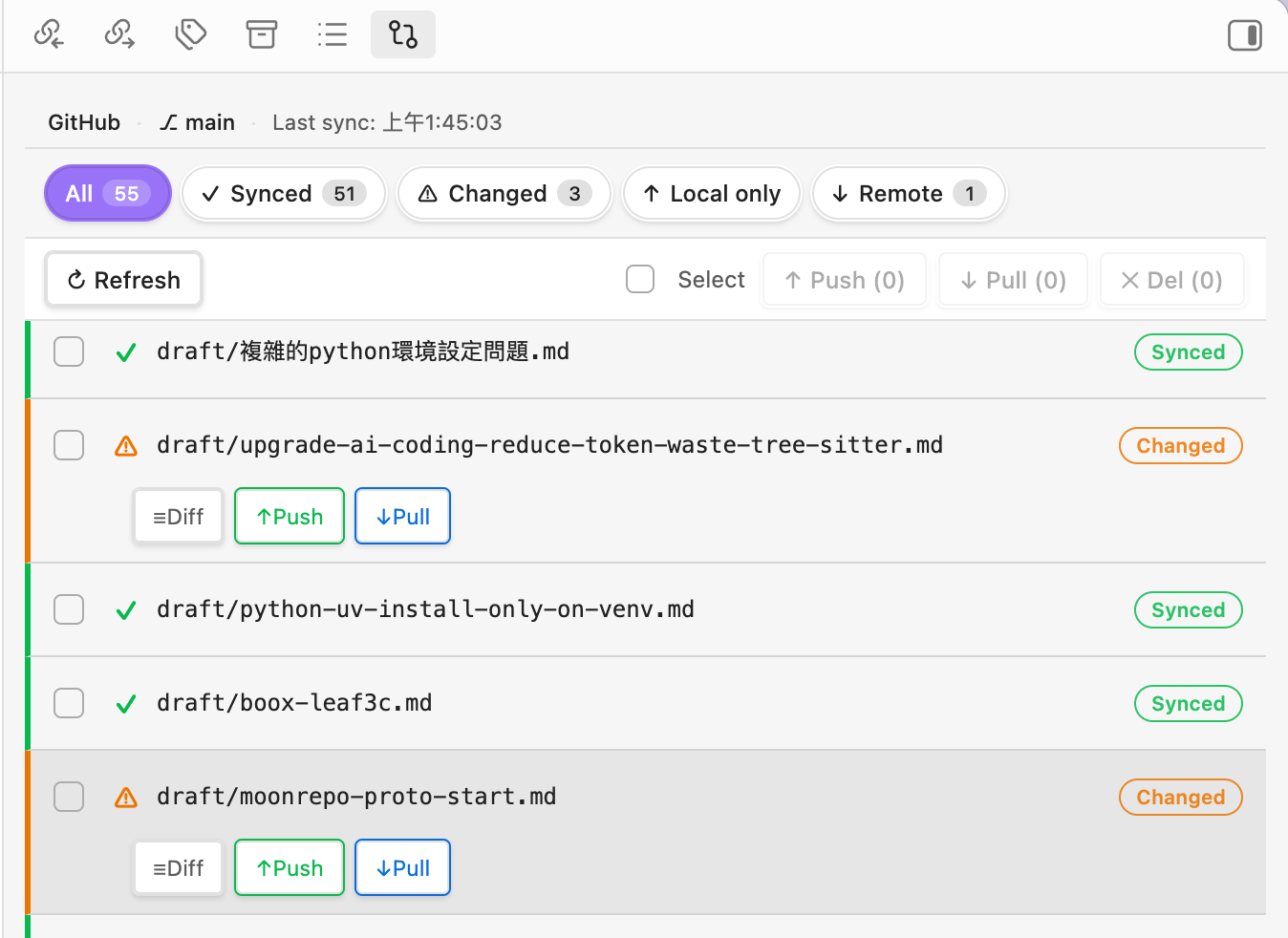 Review repository changes, choose what to sync, and apply them through the Sync Queue.
How it works
Git File Sync uses a simple Source Control workflow:
Review → Queue → Sync
- Review Repository Changes — see local changes, remote changes, renames, deletions, and conflicts in one place.
- Build your Sync Queue — select exactly which changes should be included in the next sync.
- Review and Sync — inspect one combined sync plan before anything is applied.
A selected change moves from Repository Changes into the Sync Queue, so the same change is never shown in both places at once.
What you can do
- Sync only what you choose — keep unrelated or private notes out of Git.
- Review everything in one Source Control view — local changes, remote changes, renames, deletions, and conflicts.
- Build one Sync Queue — mix uploads, downloads, and remote deletions in the same sync operation.
- Review before applying — inspect additions, modifications, moves, downloads, and deletions before they are applied.
- Compare before overwriting — built-in unified and side-by-side diffs for local and remote versions.
- Resolve conflicts explicitly — choose which side wins instead of silently overwriting changes.
- Use the same workflow everywhere — GitHub, GitLab, and Gitea on desktop and mobile.
- Use your preferred language — English, Traditional Chinese, and Simplified Chinese are built in.
Quick start
- Install Git File Sync from Obsidian Community Plugins.
- Configure GitHub, GitLab, or Gitea under Settings → Git File Sync.
- Open Source Control from the ribbon or Command Palette.
- Review Repository Changes.
- Select the changes you want; they move into the Sync Queue.
- Click Sync, review the combined plan, then choose Apply.
Source Control
The Source Control view separates work into two clear areas:
Repository Changes
Files that need attention but are not yet part of the next sync. Use search, filters, and Tree/List view to narrow the workspace.
Sync Queue
Changes selected for the next sync operation. Each queued item shows the action that will be applied:
- Upload — apply the local version to the remote repository.
- Download — bring the remote version into your vault.
- Delete — mirror a local deletion to the remote repository.
One Sync action builds a combined plan. Remote additions, modifications, moves, and deletions are committed together, while downloads are applied locally after review.
File states
| Status | Meaning |
|---|---|
A | Added locally |
M | Modified locally |
D | Deleted locally |
R | Renamed or moved |
↓ | Available remotely |
↕ | Modified remotely |
! | Conflict |
S | Synced |
Deleted locally: adding a
Dchange to the Sync Queue deletes the tracked file from the remote repository by default. Use Download instead if you want to restore the remote copy locally.
Common workflows
| Situation | What happens |
|---|---|
| New local file | A → Queue → Upload |
| Local edit | M → Queue → Upload |
| File exists only remotely | ↓ → Queue → Download |
| Remote version changed | ↕ → Queue → Download |
| Local tracked file deleted | D → Queue → Delete remote |
| Local deletion was accidental | D → Download to restore locally |
| File renamed or moved | R → Queue → Upload as a move |
| Both sides changed | ! → review conflict → Keep Local or Keep Remote |
Diff and conflict review
Select a changed file to inspect its local and remote versions before syncing. The diff viewer supports unified and side-by-side layouts and shows addition/deletion statistics where available.
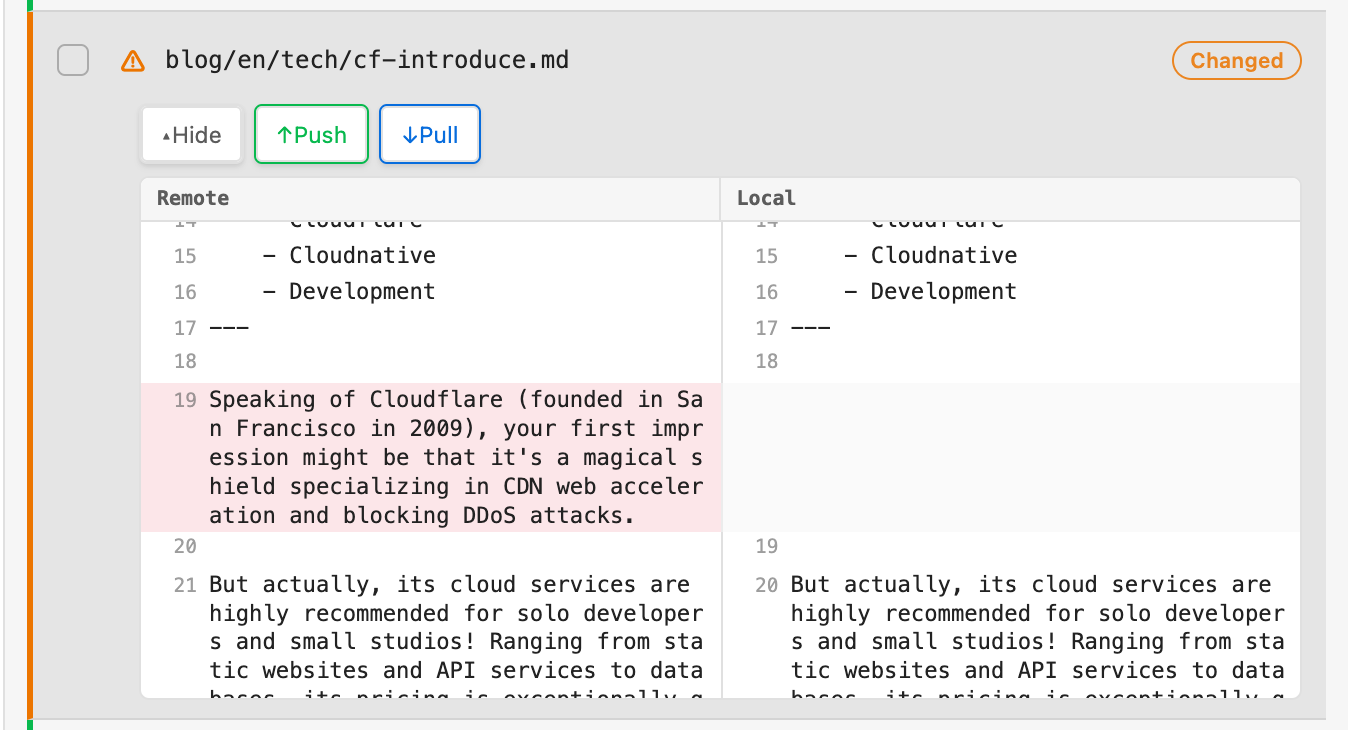 Review local and remote differences before deciding which version to keep.
When both sides changed, Git File Sync keeps the conflict explicit. Choose Keep Local to overwrite the remote version or Keep Remote to accept the remote copy locally.
Providers
| Provider | Hosting | Min. version |
|---|---|---|
| github.com · GitHub Enterprise | — |
| gitlab.com · self-hosted | GitLab 13.0+ |
 | self-hosted | Gitea 1.12+ |
Configuration
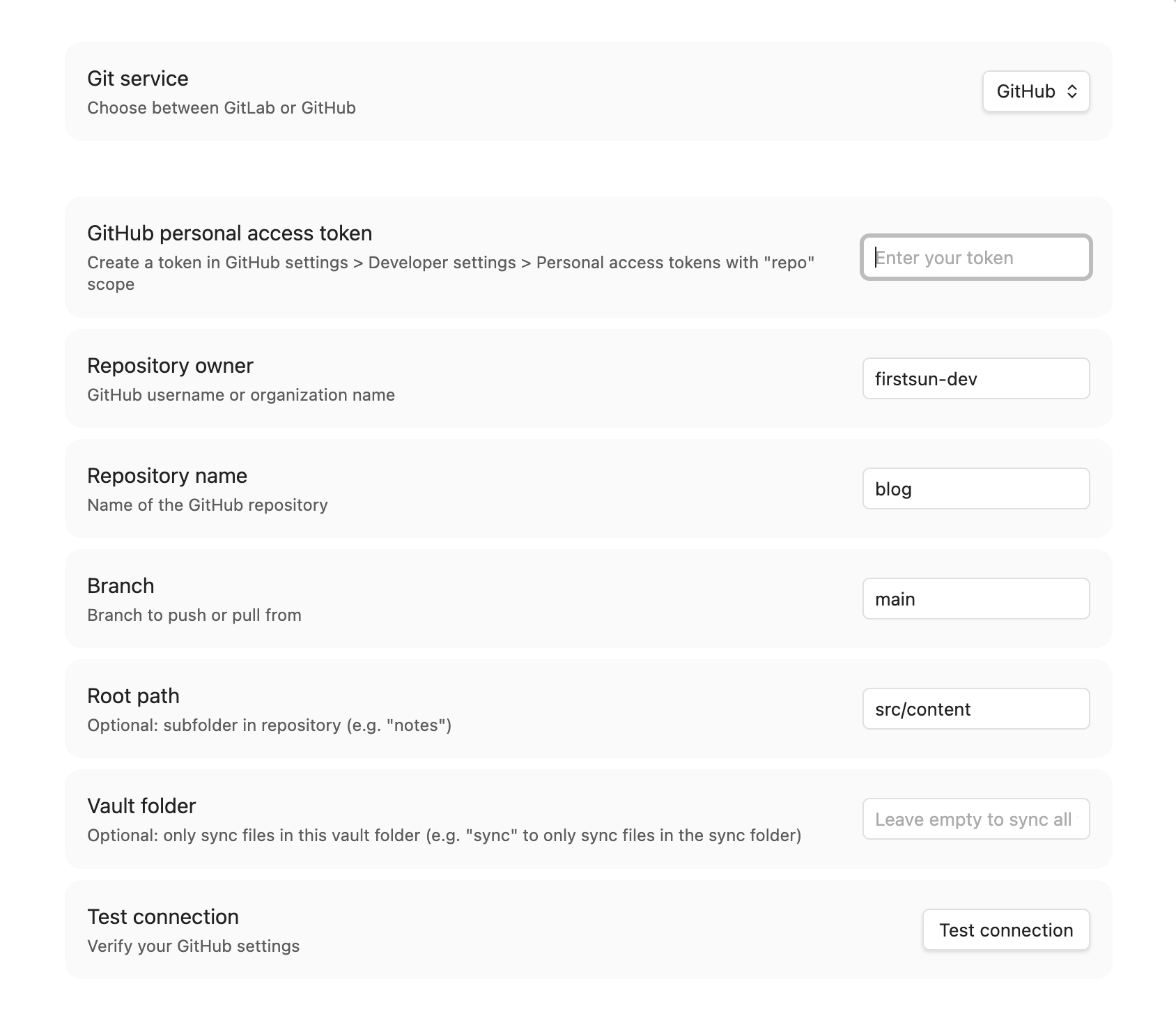 Choose a provider and configure the repository under Settings → Git File Sync.
| Provider | Required information | Recommended permission |
|---|---|---|
| GitHub | Token, owner, repository | Fine-grained token with Contents: Read and write |
| GitLab | Token, project ID, base URL | read_repository, write_repository |
| Gitea | Token, owner, repository, base URL | write:repository on Gitea 1.19+ |
Other settings include language, branch, repository root path, vault-folder scope, startup refresh, ignore patterns, and symbolic-link handling. See Symbolic link handling for details.
Security: scope tokens to the smallest possible repository access and permissions, set an expiration where possible, and never place a token inside a note that may be synced. Revoke and rotate a token immediately if it may have been exposed.
Mobile
The same Source Control model is available on Obsidian Mobile. The Sync Queue starts compact so Repository Changes remain easy to browse, and selecting a change opens a mobile-friendly detail/diff view.
A practical multi-device habit is still useful: refresh before editing on another device, review what changed, then sync only the files you intend to move between devices.
Installation
From Community Plugins (recommended)
- Open Settings → Community plugins and turn off Restricted mode if required.
- Click Browse, search for Git File Sync, then Install and Enable.
Manual
- Download
main.js,manifest.json, andstyles.cssfrom the latest release. - Create
<vault>/.obsidian/plugins/git-file-sync/. - Copy the three files into that folder.
- Reload Obsidian and enable the plugin under Settings → Community plugins.
Privacy and security
- Local token storage — access tokens are stored locally in the plugin data inside your vault and are sent only to the Git provider you configure.
- No telemetry — Git File Sync does not collect usage analytics or personal data.
- Selective sync — files outside your configured scope or not selected for sync are not automatically uploaded as part of the Source Control workflow.
Requirements
- Obsidian 1.11.0 or later
- Desktop and mobile supported
More documentation
Development
git clone https://github.com/firstsun-dev/git-files-sync.git
npm install

npm run dev    # watch build
npm run build  # type-check + production build
npm run test   # vitest suite
npm run lint   # eslint
License
MIT
Created by ClaudiaFang · firstsun-dev
For plugin developers
Search results and similarity scores are powered by semantic analysis of your plugin's README. If your plugin isn't appearing for searches you'd expect, try updating your README to clearly describe your plugin's purpose, features, and use cases.