by theluckystrike
Check translated paragraph pairs against approved and forbidden glossary terms.
Glossary Term Audit
Check translated paragraph pairs against approved and forbidden glossary terms. Choose a source note, choose its translation, and load the glossary that applies to that job. The result identifies the paragraph and the literal term for review.
The single pair workflow is free. It includes CSV loading, matching options, paragraph results, and links to the affected notes. Pro adds folder checks of declared pairs and named client glossary profiles. The plugin does not translate text or change the notes. A result is a review aid; it is not a certificate that a translation is correct.
Features
Choose a source and a target
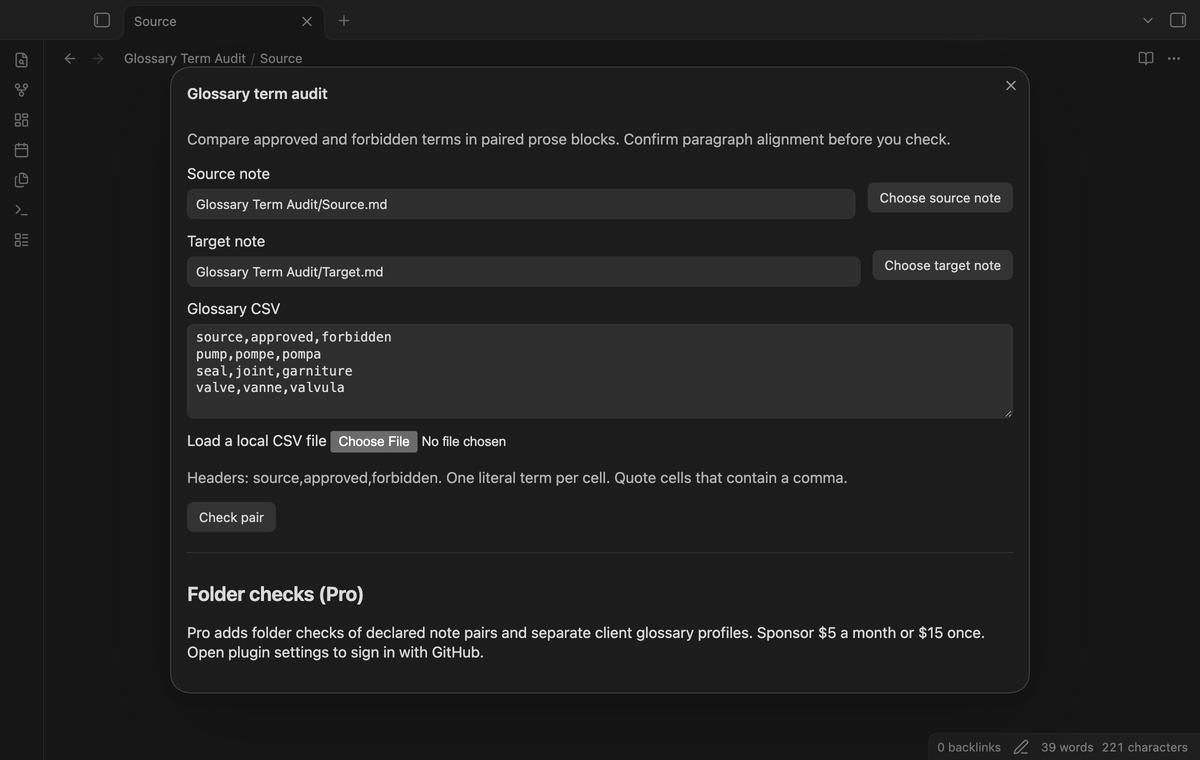
Use the note pickers to search Markdown paths in your vault. You can also enter the paths in the two fields. The active note supplies the initial source when there is no saved source path. A completed pair check saves the selected paths and glossary text for the next session.
Load a glossary CSV
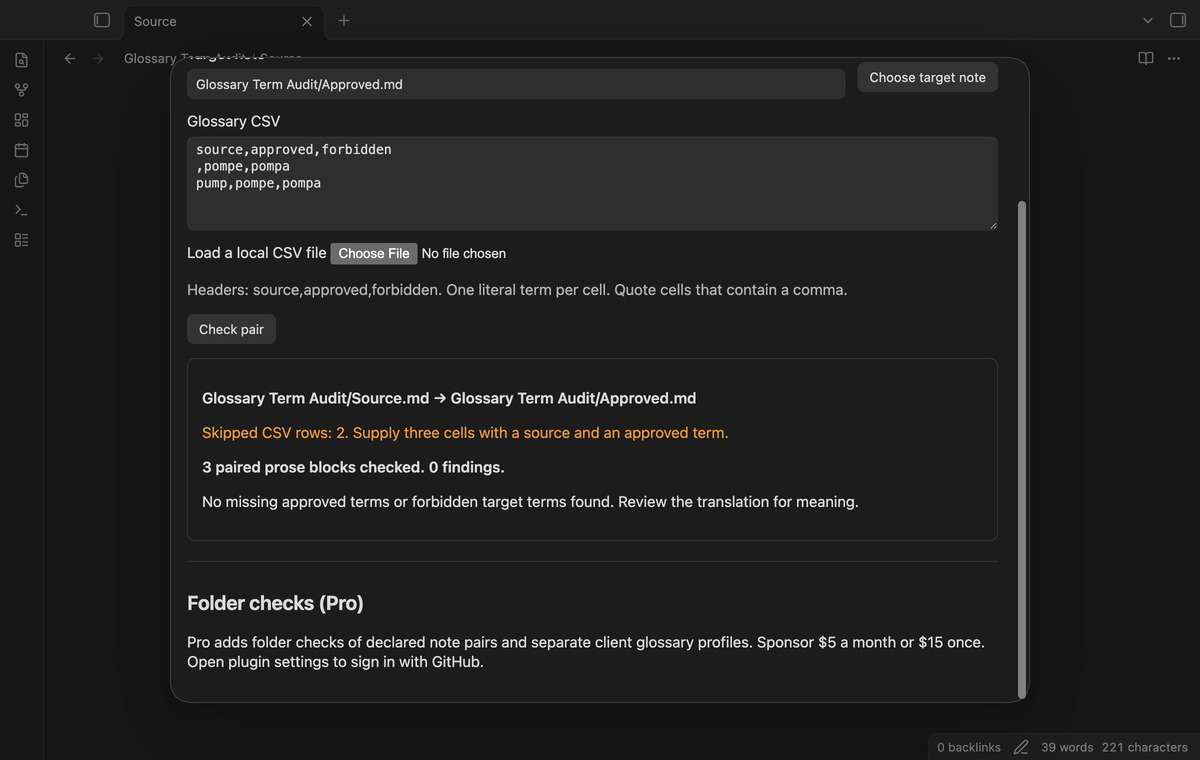
Load a local CSV file with the file control, or paste CSV into the text area. Use the fixed headers source,approved,forbidden in that order. Each row holds one literal source term, one required approved target term, and an optional forbidden target term. Quoted cells retain commas. Double a quote inside a quoted cell to retain that quote. The CSV reader removes spaces from cell ends. Rows with a nonempty cell and an empty source, empty approved term, or wrong cell count are skipped. The report lists its physical start row number.
Check literal terms in prose
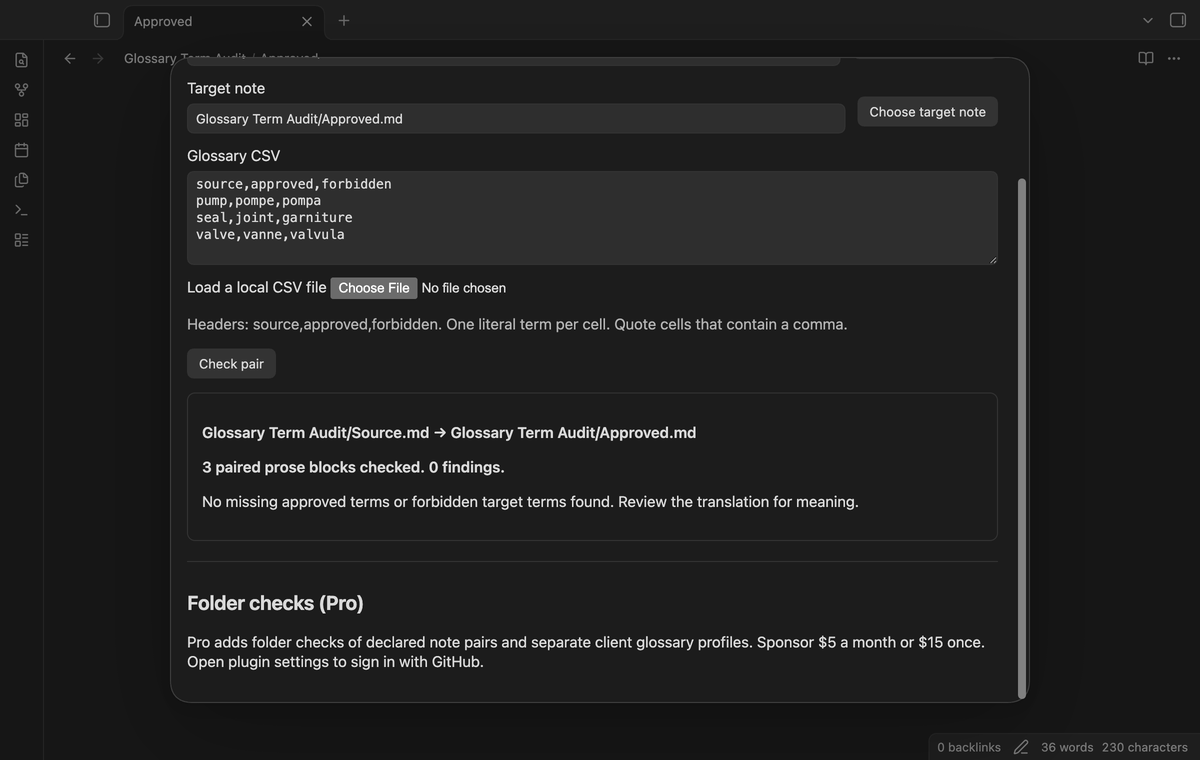
The check pairs the first source prose block with the first target block, then proceeds by position. A block consists of consecutive nonblank lines. # headings, fenced code, indented code, front matter, outer-pipe table lines, list marker lines, and block quote lines split the prose and are excluded. Inline code on one line is removed from match text. This limited parser uses the Markdown source rather than a rendered preview.
Review paragraph findings
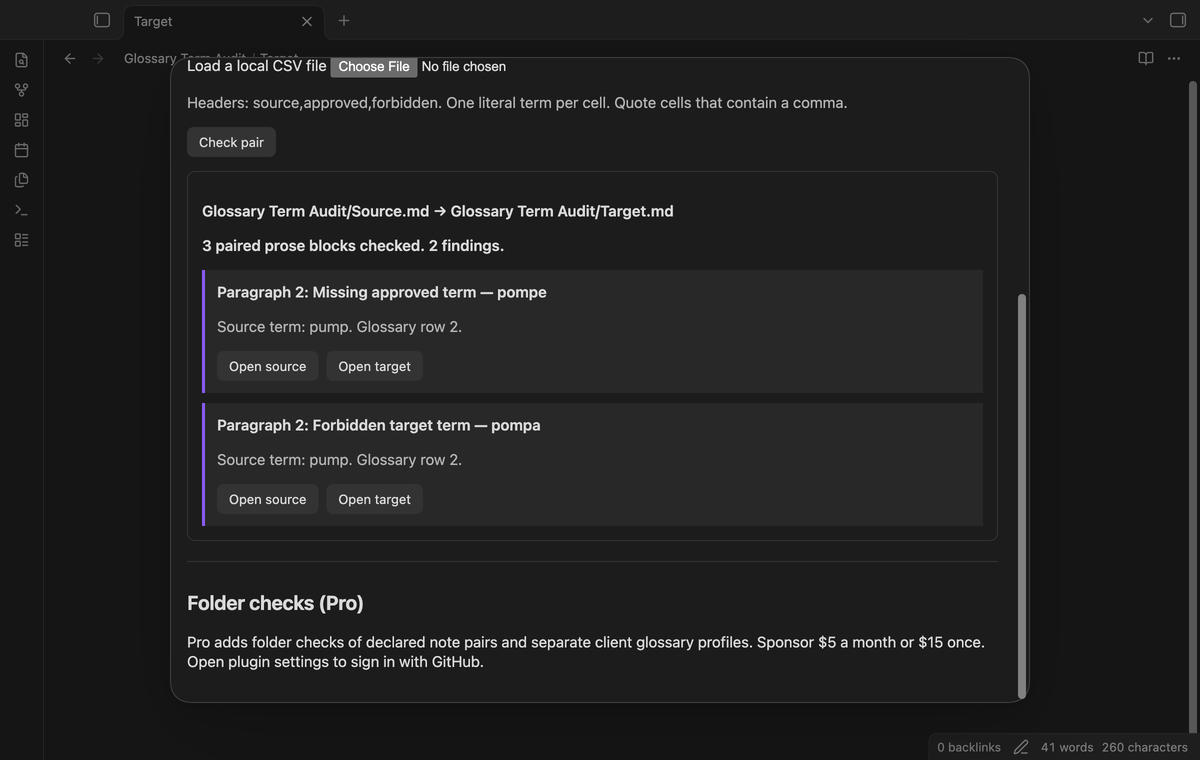
When a source block contains a glossary source term, its paired target block must contain the approved term. Otherwise the report shows a missing approved term. A forbidden term in a target block produces a finding even when that source term is absent. Missing and forbidden findings can occur together. A mismatch in block counts stops that pair and shows an alignment message instead of findings. Compare the paragraph order yourself before using a report.
Open a note at a result
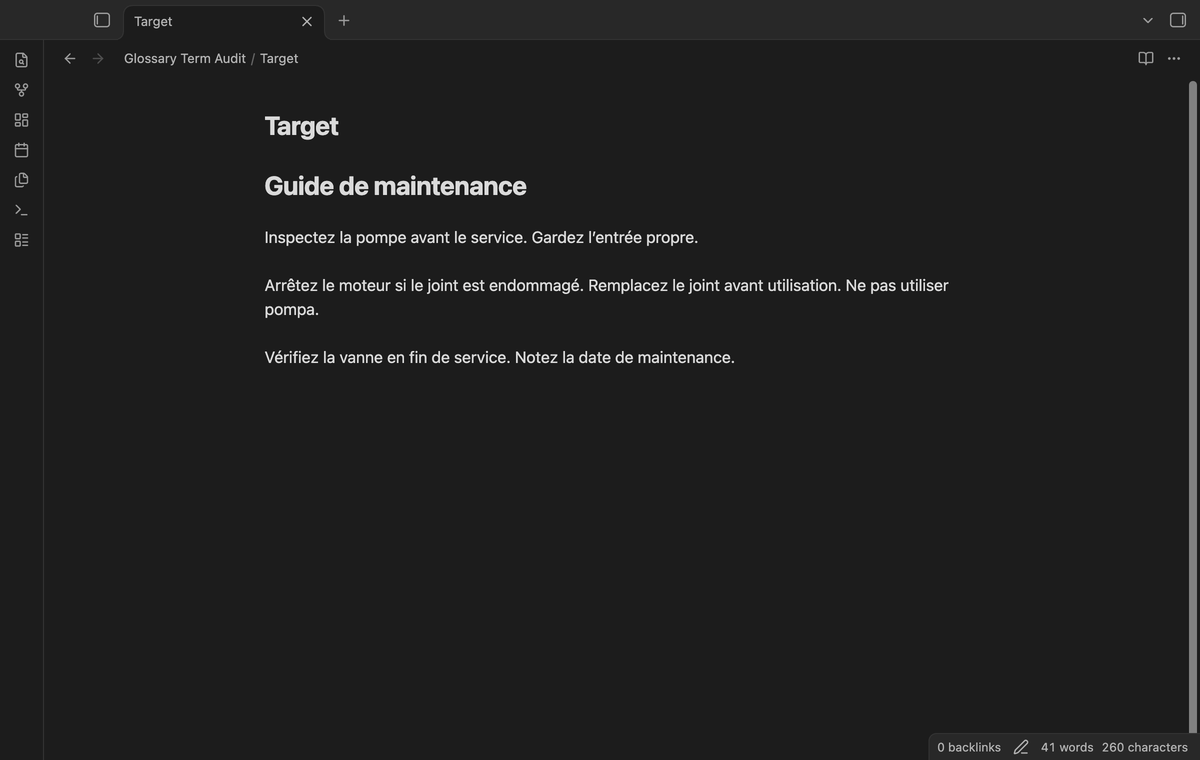
Use Open source or Open target below a finding. The selected note opens in the current leaf in editing view, and the cursor moves to the start of the affected prose block. The audit window closes so you can review the text. Rerun the check after edits: stored result positions describe the text read during that run.
Folder checks (Pro)
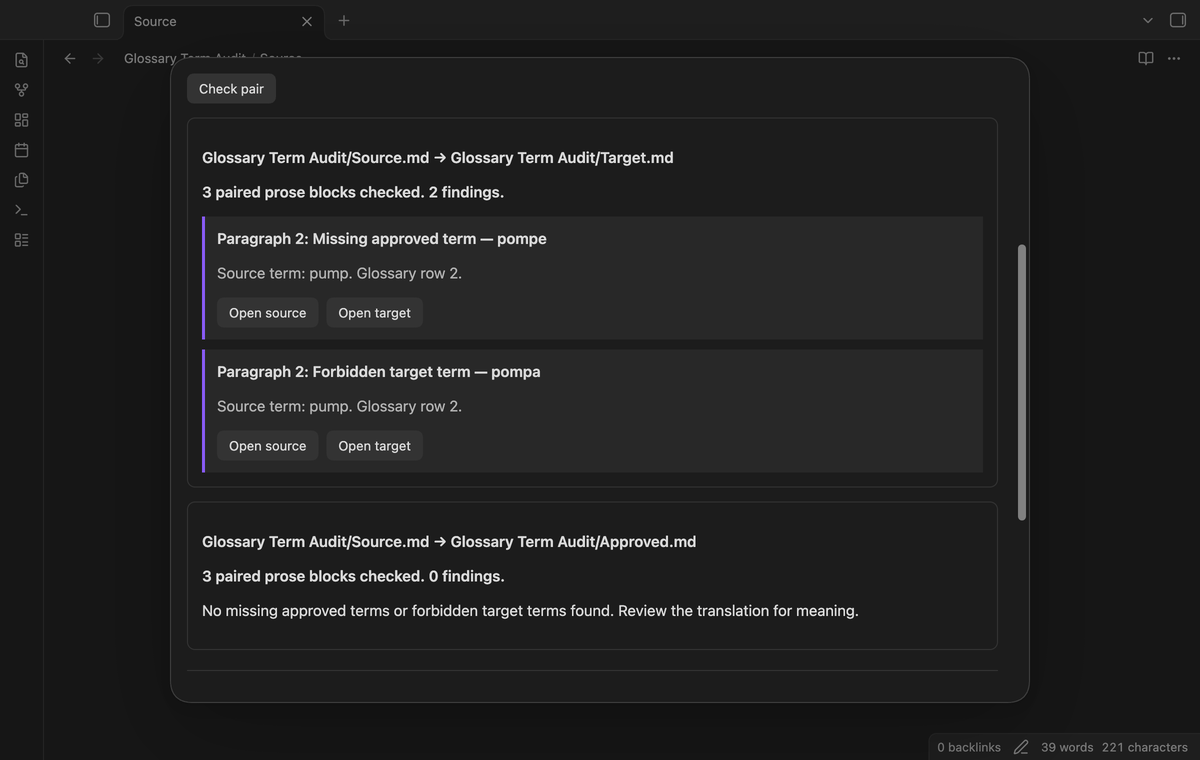
Enter one vault folder path and a second CSV with headers source,target. Declare note paths relative to that folder. The plugin reads those pairs with the current glossary and matching options. It does not infer pairs from filenames. Parent path segments are rejected. Each valid pair has a separate report, and a count mismatch is shown against the affected pair. A missing note stops the folder operation. Pro is checked before the operation and between pairs.
Client glossary profiles (Pro)
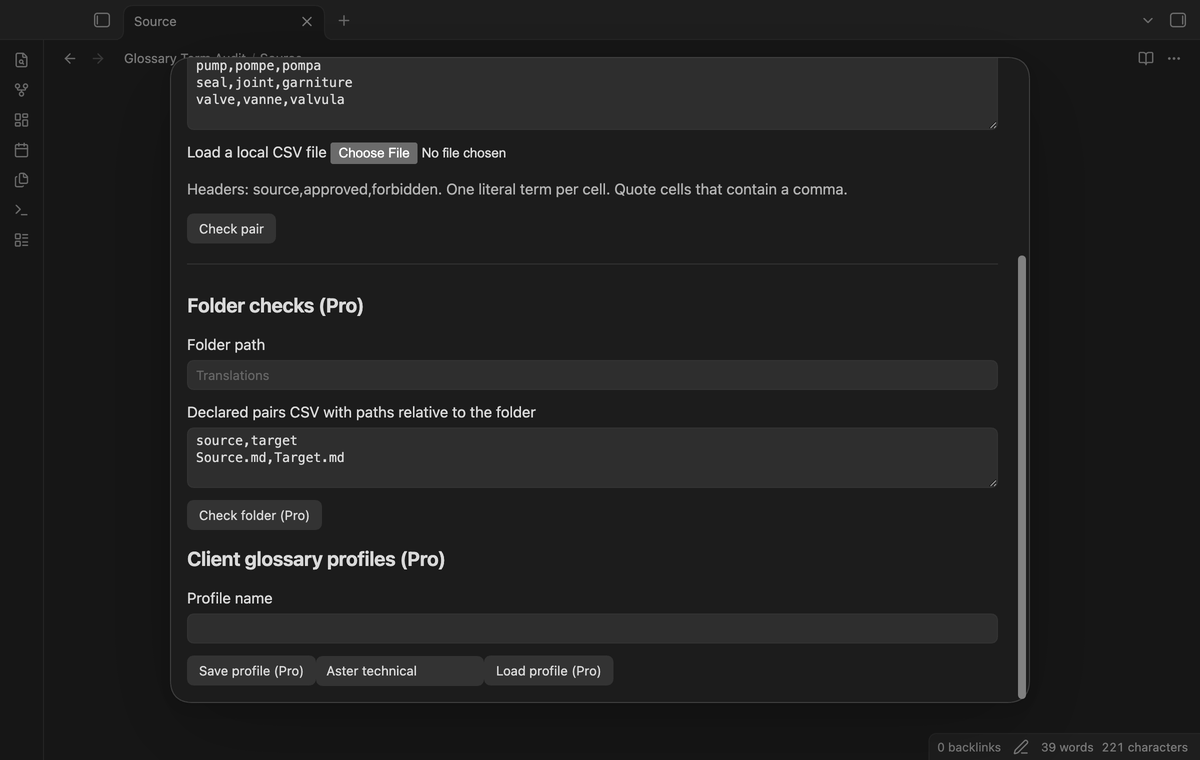
Enter a profile name and select Save profile to store the current glossary. Saving the same name replaces that profile. Choose a saved name and select Load profile to put its CSV into the text area. Profiles contain the name and glossary text; note paths and matching options are not part of a profile. Profile data stays in the plugin data file. The current single glossary remains available to the free pair check when Pro is off.
Install
Use Obsidian 1.13.4 or a later supported version. For a manual installation, put main.js, manifest.json, and styles.css from the release files in .obsidian/plugins/glossary-term-audit/ inside your vault. Reload Obsidian and enable Glossary Term Audit in Community plugins. The plugin is distributed under the MIT license.
Usage
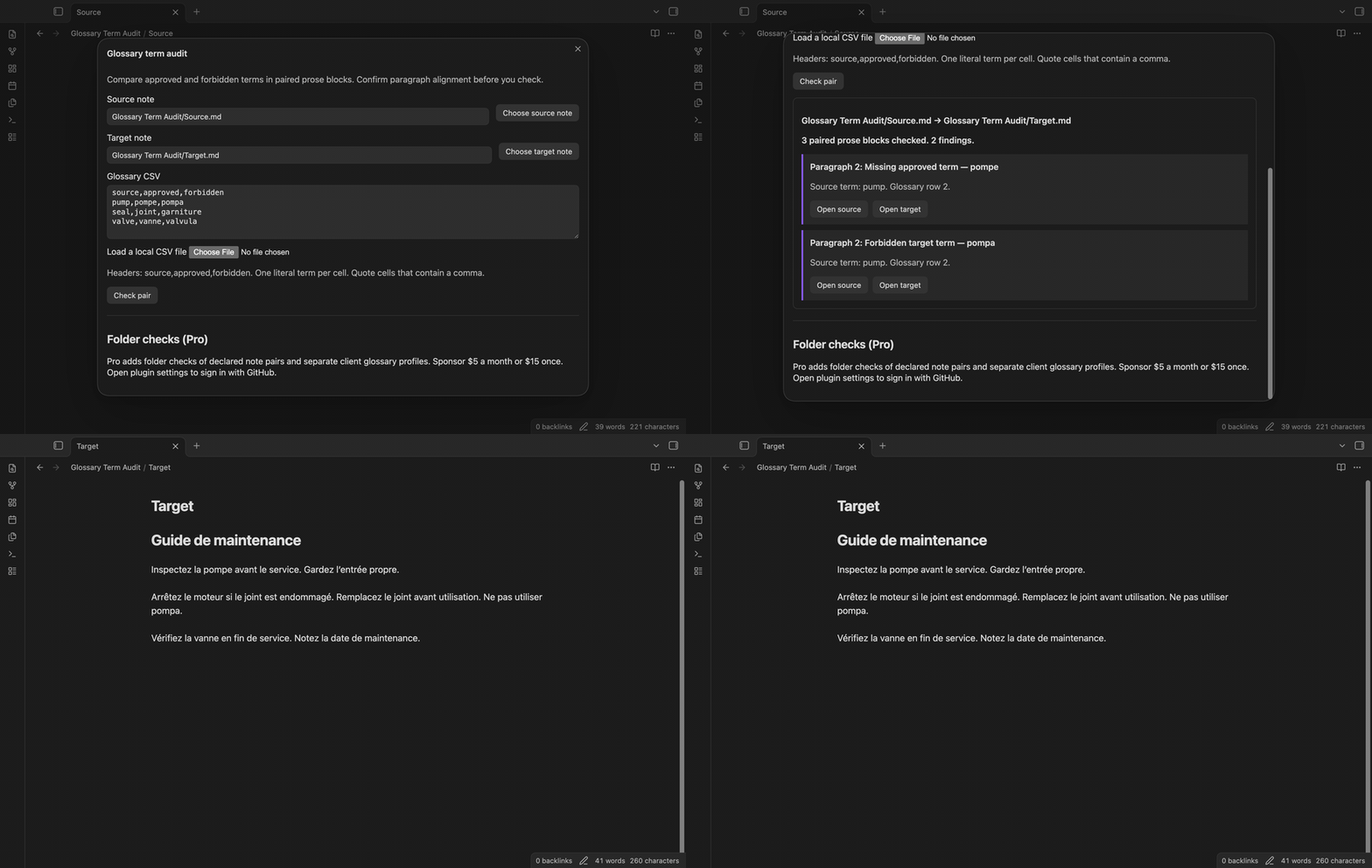
Open the command palette and select Glossary Term Audit: Check a translated note pair. Choose two notes and load your CSV. For a first check, use a small translation with matching blank-line breaks so you can confirm the pairing.
For example, a glossary row can use pump as the source, pompe as approved, and pompa as forbidden. Source text containing pump paired with target text containing pompe produces no finding for that row. Target text containing moteur produces a missing pompe finding. Target text containing pompa produces a forbidden finding.
Select Check pair, read the skipped-row warnings, and resolve alignment errors first. Inspect the findings in the notes. Reopen the command and rerun after changes. A successful report with zero findings means the configured literal checks found no issue in the selected prose blocks. It does not measure fluency, grammar, accuracy, or consistency outside those forms.
Settings
Whole terms is enabled by default. It treats adjacent Unicode letters, combining marks, numbers, and _ characters as part of a word, so pump does not match pumping. Turn it off to permit substring matches. Ignore case is also enabled by default. Turn it off when capitalization is part of a client's terminology rule. These two options apply to source, approved, and forbidden terms. A line break or a run of spaces counts as one space. Composed and decomposed accents match.
The Pro account controls are in the same settings tab. The audit window has the note fields, current CSV, and Pro workflow controls. It has no automatic schedule. Start a check when you need it.
FAQ
Does equal paragraph count prove alignment? No. A translator can reorder or split content differently. Compare the source and target block order. A term in the wrong part of a paragraph can pass the literal check.
Does it find inflections? It compares surface forms. Add separate rows for forms that need separate checks. It does not use stemming, dictionaries, fuzzy matching, or a translation service.
Which formats are outside the prose check? Rich text documents, PDFs, and rendered HTML are outside this workflow. Markdown table rows without an outer pipe and complex nested structures are not parsed as structured documents. Use ordinary prose notes for this check.
What was not tested? Physical mobile devices, Linux and Windows desktop interaction, CI with Node 24, very large vaults, third-party themes, live GitHub sign in, and a real payment were not tested for this release. The automated desktop checks use local fixtures and a simulated sponsorship response. Browser and public Obsidian APIs are used in the runtime code, but this is not a mobile compatibility claim.
Payment, account and network
The core features are free. Pro features need a GitHub Sponsors sponsorship of theluckystrike: $5 a month or more, or $15 once. A total payment of $15 meets the payment requirement for Pro without further payment. Sign-in and the checks below still apply. Your notes stay readable and editable with or without Pro.
GitHub handles the payment. Sponsor at https://github.com/sponsors/theluckystrike. You need no account for the free features. Pro needs the GitHub account that sponsors.
Until you select "Sign in with GitHub" in the settings, Glossary Term Audit makes no network requests. Sign in uses the GitHub device flow. Glossary Term Audit sends its public client ID and the scope read:user to https://github.com/login/device/code and shows you a code. While you enter the code at https://github.com/login/device, it asks https://github.com/login/oauth/access_token every few seconds to check the sign-in status. The scope permits profile reads only. GitHub needs this access to show the sponsorship tier. It grants no repository scope and no write access.
After sign in, Glossary Term Audit sends one query to https://api.github.com/graphql. It checks if the signed-in account sponsors theluckystrike. It asks for the tier and the total payment to theluckystrike. The plugin reuses a successful check for 7 days. Failed checks can retry after 6 hours. Select Refresh to request an earlier check. It sends no note content, file names or other vault data, and it has no telemetry.
After a successful check, Pro can work offline for up to 14 days. Sign out or a negative sponsorship answer turns Pro off. The plugin stores the GitHub token through the secret storage API of Obsidian. It does not put the token in its saved settings or its local sponsorship data. The local storage of this device keeps your GitHub login, the tier and the time of the last check. Sign out clears the token. You can also revoke the access in your GitHub settings, under Applications.
Support
For a problem report, use the repository issue tracker and include the plugin version, Obsidian version, matching options, and a small invented source, target, and CSV example. Replace client names and confidential terms before sharing examples. A paragraph-count error usually needs the blank lines and structural Markdown in the example. Include the skipped row number for a CSV issue. Support information is also available at notemods.com.
For plugin developers
Search results and similarity scores are powered by semantic analysis of your plugin's README. If your plugin isn't appearing for searches you'd expect, try updating your README to clearly describe your plugin's purpose, features, and use cases.