by Rob
Create goals, track dependencies and ratings, and save dashboard views with parent rollups.
Goal Metadata for Obsidian
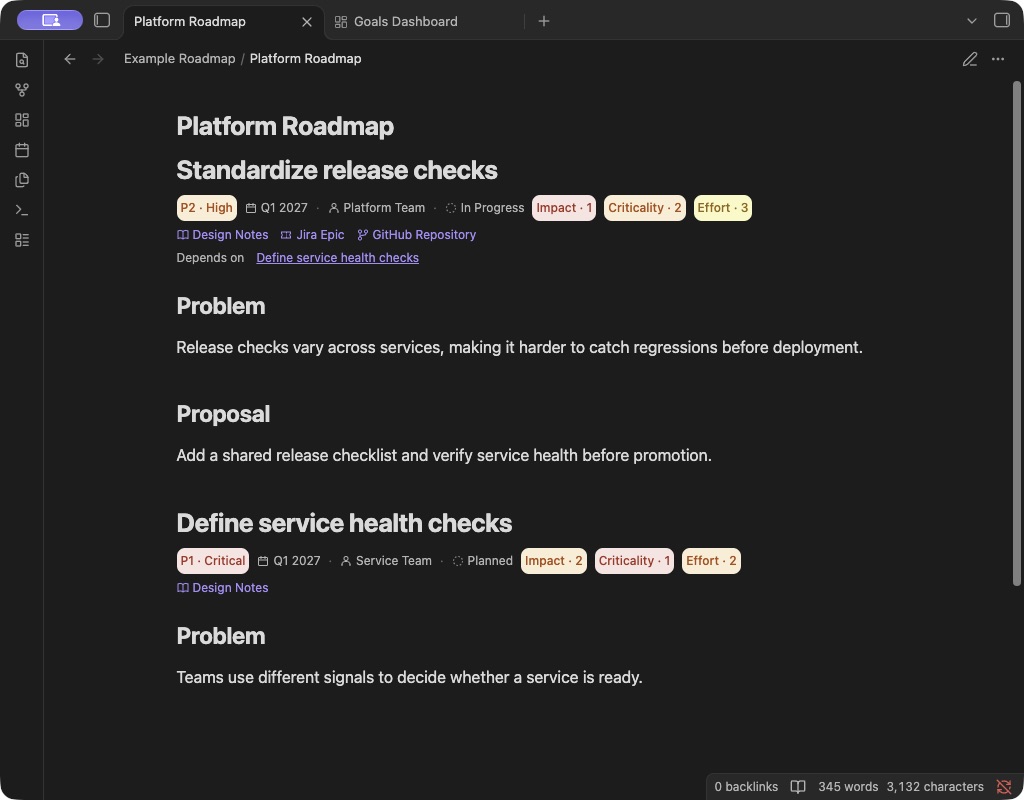
Plan and track goals inside Obsidian. Add a compact strip under any goal heading with priority, target quarter, owner, status, and links. Add optional Impact, Criticality, and Effort ratings, track dependencies, and roll goals up into dashboards.
Install
Requires Obsidian Desktop 1.15.1 or later. The plugin includes its own commands, views, and styling, with no QuickAdd or Dataview dependency.
From Obsidian’s Community plugins
See the Goal Metadata listing in the Obsidian Community directory. When installation is available, follow these steps in Obsidian:
- Open Settings → Community plugins and select Turn on community plugins if prompted.
- Select Browse and search for Goal Metadata by not-really-rob.
- Open the plugin, select Install, then select Enable.
If the plugin does not appear in search or Install is unavailable, use the manual installation below.
Manual installation
- Under Assets on the latest GitHub release, download
main.js,manifest.json, andstyles.css. - Place all three files in your vault’s
.obsidian/plugins/goal-metadata/folder, creating it if needed. Use the vault’s configured folder in place of.obsidianif it differs. - Reopen the vault and enable Goal Metadata in Settings → Community plugins.
The installed path should look like this.
Your vault/
└── .obsidian/
    └── plugins/
        └── goal-metadata/
            ├── main.js
            ├── manifest.json
            └── styles.css
Quick start
- Open a Markdown note in Editing view.
- Open the command palette (⌘P on macOS, Ctrl+P on Windows or Linux) and run Goal Metadata: Insert New Goal. If the goal heading already exists, put the cursor in that section and run Insert Goal Metadata.
- Fill in the fields and save. The target defaults to the current calendar quarter and year unless you’ve configured a different default. Choose TBD for an unscheduled goal.
- Switch to Reading view to see the strip. Run Edit Goal Metadata to update it later, or use a field-specific command such as Update Goal Quarter.
Extend a goal
- Add Goal Decision Log records dated decisions with an optional rationale and follow-up.
- Add Goal Review Checklist adds the checklist from the note’s configuration.
- The documentation, work item, and repository fields accept one HTTP or HTTPS URL per line. Their default link text is Design Notes, Jira Epic, and GitHub Repository.
Dashboards and dependencies
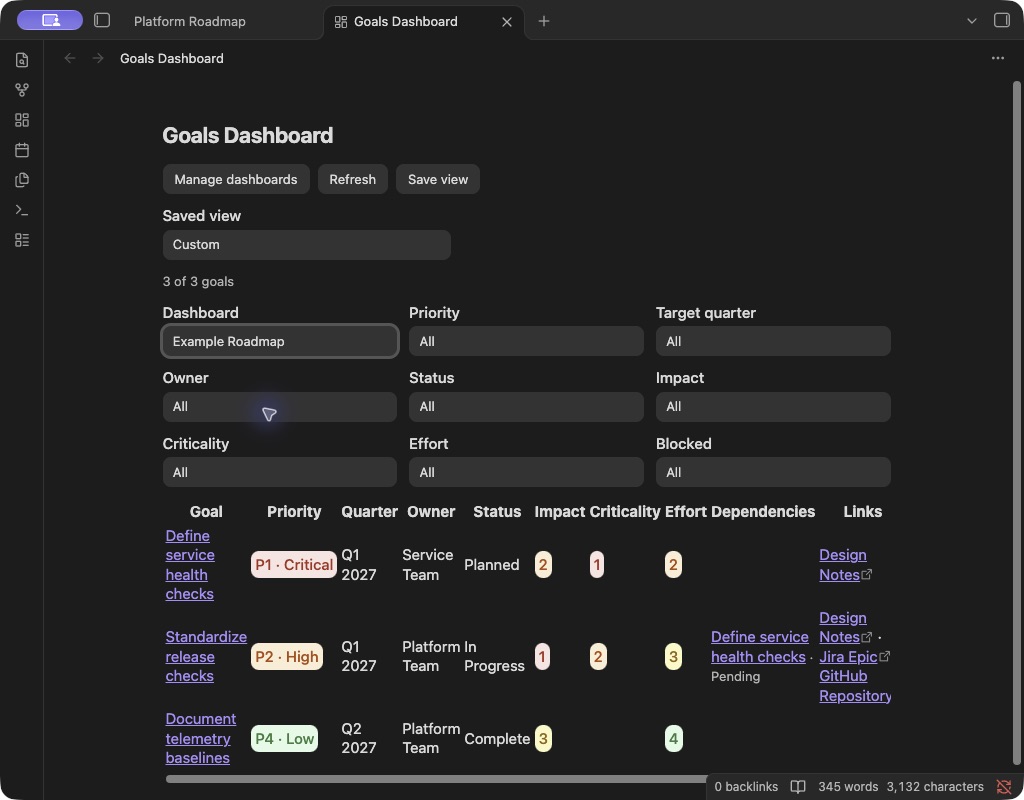
Run Generate Goals Dashboard to see all goals with metadata in the vault. Filter by priority, quarter, owner, status, or whether the goal is blocked. Rating filters appear when the vault contains rated goals. Click a goal title to jump to its section, Refresh to rescan the vault, or Save view to store a dashboard and its filters. Restore that combination from Saved view. Saving with the same name updates the stored view.
Roll up goals by folder
- Run Manage Goals Dashboards and create a dashboard called
2027 Planning, scoped to the vault folder2027 Planning. - Put goal notes in that folder or its subfolders. For a separate quarterly dashboard, create one scoped to
2027 Planning/Q1. - Leave the quarterly dashboard’s Parent dashboard on Automatic (from folder) to roll it up to
2027 Planning. Choose a specific parent or No parent to change that behavior.
For an individual goal, Set Goal Dashboard overrides the dashboard. Otherwise, goals inherit the note’s assignment from Set Note Goals Dashboard, then the most specific configured folder. All goals also includes goals without a dashboard.
Track blockers
Enter one dependency per line in Edit Goal Metadata. Use [[Planning/Infrastructure#Publish API]] for another note, or [[#Publish API]] for another goal in the same note. The dashboard shows whether each dependency is complete, pending, or unresolved. The Blocked filter includes goals explicitly marked Blocked and goals with a pending or unresolved dependency. Configure which statuses satisfy dependencies in Settings → Goal Metadata.
Configurations and note assignments
Open Settings → Goal Metadata to change priority names and colors, link text, owner and status defaults, the target quarter, template headings, and review checklist items. Impact, Criticality, and Effort are independently optional, with their own badge colors. Each uses 1 (highest) through 5 (lowest) or None. Turn on a ranking to reveal its color controls directly below the toggle.
To reuse a setup, enter a name and choose Save as new configuration. Then run Set Note Goal Configuration in any note to use it for new or edited goals. Choose Vault default to inherit your general settings. Save an existing strip with Edit Goal Metadata to apply updated labels or switch its configuration. To remove a saved configuration, select it in Settings and confirm Delete configuration. The confirmation lists affected notes and shows which fields, colors, labels, and other settings will change. Assigned notes fall back to the vault default and retain their existing goal text and dashboard assignments.
Set Note Goal Configuration and Set Note Goals Dashboard both offer Plugin settings only or Show name in note properties. The latter writes the readable name for an explicit assignment. You can re-save an older assignment to replace its ID with the name. These plugin properties are hidden in Reading view.
Update or uninstall
For Community plugin updates, open Settings → Community plugins, select Check for updates, and update Goal Metadata when a new version is available.
For manual updates, replace main.js, manifest.json, and styles.css with the files from the latest release and reopen the vault. Keep data.json to retain configurations, saved views, dashboard definitions, and note assignments.
To uninstall, disable Goal Metadata and remove its plugin folder. Goal strips remain in your Markdown notes.
Contributing
Repository write access is by invitation. Changes to the default branch go through pull requests and maintainer review.
License
MIT.
For plugin developers
Search results and similarity scores are powered by semantic analysis of your plugin's README. If your plugin isn't appearing for searches you'd expect, try updating your README to clearly describe your plugin's purpose, features, and use cases.