Highlight Same Matches
approvedby Ivan Rybakov
Plugin for Obsidian. Highlights all occurrences of the selected text in the current note, similar to Notepad++. - This plugin has not been manually reviewed by Obsidian staff.
Highlight Same Matches
An Obsidian plugin that automatically highlights every occurrence of your selected text throughout the current note — just like Notepad++ does.





Disscussion
Please, leave feedback or suggest an idea what is important for you to develope the app. Share you wishes!
Demo
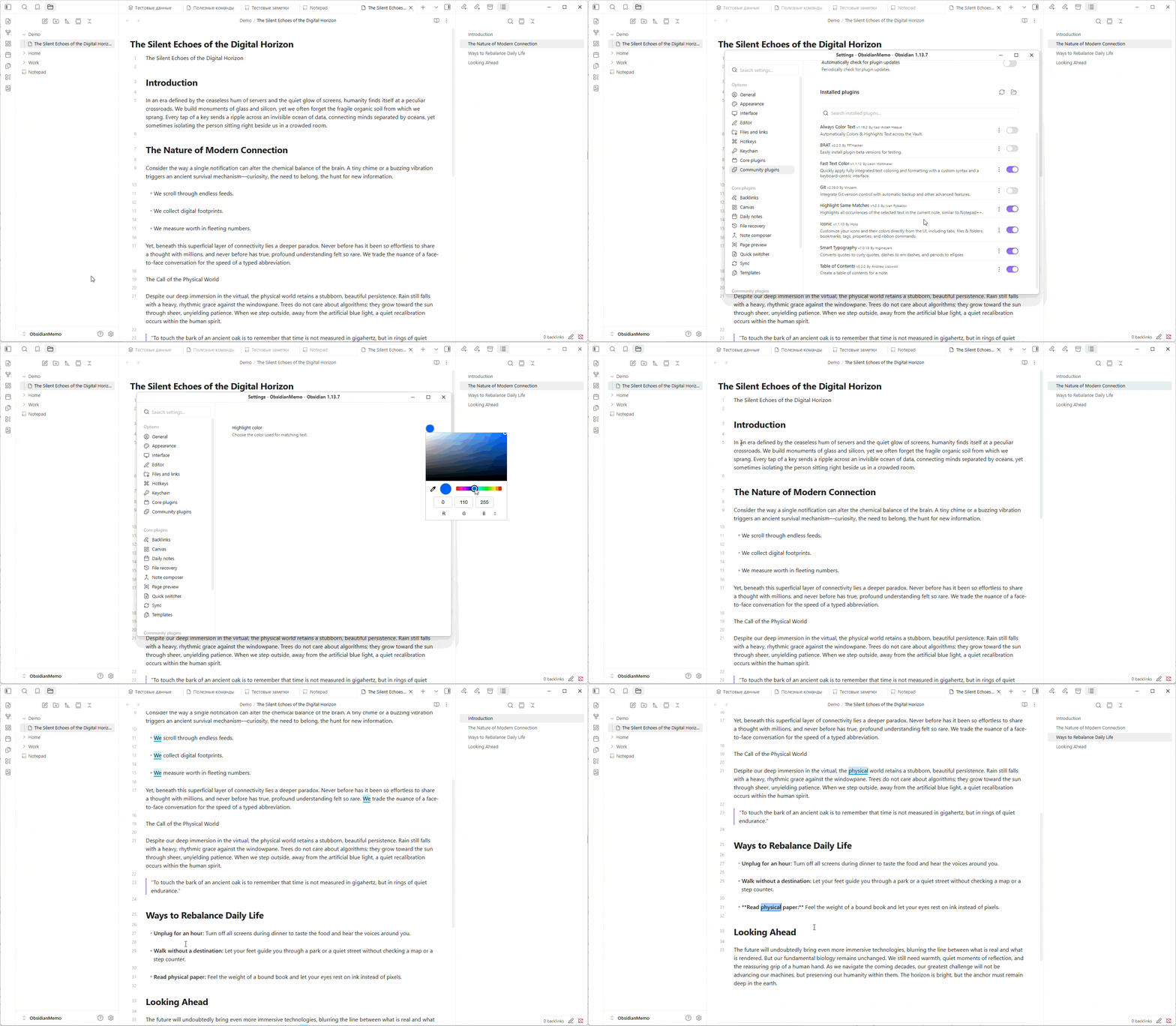
Color setting
Highlight setting
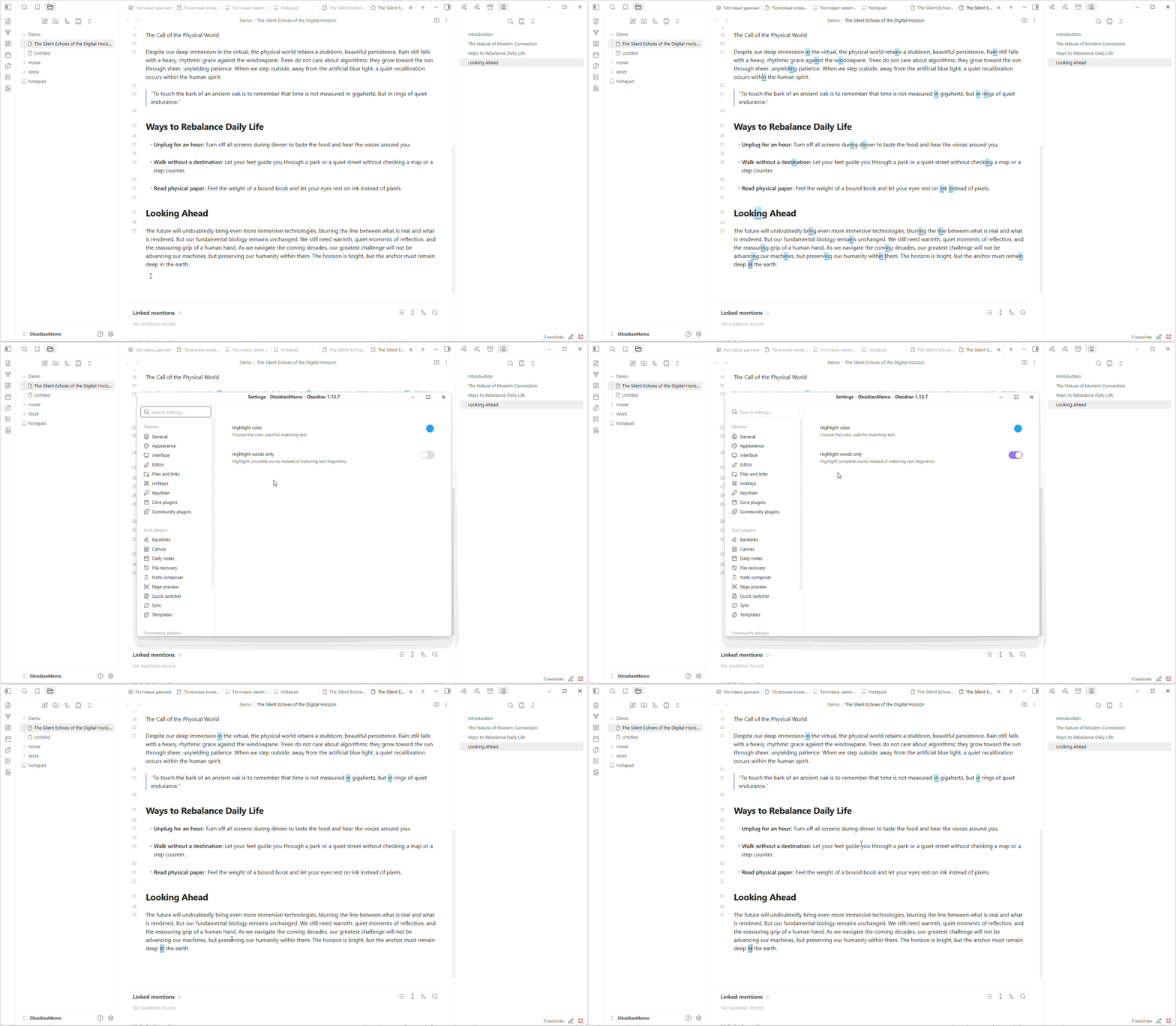
How it works
Select any word or phrase and matching text instantly lights up with a colored highlight. Deselect — and the highlights vanish. No commands or hotkeys are required.
- Real-time highlighting on selection change or text editing
- Ignores single characters and whitespace to keep things clean
- Highlights update live as you edit the document
Settings
Open Settings → Community plugins → Highlight Same Matches to customize highlighting:
- Highlight color — choose a color with the built-in color picker. The
default color is yellow (
#FFD700), and the selected color is saved automatically. - Highlight words only — enabled by default. When enabled, only complete
words are highlighted. A word is a continuous sequence of letters; spaces,
punctuation, and special characters separate words. For example, selecting
wehighlightsweand theweinwe are, but not the fragment insidewealth. It also treatswe-areandwe/areas separate words.
Disable Highlight words only to highlight the selected fragment wherever it
appears, including inside larger words such as wealth. Settings are restored
after restarting Obsidian or reopening a note.
Limitations
In Live Preview, rendered Markdown tables are skipped because Obsidian displays their contents in a separate table view rather than the editable source text. Switch to Source mode to highlight matches inside tables.
Installation
From Community Plugins
- Open Obsidian Settings → Community Plugins;
- Search for Highlight Same Matches;
- Install and enable the plugin;
Manual
- Clone this repository into your vault's
.obsidian/plugins/directory - Rebuild or copy the built
main.js,styles.css, andmanifest.jsoninto the plugin folder - Enable the plugin in Obsidian Settings → Community Plugins
License
For plugin developers
Search results and similarity scores are powered by semantic analysis of your plugin's README. If your plugin isn't appearing for searches you'd expect, try updating your README to clearly describe your plugin's purpose, features, and use cases.