by Nikolay Ponomarev
Hover a T icon to see the note's table of contents, preview each section, and keep sticky headings at the top.
Hovered Table of Content — Obsidian table of contents plugin
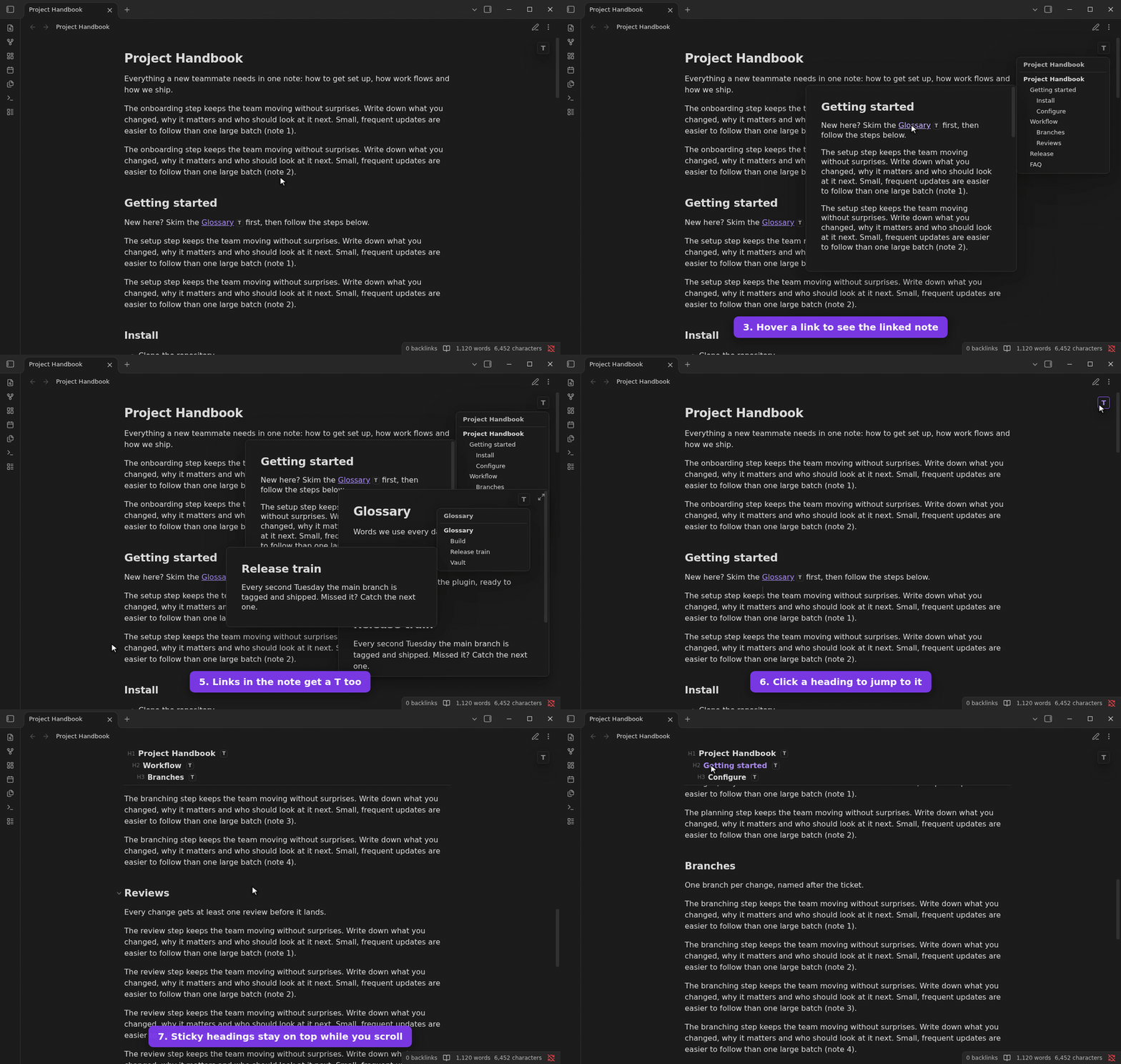


An Obsidian plugin that keeps a note's table of contents (TOC) one hover away. Hover a small T icon to see the note's outline, preview any section without scrolling, peek into the outline of linked notes, and keep sticky headings pinned at the top while you read long Markdown notes.

The button opens the official plugin installation page. Choose Add to Obsidian, then Install and Enable in the app.
Hovered Table of Content is the plugin name. "Obsidian" describes the platform it extends; this is an independent project and is not affiliated with or endorsed by Obsidian.
Table of contents in Obsidian without a sidebar
Obsidian's core Outline view lives in a sidebar and only shows the active note. Hovered Table of Content puts a floating table of contents inside every note, page preview and link, so you can navigate long notes, documentation, meeting notes and Zettelkasten links without opening panels or inserting a TOC block into your Markdown. It never edits your notes.
Features
- T icon. Every note gets a small square T button. Hover over it to see the note's table of contents in a popup.
- Section previews. Hover over a heading in the table of contents to preview that section: the heading, its text and its subsections. Click the heading to jump to it (Ctrl/Cmd-click opens it in a new tab).
- Previews of linked notes. Hover over a link inside a preview to see the linked note in Obsidian's page preview. Every link to another note also gets its own T icon. Hover over it to see the linked note's table of contents, which previews its sections in turn.
- T on links in notes. Every link to another note in the note itself gets a T right after it, in Reading view and Live Preview. Hover over it to see the linked note's table of contents.
- T in page previews. Obsidian's page previews of notes get a T button too, with the table of contents of the previewed note.
- Sticky headings. When you scroll past a heading, it stays pinned at the top of the note. Click it to jump back. Each sticky heading has a T icon that lists only that heading's subheadings.
It works in Reading view, Live Preview and Source mode, with light and dark themes.
Installation
From the community directory
Open the Hovered Table of Content listing and choose Add to Obsidian, then install and enable the plugin. If your app does not find the newly published listing yet, use BRAT or the manual installation below.
With BRAT
- Install and enable BRAT from Community plugins.
- Run BRAT: Add a beta plugin for testing and enter
itsNikolay/obsidian-hovered-table-of-content. - Enable Hovered Table of Content in Settings → Community plugins.
Manually
- Download
main.js,manifest.jsonandstyles.cssfrom the latest release. - Copy them to
<your vault>/.obsidian/plugins/hovered-table-of-content/. - Reload Obsidian and enable Hovered Table of Content in Settings → Community plugins.
Requires Obsidian 1.5.7 or later.
Settings
| Setting | Default | |
|---|---|---|
| Icon position | Top right | Top left, top center, top right, bottom left, bottom center or bottom right of the note. The popup opens towards the middle of the note. |
| Icon in notes | On | Shows the T button in each note. |
| Icons on links | On | Shows a T next to links in previews and in Obsidian's page previews of notes. |
| Icons on links in notes | On | Shows a T next to links to other notes in the note itself, in Reading view and Live Preview. |
| Sticky headings | On | Turns sticky headings on or off. |
| Sticky heading mode | Heading with its parents | Closest heading shows only the last heading above the screen. Heading with its parents also shows its parent headings. |
| Icons on sticky headings | On | Shows a T with the subheadings next to each sticky heading. |
Release security checks
Every release is built by GitHub Actions from a tagged commit. Before publishing, the workflow runs the unit and end-to-end tests, scans main.js, manifest.json and styles.css with VirusTotal and blocks the release on any detection, and attests build provenance for the three files. The scan report with SHA-256 hashes is included in the release notes.
Development
The tests run in Docker, including end-to-end checks against the real Linux Obsidian app on a virtual display:
npm run docker:test    # lint, typecheck, unit tests (vitest + jsdom), build
npm run docker:check   # all of the above + end-to-end tests in real Obsidian
npm run docker:e2e     # only the end-to-end tests in real Obsidian
npm run docker:demo    # re-record docs/demo.gif in real Obsidian
The end-to-end run uses a synthetic vault created inside the container (--network=none). Screenshots and report.json are written to artifacts/docker/.
Without Docker, use Node 22.13 or later: npm ci && npm run check.
| Path | |
|---|---|
src/headings.ts | Pure heading logic: nesting, sections, sticky headings |
src/links.ts | Pure link logic: finds links in the editor's syntax tokens |
src/ui/popup.ts | Hover popups that can be nested |
src/ui/toc.ts | Table of contents popup, section previews, link icons |
src/ui/sticky.ts | Sticky headings overlay |
src/view-decoration.ts | Adds the button, sticky headings and link icons to a note view |
src/main.ts | Plugin lifecycle and the link to the Obsidian API |
scripts/test-obsidian-docker.mts | End-to-end tests against real Obsidian |
scripts/record-demo.mts | Records the demo GIF at the top of this README |
scripts/scan-virustotal.mts | VirusTotal scan of the release files |
Releasing
Bump the version with npm version <patch|minor|major> (updates manifest.json and versions.json), then push the commit and its tag: git push --follow-tags. The tag must equal the manifest version (for example 1.0.1, without a v). The release workflow needs the VIRUSTOTAL_API_KEY repository secret.
Credits
Based on obsidian-sample-plugin. The sticky-heading approach comes from obsidian-sticky-heading, and the heading handling from obsidian-automatic-table-of-contents.
For plugin developers
Search results and similarity scores are powered by semantic analysis of your plugin's README. If your plugin isn't appearing for searches you'd expect, try updating your README to clearly describe your plugin's purpose, features, and use cases.