IMA Share Sync
approvedby Pitt
Sync IMA shared text articles to local Markdown notes using Windows desktop automation. - This plugin has not been manually reviewed by Obsidian staff.
少一点复制粘贴,多一点阅读和整理。
Windows 专用 · Obsidian 插件 · 本地 Markdown · MIT 开源
下载 0.1.1 · 快速开始 · 使用边界 · 反馈问题 · English
你可能也有这样的日常
你订阅了一个 IMA 共享知识库,每天都有新的行业简报、学习资料或工作笔记。
阅读在 IMA,自己的总结却放在 Obsidian。想把值得留下的文章整理到一起,就要反复做这些事:
打开文章 → 复制正文 → 新建笔记 → 整理格式 → 确认有没有存过。
几天以后,你开始记不清:哪篇已经保存?哪篇漏了?失败的那篇到底有没有进笔记库?
IMA Share Sync 把这段重复流程接起来。 它通过本机 IMA 桌面端读取你有权访问的分享文字文章,保存到指定的 Obsidian 文件夹。内容留下后,你可以继续搜索、标注、建立双向链接,把资料变成自己的知识。
一个具体场景:每天整理行业简报
你把 IMA 中的「每日简报」同步到 Obsidian 的「资料/行业观察」。
设置每次检查最近 7 篇。假设其中 5 篇已被识别为已保存、2 篇是新文章,在“同名不覆盖”模式下,已有内容跳过,新文章写入 Markdown。
第二天继续同步,再到自己的笔记里写结论、链接相关项目,不用逐篇搬运。哪篇没成功,打开同步日志就能找到原因。
7 是检查范围,不是必须新增 7 篇;它不会为了凑数继续抓取更早的文章。
它帮你省下什么
| 你关心的事 | 插件怎么处理 |
|---|---|
| 把分享文章留下来 | 保存为仓库内的 Markdown 文件,方便后续整理 |
| 不想每次重复复制 | 默认不覆盖同名文件;能识别的已保存来源优先跳过 |
| 怕覆盖自己的笔记 | 通用模式下,来源不确定的同名文章按冲突处理,不擅自覆盖 |
| 想找回漏掉的文章 | 本地文件删除后,若仍在本次检查范围内,可重新尝试同步 |
| 不想电脑突然自己动 | 自动同步前有 5 秒提示;可推迟、取消,运行中可停止 |
| 想知道每次发生了什么 | 侧栏内查看完整同步历史,每页 20 条,错误可直接定位 |
| 不想安装一串依赖插件 | 独立运行,不需要其他 Obsidian 插件 |
快速开始
1 · 准备好这三样
- Windows 10 或更新版本,保持可交互的桌面会话。
- Obsidian 桌面版 1.11.4 或更新版本。
- 已安装并登录的 IMA 桌面端,且你能打开要同步的知识库和文件夹。
目前不支持 macOS、Linux、Android 或 iOS。
2 · 安装插件
从 0.1.1 发布页 下载这三个文件:
你的 Obsidian 仓库/
└─ .obsidian/
   └─ plugins/
      └─ ima-speed-sync/
         ├─ main.js
         ├─ manifest.json
         └─ styles.css
把文件放好后,打开 设置 → 第三方插件,启用 IMA Share Sync。若列表没有刷新,重启 Obsidian。
文件夹名
ima-speed-sync是为兼容已有安装保留的内部 ID;显示名称是 IMA Share Sync。已有用户更新时只替换上述三个文件,不要覆盖或删除data.json,以保留配置和历史日志。
3 · 告诉它“从哪来,存哪去”
在插件设置中填写:
| 配置 | 示例 |
|---|---|
| IMA 知识库名称 | 我的学习资料 |
| IMA 文件夹名称 | 每日简报 |
| Obsidian 保存文件夹 | 资料/行业观察 |
| 内容模式 | 通用文字 |
| 检查最近文章数 | 7 |
名称填写 IMA 界面中显示的完整名称;保存位置是当前仓库内的相对路径。
4 · 点一次「立即同步」
首次使用需要确认本地自动化授权。之后手动点击会直接开始,不再额外倒计时。
同步完成后,到目标文件夹阅读新笔记。也可以在插件侧栏点击 同步日志,展开每次运行结果;再次点击入口或「收起」即可折叠,不会删除记录。
插件标题旁和设置页会显示当前安装的版本号,方便确认更新是否生效。
日常使用,尽量少打扰
你主动点击时
立即开始;右下角显示简短进度和停止按钮。结束后只显示关键结果。
你开启启动时同步后
自动运行前默认预留 5 秒,可立即开始、5 分钟后或取消。启动时同步默认关闭,需要你自行开启并完成授权。
出现异常时
提示里只显示概要,点「查看原因」看简短说明;完整错误保留在插件日志。未读异常标记查看后消除,下次新异常再提醒。
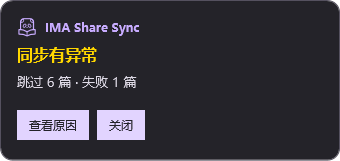
原生提示框的测试数据示例;并非每次同步都会报错。
提醒、异常标记、开始与结束提示都有配置项。关闭提醒不影响记录;运行中的停止入口仍然保留。界面刻意简短,历史可以随时回看。
使用前请了解
支持文字文章,不等于导出整个 IMA
新安装默认使用「通用文字」模式,不要求标题是日期,也不要求有目录、更新时间或最低字数。
- 识别到的标题、正文、链接和分隔线会尽量还原为 Markdown。
- 链接目标不可访问、正文边界无法确认时,会明确报错,不把不完整结果冒充成功。
- PDF、图片、附件、内嵌卡片和复杂表格不属于当前版本的完整导出范围。
- 目前针对已验证的中文分享文件夹界面;IMA 布局更新可能影响读取。
以前用的是“速看”模式,会不会升级后乱抓内容?
不会自动扩大原来的范围。已有安装保留「速看预设」,继续使用原有标题及文章结构规则。需要同步其他文字内容时,请在设置中主动切换到「通用文字」。
“不覆盖”也会检查旧文章有没有更新吗?
不会。不覆盖模式优先跳过已识别的本地来源,不主动检查新版本。通用模式即使开启覆盖,也需确认是同一来源;无法确认时保护原文件。旧速看预设保留原有按文件名处理的行为,详情见技术说明。
同步时还能正常使用电脑吗?
插件优先使用限定到 IMA 窗口的可访问性操作,不使用全局全选复制,也不占用剪贴板。但 IMA 可能自行弹出窗口,这不是完全无界面的后台服务。同步期间请避免操作正在读取的 IMA 文章。
「允许短时前台操作」默认关闭;如需此后备路径,须由你自行开启。运行中始终有停止入口,取消只保留已验证完成的文章。
为什么插件侧栏和 Obsidian 文件列表的顺序不一样?
插件侧栏优先按可识别的标题日期倒序显示;没有标题日期时,使用可用来源时间或本地创建时间。Obsidian 原生文件列表有自己的排序设置。插件不为标题擅自补年份,也不自动重命名旧笔记。
内容在本地,操作可知情
插件读取当前登录账户有权查看的文字,只在指定仓库目录内创建或更新 Markdown。不内置遥测、广告或自有上传服务;IMA 自身仍可能需要联网。
同步历史保存在插件的 data.json,技术诊断位于 %LOCALAPPDATA%\ima-speed-sync\sync.log。日志可能包含文章标题,分享前请检查;你的仓库备份或同步服务也可能包含这些文件。
仓库之外的本地访问: 为运行已随插件打包的 PowerShell 脚本、传递提取结果和显示原生提示框,插件会在 Windows 临时目录下创建 ima-speed-sync/run-* 与 ima-operation-card-* 工作目录,并在结束时尝试清理。崩溃或清理失败时可能残留临时文件。诊断日志保留在上述 %LOCALAPPDATA% 目录,用于排查同步失败;必要时会读取该目录下 IMA 的安装路径以启动客户端。插件不会从网络下载或安装脚本、依赖或更新自身。
账号与网络: 需要你自行安装并登录 IMA,由 IMA 客户端访问分享内容;插件不收集 IMA 密码、不调用自建服务器。点击 GitHub 支持或文档链接时才会由浏览器打开相应网站。
请只同步有权复制、保存的内容。本项目是独立社区插件,非腾讯、IMA 或 Obsidian 官方产品,不代表上述品牌的授权或背书。
开发与贡献
npm ci
npm run check
npm run build
构建产物在 dist/。完整检查覆盖版本一致性、代码规范、类型、JavaScript 行为、PowerShell 提取逻辑和原生提示框;自动化测试不等同于所有 IMA 版本的实机兼容性保证。
反馈时建议附上 Windows / Obsidian / IMA 版本、文章类型和脱敏后的错误信息,不要公开个人资料、正文或访问凭据。
开源许可
代码采用 MIT License。相关产品名称与品牌标识属于各自权利人。
如果它让你少做了几次复制粘贴,欢迎在 GitHub 点个 Star,也欢迎反馈真实使用场景。
English
Save shared reading to your own knowledge base. IMA Share Sync imports text articles you can access in the IMA Windows desktop app into an Obsidian folder as local Markdown notes. It is an independent, MIT-licensed community project, not an official IMA, Tencent, or Obsidian product.
A typical workflow
You read a daily industry briefing in an IMA shared knowledge base, but keep your research and conclusions in Obsidian. Instead of opening, copying, formatting, and checking each article by hand, configure the source folder once and click 立即同步 (Sync now). With the default no-overwrite setting, recognized saved articles are skipped, and new articles can become searchable, linkable notes. Checking the latest seven articles means checking seven candidates, not importing seven new notes.
Installation
Requirements: Windows 10 or later, Obsidian 1.11.4 or later, and an installed, signed-in IMA desktop client with access to the source. The current extractor targets the supported Chinese IMA sharing interface. No other Obsidian plugins are required.
- Download
main.js,manifest.json, andstyles.cssfrom the latest GitHub release. - Place them in
<your vault>/.obsidian/plugins/ima-speed-sync/. - Enable IMA Share Sync under Settings → Community plugins. Restart Obsidian if the plugin list has not refreshed.
- When upgrading, replace only those three files. Keep
data.jsonto preserve your settings and sync history.
Usage
- Open the plugin settings and enter the exact IMA knowledge-base name, source folder name, and a destination folder relative to the current vault.
- Use the general-text mode for ordinary articles and select how many recent candidates to check.
- Click 立即同步 (Sync now) and approve the first-use local automation consent. Manual sync does not add a countdown. Startup sync is optional and off by default; when enabled, it shows a five-second preflight prompt by default.
- Read saved Markdown in the destination folder. Open 同步日志 (Sync logs) inside the plugin sidebar to inspect past runs, errors, and results, with 20 runs per page. Collapsing the log does not delete it.
The installed version is shown beside the sidebar title and in settings. Sync can be stopped from the operation card. No-overwrite mode does not check saved articles for newer revisions. PDFs, images, attachments, embedded cards, and complex tables are not fully exported. Changes to IMA's interface can affect extraction.
Privacy and desktop permissions
The plugin runs bundled PowerShell code and Windows UI Automation through child_process. It may launch or display IMA windows; it is not a fully headless service. Avoid interacting with the IMA article being read. It does not use global select-all/copy or the clipboard, and optional foreground fallback is off by default.
Local filesystem access outside the vault is used for temporary scripts, article extraction results, and operation-card communication under %TEMP%/ima-speed-sync/run-* and %TEMP%/ima-operation-card-*. Cleanup is attempted when a run ends, but a crash can leave temporary files. Diagnostics are stored in %LOCALAPPDATA%/ima-speed-sync/sync.log; the IMA installation path under %LOCALAPPDATA% may be checked to launch the client. Logs may contain article titles; inspect and redact them before sharing.
You need an IMA account and permission to save the source content. IMA itself uses its network service; this plugin has no telemetry, custom upload server, or password collection. GitHub links open only when clicked. It does not download executable dependencies or update itself. See technical details and security information.
For plugin developers
Search results and similarity scores are powered by semantic analysis of your plugin's README. If your plugin isn't appearing for searches you'd expect, try updating your README to clearly describe your plugin's purpose, features, and use cases.