Image Hover Preview
approvedby shin2w
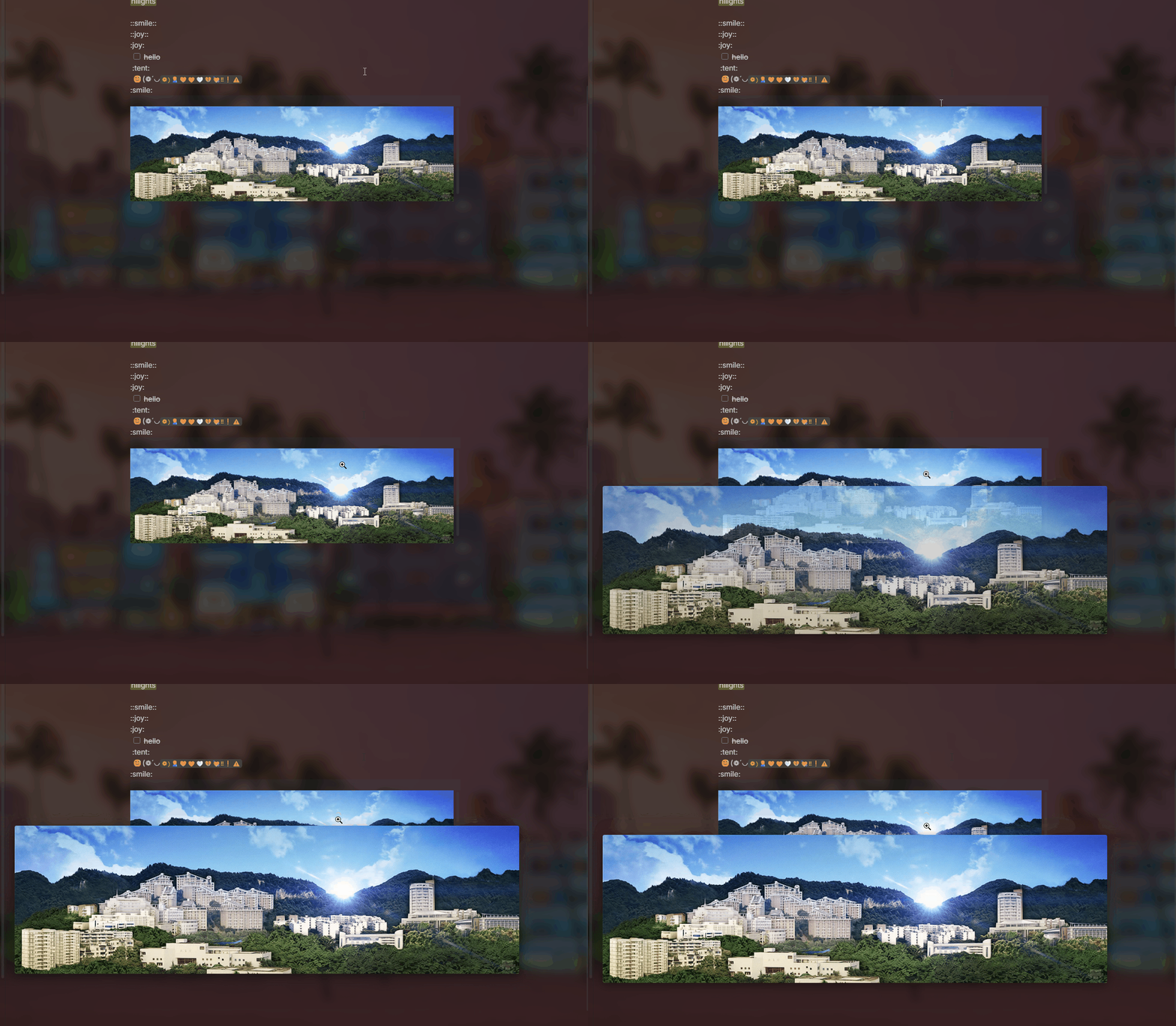
Hover your cursor over images to display a floating preview with zoom support. - This plugin has not been manually reviewed by Obsidian staff.
all code generated by AI.
Image Hover Preview
An Obsidian plugin that shows a floating preview of images when you hover over image links or Markdown image tags.


Features
- Instant preview — Hover over
![]()tags or image links to see a full-resolution preview - Smart positioning — Preview stays within the editor area, never overflows into sidebars
- Mouse tracking — Preview follows the cursor as you move around the image
- Scroll zoom — Hold a configurable key + scroll wheel to zoom in/out
- Hard zoom limit — Small images can only be enlarged until they fill the editor area, never beyond
- Zoom reset — Automatically resets to 1:1 when preview is closed and reopened
- Caption — Optionally show the file name or custom title at the bottom
- Hover delay — Configurable delay to prevent popups when the mouse just passes by
- Trigger key — Require a modifier key to activate preview
- Temporary suppression — Hold a key to temporarily disable preview (useful for screenshots or selecting text)
- Hover indicator — Visual feedback (outline / custom cursor) when hovering over a previewable element
- Loading spinner — Animated indicator while the image is being loaded
- Customizable style — Background color, border, border radius, box shadow, opacity
- Preload — Automatically scans previewable elements on page load for faster response
- Minimum size filter — Ignores small icons below a configurable size threshold
Installation
Manual
- Download
main.js,styles.css, andmanifest.jsonfrom the Releases page - Place them in your vault's plugin folder:
<vault>/.obsidian/plugins/image-hover-preview/ - Enable Image Hover Preview in Obsidian Settings → Community Plugins
Build from source
git clone https://github.com/your-repo/image-hover-preview.git
cd image-hover-preview
npm install
npm run build
Copy the output files (main.js, styles.css, manifest.json) to your .obsidian/plugins/image-hover-preview/.
Usage
Hover over any image link or Markdown image tag:
![[assets/example.png]]

Zoom
| Action | Default key | Description |
|---|---|---|
| Zoom in | Shift + scroll up | Scale up by 20% |
| Zoom out | Shift + scroll down | Scale down by 20% |
| Reset | Close & reopen preview | Back to 1:1 |
The zoom modifier key can be changed or disabled in settings.
Settings
| Setting | Default | Description |
|---|---|---|
| Enable plugin | On | Global toggle |
| Trigger key | None | Hold this key to activate preview |
| Suppress key | Ctrl | Hold this key to temporarily disable preview |
| Zoom key | Shift | Hold this key + scroll to zoom |
| Display delay | 300ms | Hover delay before showing preview |
| Opacity | 1.0 | Preview window opacity |
| Show caption | On | Display file name at the bottom |
| Hover effect | Outline | Visual feedback on hoverable elements |
| Background | #1e1e1e | Preview window background color |
| Border | 2px solid #555 | Preview window border |
| Border radius | 8px | Preview window corner radius |
| Box shadow | 0 8px 32px rgba(0,0,0,0.5) | Preview window shadow |
| Min image size | 30px | Images smaller than this won't trigger preview |
| Preload | On | Scan previewable elements on page load |
Compatibility
- ✅ Obsidian v0.15.0+
- ❌ Desktop only (not supported on mobile)
- Supports internal attachments (
![[path/to/image.png]]) - Supports external links (
) - Supports inline Markdown images (
) - Supports wiki-style links (
![[image-name]])
How it works
The preview (PreviewOverlay) is a position: fixed overlay with these design choices:
pointer-events: none— the preview never intercepts mouse events, so the editor remains fully interactive- Editor boundary — each reposition calculates the available space inside the editor area (
getEditorBounds()) to avoid spilling into sidebars - Adaptive sizing — images smaller than the window display at natural size; images larger than the editor area are scaled down to fit
- Zoom clamp —
getMaxZoom()prevents zooming beyond the editor's dimensions, so the preview never overflows
demo
Sponsor

For plugin developers
Search results and similarity scores are powered by semantic analysis of your plugin's README. If your plugin isn't appearing for searches you'd expect, try updating your README to clearly describe your plugin's purpose, features, and use cases.