Inkbound
approvedby kidpeterpan
Export notes, book folders, or linked notes as EPUB for e-ink readers, with optional wireless delivery to Onyx Boox. - This plugin has not been manually reviewed by Obsidian staff.
Inkbound
██╗███╗   ██╗██╗  ██╗██████╗  ██████╗ ██╗   ██╗███╗   ██╗██████╗
██║████╗  ██║██║ ██╔╝██╔══██╗██╔═══██╗██║   ██║████╗  ██║██╔══██╗
██║██╔██╗ ██║█████╔╝ ██████╔╝██║   ██║██║   ██║██╔██╗ ██║██║  ██║
██║██║╚██╗██║██╔═██╗ ██╔══██╗██║   ██║██║   ██║██║╚██╗██║██║  ██║
██║██║ ╚████║██║  ██╗██████╔╝╚██████╔╝╚██████╔╝██║ ╚████║██████╔╝
╚═╝╚═╝  ╚═══╝╚═╝  ╚═╝╚═════╝  ╚═════╝  ╚═════╝ ╚═╝  ╚═══╝╚═════╝
Inkbound exports your Obsidian notes as EPUB ebooks, so you can read them comfortably on an e-ink device instead of a laptop screen.
What you get
Export from the command palette or a right-click menu, in three ways:
- A single note becomes a one-chapter book.
- A folder of notes becomes a book, with chapters in the order your index note links them, and subfolders as nested Parts.
- A note plus everything it links to — the active note and the notes it links to, out to a depth you choose, become one book, with real links between the chapters that came from the same export.
Every export produces a real, valid EPUB 3 file. Images in your notes come through, and so do Mermaid diagrams — as pictures rather than live diagrams, since most e-ink readers cannot draw them otherwise. Any language works, including Thai.
Books get covers. Set cover: in a note's frontmatter (a vault path, a
[[wikilink]], or a URL) and the finished book carries that artwork: it shows
on your e-reader's library shelf, and the book opens on a full-page cover
before the first chapter. No cover:? The first image of the note becomes
the cover automatically.
The table of contents navigates to the section. Every chapter's headings appear as sub-entries in the book's TOC, so on an e-ink reader you can jump straight to a section instead of scrolling a long chapter. The setting TOC heading depth (default level 3) controls how deep the sub-entries go; set it to Off for the plain chapter-only TOC.
Math typesets as pictures. Inline $...$ and display $$...$$ LaTeX in
your notes renders at export time (MathJax) and embeds as plain images — the
same strategy as Mermaid — so it displays identically on every reader,
including e-ink devices that cannot draw inline SVG. Display math sits
centered on its own line; inline math rides the text baseline. Expressions
that cannot render (broken LaTeX, or non-Latin text such as Thai inside the
delimiters) degrade to a readable fallback with an export warning instead of
failing the book — write prose outside the delimiters for Thai text.
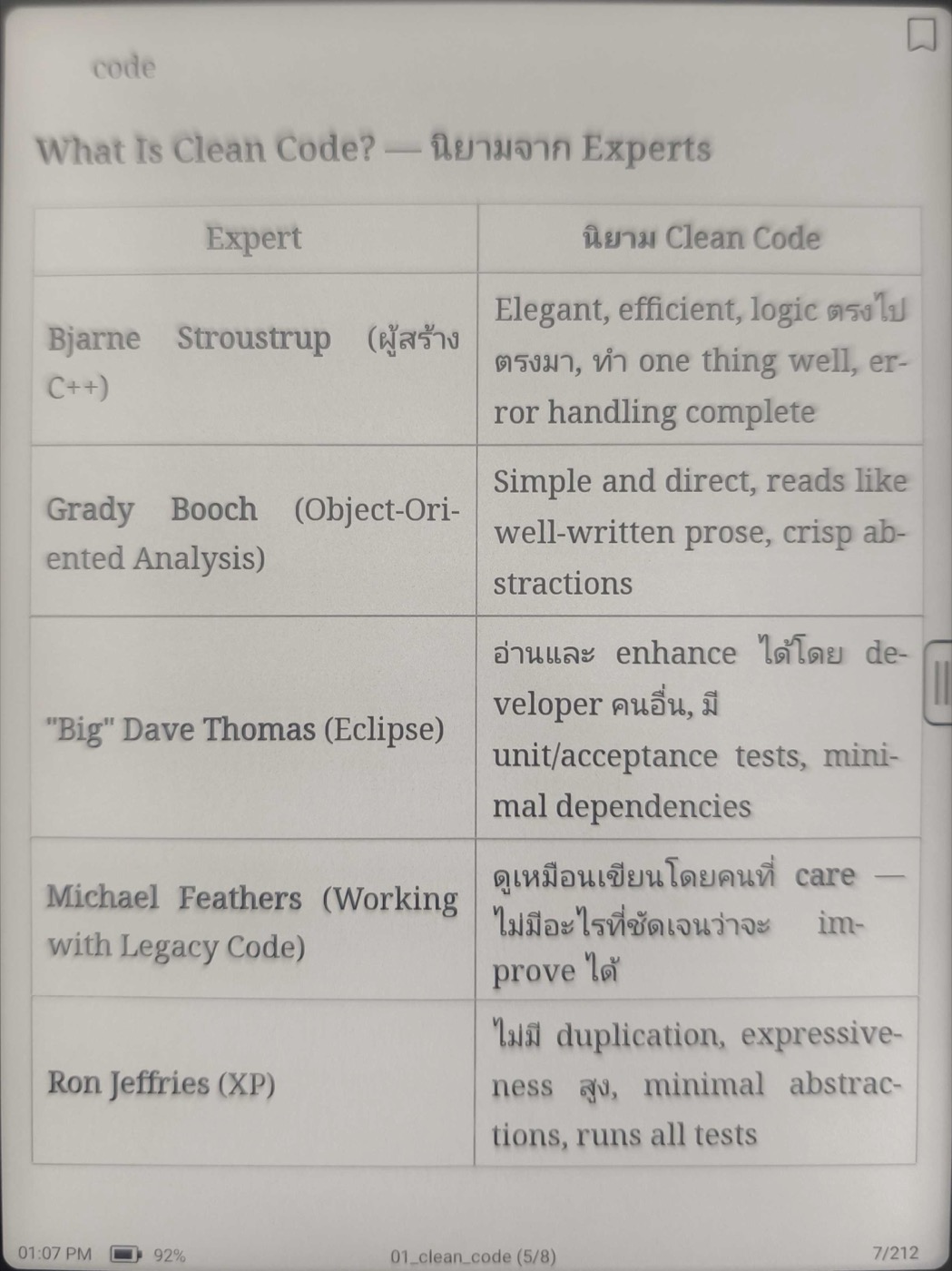
Thai books carry their own font. Any book whose chapters contain Thai gets Noto Sans Thai (Regular + Bold, SIL OFL 1.1) embedded automatically, so Thai renders consistently on e-ink readers even when the device has no Thai font of its own — correct compound vowels included. The license text ships inside the book; Latin text keeps the reader's normal reading font. Books without Thai stay fontless and byte-stable, and the Embed Thai font setting turns the whole behavior off if you ever want it.
From note to e-reader
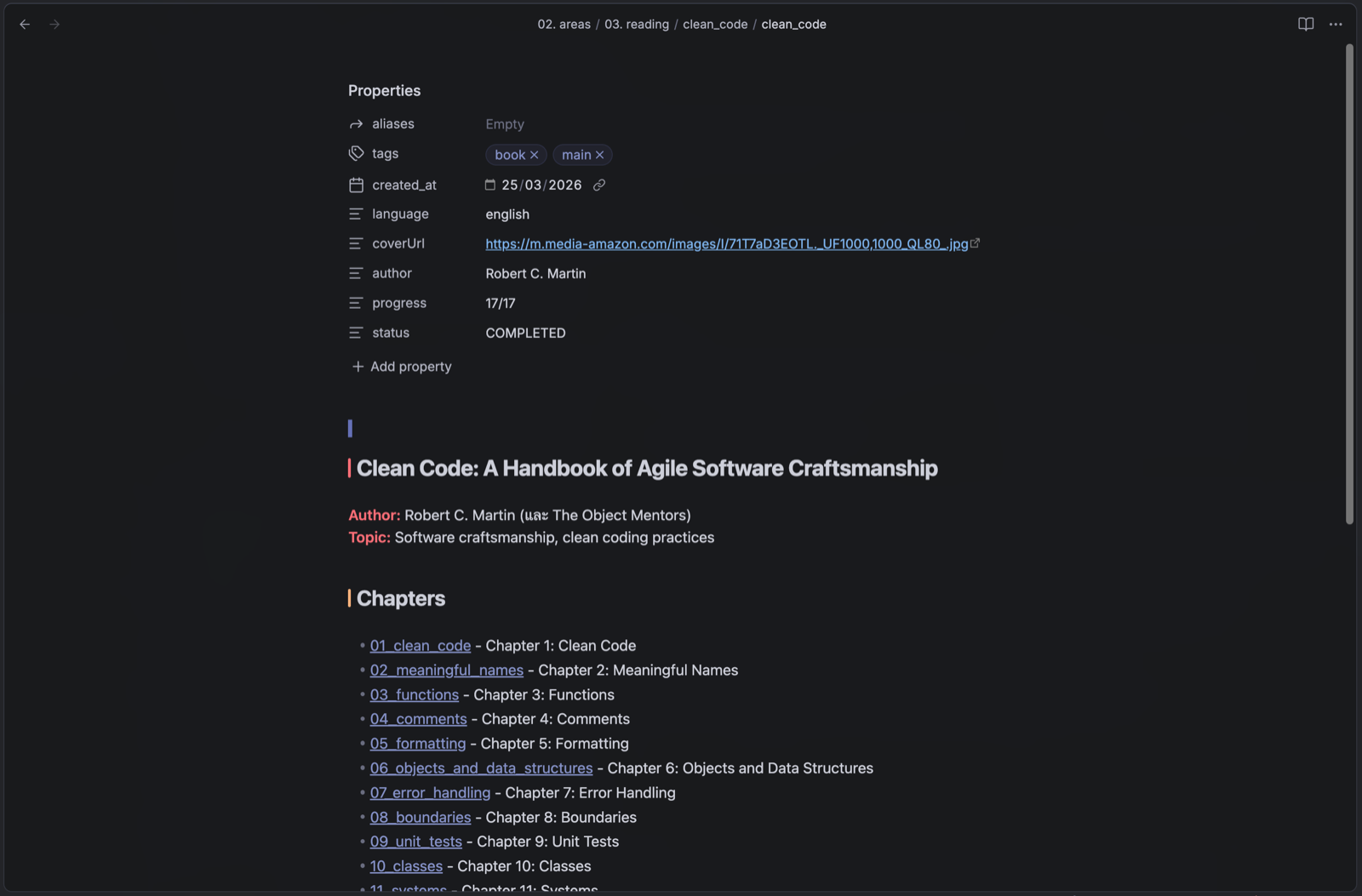
A book's index note in Obsidian, with its chapters as linked notes:
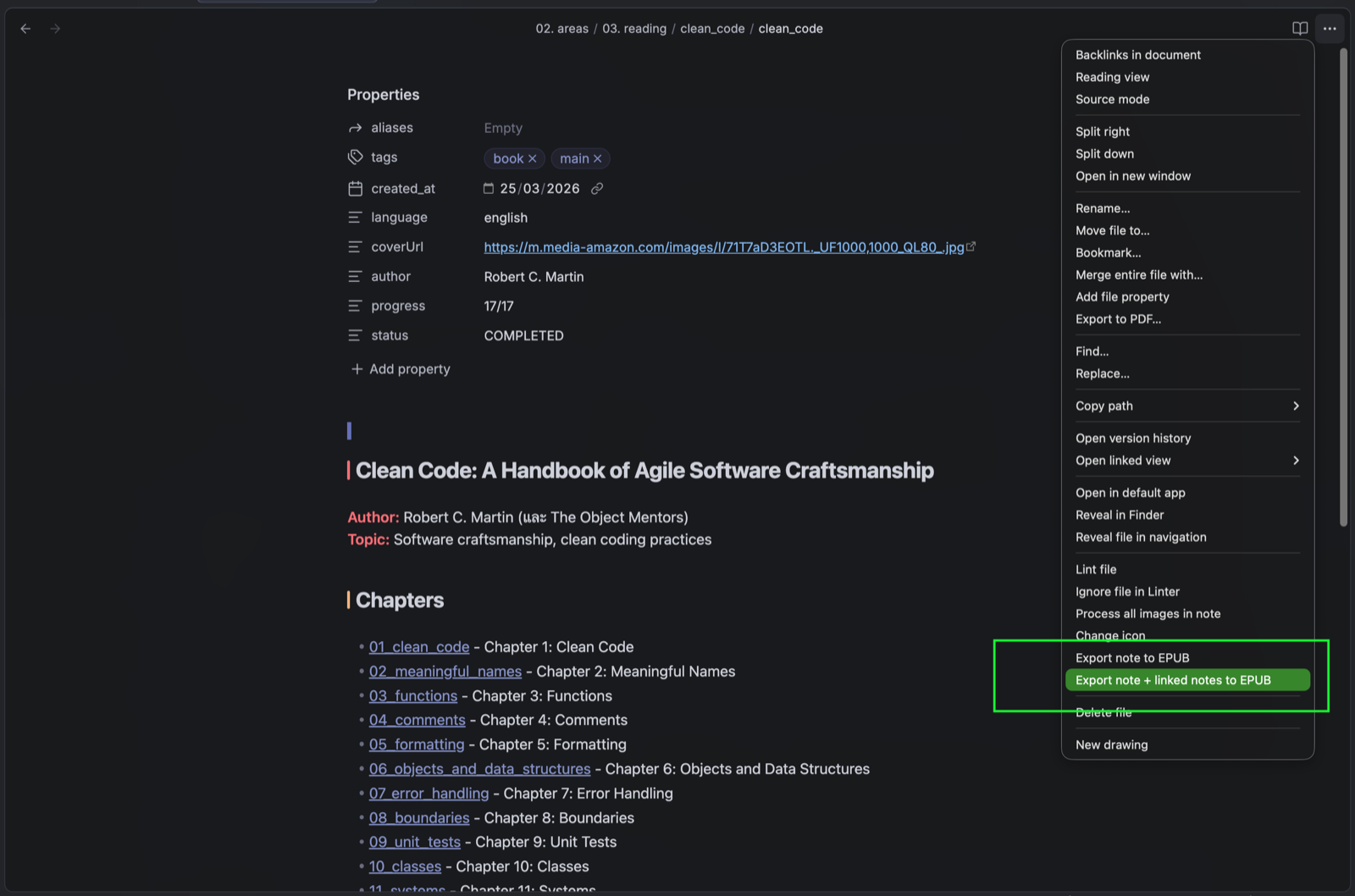
Right-click it and export the note plus everything it links to:
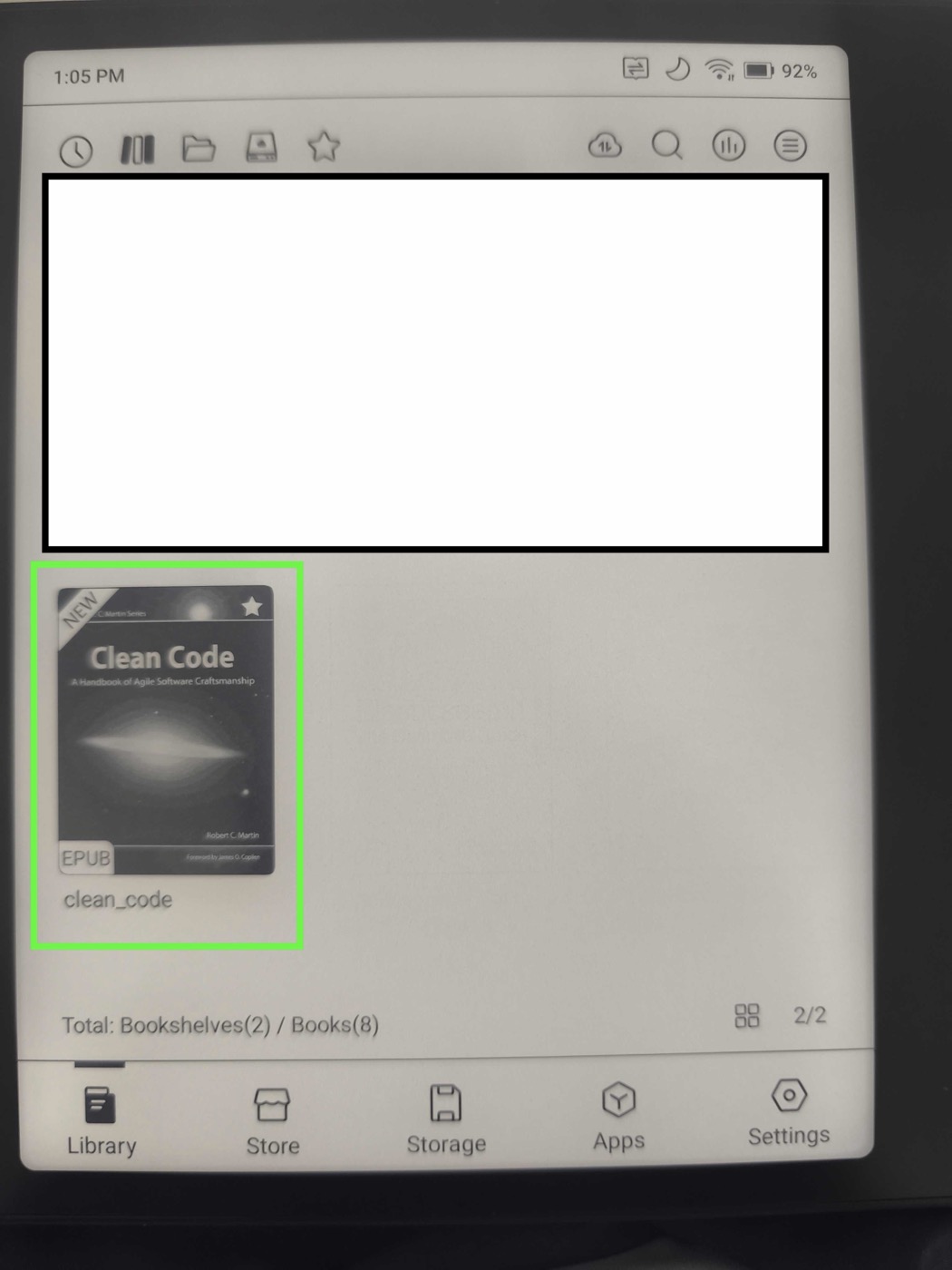
With Push after export turned on, the finished book lands straight in the Boox library over Wi-Fi and reads like any other EPUB — Thai text, tables and all:
| On the shelf | Open on the device |
|---|---|
 |  |
Requirements
- Obsidian 1.5.0 or newer.
- Desktop and mobile — Inkbound runs on Windows, macOS and Linux, and on iOS and Android. Where books are saved differs by platform (see "On a phone or tablet" below).
Install
From Obsidian's Community plugins browser — the easiest way, and the one that keeps Inkbound updated for you:
- Settings → Community plugins → Browse.
- Search for Inkbound, then Install.
- Enable it.
That works on desktop and on mobile alike.
From a GitHub release, if you would rather install manually:
- Download
main.jsandmanifest.jsonfrom the latest release. - Copy both files into
<vault>/.obsidian/plugins/inkbound/(create the folder if it doesn't exist). - In Obsidian, go to Settings → Community plugins and enable Inkbound.
[!WARNING] If Obsidian was already running when the plugin folder was added, the new plugin will not appear in the Community plugins list until you click the refresh icon at the top of that list (or restart Obsidian).
How to use it
Three commands, available from the command palette and from a right-click context menu:
- Export note to EPUB — exports the active note (or the note you right-clicked) as a single-chapter book.
- Export folder as EPUB (active note's folder) — exports every note in the active note's folder as one book. Right-clicking a folder directly offers the same export for that folder.
- Export note + linked notes to EPUB — exports the active note plus the notes it links to as one book.
The finished .epub is written to the folder set in Settings → Inkbound →
Output folder (~/Downloads by default), and a notice in Obsidian confirms
the path once the export finishes. If Push after export is turned on,
the same notice reports whether the send to your Boox device succeeded.
Settings
Found under Settings → Community plugins → Inkbound:
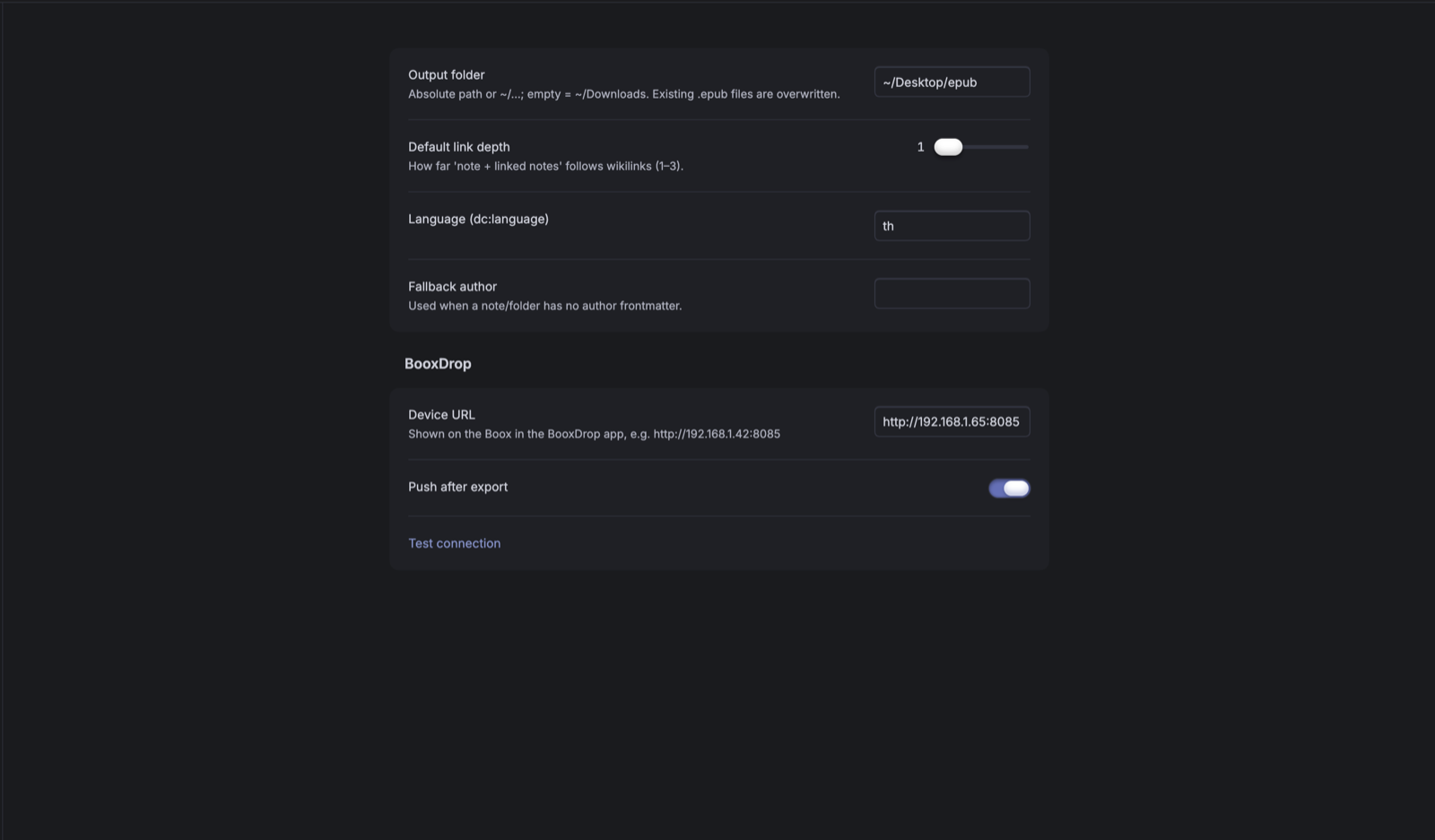
| Setting | Default | Purpose |
|---|---|---|
| Output folder | "" (empty → ~/Downloads) | Absolute path or ~/… folder the EPUB is written to. Existing files of the same name are overwritten. |
| Output folder (mobile) | "Exports" | Vault-relative folder books are saved into on a phone or tablet, since mobile has no filesystem-folder-anywhere (see "On a phone or tablet"). Desktop never reads or writes it. |
| Default link depth | 1 | How many hops of wikilinks Export note + linked notes follows outward from the active note (1–3, via a slider). |
| Backlink listing position | start (Start of chapter) | Where each chapter shows its "Linked from:" list of the chapters in the same book that link to it — at the start of the chapter, the end, both, or none (disables the list entirely). Chapters nothing links to show no list. |
| TOC heading depth | 3 (Level 3) | Deepest heading level listed under each chapter in the book's table of contents (0–6, via a dropdown). Off restores the flat chapter-only TOC. |
| Embed Thai font | true | When ON, books whose chapters contain Thai text get Noto Sans Thai embedded (Regular + Bold, with its OFL license file inside the book). OFF keeps every book fontless. |
Language (dc:language) | "th" | Fallback language used when a note has no usable language frontmatter field. |
| Fallback author | "" (empty → "Unknown") | Used as dc:creator when a note/index has no usable author frontmatter field. |
| Device URL | "" | The BooxDrop device's address as shown in the BooxDrop app, e.g. http://192.168.1.42:8085. Required for pushing. |
| Push after export | false | When enabled (and a Device URL is set), every export is uploaded to the device after being saved locally. Below this toggle is a Test connection button to verify the Device URL. |
A worked example
Say you keep book notes like this, one folder per book, one note per chapter:
Reading/
└── grokking-algorithms/
    ├── grokking-algorithms.md      <- the index note
    ├── 01_introduction.md
    ├── 02_selection_sort.md
    ├── 03_recursion.md
    ├── 10_where_to_go_next.md
    └── assets/
        └── fig02-1_arrays.png
Give the index note this frontmatter:
---
aliases:
  - Grokking Algorithms
author: Aditya Y. Bhargava
language: english
cover: assets/grokking-cover.png
coverUrl: https://example.com/grokking-cover.jpg
tags:
  - book
  - main
---
Then right-click the grokking-algorithms folder and choose Export folder
to EPUB. You get a single Grokking Algorithms.epub containing:
- The index note first, then the chapters in the order the index note links
them — list
[[03_recursion]]before[[01_introduction]]and the book follows. Only regular links count (an embed![[…]]does not), the first link to a note wins, and links to notes outside the folder are ignored. - Notes the index note never links are still included, after the linked ones,
in the old order: numeric
NN_prefixes first (10after03, because the prefix is read as a number), then the rest by name. So the prefixes still work — they are just no longer the only way to order a book. - Grokking Algorithms as the book title, taken from
aliasesrather than the filename, with Aditya Y. Bhargava as the author. - The cover image downloaded from
coverUrland embedded, so it shows on your reader's shelf. - Every figure from
assets/embedded in the chapter that references it, whether you wrote it as![[fig02-1_arrays.png]]or. dc:languageset toen, fromlanguage: english.
The index note is found by its book + main tags. If you would rather not
tag it, name it after the folder instead — grokking-algorithms.md inside
grokking-algorithms/ is detected the same way. Without either, the folder
name becomes the title and every note is treated as a chapter.
Parts from subfolders
A longer book can be split into subfolders, and each subfolder that contains notes becomes a Part in the table of contents:
Reading/
└── clean-architecture/
    ├── clean-architecture.md         <- the index note
    ├── 00_preface.md
    ├── Part I – Introduction/
    │   ├── Part I – Introduction.md  <- optional sub-index (same detection rules)
    │   ├── 01_what_is_design.md
    │   └── 02_a_tale_of_two_values.md
    ├── Part II – Programming Paradigms/
    │   └── 03_paradigm_overview.md
    └── assets/                       <- no notes → no Part
- Every note under the folder, at any depth, is a chapter; the reading order is the table of contents read top to bottom.
- A subfolder with its own index note (tagged
book+main, or named after the folder) uses that note's title as the Part title, puts it first, and orders the Part's chapters by its links. Without one, the folder name is the Part title and its notes follow the numeric-then-name order. - Tapping a Part in your reader opens its first chapter. Its chapters (and any nested Parts) are listed beneath it.
- The root index note can place whole Parts too: linking to any note inside
Part II/before[[00_preface]]puts Part II before the preface. Parts it never mentions follow, ordered by folder name alongside unlinked notes. - Folders with no notes beneath them (an
assets/folder) produce nothing.
Note that this is a change from earlier versions, which ignored subfolders
entirely: a drafts/ folder inside a book folder now shows up as a Part. Move
such folders out of the book folder if you don't want them in the book.
Chapter titles come from each note's first # heading when there is one, so
03_recursion with an # Recursion heading appears in the table of contents
as Recursion. No heading? The note's frontmatter aliases are used next,
then the filename as a last resort. One consequence: in a folder export, the
index note's own heading (often the book title itself) becomes the first TOC
entry — that is expected, not a bug.
The table of contents also lists each chapter's own headings underneath it —
the ## and ### sections inside a long chapter — as links that jump
straight to that section when tapped. Use the TOC heading depth setting
to include deeper levels, or turn it off for the plain chapter list.
Frontmatter fields
Every export scope resolves its book metadata from the exporting note's own frontmatter (the active note for single/linked exports, the detected index note for folder exports). Recognised fields:
-
aliases— sets the book title (dc:title). The first non-empty string, or first non-empty string in the list ifaliasesis a list, is used; otherwise the note's filename is used. This is the book title only — chapter titles come from each note's first#heading, falling back toaliasesand then the filename. -
author— setsdc:creator. A string is used as-is; a list of strings is joined with", "; anything else falls back to the Fallback author setting, or"Unknown". -
language— setsdc:language. A BCP-47 tag (e.g.en,en-GB,th) is used as-is (lowercased). Otherwise, one of these names is matched, case-insensitively:Frontmatter value dc:languagethaithenglishenjapanesejachinesezhkoreankoAnything else falls back to the Language setting.
-
coverUrl— the book's cover image, as a fullhttp://orhttps://URL. A cover that fails to download degrades the export to coverless rather than failing it. -
tags: [book, main]— for folder exports, marks which note in the folder is the index/metadata source. If no note is tagged this way, Inkbound looks for a note whose filename matches the folder name.
Sending to a Boox
Pushing to an Onyx Boox e-ink device is entirely optional. Turn on Push after export and set your device's Device URL (shown in the BooxDrop app on the device — both need to be on the same Wi-Fi network) and every export is uploaded straight to the device's library after it saves. The local file is always written first, so a failed push never loses your export — it just stays in your output folder.
On a phone or tablet
Inkbound works on Obsidian mobile too, with the same three exports. The one
real difference is where the book goes. A phone has no folder-anywhere
filesystem the way a laptop does, so mobile saves books inside your vault,
in the folder set by Settings → Inkbound → Output folder (mobile)
(Exports by default). From there you can open the book in a reading app,
or reach it through your device's own file access.
That gives you two independent settings — one for desktop, one for mobile — and each device only ever reads and writes its own. If you sync your vault, changing the mobile folder on your phone will never move where your desktop saves books, and vice versa.
Because books are saved into the vault, they sync like any other vault file. If you would rather they didn't, point the mobile output folder at a folder your sync excludes.
To send a finished book somewhere else, run Share last exported book from the command palette. It appears only on devices that support sharing — if you don't see it, the book is still saved exactly where the notice said it is.
Push to a Boox works from mobile too, over the same Wi-Fi, so you can go from note to e-reader without a computer anywhere in the loop.
Known limitations
- Where mobile can save. On a phone or tablet, books are saved inside your vault rather than to a folder of your choosing anywhere on the device — that's a platform restriction, not a setting. See "On a phone or tablet".
- Obsidian Bases export as an omission marker. Embedding a Bases file
(
![[Connections.base]]) cannot become book content — Bases are live, interactive views of note properties, and an EPUB page has no static equivalent. The chapter shows[Bases view omitted: …]where the embed was, the export logs a warning naming the file, and the export itself succeeds. - Math typesets as images. Expressions are rendered at export time and
embedded as pictures (like Mermaid diagrams), which means they are no
longer selectable or searchable text inside the EPUB. Math containing
non-Latin text (e.g. Thai inside
$...$) cannot be rendered — it stays as readable source text with a warning. - Individual table rows cannot be embedded. Block-scoped embeds
(
![[Note^block]]) now work for every kind of block Obsidian lets you label — paragraphs, headings, tables, code blocks, callouts and blockquotes, whole lists, and single list items (which bring their sub-items with them). A table row, though, is not something Obsidian can address: a^idtyped inside a cell is just cell text, so an embed pointing at it degrades to a placeholder plus an export warning, same as any block ID that doesn't exist. - Mermaid diagrams export as images, not text. They are converted to pictures at export time so e-ink readers can display them, which means they are no longer selectable or searchable text inside the EPUB.
Development
Building from source, running the test suite, and the architecture notes
live in docs/DEVELOPMENT.md.
Support
Inkbound is free and MIT-licensed. If it saves you time, you can buy me a coffee — entirely optional, and it never affects the plugin's features.
License
MIT © 2026 kidpeterpan
For plugin developers
Search results and similarity scores are powered by semantic analysis of your plugin's README. If your plugin isn't appearing for searches you'd expect, try updating your README to clearly describe your plugin's purpose, features, and use cases.