by theluckystrike
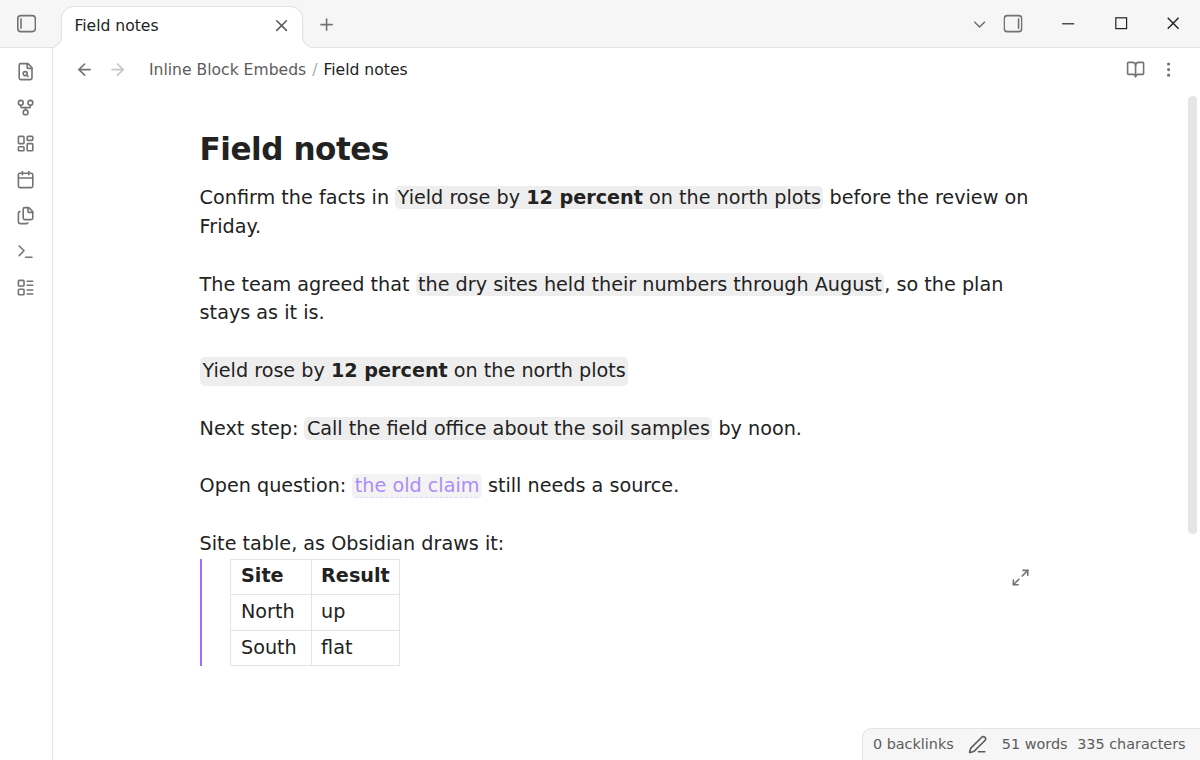
Shows a block embed that sits inside a sentence as inline text in the line, with a hover preview and a jump to the source block.
Inline Block Embeds
Inline Block Embeds draws a block embed that sits inside a sentence as text in the line, like a quote. Obsidian draws ![[Note#^block]] as a framed box on its own line. With this plugin, Confirm the facts in ![[Sources#^yield]] today. reads as one sentence. You see the block text with a dotted underline, a hover preview and a way back to the source.
Features
Inline block embeds
Write a block embed the usual way, inside a sentence. The plugin finds each ![[note#^id]] and ![[note#^id|alias]] with other text on its line and shows the block text in the line. The animation shows the same sentence before and after, and then the cursor in the embed.
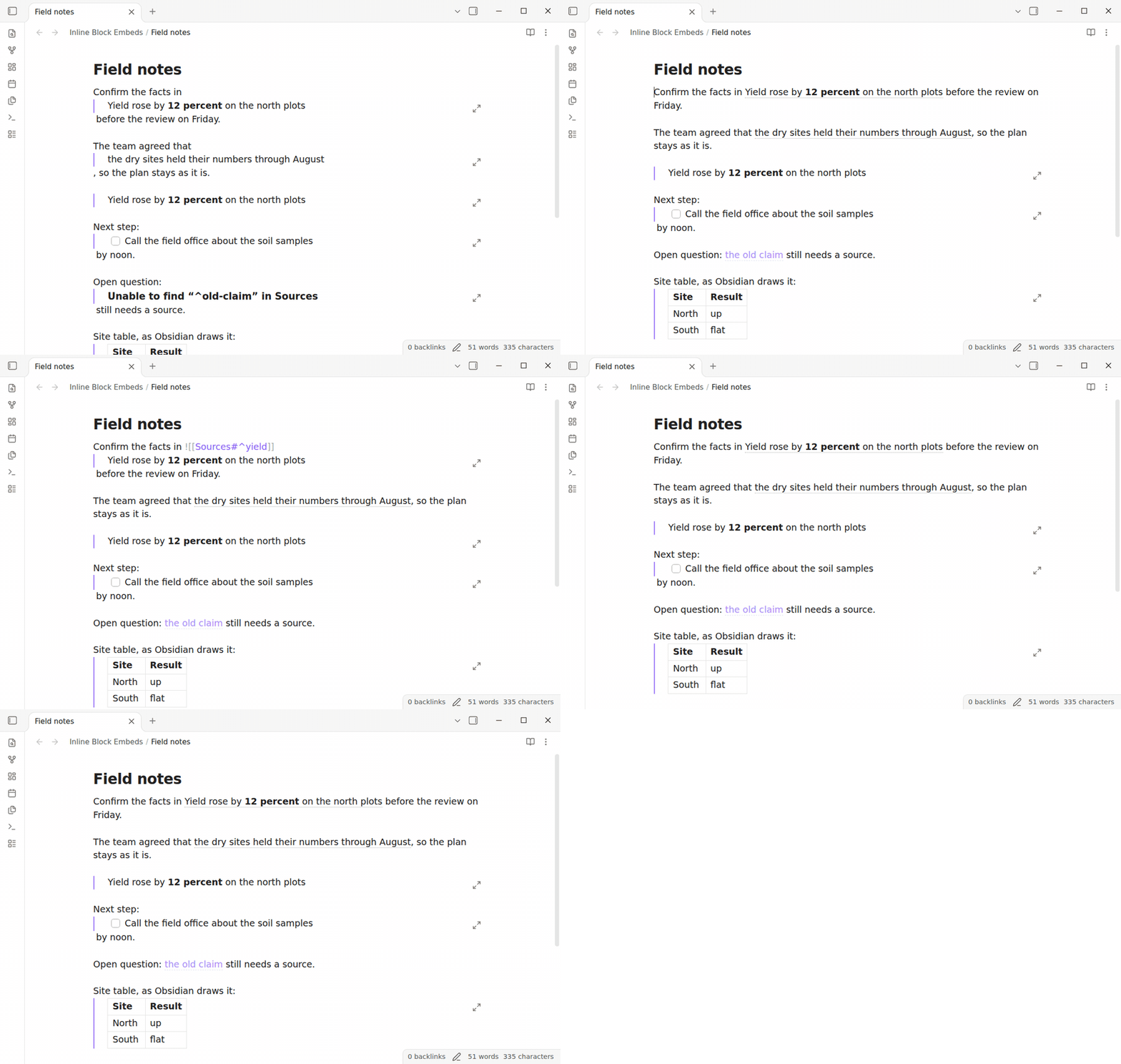
Free: paragraph blocks inline in Live Preview and Reading view, hover preview, Ctrl or Cmd click. Pro: list item blocks, every block embed inline, two more styles. $15 one time or $5 a month: Sponsor.
The box that it replaces
Without the plugin, Obsidian draws a block embed as a box with a frame, even in the middle of a sentence. The sentence breaks in two around it.
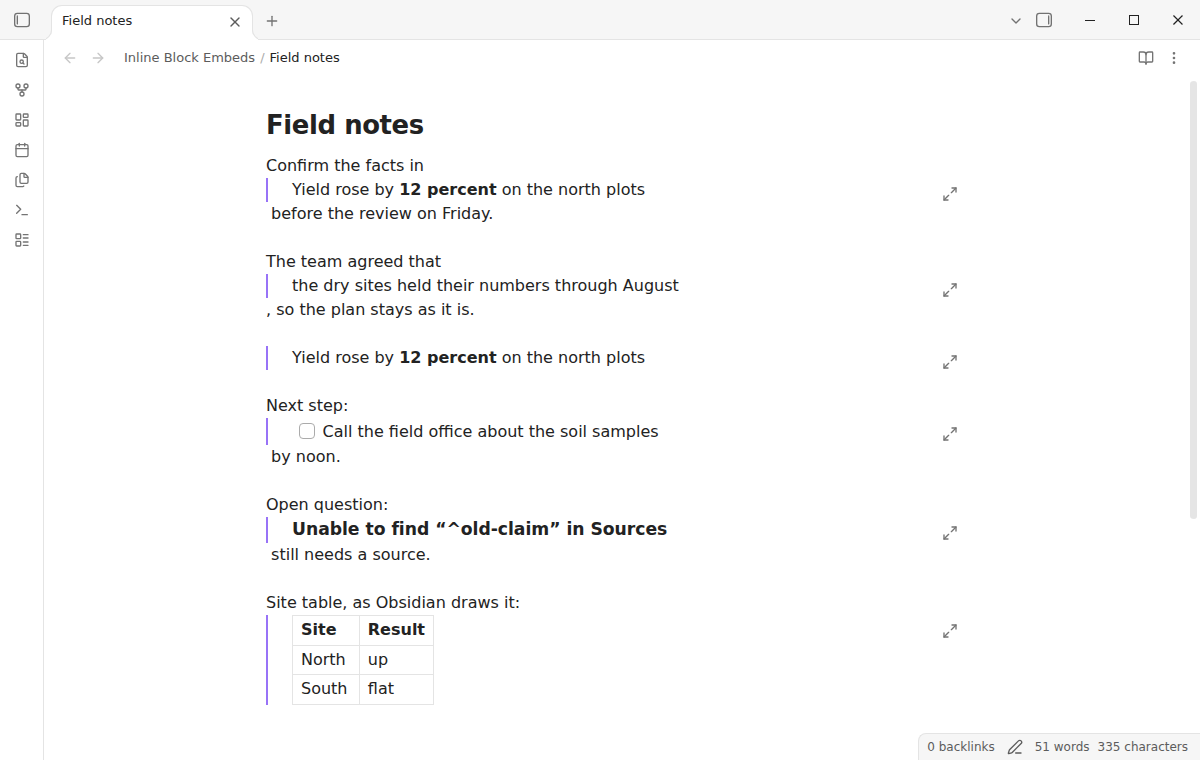
Live Preview
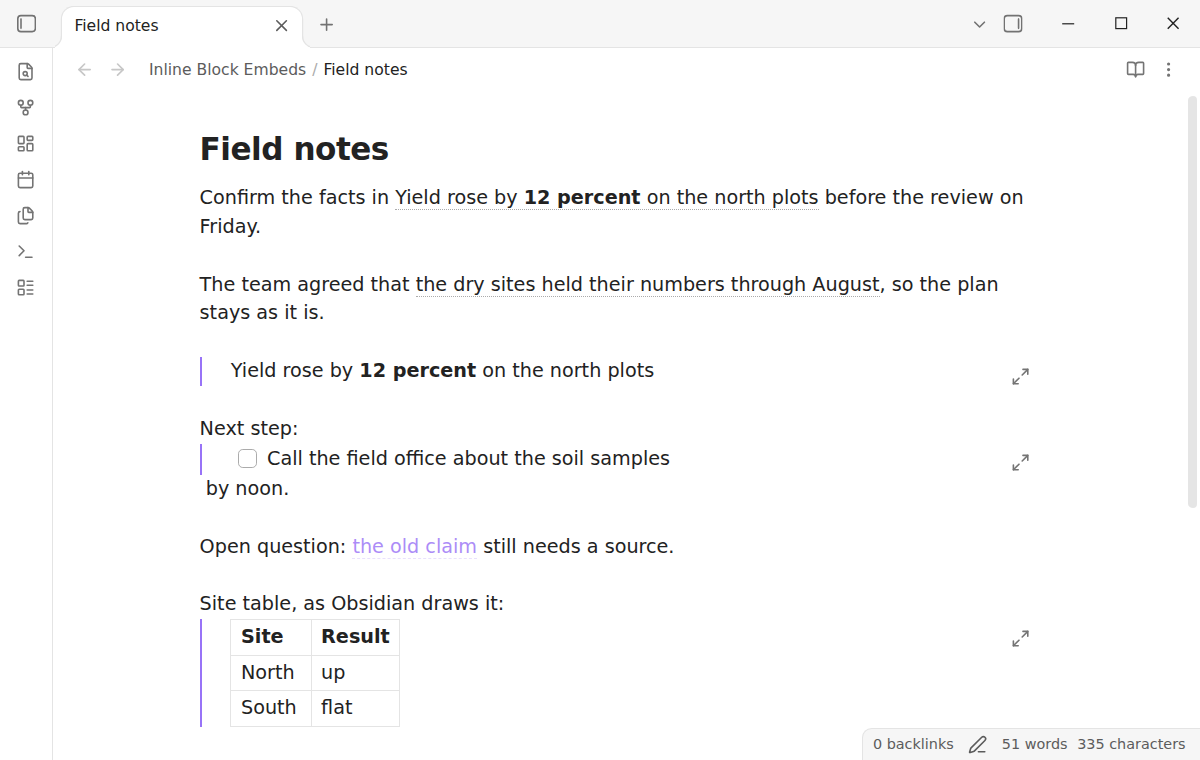
In Live Preview, the block text takes the place of the embed link. Bold, italic, links and inline code in the block look as they do in the source note. The block id marker ^yield does not show. Put the cursor in the embed, or select text that touches it, and the raw ![[...]] link comes back so that you can edit it. A plain click on the inline text does the same thing.
Reading view and PDF export
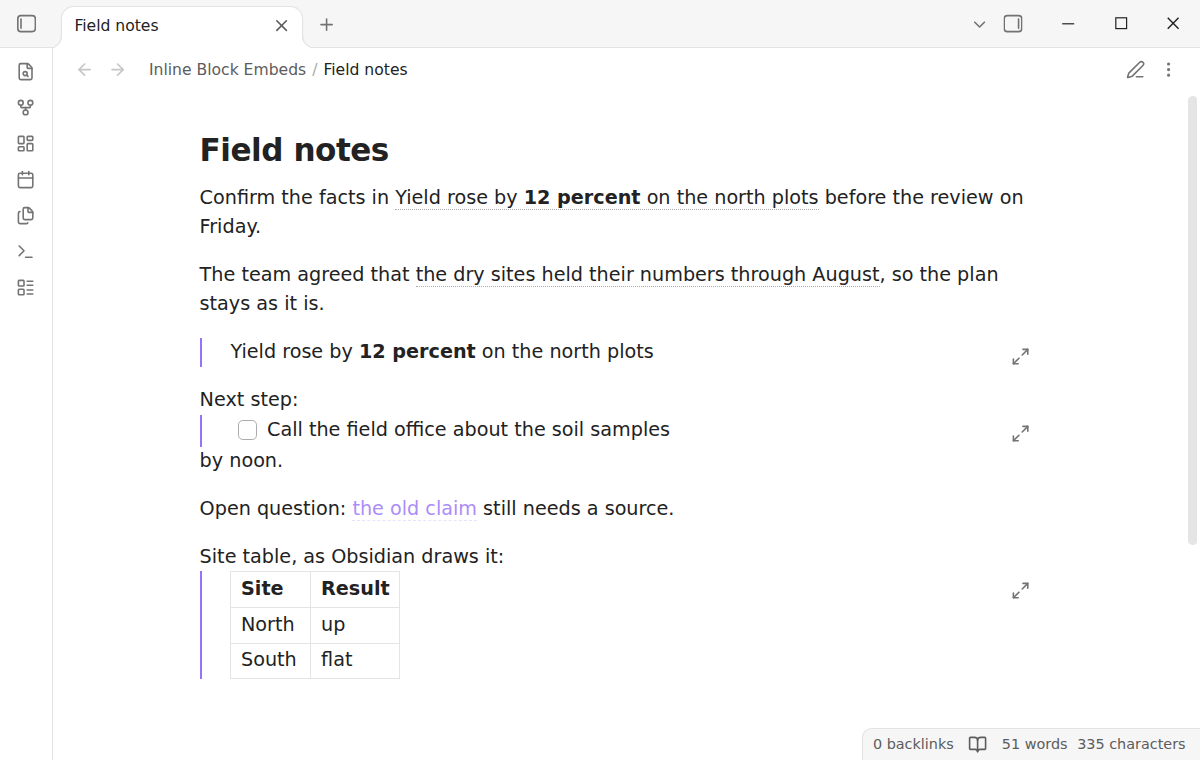
Reading view shows the same inline text in a span inside the paragraph. PDF export from Reading view keeps it, because export uses the same Markdown post processor.
Hover preview and jump to the source
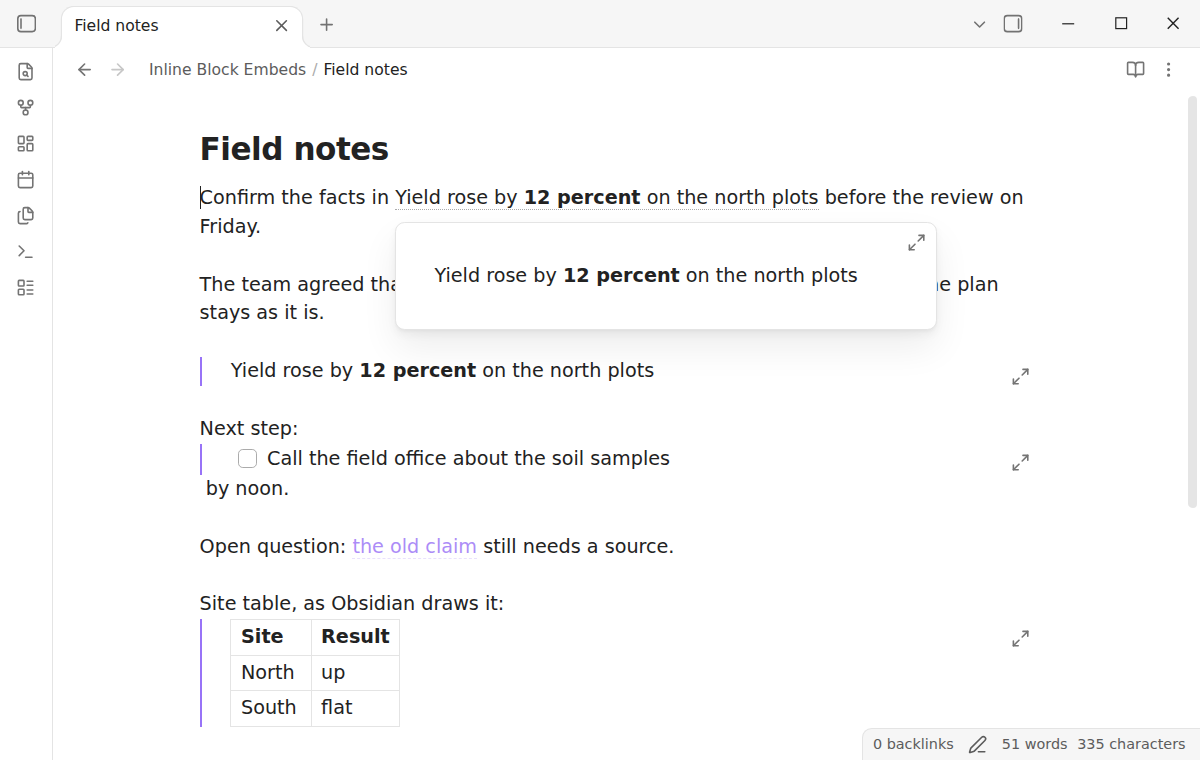
Rest the pointer on the inline text to see the source block in the core page preview. Hold Ctrl (Cmd on macOS) and click to open the source note at the block in a new tab. The plugin adds itself to the list in "Settings → Page preview", so you can ask for Ctrl or Cmd there too.
Missing blocks
When the note or the block does not exist, the plugin shows the alias, or the link text such as Sources#^old-claim, in the style of an unresolved link. Create the block, and the text fills in.
Nested embeds and loops
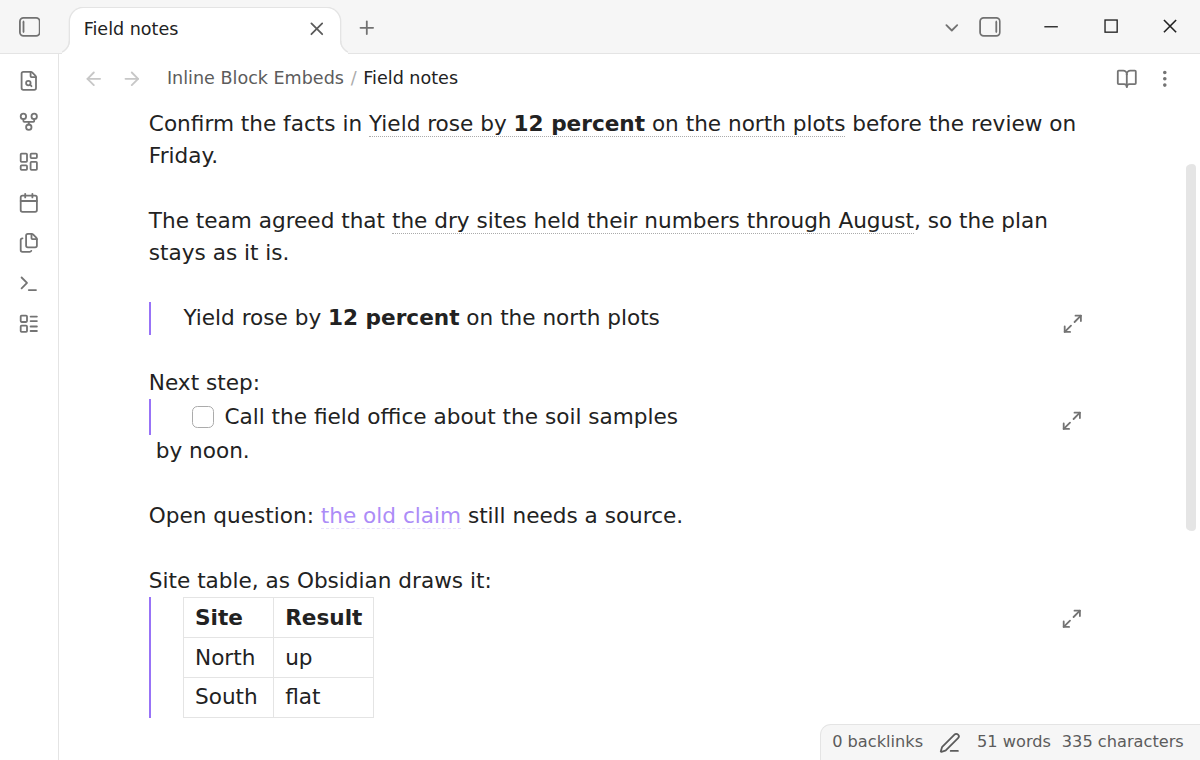
A block can hold an inline embed of its own. The plugin follows them three levels deep, and a heading or note embed in between counts as a level. At the fourth level, or when a block comes back to itself, also through a heading embed, it shows the link text and stops. Two notes that embed each other cannot freeze the editor.
List items (Pro)
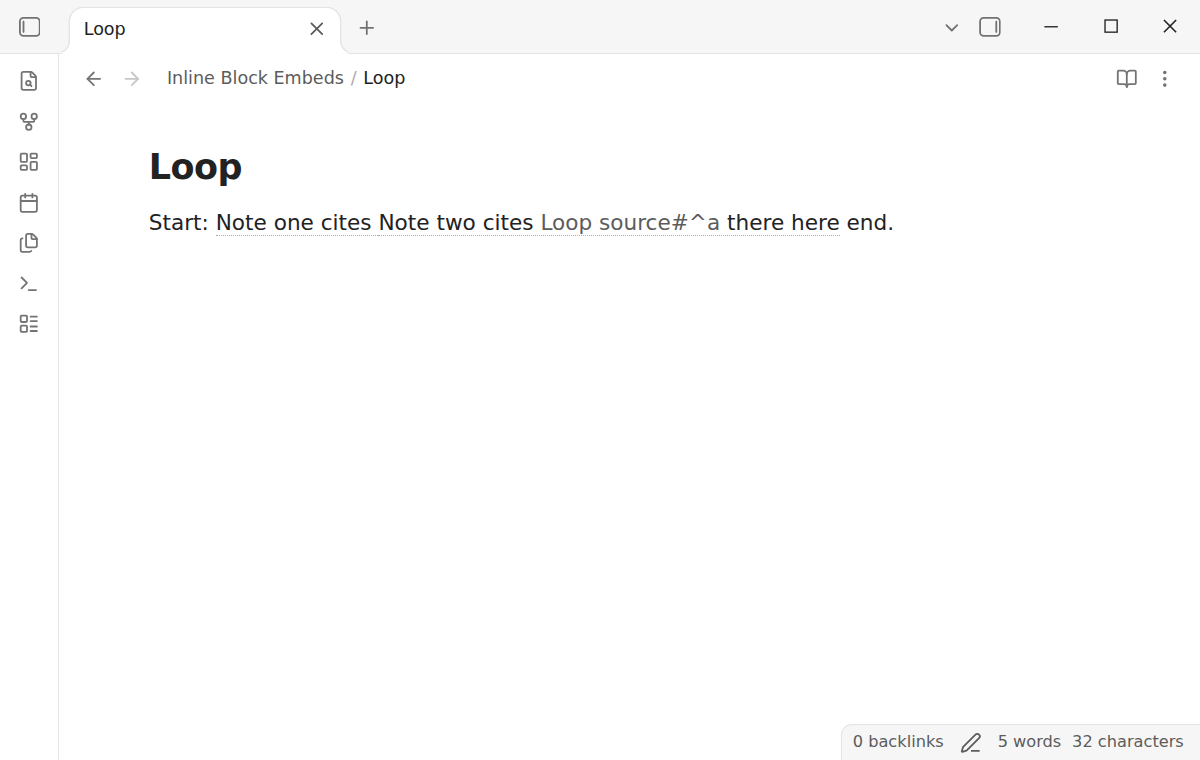
With Pro, a list item block is inline too. The plugin removes the bullet, the number and the task box, so - [ ] Call the field office ^call reads as "Call the field office" inside your sentence.
Every embed inline and styles (Pro)
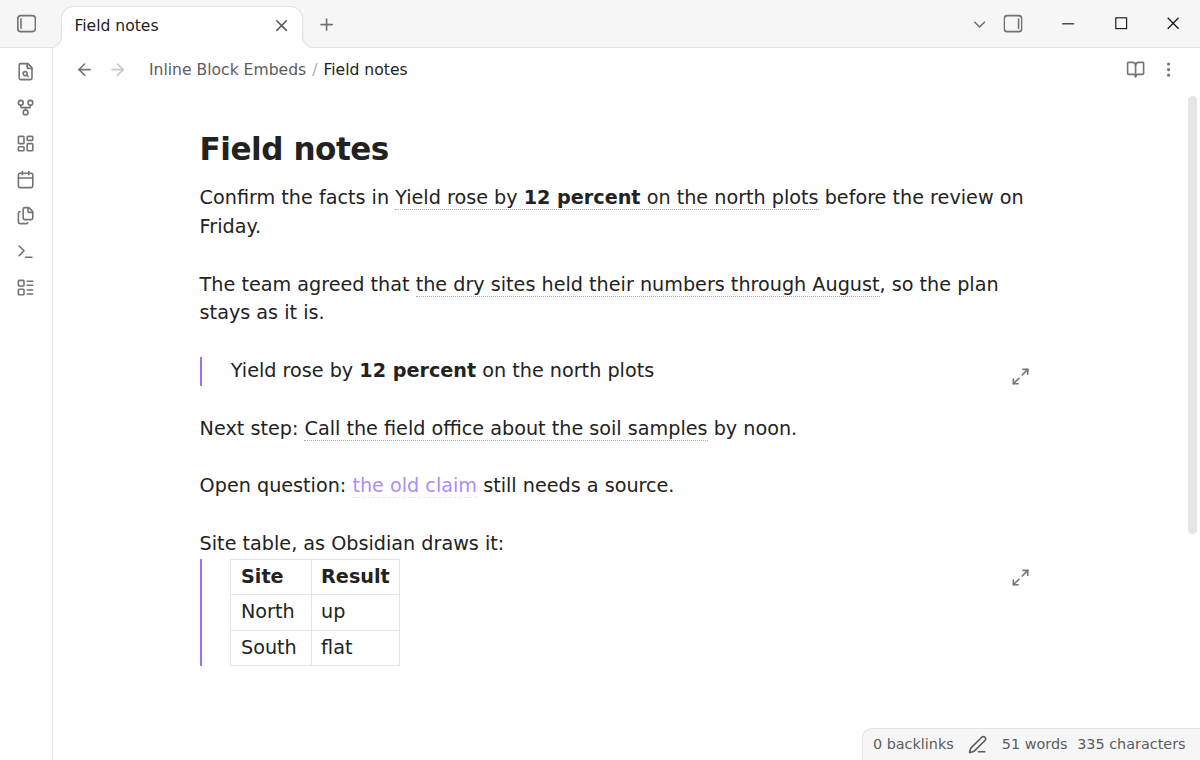
The Pro setting "Draw every block embed inline" also draws an embed that is alone on its line as plain text. Pro also adds two styles: a soft background, and none for text that looks like your own.
Install
- Open "Settings → Community plugins" and turn off restricted mode.
- Select "Browse", search for "Inline Block Embeds", then select "Install" and "Enable".
To install by hand, copy main.js, manifest.json and styles.css from the latest release into <vault>/.obsidian/plugins/inline-block-embeds/. Then enable the plugin. You need Obsidian 1.13.4 or later.
Usage
There is nothing to set up. Open a note that has a block embed inside a sentence.
- Give a paragraph a block id: end it with a space and
^id, or copy a block link from its menu. - In another note, write a sentence with
![[Note#^id]]in it. Add|aliasto name it. - Read the sentence in Live Preview or Reading view.
The plugin draws paragraph blocks inline (and list items with Pro). It leaves tables, code blocks, callouts, math blocks and headings as Obsidian draws them. An embed alone on its line also stays a box, unless the Pro setting is on. Embeds inside callouts and table cells follow the same rules in Reading view.
The inline text follows the source. Edit the block in the other note, and the sentence changes in less than a second, also before Obsidian saves the file. The plugin never writes to your notes. It only changes how they look.
Settings
After a minor or major update, this plugin opens one What's new tab in the background. The tab and settings card suggest other NoteMods plugins and Zovo Chat and link to notemods.com for feedback (privacy). The tab sends no data. Turn the tab off in Settings.
| Setting | What it does |
|---|---|
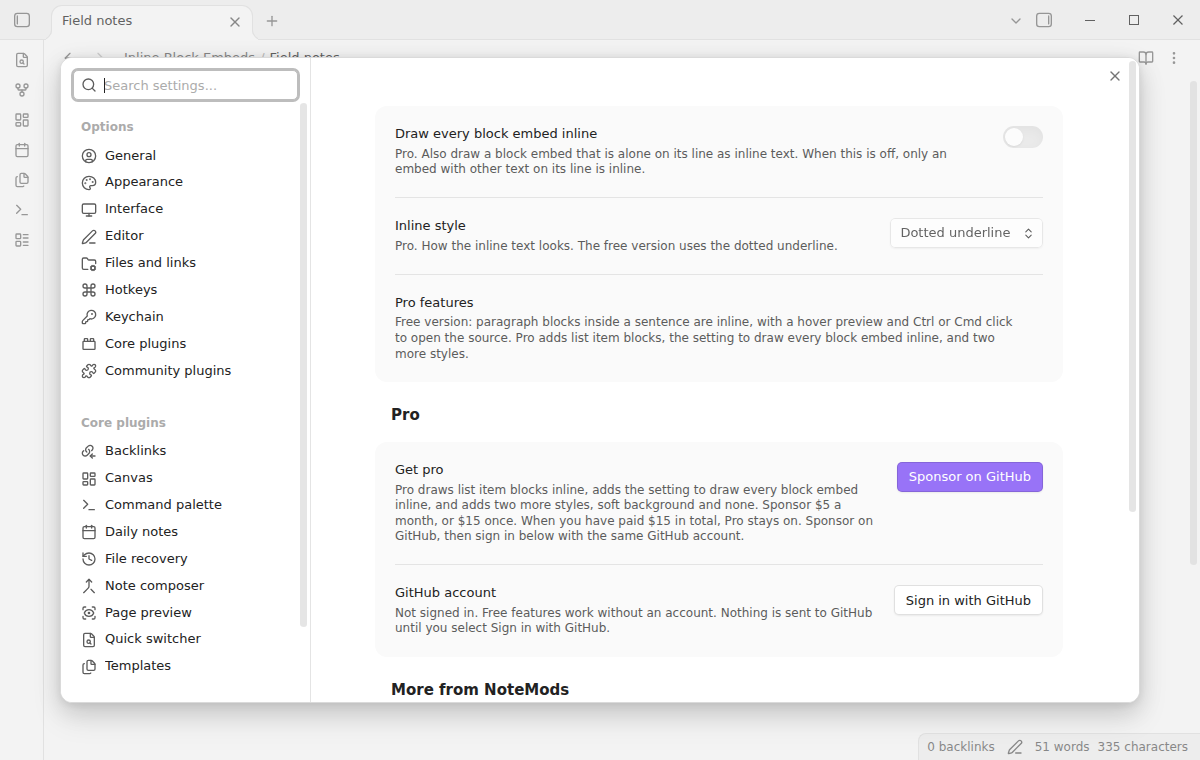
| Draw every block embed inline | Pro. Also draws an embed that is alone on its line inline. Off by default. |
| Inline style | Pro. Dotted underline, soft background or none. Free uses the dotted underline. |
Pro
To sign in and enable Pro:
- Sponsor via GitHub Sponsors. A total payment of $15 meets the payment requirement for Pro without further payment. Sign-in and the checks below still apply.
- In Obsidian, open the settings of Inline Block Embeds and select "Sign in with GitHub".
- The plugin copies a code and opens github.com/login/device. Paste the code there and approve.
If you sponsor after you sign in, select Refresh. A negative sponsorship answer turns Pro off.
FAQ
Does it change my notes?
No. The embed stays ![[Note#^id]] in the file. Open and close a note, and the file is the same, byte for byte.
Why is my embed still a box?
The embed is alone on its line, or the block is a table, a code block, a callout, a math block or a heading. Those keep the core look. A list item needs Pro.
Does it work with heading embeds or whole notes?
No. It draws block embeds only, with #^id. Heading embeds, whole note embeds and ranges of blocks stay as Obsidian draws them.
Can I edit the block from the sentence?
Not in place. Ctrl or Cmd click opens the source block, and changes there show in the sentence at once.
How is this different from the CSS snippets in the forum?
The snippets restyle the box and broke after Obsidian updates. This plugin reads the block with the public API and draws real inline text.
Payment, account and network
The core features are free. Pro features need a GitHub Sponsors sponsorship of theluckystrike: $5 a month or more, or $15 once. A total payment of $15 meets the payment requirement for Pro without further payment. Sign-in and the checks below still apply. Your notes stay readable and editable with or without Pro.
GitHub handles the payment. Sponsor at https://github.com/sponsors/theluckystrike. You need no account for the free features. Pro needs the GitHub account that sponsors.
Until you select "Sign in with GitHub" in the settings, Inline Block Embeds makes no network requests. Sign in uses the GitHub device flow. Inline Block Embeds sends its public client ID and the scope read:user to https://github.com/login/device/code and shows you a code. While you enter the code at https://github.com/login/device, it asks https://github.com/login/oauth/access_token every few seconds to check the sign-in status. The scope permits profile reads only. GitHub needs this access to show the sponsorship tier. It grants no repository scope and no write access.
After sign in, Inline Block Embeds sends one query to https://api.github.com/graphql. It checks if the signed-in account sponsors theluckystrike. It asks for the tier and the total payment to theluckystrike. The plugin reuses a successful check for 7 days. Failed checks can retry after 6 hours. Select Refresh to request an earlier check. It sends no note content, file names or other vault data, and it has no telemetry.
After a successful check, Pro can work offline for up to 14 days. Sign out or a negative sponsorship answer turns Pro off. The plugin stores the GitHub token through the secret storage API of Obsidian. It does not put the token in its saved settings or its local sponsorship data. The local storage of this device keeps your GitHub login, the tier and the time of the last check. Sign out clears the token. You can also revoke the access in your GitHub settings, under Applications.
Support
Plugin page: inline-block-embeds.
Report bugs and ask for features in the GitHub issues of this repository. Add your Obsidian version and a small sample note.
Community
Questions, bugs or plugin ideas? Talk to me and other Obsidian users in Zovo Chat on Telegram. It has a topic for these plugins. You can also open an issue here.
For plugin developers
Search results and similarity scores are powered by semantic analysis of your plugin's README. If your plugin isn't appearing for searches you'd expect, try updating your README to clearly describe your plugin's purpose, features, and use cases.