by siulved54
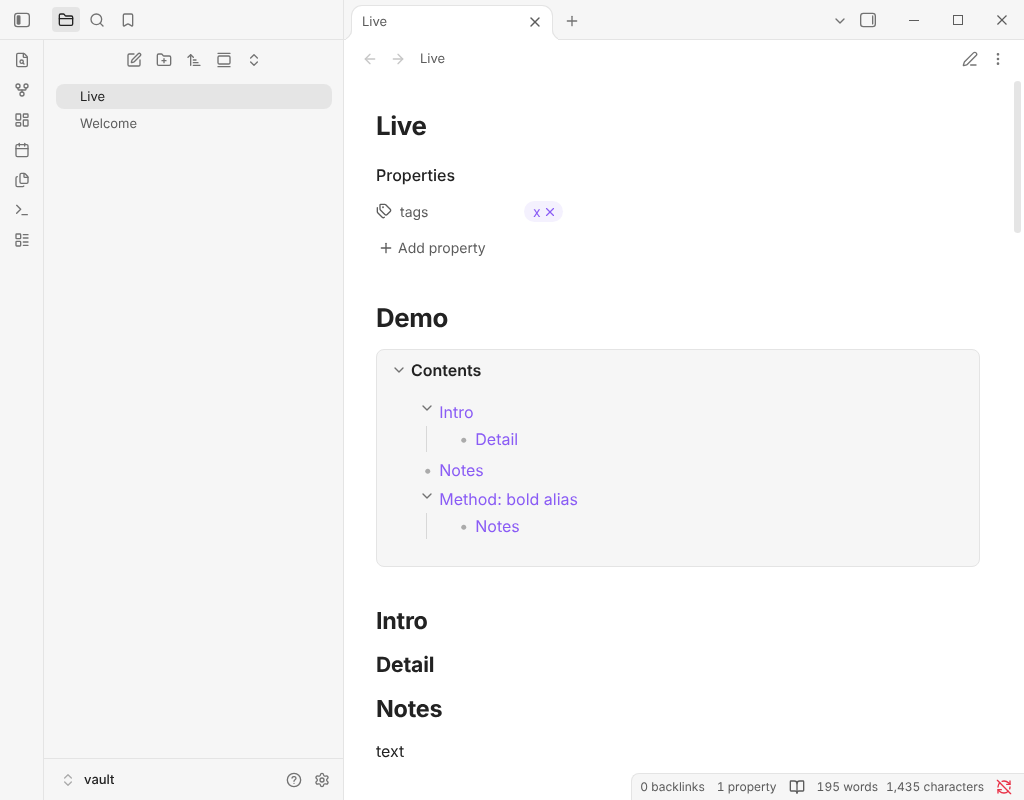
A live, clickable table of contents in any note, or a plain Markdown one that keeps itself up to date and works in Publish. Foldable, with the current section highlighted.
Inline TOC
One table of contents that is live while you read, plain Markdown when you publish, and never goes stale.
Why this one
- Live and clickable. A
toccode block builds the list from the note's headings and updates as you type. Repeated heading names go to the right heading. - Plain Markdown for Publish and exports. The same list can be written between two comment markers, and it refreshes itself two seconds after you change a heading.
- Foldable, with the current section highlighted. Collapse the whole block or a single branch; the item for the section you are reading stands out.
- Reads your existing blocks.
table-of-contentsblocks written for Automatic Table of Contents work as they are, and a list made by Table of Contents can be adopted with one command. - Careful with the details. Front matter, code, maths and comments never produce items; heading text with links or formatting is shown clean; every generated link is checked against Obsidian's own heading resolver.
Quick start
Run Insert table of contents from the command palette. It adds an empty block:
```toc
```
That is all: the block lists every heading, with the note's own title left out. Add options, one per line, to change it:
```toc
title: In this note
levels: 2-3
style: numbered
```
Live block options
One option per line: key: value, key = value or key value. Keys ignore case, dashes and underscores. A bare numbered works too. A bad value never stops the block: it shows a small note under the list and carries on.
| Option | Values | Default |
|---|---|---|
min, max | 1 to 6 (0 means no limit) | 1 and 6 |
levels | 2-4, 3 | |
style | list, numbered, inline | list |
format | 1.2, 1.2., 1. (a plain ordered list) | 1.2 |
title | text, or empty for no title | Contents |
include | text or /regex/flags; only matching headings | |
exclude | text or /regex/flags; leave matching headings out | |
links | true, false | true |
collapsed | true, false | false |
hideWhenEmpty | true, false | false |
scope | note, section (only the headings under the heading the block sits in) | note |
skipH1 | auto, yes, no | auto |
The defaults for most of these are in the settings. skipH1: auto leaves out a first heading 1 when it is the only one, so the list does not start with the note's own title.
These Automatic Table of Contents names also work: minLevel, maxLevel, includeLinks, style: nestedList, nestedOrderedList and inlineFirstLevel. Both ```toc and ```table-of-contents are rendered.
Markdown table of contents (for Publish and export)
A live block is a code block, so Publish and exports do not show it as a list. Insert Markdown table of contents writes the list as text between two markers instead:
<!-- inline-toc -->
**Contents**

- [[#Intro]]
  - [[#Detail]]
- [[#Notes]]
<!-- /inline-toc -->
- The options go in the opening marker:
<!-- inline-toc min=2 max=3 style=numbered title="In this note" -->. Only values that differ from the defaults are written. - Everything between the markers is rewritten on refresh. Edit the marker, not the list.
- Refresh Markdown tables of contents refreshes every marked block in the note in one undo step. The command only appears in a note that has one.
- Keep up to date while editing (a setting, on by default) refreshes the lists two seconds after you change a heading. It never runs after an undo or redo, so undoing stays undoing, and never while your cursor is inside a list.
- Headings that share a name get a path (
[[#Method#Notes|Notes]]) so each link goes to the right one. - Switch table of contents between live and Markdown turns one into the other and keeps the options.
Commands
| Command | What it does |
|---|---|
| Insert table of contents | Adds a live block after the cursor, never inside front matter, code or a list. |
| Insert Markdown table of contents | Adds a marked, plain Markdown list. |
| Refresh Markdown tables of contents | Rewrites every marked list in the note. |
| Switch table of contents between live and Markdown | Converts the block under the cursor. |
| Insert table of contents for this section | A list of only the headings under the cursor's heading. |
| Adopt existing table of contents | Turns a list of heading links (from Table of Contents, Insta TOC or by hand) into a list that keeps itself up to date. |
| Copy table of contents as Markdown | Puts the list on the clipboard. |
Every command is a single undo step.
Settings
Title, lowest and highest heading level, style, number format, whether to leave out the note title, headings to exclude, whether to strip numbers the headings already carry, the current-section highlight, starting collapsed, the frame, auto-refresh, link format (wikilinks or Markdown links), the title line, and the format for section lists.
Coming from another table-of-contents plugin
- Automatic Table of Contents: your blocks render as they are. Only one plugin can render a code block language, so disable it first (if Automatic Table of Contents loads first it keeps
table-of-contents, and the settings tab says so). - Table of Contents: run Adopt existing table of contents with the cursor in each list.
- Insta TOC: the same command turns its block into a marked list.
Styling
The block is a nav element with the class inline-toc. Themes and snippets can change --inline-toc-indent, --inline-toc-bg, --inline-toc-border, --inline-toc-radius, --inline-toc-link, --inline-toc-active, --inline-toc-number and --inline-toc-font-size. Style Settings can change the indent.
Accessibility
The block is a labelled nav with real lists. The collapse controls are buttons with aria-expanded, the current section carries aria-current="location", focus is visible, and on mobile every link and button is at least 32 px tall. Motion is off when the system asks for reduced motion.
Installation
In Obsidian, open Settings → Community plugins → Browse and search for "Inline TOC".
More plugins by Siulved54
| Plugin | What it does | Source |
|---|---|---|
| Shared Blocks | Write a block of text once and reuse it in any note. Edit the source and every reference re-renders live. | shared-blocks |
| Text Case and Cleanup | Change case, make camelCase or slugs, sort lines and remove duplicates, and repair text pasted out of a PDF, without touching code or URLs. | text-format |
| Typography as You Type | Curly quotes, dashes and ellipses as you type, kept out of code and maths, with Backspace to take one back. | smart-typography-plugin |
| Section Numbering | Number headings as an outline (1, 1.1, 1.2) and keep every link to them working when they renumber. | section-numbering |
| Spreadsheet to Table | Paste cells from Excel or Google Sheets as a Markdown table with a real header, insert CSV files, and copy tables back out. | spreadsheet-to-table |
| Hybrid Line Numbers | Relative and hybrid line numbers for Vim-style jumps, where a folded section counts as one line. | hybrid-line-numbers |
| List Item Callouts | Colour a single list item as a callout by starting it with a character such as &, ! or ?. | list-item-callouts |
| Folder Counts | See how many notes or files each folder holds, right in the file explorer, with a vault total and folder exclusions. | folder-counts |
| Note Reading Time | Reading time of the current note or your selection in the status bar, optionally saved to a property. | note-reading-time |
| Task Rollover | Roll unfinished tasks from your last daily note into today's when it is created, with a real undo. | task-rollover |
| Zoom Into Section | Zoom into a heading or list item to see only it and its contents, with a breadcrumb bar to climb back out. | zoom-into-section |
| Link Title on Paste | Paste a web address and get a Markdown link with the page's title, fetched in the background and undone in one step. | link-title-on-paste |
| Update Radar | Checks your installed community plugins for updates in the background, shows what changed, and flags the ones that look abandoned. | community-update-checker |
| Dataview to Bases | Convert Dataview queries into Bases blocks, and see which queries in your vault can be converted. | dataview-to-bases |
| Line Editing Commands | Duplicate, join, sort and reverse lines, insert blank lines and jump to a line number, with multi-cursor support. | line-editing-commands |
| Note Mover Rules | Move notes into folders by ordered rules on tags, properties, titles and paths, with a preview before any bulk move. | note-mover-rules |
| Tab History | Keeps each tab's back and forward history across restarts, and adds commands to move, maximize and close tabs. | tab-history |
| URL Cards | Shows web addresses as cards with title, description and image, and reads existing cardlink blocks. | url-cards |
| Vim Config | Loads a vimrc-style file from your vault so your key mappings and editor commands are ready when vim mode starts. | vim-config |
| Task Archive | Moves completed tasks, with their sub-items, into an archive section or note. | task-archive |
| Revisit Later | Link the current note into a future daily note, with a date typed in plain English, so it comes back when you want to review it. | revisit-later |
| Explorer Colors Plus | Color files and folders in the file explorer, with a palette, cascading to children, and import from File Color. | explorer-colors-plus |
| Book Lookup | Create book notes from Open Library or Google Books, with cover images, ISBN search and Book Search compatible templates. | book-lookup |
| Web Search Menu | Search the web for selected text or the note title from the right-click menu, with engines you define. | web-search-menu |
| Word Lookup | Look up any word in a sidebar dictionary with definitions, phonetics, synonyms and antonyms, or create a note for it. | word-lookup |
| Quick Translate | Translate the selection or a whole note into another language with no account, keeping links, code and front matter untouched. | quick-translate |
| Dice Rolls | Inline dice rolls you click to reroll, in Live Preview and Reading view, with full dice notation, a roll dialog and a roll history. Reads Dice Roller notes. | dice-rolls |
| Claude Studio | Notion-style AI writing, chat and vault tools powered by your local Claude Code CLI. | claude-studio |
| Book Studio | Turn notes into a print-ready paperback PDF and an EPUB 3, entirely on your device. | book-studio |
| Emoji Search | Insert emojis from a searchable picker or by typing a :shortcode. | emoji-search |
All of them are in the community directory: Settings -> Community plugins -> Browse, then search for the name. Demos and install links for every one: the catalog.
Follow new plugins and updates on X: @luenpereza
For plugin developers
Search results and similarity scores are powered by semantic analysis of your plugin's README. If your plugin isn't appearing for searches you'd expect, try updating your README to clearly describe your plugin's purpose, features, and use cases.