JupyMD
approvedby d-eniz
Jupyter notebook support within your vault for interactive programming, live outputs, and notebook syncing. Supports many programming languages.

JupyMD for Obsidian


Enables Jupyter notebook functionality in Obsidian. Make markdown files behave like .ipynb notebooks, with live code execution, rich output rendering, and bidirectional syncing between .md and .ipynb files.
Integrate your programming notes into Obsidian
With JupyMD you can:
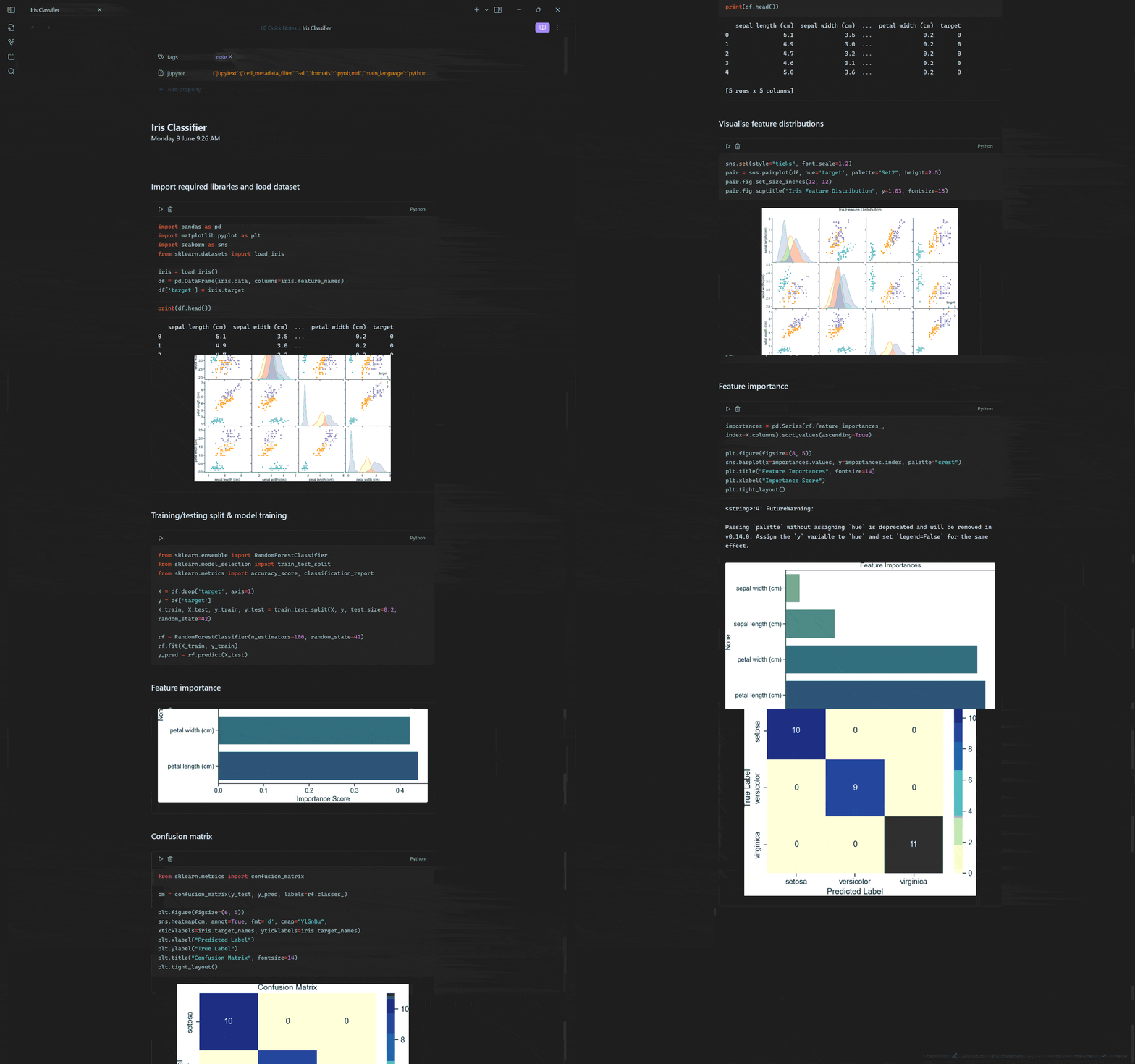
- Run code in a variety of languages
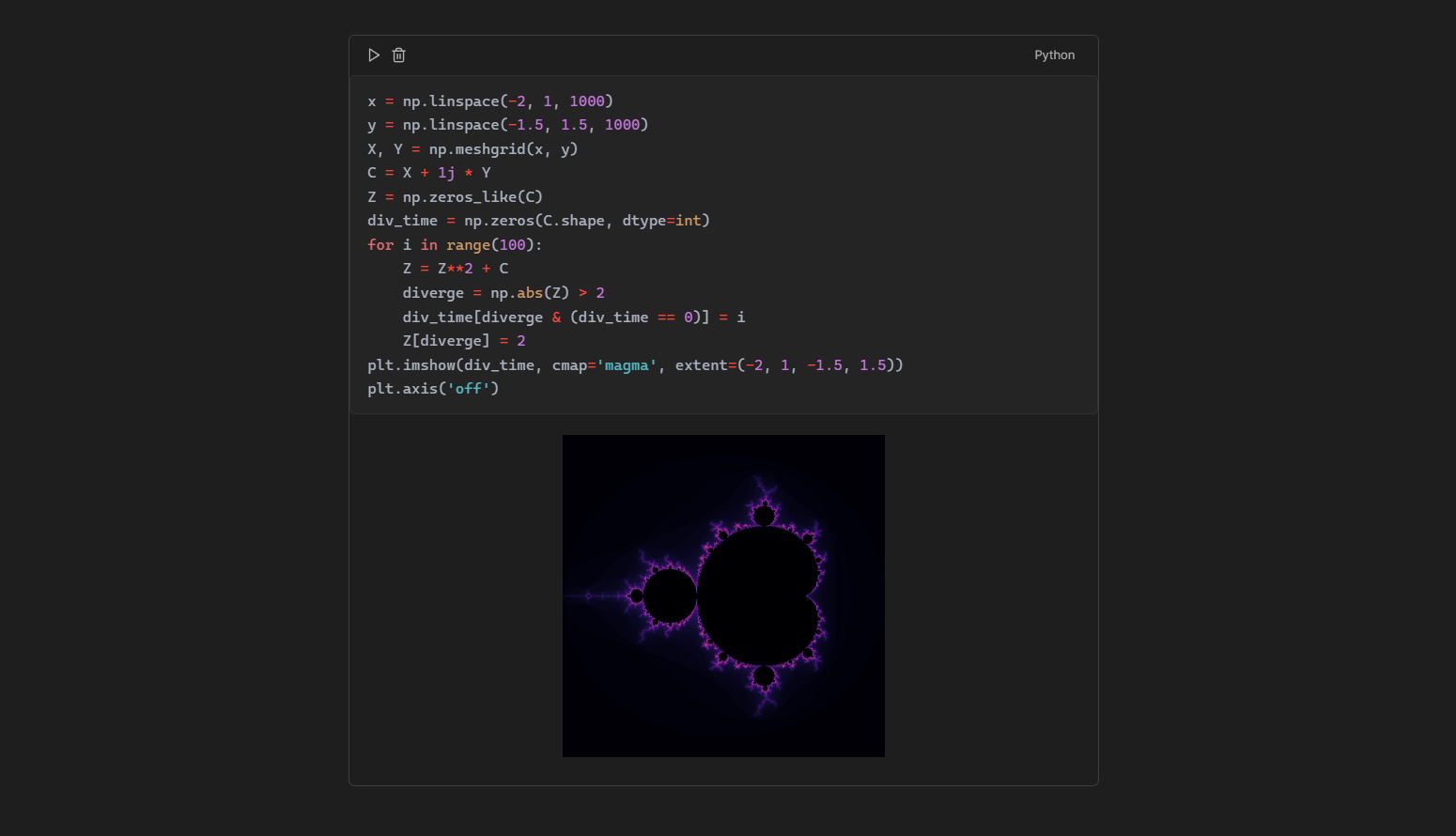
- Create plots with
matplotlib - Conduct data analysis with
pandasdataframes - Build machine learning models with
sklearnandpytorch - And much of what you would typically use a Jupyter notebook for
... all in your Obsidian vault!
Use-cases:
Machine learning workflow
Visualising fractals with matplotlib
Features
JupyMD is designed to be a feature rich Jupyter notebook editor inside of Obsidian, similar to VSCode's Jupyter notebook functionality and Jupyter Lab. Some of its features include:
- Multiple Programming Languages: Built-in support for Python, Julia, R, JavaScript, TypeScript, Bash, and Rust. Additional languages can also work through compatible Jupyter kernels. Supports external libraries.
- Notebook Conversion
- Convert existing notes in Obsidian to Jupyter notebooks
- Convert existing Jupyter notebooks to Markdown notes
- Bidirectional Updates: Changes in Obsidian or Jupyter automatically sync between
.mdand.ipynbfiles - Execute Code: Run code blocks in Obsidian with output captured below each block, regardless of viewing mode
- Persistent Execution Environment: Variables and imports defined in one code block are remembered by the following code blocks
- True Jupyter Sync: Executed code blocks automatically update output metadata in linked
.ipynbfile - Persistent Output Rendering: Executed code outputs stay visible after restart and sync to
.ipynbfile - Rich Output: Support for image and dataframe outputs, magic commands
Prerequisites
Python is necessary as a tooling environment to invoke Jupytext and Jupyter Client, even if you don't plan to use Python in a Jupyter notebook.
The following dependencies can be installed natively through the plugin settings on your set tooling environment:
JupyMD natively prompts an installation for ipykernel when a Python interpreter is selected. For further language support, you will need to manually install Jupyter kernels listed here along with your programming language of choice. Installed Jupyter kernels are automatically detected by JupyMD.
Using other programming languages
JupyMD runs code through the standard Jupyter kernel protocol, allowing it to discover kernels beyond its built-in languages. To add another language, install its runtime and a compatible Jupyter kernel, then reload JupyMD and select the kernel for your notebook.
When JupyMD starts, it registers interactive code blocks for Python, Julia, R, JavaScript, TypeScript, Bash, and Rust. It also reads the language reported by every detected Jupyter kernel and registers a matching JupyMD code block automatically. For example, a kernel reporting c++ will cause ```c++ blocks to receive JupyMD’s execution controls.
Compatibility depends on how the kernel identifies its language. The code fence must match the language reported by the kernel, and Jupytext must recognize it as a code cell. Some kernels use different identifiers such as C++17 and c++, which may require adjusting the kernelspec or code fence.
Languages without built in support may not include syntax highlighting, aliases, friendly runtime details, or the same level of integration and testing as the languages listed above.
To display a block using Obsidian’s standard code-block renderer instead of JupyMD’s interactive renderer, capitalize its language identifier, for example, use ```Python instead of ```python.
Getting started
Download the plugin through the Obsidian community plugin browser and enable it.
To set up JupyMD, configure a Python tooling environment from the settings. This will list Python installations in your system for selection. It is highly recommended to use a virtual environment for a tooling environment. This can be set up easily through the set up modal in the settings.
To convert a note to a Jupyter notebook
You can transform your note into a Jupyter notebook in two ways:
- Pressing "run cell" on a code block
- Running the
JupyMD: Create notebook from notecommand
This will:
- Prompt you to select a Jupyter kernel for the Juypter notebook
- Create an
.ipynbfile with the same file name as the current note on the file directory - Continuously sync the contents of the markdown file to the
.ipynbfile
You may choose to ignore the created .ipynb file completely, as its functionality will be mirrored in Obsidian.
To convert a Jupyter notebook to a note
Move your Jupyter notebook to your vault. Executing the following command will list out all .ipynb files within your vault which you can select to convert into a note:
JupyMD: Create note from Jupyter notebook
This will create a Markdown note (.md) with the same file name as the notebook in the same directory where the Jupyter notebook is.
Local access and security
JupyMD is a desktop-only plugin because local Jupyter integration requires capabilities beyond the Obsidian vault API. The plugin uses them for the following limited purposes:
- Process execution: JupyMD starts the selected Python tooling environment, Jupytext, Jupyter kernels, and a user-configured external notebook editor. Commands are launched directly with argument arrays rather than evaluated through a command shell. Package installation runs only after explicit user confirmation.
- Filesystem access: JupyMD reads and writes paired
.ipynbfiles, stores plugin-managed kernelspecs below the vault configuration directory, detects virtual environments in the vault root, and discovers installed interpreters and kernels in their standard system locations (including pyenv directories). - Vault file listing: The "Create note from Jupyter notebook" command lists
.ipynbfiles so the user can select one to convert. JupyMD does not enumerate the vault during normal code execution. - Clipboard writes: Holding Shift while clicking the kernel status copies the selected interpreter or kernel executable path. JupyMD does not read the clipboard.
Code executed in a notebook has the same operating-system permissions as Obsidian. Only run notebooks and select kernels that you trust.
JupyMD does not include telemetry and does not make its own network requests. If the user confirms a package installation, the selected package manager may contact its configured package indexes.
Contributing
Please read the contribution guidelines if you want to contribute to JupyMD.
This project was originally built to solve a personal problem, and it's still in an early stage. Feedback, feature requests, bug reports, and pull requests are all welcome and appreciated!
JupyMD is an independent project and not affiliated with Project Jupyter, Jupytext, or Obsidian.
For plugin developers
Search results and similarity scores are powered by semantic analysis of your plugin's README. If your plugin isn't appearing for searches you'd expect, try updating your README to clearly describe your plugin's purpose, features, and use cases.