by Andrey Dobrikov
Train vocabulary with flashcards and mastery tracking, using markdown notes in a configurable folder
Language Trainer Cards
Flashcard-style vocabulary trainer for Obsidian, for any language. It turns your own markdown notes — one note per word — into a study deck with mastery tracking, and works in both directions: forward (word → translation) and reverse (translation → word), with independent progress for each.
Screenshots
| Card front | Card flipped (answer + example) |
|---|---|
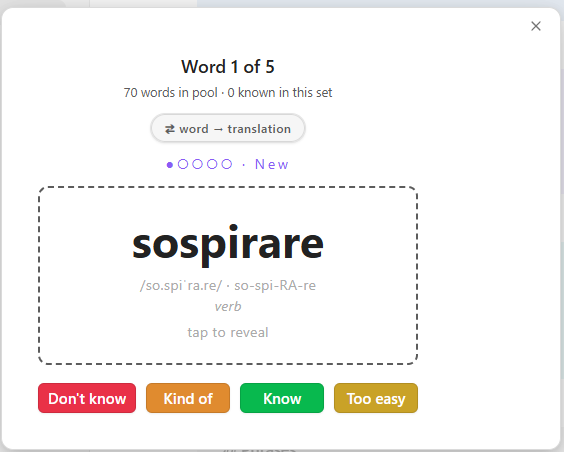 | 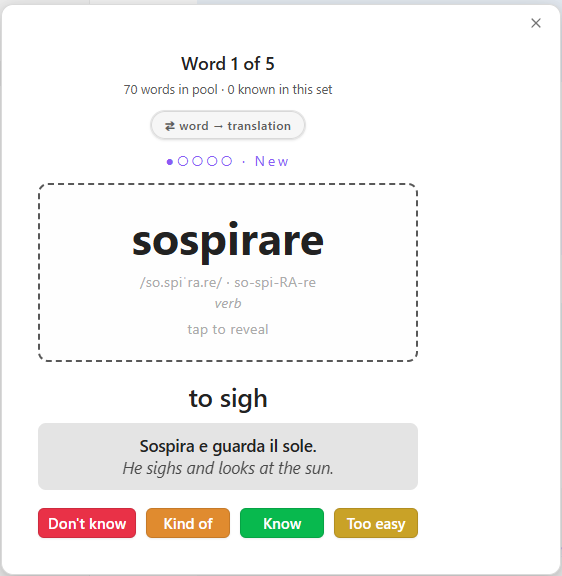 |
| Vocabulary folder in the vault | A word note |
|---|---|
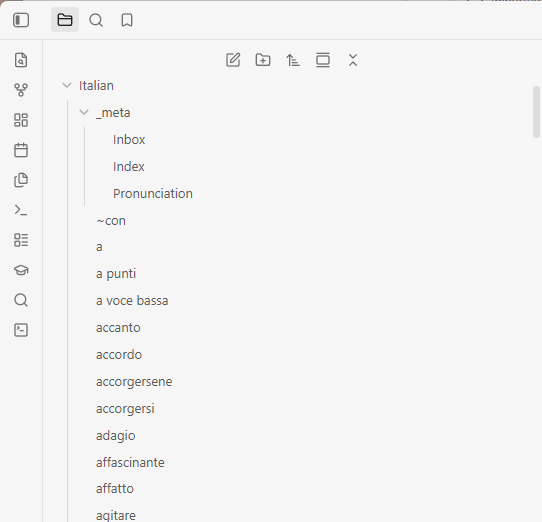 | 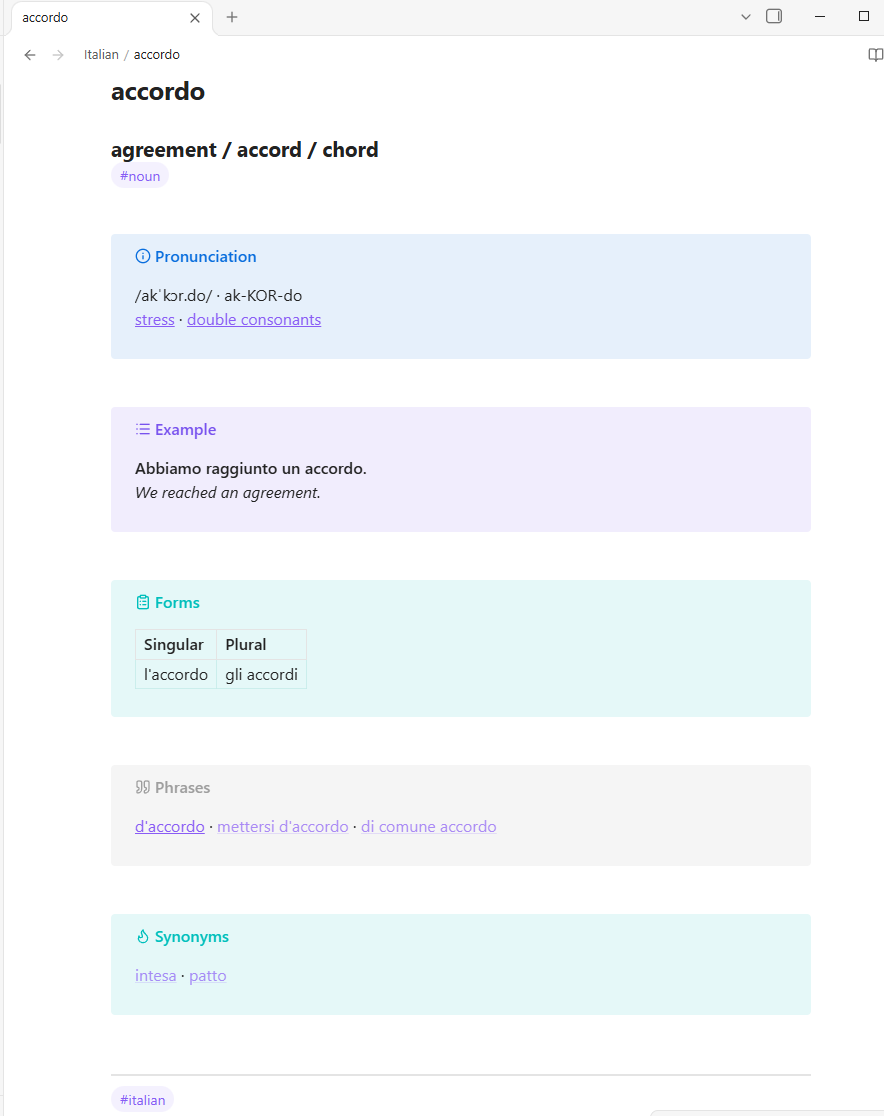 |
Features
- Flashcard-style learning interface
- Two directions with independent grading: forward (word → translation, recognition) and reverse (translation → word, recall)
- Mastery tracking with pools: New (0–2★), Learning (3–4★), Mastered (5★+), and an Archive
- Progress persistence across sessions and devices (stored in the vault)
- Cross-platform support (desktop and mobile)
- Keyboard shortcuts for efficient studying
- Add vocabulary word command that scaffolds a correctly-formatted word note
- Works with any language — just point it at a folder of word notes
Installation
- Copy
main.js,manifest.json, andstyles.cssto your vault's.obsidian/plugins/language-trainer-cards/directory - Reload Obsidian
- Enable the plugin in Settings → Community plugins
- Set the vocabulary folder in the plugin settings (default:
Italian) - Run the command Open trainer — forward (word → translation) or Open trainer — reverse (translation → word) to start
Vocabulary folder
The plugin reads every markdown file in the configured folder as one word.
Files and folders whose names start with _ are ignored, so you can keep
indexes and reference notes next to the words (e.g. Italian/_meta/Index.md).
Optional: organizing with a _meta folder
A useful convention is a _meta folder inside the vocabulary folder:
Inbox.md— a running dump of new words and phrases you encounter.Index.md— a generated list of all words for browsing and review. It lives under_meta, so it never becomes a flashcard.Pronunciation.md— your language's pronunciation rules (IPA and respelling conventions). Word pages can link to its sections, so each rule is explained once, in one place.
A typical workflow with the Inbox
While reading or listening, dump everything new into Inbox.md as quick
bullets — words, phrases, even grammar questions. Later, ask your AI agent to
"process the inbox": with the add-word skill
installed, the agent turns each item into a properly formatted word page (new
words get pages, phrases with their own meaning get phrase pages, questions get
answered on the relevant page), keeps synonym/phrase links two-way, and clears
the processed items from the inbox. No agent? The Add vocabulary word
command and the template cover the same ground by hand.
Creating words
Each word is a markdown note. Use the Add vocabulary word command to fill a
form and create the note, or write the file by hand (see
templates/word-template.md).
If you use an AI agent to manage your notes, the repo also ships an add-word skill that teaches the agent the page layout and linking conventions.
The plugin reads these blocks from a note:
The full template (templates/word-template.md):
### <translation in your language>
#<part of speech: verb, noun, adjective, adverb, pronoun, …>


> [!info] Pronunciation
> /<IPA>/ · <RE-spel-ling>


> [!example] Example
> **<Sentence in the studied language.>**
> *<Sentence in your language.>*


> [!abstract]- Forms
> |  | <form 1> | <form 2> | <form 3> |
> | --- | --- | --- | --- |
> | <person/number/gender> |  |  |  |


> [!quote] Phrases
> [[<phrase containing this word>]]


> [!tip] Synonyms
> [[<word>]] · [[<word>]]


> [!note] Notes
> - <grammar, irregularities, usage notes>
What the card reads from it:
- File name (minus
.md) → the word on the card. ###line → the translation shown on the back. Required for reverse mode.- Pronunciation callout →
/IPA/ · Respellingon one line (optional). - Example callout → a bold sentence in the studied language, then an italic
translation (optional; fold markers like
[!example]-are fine). - Synonyms callout →
[[wiki links]]joined with·(optional; shown in reverse mode, where they act as alternative answers). - First
#tagline → part of speech hint (replace the#<part of speech…>placeholder with a real tag like#verbor#noun).
Everything else — Forms tables, Phrases links, Notes, any free text — is for you; the card ignores it, so keep whatever you like in your word files.
Usage
- Click the prompt word or press Space to flip the card.
- The grade buttons adapt to the pool being studied:
- New (0–2★): Don't know (−1★), Kind of (+1★), Know (→3★), Too easy (→5★ mastered)
- Learning (3–4★): Don't know, Kind of, Too easy
- Mastered (5★): Keep / Skip, Don't know (back to Learning), Archive (hide everywhere)
- Archived: Know (keep archived), Don't know (release back to New at 0★)
- Number keys 1–4 trigger the visible buttons; K = Know, D = Don't know where offered.
- Press R or the ⇄ button to switch direction; each direction has its own mastery progress.
- Press N on the completion screen to start a new set.
- Progress is saved automatically.
Data Storage
Mastery data is stored in language-trainer-progress.json in your vault root,
so it syncs across devices via Obsidian Sync or other sync methods.
License
MIT
For plugin developers
Search results and similarity scores are powered by semantic analysis of your plugin's README. If your plugin isn't appearing for searches you'd expect, try updating your README to clearly describe your plugin's purpose, features, and use cases.