LaTeX Suite Rev
approvedby Pat
Make typesetting LaTeX math as fast as handwriting through snippets, text expansion, and editor enhancements - This plugin has not been manually reviewed by Obsidian staff.
LaTeX Suite Rev 

A plugin for Obsidian that aims to make typesetting LaTeX math as fast as handwriting.
LaTeX Suite Rev is derived from Obsidian LaTeX Suite by artisticat1. It retains the upstream MIT license and original copyright notice. JQML maintains this Rev distribution and its compatibility fixes; JQML did not author the original plugin.
This distribution recognizes CodeMirror math delimiter nodes semantically when Obsidian inserts Markdown structural components such as list or heading tags into their composite names. That preserves inline-math context and snippet expansion in those structures while retaining the upstream inline-versus-display behavior.
Do not enable LaTeX Suite Rev and the official Obsidian LaTeX Suite plugin simultaneously. Both provide the same commands and editor extensions.
Why this distribution exists
LaTeX Suite Rev packages a compatibility correction that was physically verified against Obsidian's current CodeMirror editor: composite math-delimiter node names can contain Markdown structure components, while upstream 1.11.5 compares those names exactly. The Rev distribution recognizes the semantic delimiter components and keeps inline and display classification separate.
This remains a fork of an active project, not an original reimplementation. Compatibility fixes should be proposed upstream where practical. A Community Plugins directory submission requires publicly verifiable written approval from the upstream author under Obsidian's fork policy; that approval is not implied by the MIT license.
Compatibility and support
- Minimum Obsidian version: 1.4.10.
- Desktop: supported and tested on Obsidian 1.13.3.
- Mobile: the runtime contains no Node.js or Electron imports and bundled regex lookbehind has been removed. A physical-device mobile smoke test is still recommended before directory submission.
- Official Obsidian LaTeX Suite and LaTeX Suite Rev must not be enabled together.
- Report Rev defects and compatibility problems in the JQML issue tracker. Include the Obsidian version, platform, editor mode, minimal Markdown, snippet definition, and reproduction steps.
- Questions about unchanged upstream behavior may also be relevant to the upstream project, but do not ask upstream to support Rev-specific builds.
The maintenance policy is to track upstream releases and security fixes, keep Rev-only changes focused and regression-tested, and document the upstream tag or commit used by each Rev release. Version 0.1.x is based on upstream tag 1.11.5.
Privacy and security
The runtime has no telemetry, advertising, updater, or network requests. It reads configured snippet and variable files through Obsidian's Vault API. Snippets are user-authored JavaScript modules and can contain replacement functions; only load snippet files you trust.
The optional repository deployment scripts are separate Node.js command-line tools and are not included in the three release assets. They access only vault paths supplied explicitly by the user, create backups, and do not print data.json contents.
Installation
Release assets are main.js, manifest.json, and styles.css. Install them in:
<vault>/.obsidian/plugins/latex-suite-rev
For a controlled migration from the official plugin, create an untracked vaults.local.json from vaults.local.example.json, then run:
npm run build
node scripts/install-all.mjs --dry-run
node scripts/install-all.mjs
The installer operates only on explicitly listed absolute vault paths. It backs up the plugin list and relevant plugin assets, retains the official plugin folder for rollback, migrates official data.json only on the first Rev installation, preserves existing Rev settings on subsequent installations, disables the official plugin entry, and enables latex-suite-rev. It never prints settings contents.
To install one vault explicitly:
node scripts/install-to-vault.mjs --vault "/absolute/path/to/vault" --dry-run
node scripts/install-to-vault.mjs --vault "/absolute/path/to/vault"
Restart Obsidian after installation.
Inspired by Gilles Castel's setup using UltiSnips.

The plugin's main feature is snippets, which help you write LaTeX quicker through shortcuts and text expansion! For example, type
- "sqx" instead of "\sqrt{x}"
- "a/b" instead of "\frac{a}{b}"
- "par x y " instead of "\frac{\partial x}{\partial y}"
See Gilles Castel's writeup for more information.
The plugin comes with a set of default snippets, loosely based on Gilles Castel's. You can modify them, remove them, and write your own.
Usage
To get started, type "dm" to enter display math mode. Try typing the following:
-
"xsr" → "x^{2}".
-
"x/y Tab" → "\frac{x}{y}".
-
"sin @t" → "\sin \theta".
Have a look at the cheatsheet for a list of commonly used default snippets.
Once these feel familiar, you can check out the default snippets for more commands. e.g.
-
"par Tab f Tab x Tab" → "\frac{\partial f}{\partial x}".
-
"dint Tab 2pi Tab sin @t Tab @t Tab" → "\int_{0}^{2\pi} \sin \theta \, d\theta".
You can also add your own snippets! For more info on writing snippets, see here. You can view snippets written by others and share your own snippets here.
Aside from snippets, the plugin also comes with several other features that aim to make writing LaTeX easier.
Features
Auto-fraction
Lets you type "1/x" instead of "\frac{1}{x}".
For example, it makes the following expansions:
x/→\frac{x}{}(a + b(c + d))/→\frac{a + b(c + d)}{}
and moves the cursor inside the brackets.
Once done typing the denominator, press Tab to exit the fraction.

Matrix shortcuts
While inside a matrix, array, align, or cases environment,
- Pressing Tab will insert the "&" symbol.
- Pressing Enter will insert "\\" and move to a new line.
- Pressing Shift + Enter will move to the end of the next line (which you can use to exit the matrix).

Conceal
This feature must be enabled in the plugin settings.
Make your equations more readable by hiding LaTeX markup and instead displaying it in a pretty format.
For example, "\dot{x}^{2} + \dot{y}^{2}" will be displayed as "ẋ² + ẏ²", and "\sqrt{ 1-\beta^{2} }" will be displayed as "√{ 1-β² }".
To reveal the LaTeX syntax, move your cursor over it. You can also choose to delay the reveal for a moment, which makes navigation with arrow keys more intuitive.
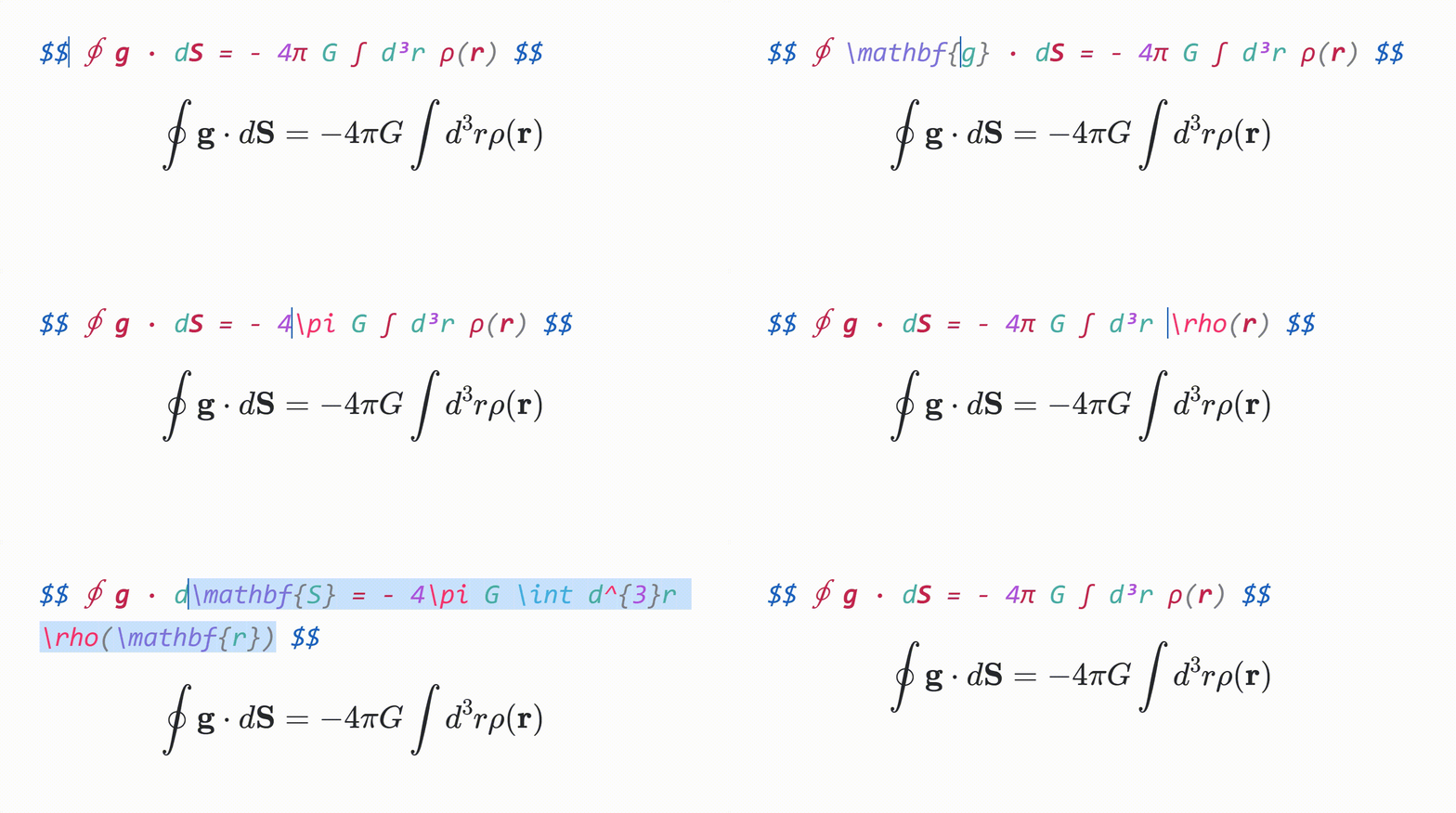
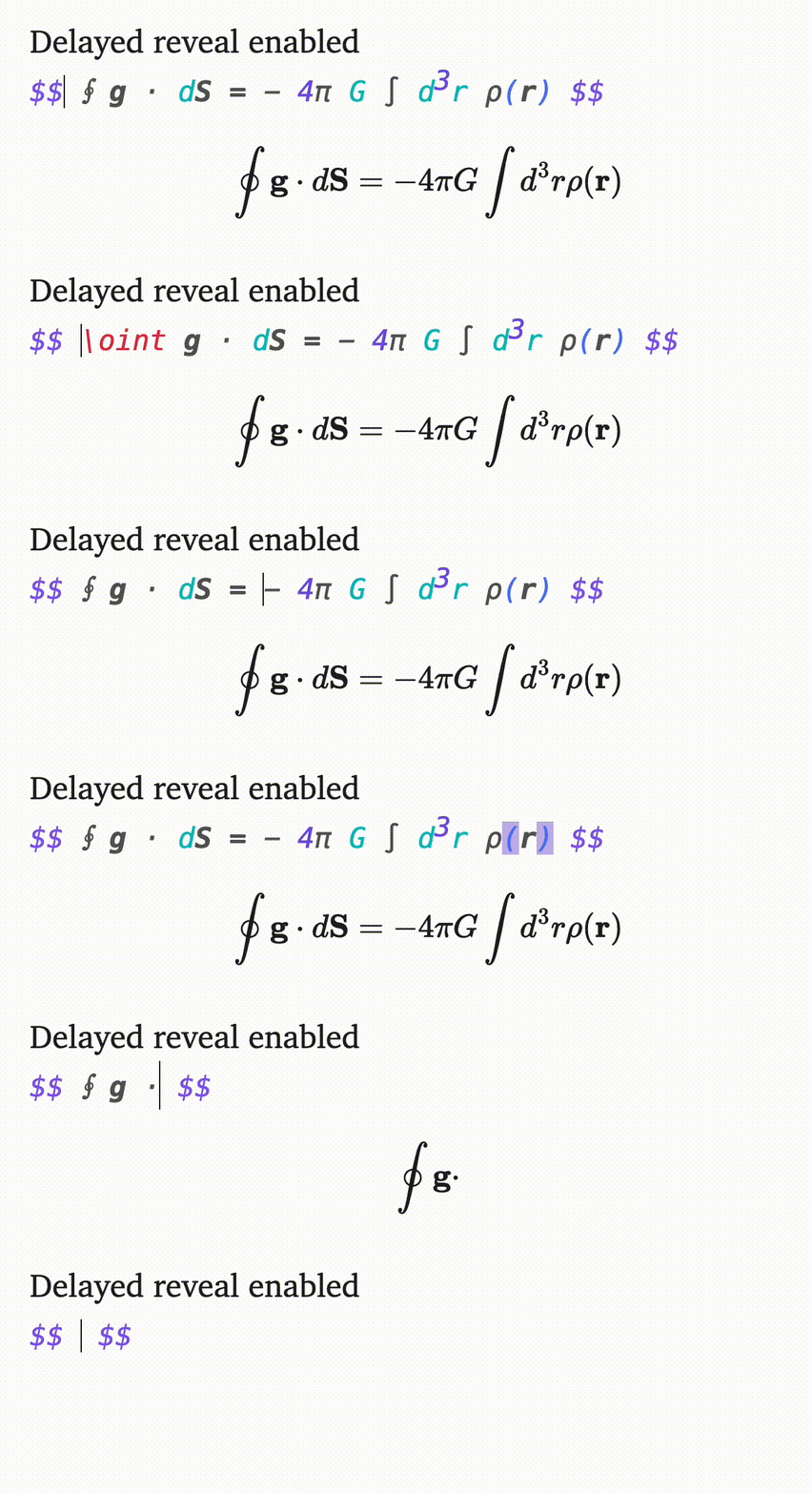
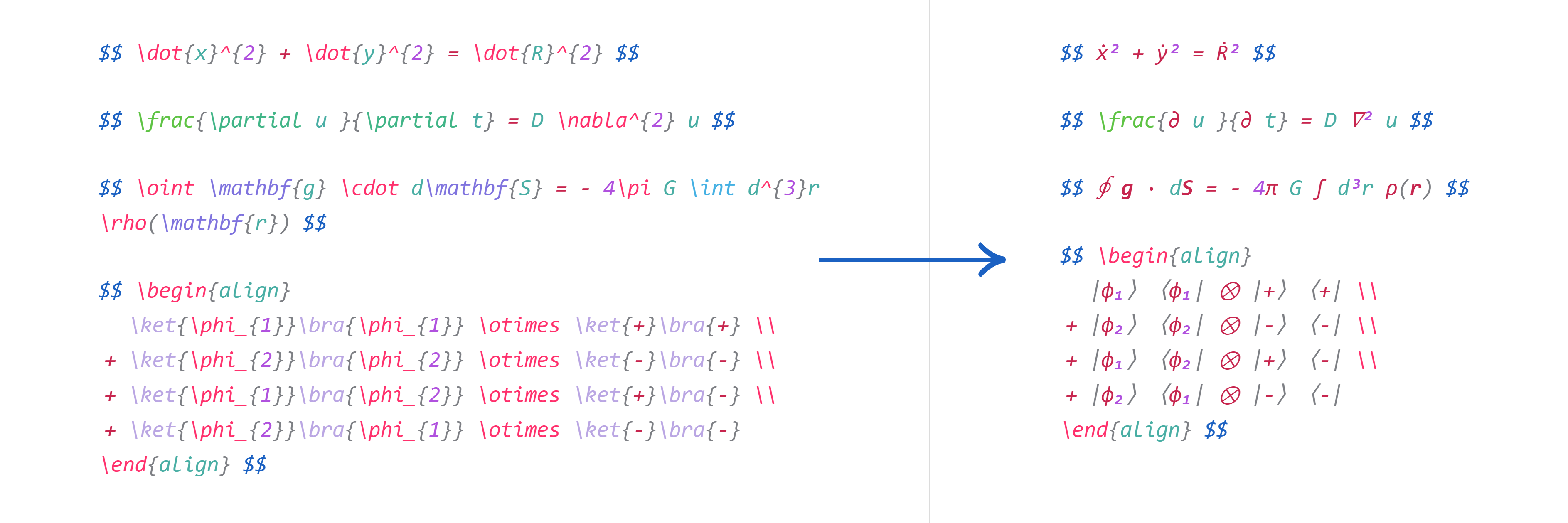
[!NOTE] One of your selected monospace fonts in obsidian needs to support these symbols. JuliaMono has been known to work for all symbols. Either install the font or add the following to your css file:
@font-face {
    font-family: JuliaMono;
    src: url(https://github.com/cormullion/juliamono/raw/refs/heads/master/webfonts/JuliaMono-Regular.woff2) format("woff2");
    text-rendering: optimizeLegibility;
}

body {
  --font-monospace-override: JuliaMono;
}
Tabout
To make it easier to navigate and exit equations,
- Pressing Tab while the cursor is at the end of an equation will move the cursor outside the
$symbols. - If the cursor is inside a
\left ... \rightpair, pressing Tab will jump to after the\rightcommand and its corresponding delimiter. - Otherwise, pressing Tab will advance the cursor to the next closing bracket:
),],},\rangle, or\rvert.
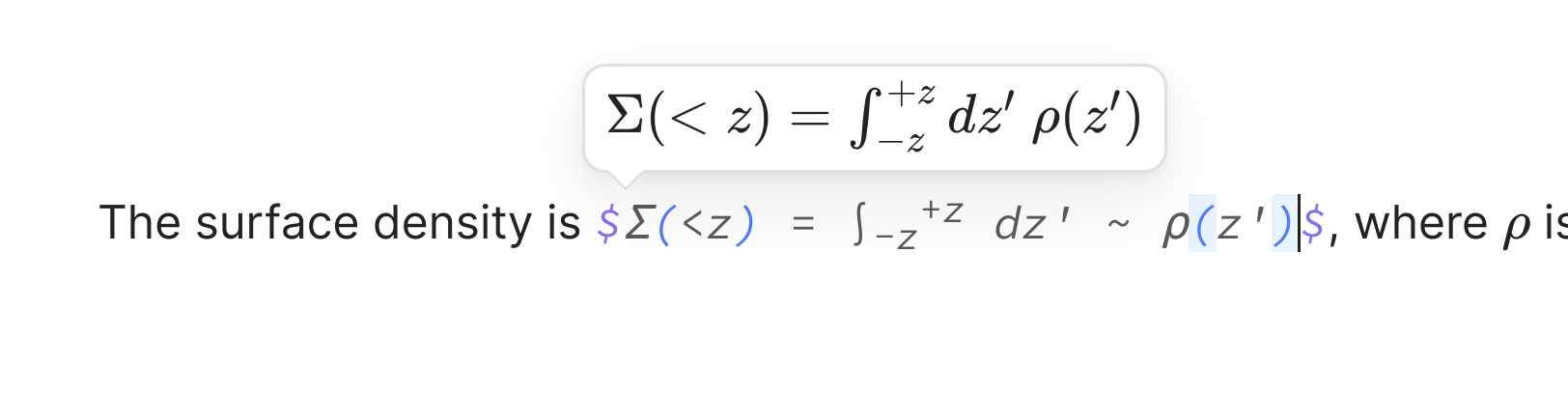
Preview inline math
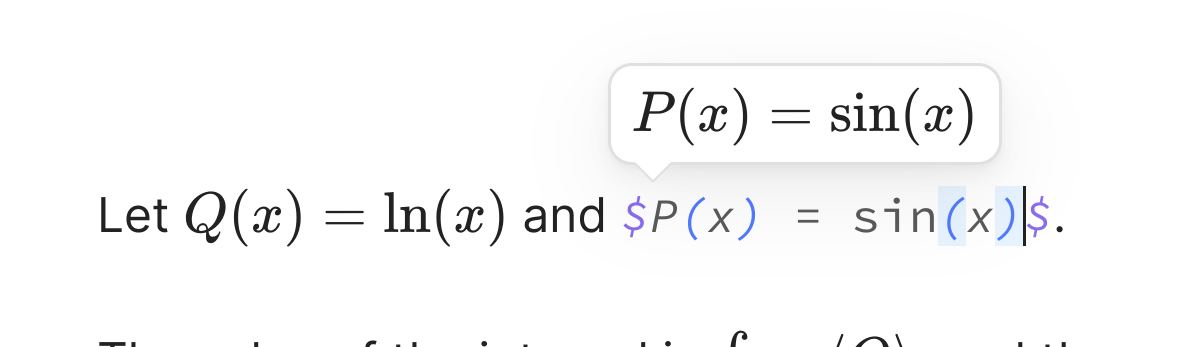
When your cursor is inside inline math, a popup window showing the rendered math will be displayed.
Visual snippets
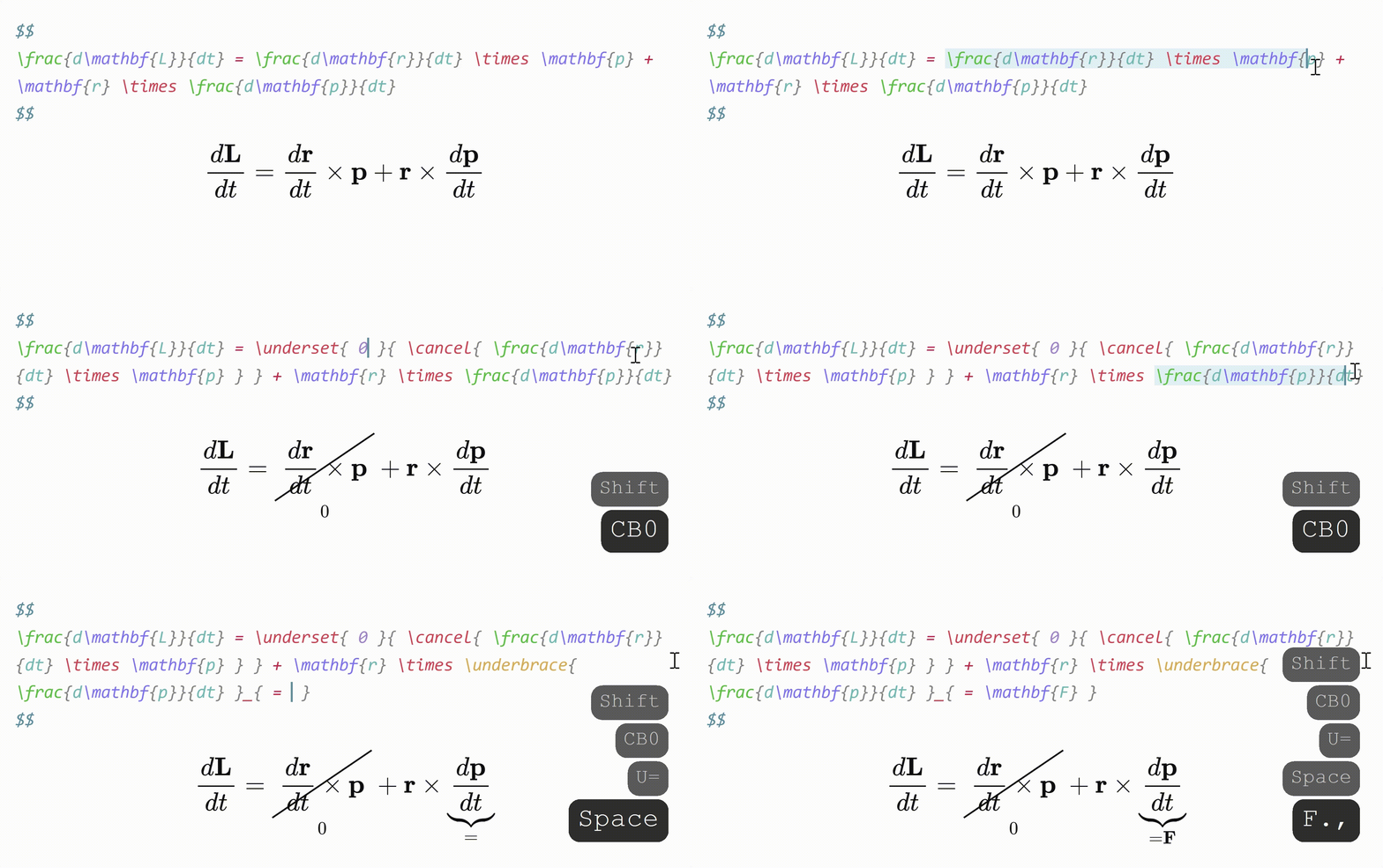
Sometimes you want to annotate math, or cancel or cross out terms. Selecting some math with the cursor and typing
- "U" will surround it with "\underbrace".
- "O" will surround it with "\overbrace".
- "C" will surround it with "\cancel".
- "K" will surround it with "\cancelto".
- "B" will surround it with "\underset".
Auto-enlarge brackets
When a snippet containing "\sum", "\int" or "\frac" is triggered, any enclosing brackets will automatically be enlarged with "\left" and "\right".

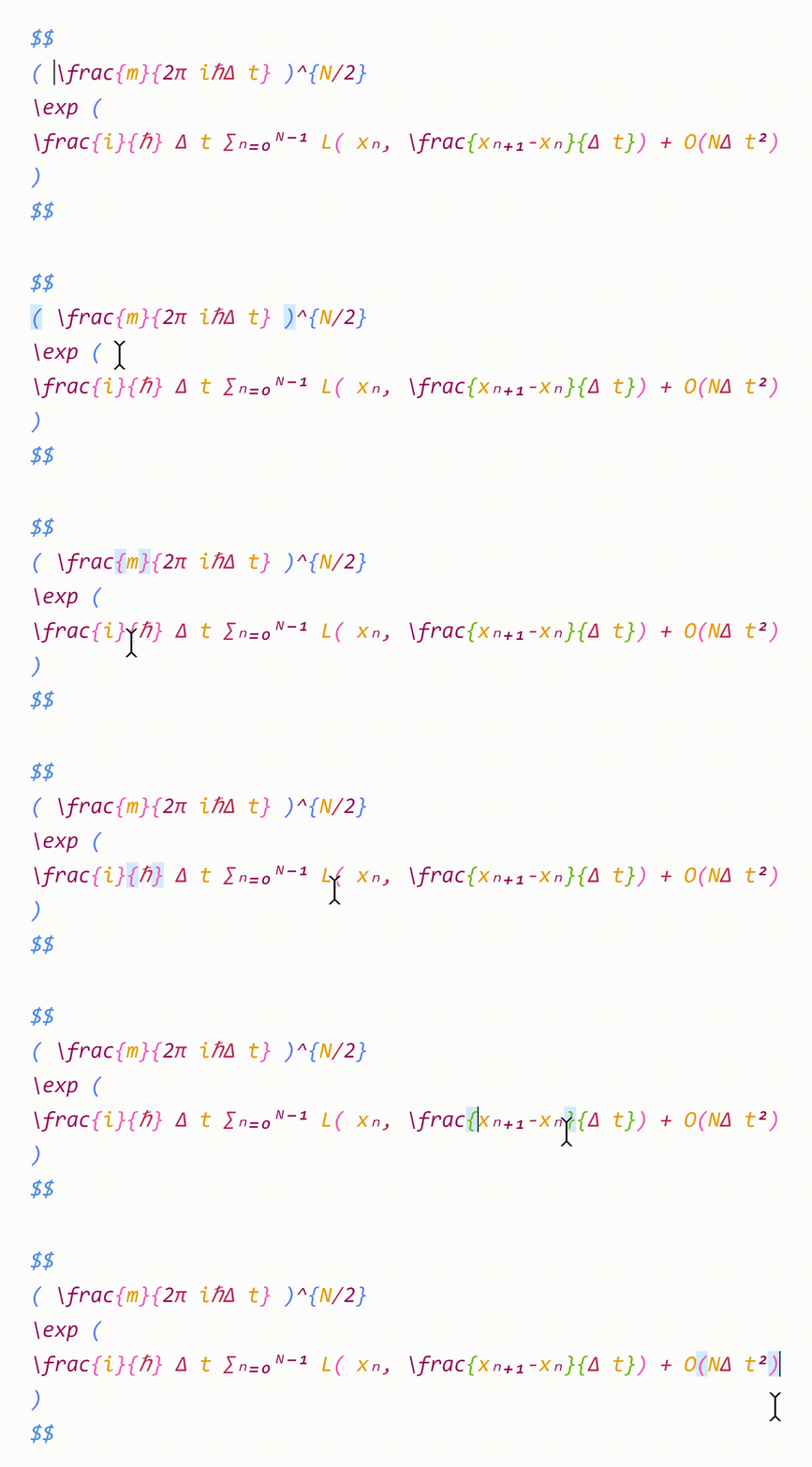
Color and highlight matching brackets
To help make your equations more readable,
- Matching brackets will be displayed in the same color.
- When your cursor is adjacent to a bracket, that bracket and its pair will be highlighted.
- When your cursor is inside brackets, the enclosing brackets will be highlighted.
Editor commands
The plugin also adds the following commands to the Command palette:
- Box current equation — surround the equation the cursor is currently in with a box, using "\boxed{ ... }".
- Select current equation – select the equation the cursor is currently in.
Snippets
Snippets are shortcuts that allow you to insert certain text based on certain triggers. For example, the default snippet
{trigger: "@l", replacement: "\\lambda", options: "mA"}
will expand "@l" to "\lambda".
Snippets can be edited in the plugin settings. The structure of a snippet is as follows:
{
  trigger: string | RegExp,
  replacement: string,
  options: string,
  priority?: number,
  description?: string,
  flags?: string,
  triggerKey?: string,
  language?: string,
}
trigger: The text that triggers this snippet.- Triggers can also be regular expressions. See here for more info.
replacement: The text to replace thetriggerwith.- Replacements can also be JavaScript functions. See here for more info.
options: See below.priority(optional): This snippet's priority. Snippets with higher priority are run first. Can be negative. Defaults to 0.description(optional): A description for this snippet.flags(optional): Flags for regex snippets.triggerKey(optional): Shortcut for snippets.language(optional): code language for snippets.
Options
t: Text mode. Only run this snippet outside mathm: Math mode. Only run this snippet inside math. Shorthand for bothMandnM: Block math mode. Only run this snippet inside a$$ ... $$blockn: Inline math mode. Only run this snippet inside a$ ... $blockA: Auto. Expand this snippet as soon as the trigger is typed. If omitted, the Tab key must be pressed to expand the snippet. This doesn't always work for IME keyboards (like Chinese/Pinyin, Gboard, and German/French diacritic keyboards).r: Regex. Thetriggerwill be treated as a regular expressionv: Visual. Only run this snippet on a selection. The trigger should be a single characterw: Word boundary. Only run this snippet when the trigger is preceded (and followed by) a word delimiter, such as.,,, or-.c: Code mode. Only run this snippet inside a``` ... ```block
Insert tabstops for the cursor to jump to by writing "$0", "$1", etc. in the replacement.
For examples and more details on writing snippets, including regex snippets and function snippets, have a look at the documentation.
You can view snippets written by others and share your own snippets here.
[!WARNING] Snippet files are interpreted as JavaScript and can execute arbitrary code. Always be careful with snippets shared from others to avoid running malicious code.
Cheatsheet
| Trigger | Replacement |
|---|---|
| mk | $ $ |
| dm | $$ $$ |
| sr | ^{2} |
| cb | ^{3} |
| rd | ^{ } |
| _ | _{ } |
| sq | \sqrt{ } |
| x/y Tab | \frac{x}{y} |
| // | \frac{ }{ } |
| " | \text{ } |
| text | \text{ } |
| x1 | x_{1} |
| x,. | \mathbf{x} |
| x., | \mathbf{x} |
| xdot | \dot{x} |
| xhat | \hat{x} |
| xbar | \bar{x} |
| xvec | \vec{x} |
| xtilde | \tilde{x} |
| xund | \underline{x} |
| ee | e^{ } |
| invs | ^{-1} |
When running a snippet that moves the cursor inside brackets {}, press Tab to exit the brackets.
Greek letters
| Trigger | Replacement | Trigger | Replacement |
|---|---|---|---|
| @a | \alpha | eta | \eta |
| @b | \beta | mu | \mu |
| @g | \gamma | nu | \nu |
| @G | \Gamma | xi | \xi |
| @d | \delta | Xi | \Xi |
| @D | \Delta | pi | \pi |
| @e | \epsilon | Pi | \Pi |
| :e | \varepsilon | rho | \rho |
| @z | \zeta | tau | \tau |
| @t | \theta | phi | \phi |
| @T | \Theta | Phi | \Phi |
| @k | \kappa | chi | \chi |
| @l | \lambda | psi | \psi |
| @L | \Lambda | Psi | \Psi |
| @s | \sigma | ||
| @S | \Sigma | ||
| @o | \omega | ||
| ome | \omega |
For Greek letters with short names (2-3 characters), just type their name, e.g. "pi" → "\pi".
Acknowledgements
- @tth05's Obsidian Completr for the basis of the tabstop code.
- Dynamic Highlights for reference.
- Quick Latex for Obsidian for inspiration.
Contributing
Contributions and compatibility reports for LaTeX Suite Rev are welcome at jqml/latex-suite-rev.
Support
The original project is maintained by artisticat1. If you would like to support the upstream author:

For plugin developers
Search results and similarity scores are powered by semantic analysis of your plugin's README. If your plugin isn't appearing for searches you'd expect, try updating your README to clearly describe your plugin's purpose, features, and use cases.