Local Backup
approvedby velviagris
Automatically creates a local backup of the vault.
Local Backup



Automatically creates a local backup of the vault.
Features
- Backup on startup
- Backup on quit
- Setup backups' lifecycle
- Customize output path
- Interval backups
- Backup by calling archiver (7-Zip, WinRAR, Bandizip)
- Retry after failures
- Create specific file
- Ignore folders and files using wildcards
- Back up only selected folders and files using wildcards
How to use
Setup the plugin
General Settings
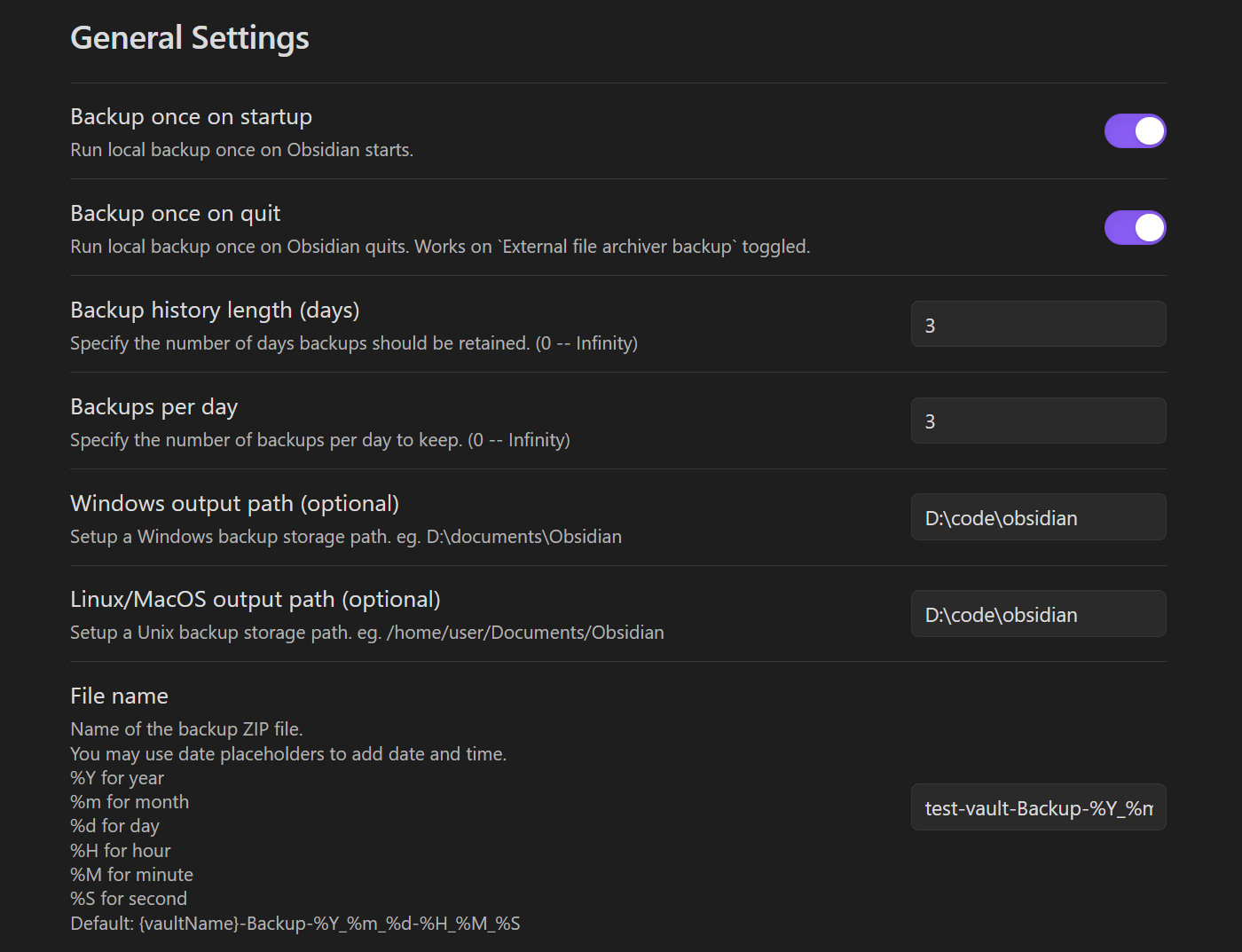
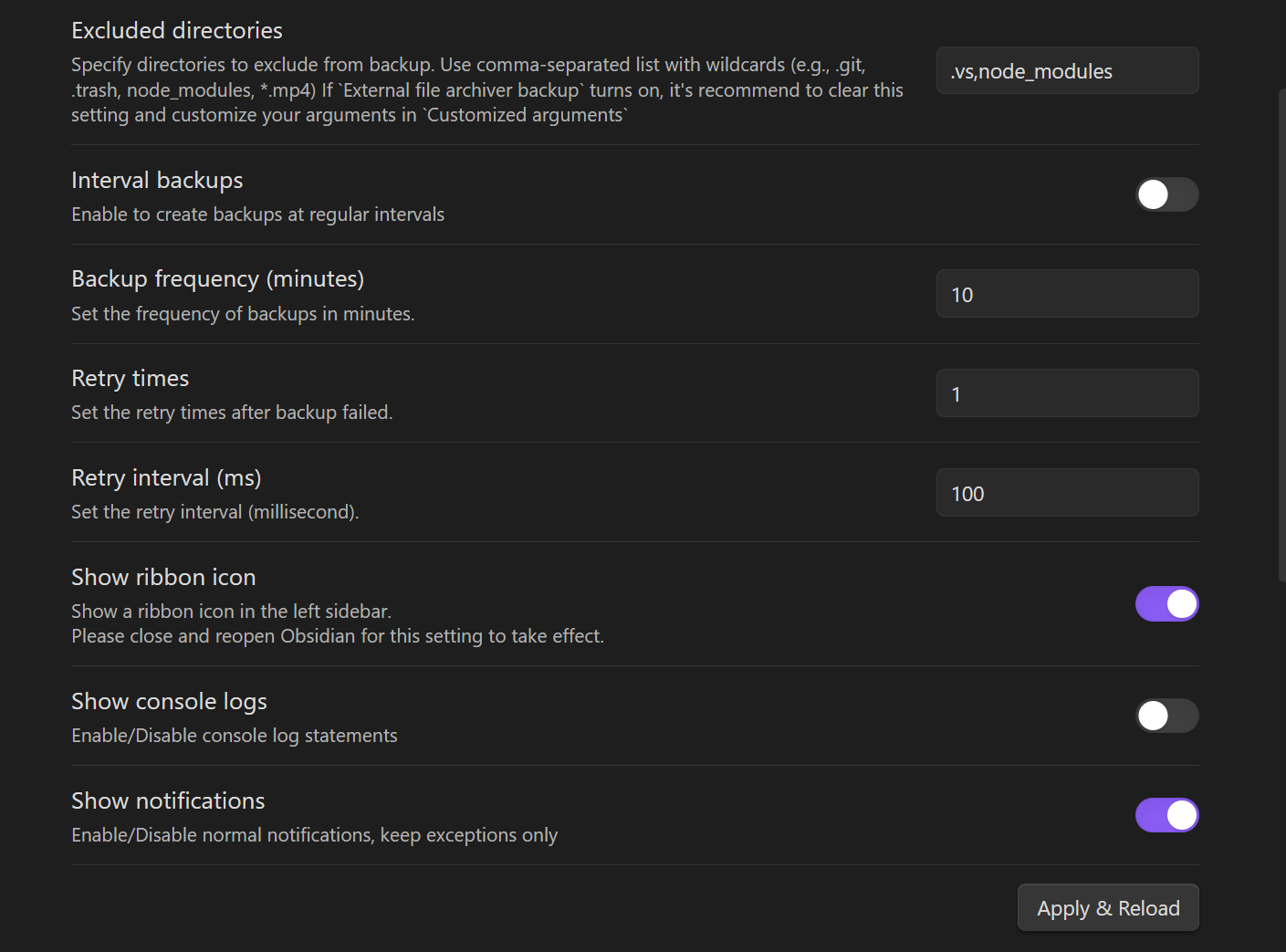
Hints
- Setup the output path depends on your computer platform.
- Setup the Windows and Unix output path while you using these two platforms.
Included directoriesandExcluded directoriesboth accept comma-separated values and support the same wildcard matching rules.- If
Included directoriesis empty, the whole vault is backed up before exclusions are applied. - If
Included directoriesis set, only matching folders and files are backed up, thenExcluded directoriescan be used to remove matches from that result.
If you turn on interval backups, it is recommended to set a reasonable bakcup frequency, e.g. >=10min, this plugin costs CPU resources and Disk I/O resources, backup frequently might cause lagging.
Include and exclude examples
- Back up only the Obsidian config folder: set
Included directoriesto.obsidian - Back up only selected content: set
Included directoriesto.obsidian, Templates, *.canvas - Back up the whole vault except some paths: leave
Included directoriesempty and setExcluded directoriesto.git, .trash, node_modules, *.mp4 - Combine both filters: set
Included directoriesto.obsidian, TemplatesandExcluded directoriestoworkspace.json
File Archiver Settings (Optional)
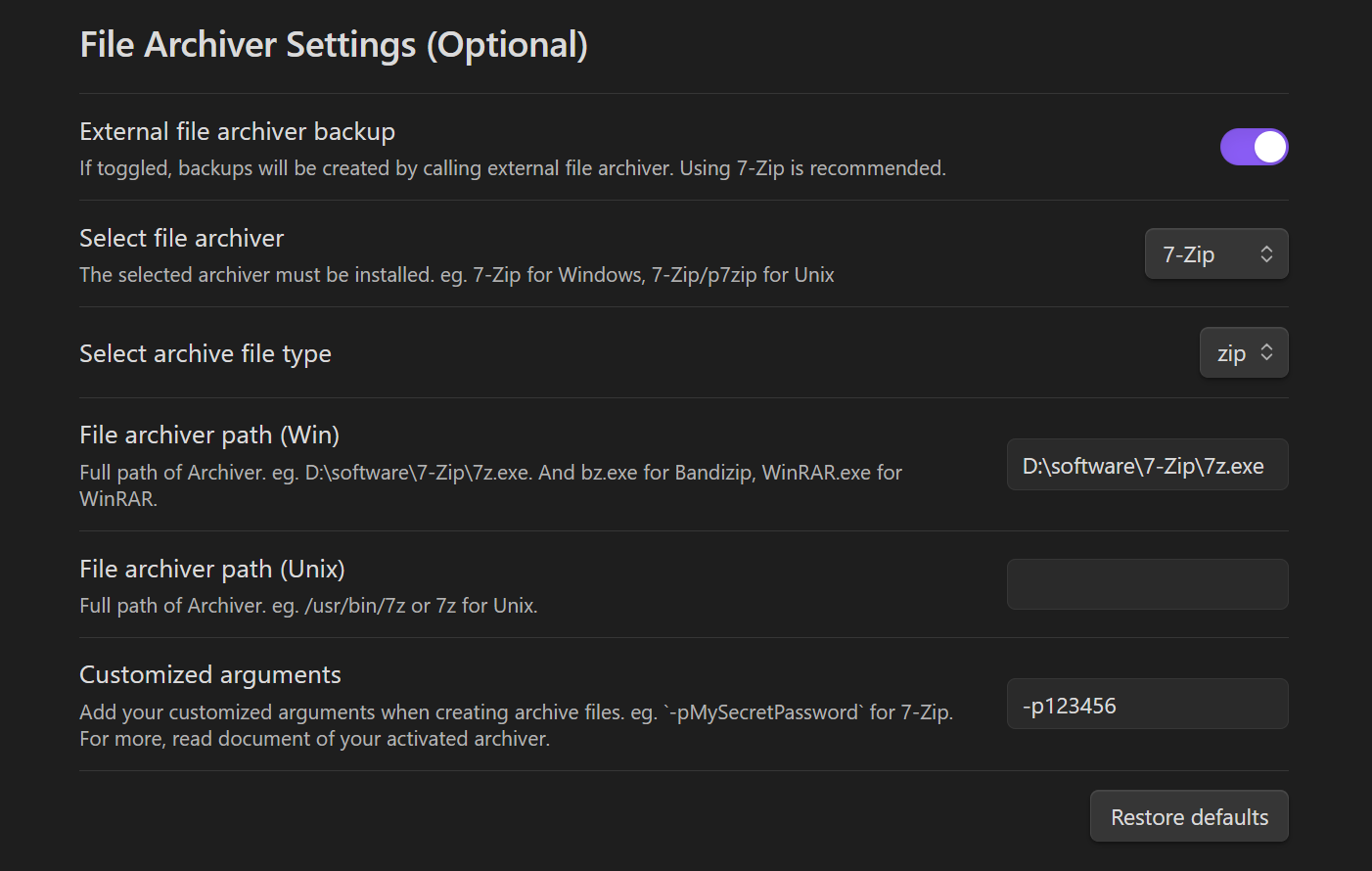
Hints
- (Experimental) If you have a large size vault and Obsidian stucks on backing up, please try the experimental feature in setting page.
For user who owns a vault with large size, it is recommended to turn on
External file archiver backupin setting page, the experimental feature of the latest version, then setup the rest of settings of archiver.
Run a local backup command
Command panel
Enter the command panel using Ctrl + P.

Create a specific backup
As you can see in the command panel screenshot above, you are available to create a specific backup file if you want to keep the file. The file created by this command would not delete by the plugin. But you have to name it different from the File name setting. (eg. File name: dev-Backup-%Y_%m_%d-%H_%M_%S, and your specific file name should not be the same format as File name).
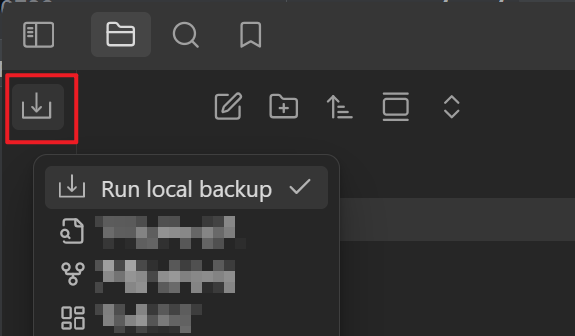
Sidebar icon
Click the sidebar icon.
Installation
Install from plugin store
- Search
Local Backupat Obsidian Community Plugins and install it. - Enable
Local Backup. - Setup
Local Backup. - Apply settings or restart Obsidian.
- Enjoy! 🎉
Manually installing the plugin
- Copy over
main.js,styles.css,manifest.jsonto your vaultVaultFolder/.obsidian/plugins/your-plugin-id/. - Open Obsidian and enable
Local Backup. - Follow the guiding above.
Contributing
Build
Code contributing is welcome! Just make a PR to master branch directly:)
- Clone this repo.
- Make sure your NodeJS is at least v16 (
node --version). npm ioryarnto install dependencies.npm run devto start compilation in watch mode.npm run buildto build themain.jsin./build.
Reference
Sponsor this project
You could consider buy me a coffee if the plugin saves your time!

License
Obsidian Local Backup is licensed under the MIT license. Refer to LICENSE for more information.
For plugin developers
Search results and similarity scores are powered by semantic analysis of your plugin's README. If your plugin isn't appearing for searches you'd expect, try updating your README to clearly describe your plugin's purpose, features, and use cases.