by Axe
Open local HTML files in a full browser view, keeping scripts, styles and interactivity intact instead of stripping them.
Local HTML View
Open .html and .htm files stored in your vault as fully working pages, without
leaving Obsidian.
Most HTML readers sanitize the page before showing it: they strip <script> tags and
external scripts for safety. That is fine for a saved article, but it breaks any page
whose content or interactivity is produced by JavaScript. A dashboard, a generated
index, a D3 or Chart.js figure, a Mermaid export, a reveal.js deck all open as a blank
or dead page.
This plugin renders the file the way a browser would. Scripts run, stylesheets apply,
<canvas> draws, and click handlers respond.
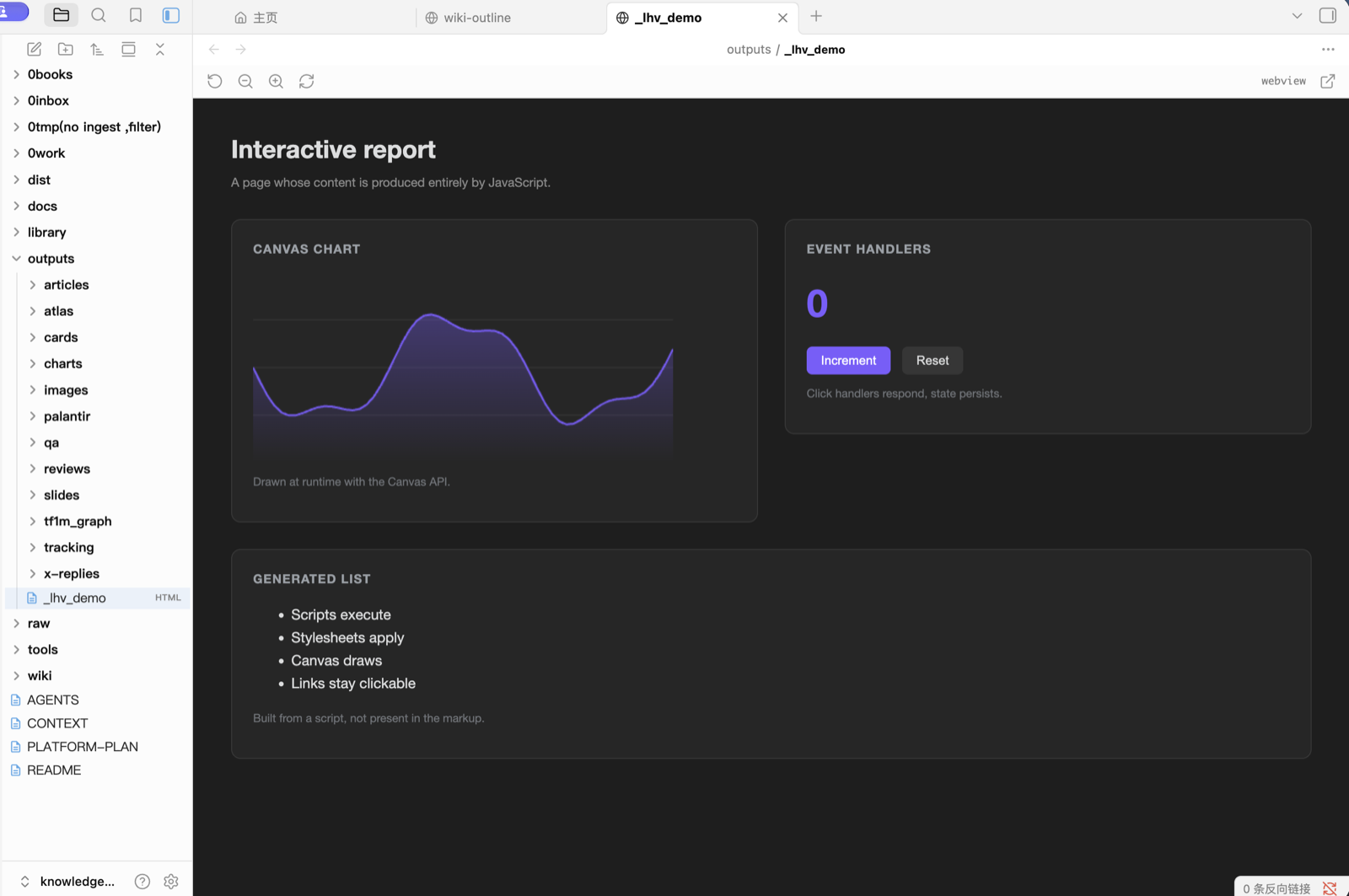
The page above is demo/interactive-report.html from this repository. Nothing in it
exists in the markup: the chart is drawn with the Canvas API, the counter is wired to
click handlers, and the list is built by a script. Copy it into a vault to check the
plugin on your own setup.
Usage
Click any .html or .htm file in the file explorer. It opens in a normal Obsidian
tab with a small toolbar for reloading, zooming, and opening the page in your default
browser.
Links inside the page that point to obsidian://, http://, https:// or mailto:
are handed to your operating system, so obsidian://open?... deep links jump back to
the right note in your vault.
Commands
- Toggle render mode between webview and iframe
- Take over HTML files reclaims
.htmland.htmif another plugin registered them
Settings
- Always use iframe forces the iframe renderer, useful if a page misbehaves in the webview
- Take over HTML files performs the same reclaim action as the command
How it works
The page loads in an Electron <webview>, which is a separate renderer process, over a
file:// URL. When Always use iframe is on it falls back to an <iframe> loaded
over Obsidian's own app:// resource protocol.
Two details are worth knowing if you read the source:
- A webview cannot resolve Obsidian's privileged
app://protocol, because it does not share the main window's session. It has to usefile://. - An iframe has the opposite constraint. It lives inside the main window, where
file://is blocked by the content security policy, so it has to useapp://.
The plugin claims the .html and .htm extensions at load, again once the layout is
ready, and once more two seconds later, to win against other HTML plugins that register
later. After that it stops. There is no polling and no persistent timer. The original
extension owners are restored when the plugin unloads.
Compatibility
Desktop only. The webview renderer is an Electron element, so the plugin declares
isDesktopOnly.
If you also use another plugin that handles HTML files, only one of them can own the extension. Run Take over HTML files to switch back to this one, or disable the other plugin.
Disclosures
- Files outside the vault. The plugin only loads the file you open, and that file lives in your vault. A page can reference resources outside the vault, exactly as it would in a browser, because it is rendered as a real page.
- Network use. The plugin itself makes no network requests. A page you open can, if its own markup or scripts reference remote resources. This is inherent to rendering HTML faithfully, so only open pages you trust.
- No telemetry, no ads, no account, no payment.
Security
Rendering HTML faithfully means the page's own scripts execute. Treat an HTML file the same way you would treat opening it in your browser, and do not open files from sources you do not trust.
Installation
From the community directory
Search for Local HTML View under Settings -> Community plugins -> Browse.
Manual
Copy main.js, manifest.json and styles.css into
<vault>/.obsidian/plugins/local-html-view/, then enable the plugin in
Settings -> Community plugins.
License
MIT. See LICENSE.
For plugin developers
Search results and similarity scores are powered by semantic analysis of your plugin's README. If your plugin isn't appearing for searches you'd expect, try updating your README to clearly describe your plugin's purpose, features, and use cases.