Local LLM Hub
approvedby TAKESHI MORITA
Chat with local LLMs (Ollama, LM Studio) with local embeddings RAG, file encryption, edit history, slash commands, and workflow automation. - This plugin has not been manually reviewed by Obsidian staff.
Local LLM Hub for Obsidian
Your company's security policy blocks cloud APIs. But you refuse to give up AI-powered note automation.
Local LLM Hub brings the full power of Gemini Helper's workflow automation, RAG, MCP integration, and agent skills to a completely local environment. Ollama, LM Studio, vLLM, or AnythingLLM — your data never leaves your machine.
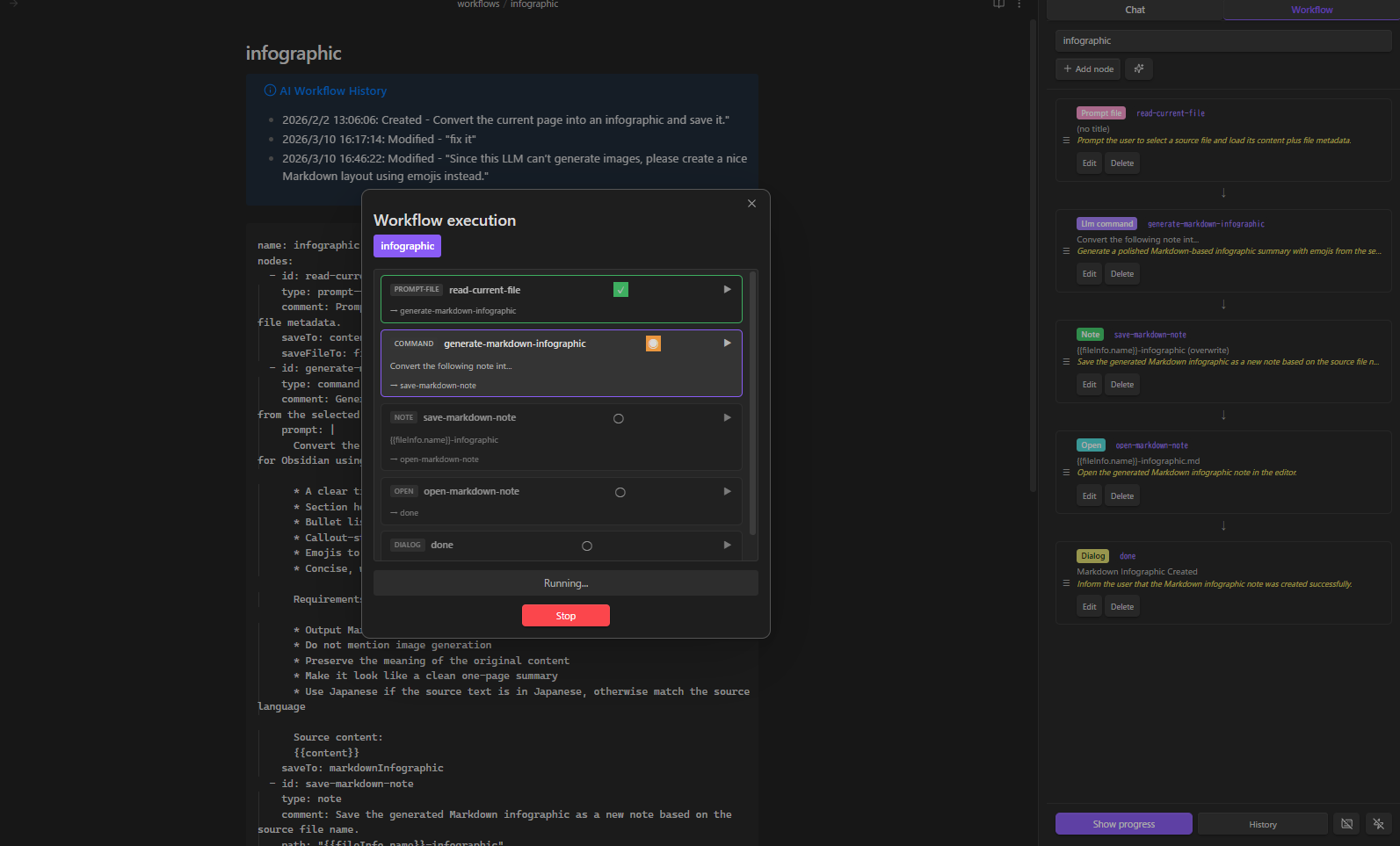
Why Local?
Every byte stays on your machine. No API keys sent to the cloud. No vault contents uploaded anywhere. This isn't a privacy "option" — it's the architecture.
| What | Where it stays |
|---|---|
| Chat history | Markdown files in your vault |
| RAG index | Local embeddings in workspace folder |
| LLM requests | localhost only (Ollama / LM Studio / vLLM / AnythingLLM) |
| MCP servers | Local child processes via stdio |
| Encrypted files | Encrypted/decrypted locally |
| Edit history | In-memory (cleared on restart) |
If you use Gemini Helper at home but need something for work — this is it. Same workflow engine, same UX, zero cloud dependency.
Workflow Automation — The Core Feature
Describe what you want in plain language. The AI builds the workflow. No YAML knowledge required.
Create Workflows & Skills with AI
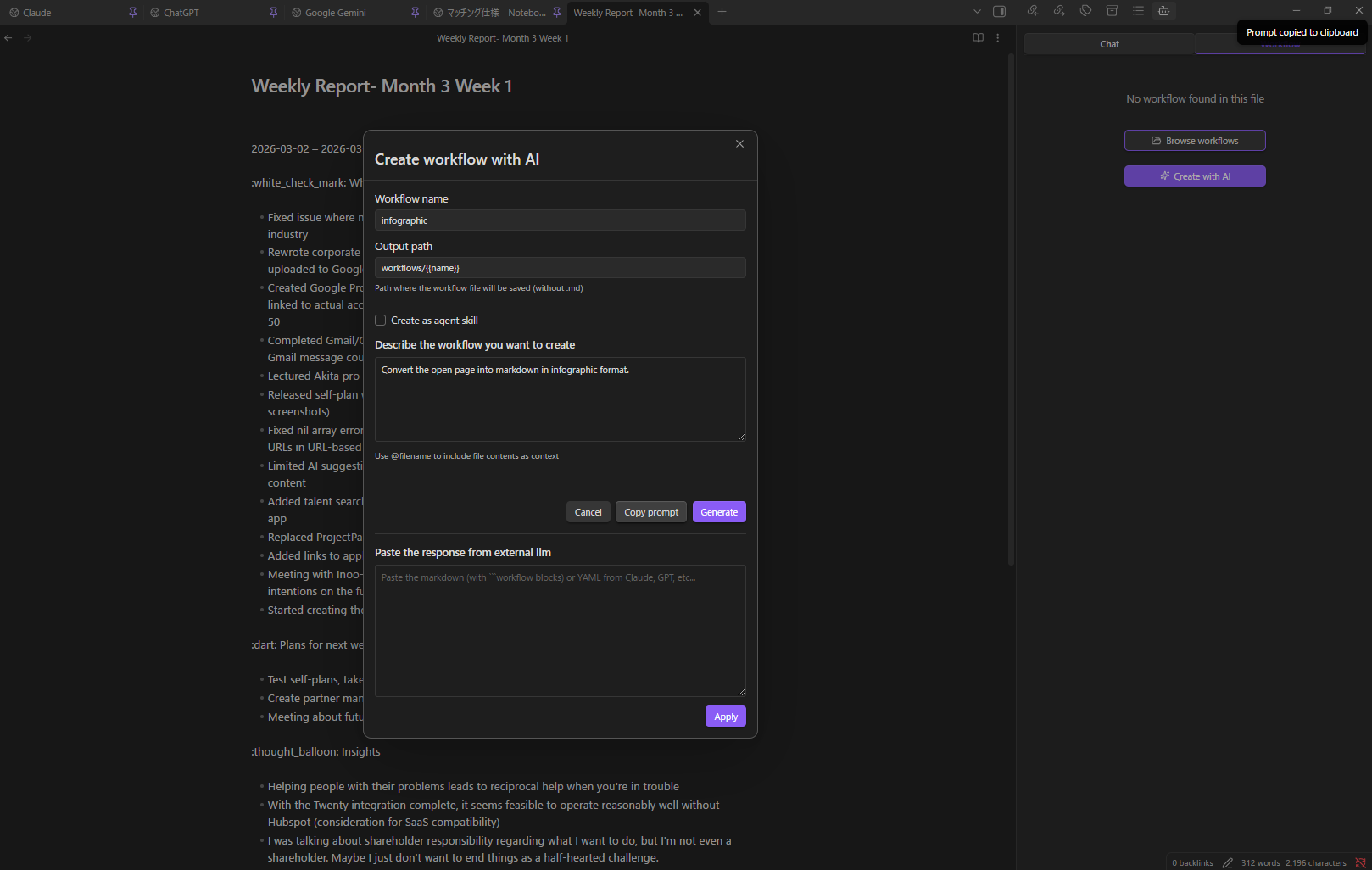
- Open the Workflow / skill tab
- Click Create workflow with AI (or Create skill with AI for an agent skill)
- Describe: "Convert the current page into an infographic and save it"
- Click Generate
- The AI produces a plain-language plan first — review it and click OK to proceed, Re-plan to give feedback and regenerate the plan, or Cancel to abort
- After generation, the AI runs a review over the result. If issues are found you can OK (with a confirmation prompt), Refine (regenerate using the review feedback), or Cancel. Clean reviews proceed automatically
- If the LLM produces invalid YAML, the plugin automatically re-prompts it with the parse error (up to 2 retries) before surfacing a recoverable failure view with the raw output
- The workflow is saved once you accept the final preview
Don't have a powerful local model? Click Copy Prompt, paste into Claude/GPT/Gemini, paste the response back, and click Apply.
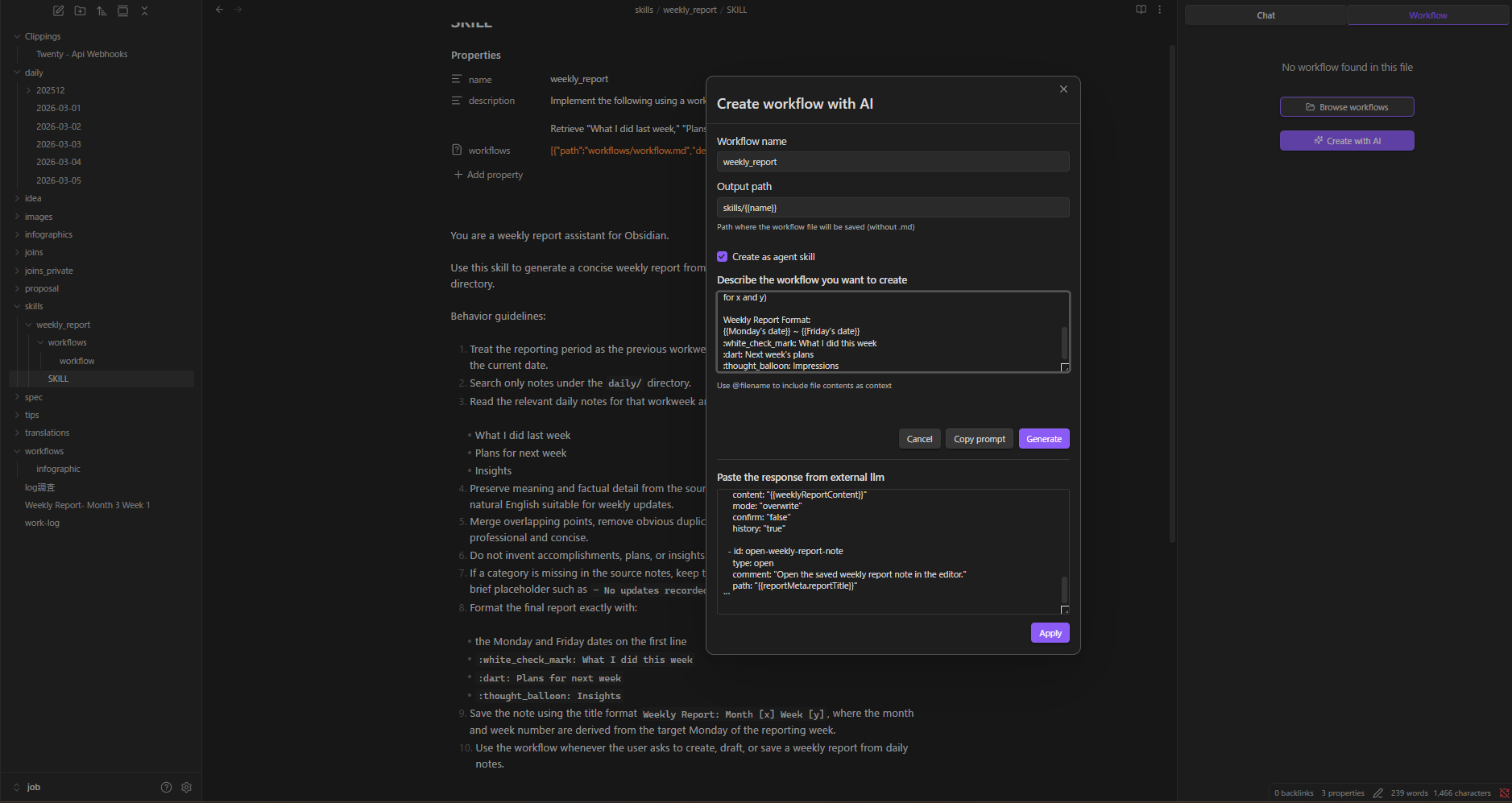
Create workflow / skill from any file:
When opening the Workflow / skill tab with a file that has no workflow code block, separate Create workflow with AI and Create skill with AI buttons are displayed. The header of an active SKILL.md also exposes Create skill with AI alongside Modify skill with AI so you can spin up a new skill without leaving the panel.
Modify with AI
Load any workflow, click AI Modify, describe the change. The same plan → generate → review flow runs. You can Refine the review result as many times as you want; each Refine triggers a new generation pass and a fresh review so the review always matches the final YAML. Reference execution history to debug failures.
Modify Skill with AI: When the active file is a SKILL.md, the Workflow / skill tab shows a Modify skill with AI button. It updates the SKILL.md instructions body and the referenced workflow file in a single pass, preserving the skill's frontmatter (name, description, workflow entries).
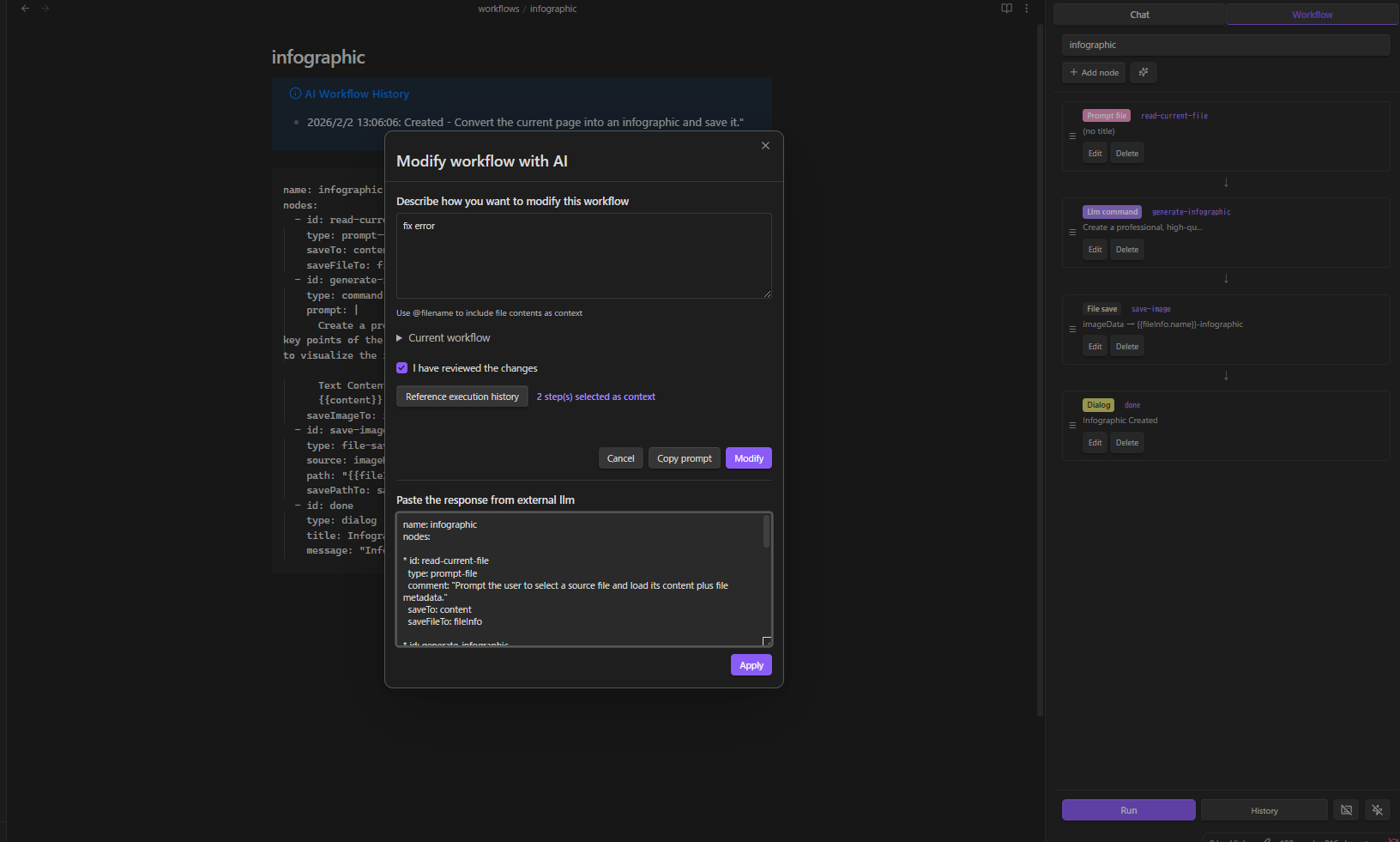
Visual Node Editor
23 node types across 12 categories:
| Category | Nodes |
|---|---|
| Variables | variable, set |
| Control | if, while |
| LLM | command |
| Data | http, json |
| Notes | note, note-read, note-search, note-list, folder-list, open |
| Files | file-explorer, file-save |
| Prompts | prompt-file, prompt-selection, dialog |
| Composition | workflow (sub-workflows) |
| RAG | rag-sync |
| Script | script (sandboxed JavaScript) |
| External | obsidian-command |
| Utility | sleep |
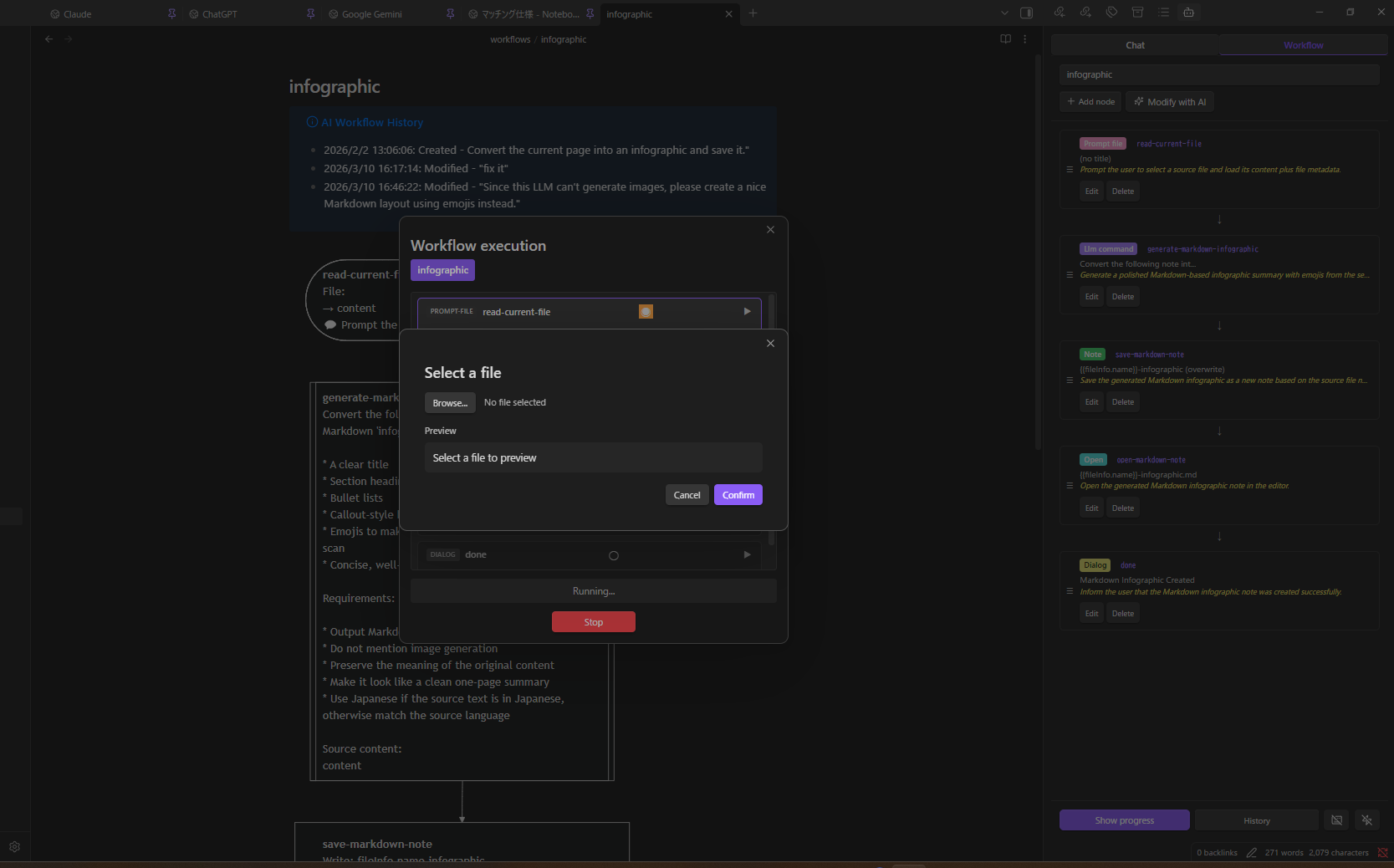
Event Triggers & Hotkeys
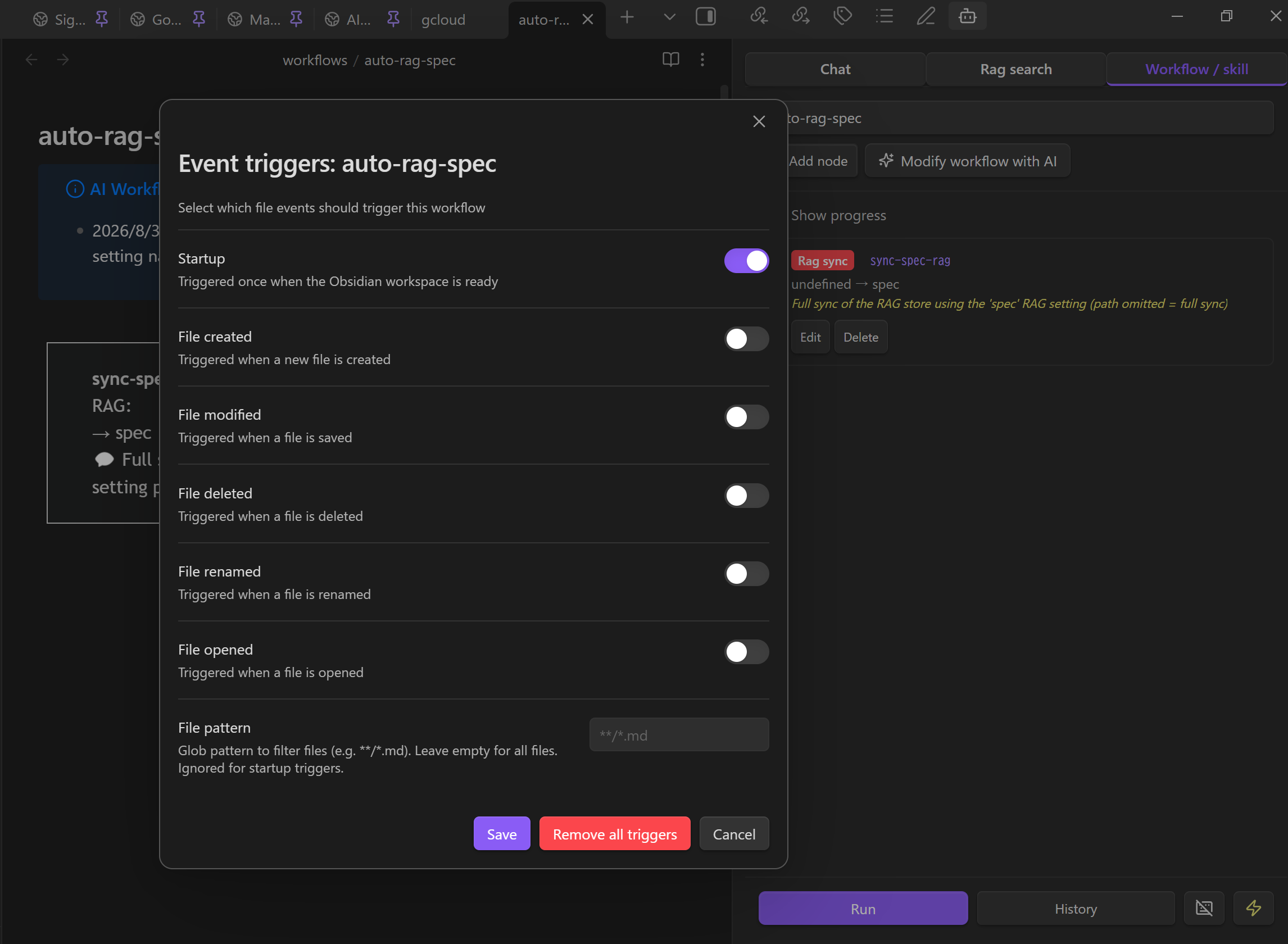
- Event triggers — auto-run workflows on startup or file create / modify / delete / rename / open
- Hotkey support — assign keyboard shortcuts to any named workflow
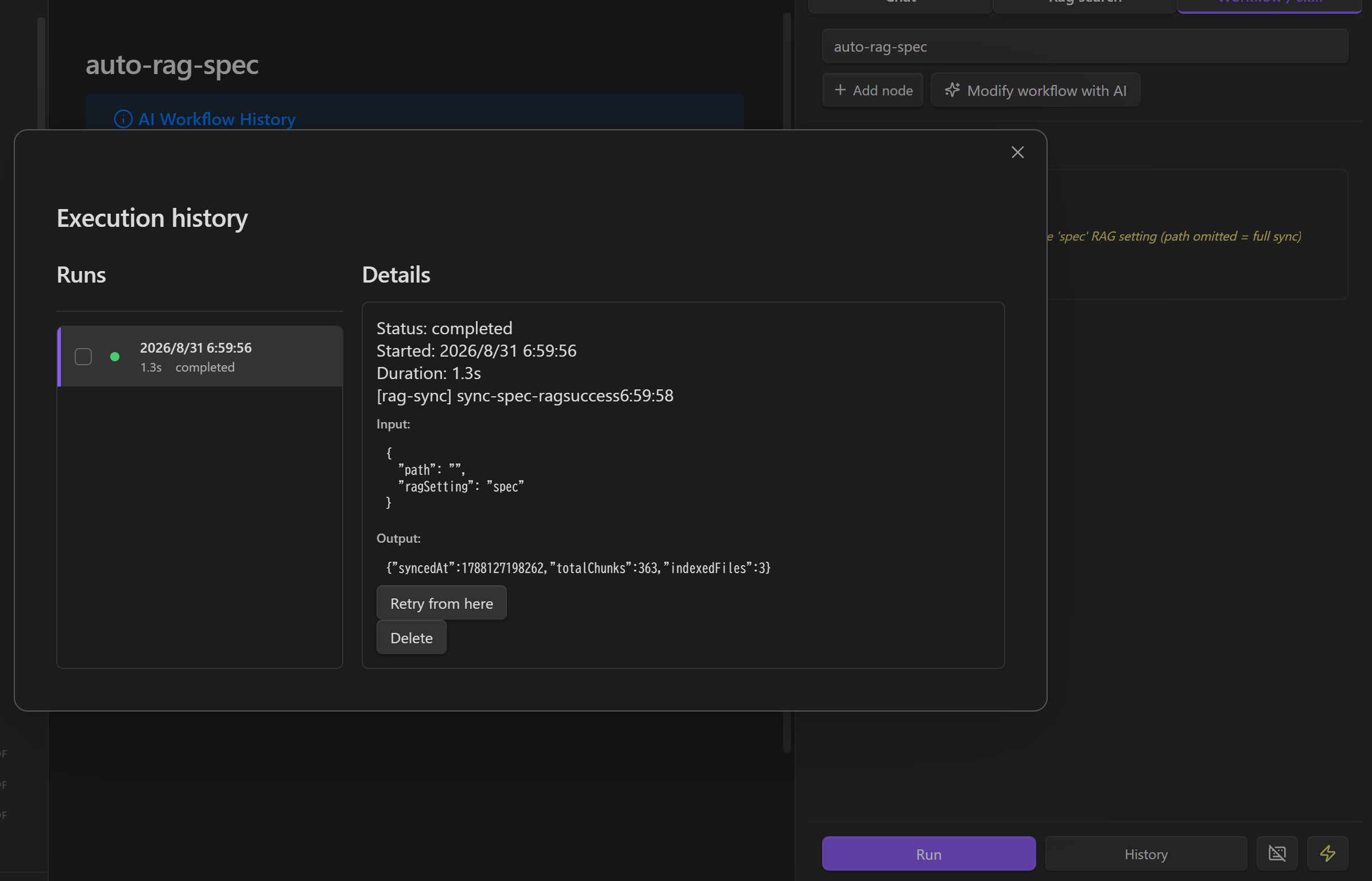
- Execution history — review past runs with step-by-step details
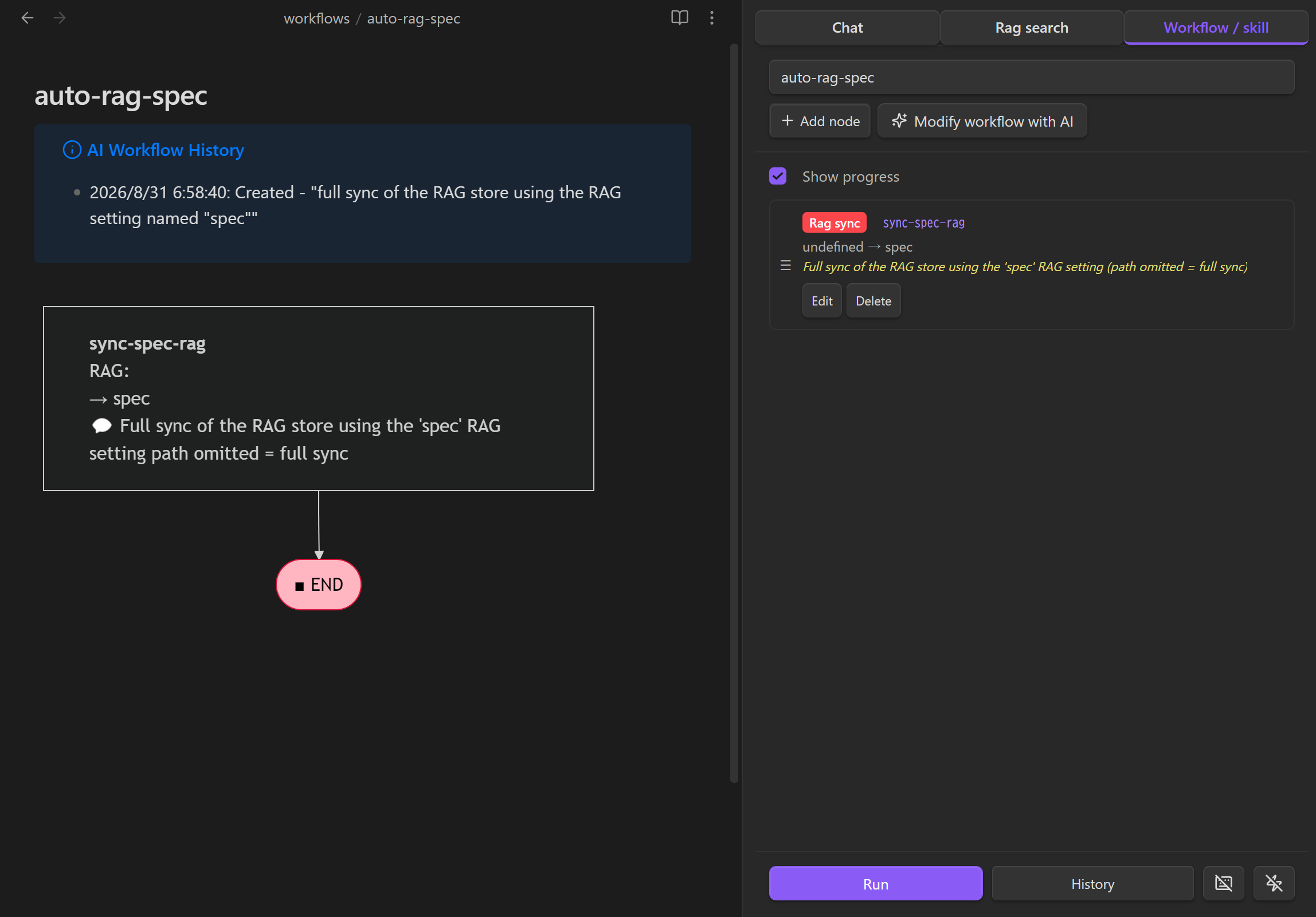
Example: Sync a RAG Index on Startup
Create a workflow with a rag-sync node, select the RAG setting you want to update, and leave the path empty to run a full sync.
Open Configure event triggers, enable Startup, and save. The workflow will run once the Obsidian workspace is ready.
Use History to confirm that the sync completed and to review its input, output, and duration.
See the OKF workflow node reference at docs/okf/local-llm-hub-help/features/workflow-nodes.md.
Dashboard Hub Integration
Dashboard functionality is provided by the separate Dashboard Hub plugin. When both plugins are enabled, Local LLM Hub supplies its configured models, Chat handoff, Base generation, text rewriting, and Workflow generation/execution. Dashboard Hub also contributes its dashboard Agent Skill to Local LLM Hub at runtime.
Existing .dashboard files remain compatible. See the Dashboard Hub documentation for dashboard features, widgets, storage, and schema.
Discussion Hub Integration
Discussion Hub brings multiple AI providers into a shared conversation. When both plugins are enabled, Local LLM Hub automatically registers its configured text models with Discussion Hub. Responses are streamed into the discussion, and message attachments and the discussion system prompt are passed through to the selected model.
Configure your LLM server and models in Local LLM Hub, then select a Local LLM Hub model when creating or editing a Discussion Hub discussion. No additional integration settings are required.
AI Chat
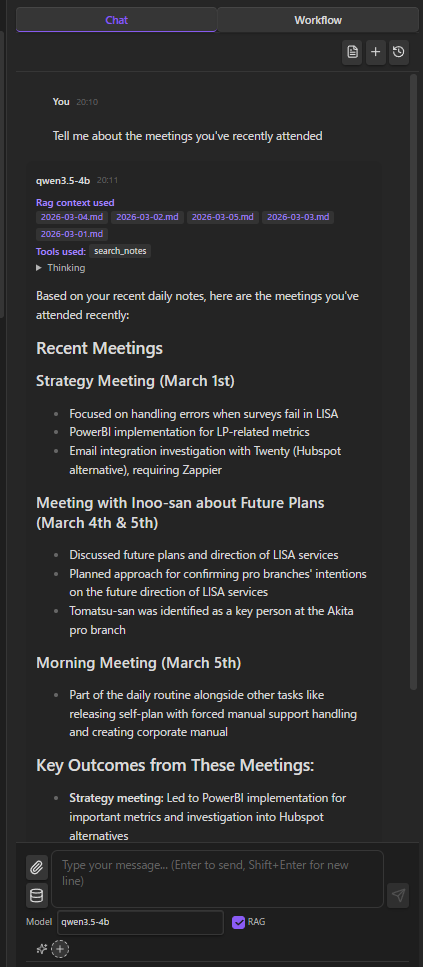
Streaming chat with your local LLM. Thinking display, file attachments, @ mentions for vault notes, multiple sessions.
The header includes an expand/shrink control for the sidebar and a Save as note action. Manual exports use YYYYMMDD-HHmmss_Chat title.md, contain compact conversation content without history metadata, and overwrite the same chat's export when saved again.
Voice Input and Read-Aloud
Read answers aloud — Turn on Read responses aloud in the Vault tool menu. While it is on, a chip above the input says so and its ✕ switches it off. Each assistant bubble also has a speaker button to read that answer on demand, or stop one mid-sentence. Reading speed is adjustable right under the switch, and in Settings → Chat (0.5x to 5x; how fast a voice actually goes varies by voice - Windows voices typically stop speeding up past about 4x). While reading is on, the system prompt asks the model for a short spoken answer instead of Markdown, headings, lists, code or URLs.
Send dictated text — Turn on Send dictated text automatically in Settings to submit when pasted or dictated text ends with the send phrase (send it in English, editable per language). It works with OS dictation, Aqua Voice and similar tools.
Voice conversation — Install speech-popup and a microphone button appears above the send button. It always just opens the popup, so a popup you closed is one click away. While a conversation runs:
- Speak, then send from the popup. speech-popup marks what it pastes with
⟦voice-chat⟧(show --append), so the chat submits it as your message; an ordinary clipboard paste is left in the composer, and so is one that arrives while an answer is still being generated. - The answer is read aloud (turned on with the conversation), and the popup reopens about 2.5 seconds after the reading stops, so your own speech is not recorded back.
- Turning read-aloud off with its chip keeps the conversation going: the popup still reopens after each answer, silently.
- To finish: say the send phrase without dictating anything else (
I'm done speakingby default). speech-popup closes as it always does, the chat receives an empty turn and reads it as "I'm done", so nothing has to be clicked. Pressing Enter on an empty popup, the ✕ on the voice conversation chip, and opening another chat end it too. - Finishing leaves the popup open. What it pastes afterwards keeps its words and loses the marker: the text lands in the composer without being sent, which is how you dictate a long message in several parts and send it yourself.
- If Obsidian's PATH does not find the app, set the full path in Settings → Chat → speech-popup command. Failures are reported with the command and its own error.
- On Flatpak Obsidian, allow the host portal once with
flatpak override --user --talk-name=org.freedesktop.Flatpak md.obsidian.Obsidian, then set the binary's full host path (for example/home/you/.local/bin/speech-popup) as the command above; the plugin sends its commands throughflatpak-spawn --host. Snap has no equivalent portal - use the AppImage or the Flatpak.
Watch the voice conversation demo on YouTube
Vault Tools (Function Calling)
Models with function calling support (Qwen, Llama 3.1+, Mistral) can directly interact with your vault:
read_timeline · read_note · create_note · update_note · rename_note · create_folder · search_notes · list_notes · list_folders · get_active_note · propose_edit · execute_javascript
Three modes — All, No Discovery, Off — selectable from the input area.
In Settings -> Workspace -> LLM vault tool folders, you can restrict LLM vault tools and LLM-triggered skill workflows to selected vault-relative folders. Leave it empty to allow the whole vault. This setting is separate from the RAG index folders setting and does not restrict RAG, manual attachments, @note mentions, MCP tools, or scripts.
The chat input's Vault tool menu controls only the model's built-in Vault tools. Vault: no discovery disables search_notes and list_notes, avoiding slow, token-heavy Vault exploration while keeping direct access to explicitly referenced/current notes. It does not disable RAG; use the separate RAG toggle to control retrieval from the RAG index.
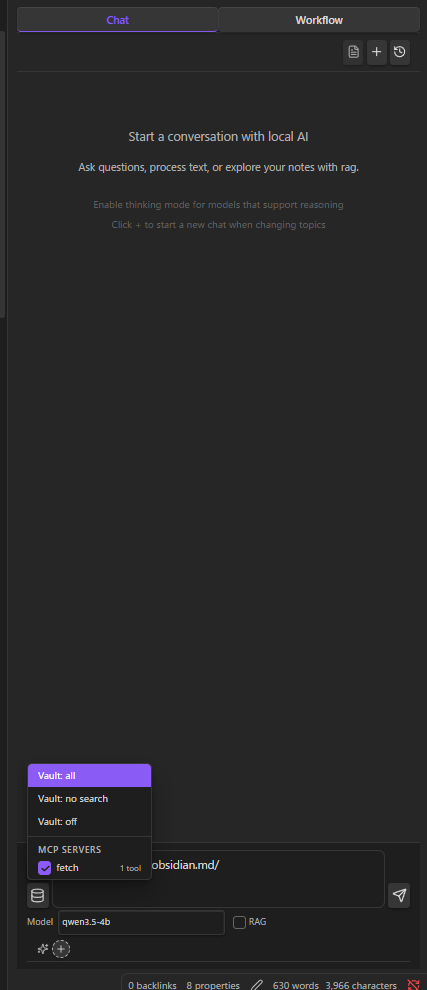
Vault: read only allows search and reading while blocking built-in tools that create, edit, delete, or rename files and folders. Select it in the chat Vault tool menu or a slash command. External MCP and skill tools retain their own permissions.
MCP Servers
Connect local MCP servers to extend the AI with external tools. MCP tools are merged with vault tools and routed via function calling — all running as local child processes.
Agent Plugins can contribute stdio MCP servers alongside namespaced skills. A tested plugin-managed server stays disabled normally and is started only for a chat turn where a skill from the same enabled package is active.
RAG (Local Embeddings)
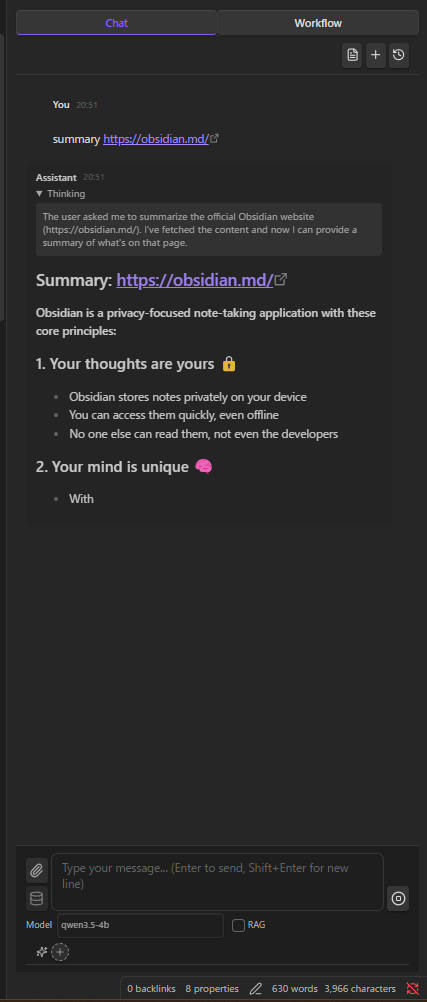
Index your vault with a local embedding model (e.g. nomic-embed-text). Relevant notes and PDFs are automatically included as context. PDF text is extracted via PDF.js and chunked alongside Markdown files. Everything computed and stored locally.
RAG Search
A dedicated search interface for semantic vector search with keyword filtering, chunk editing, and AI-powered refinement.
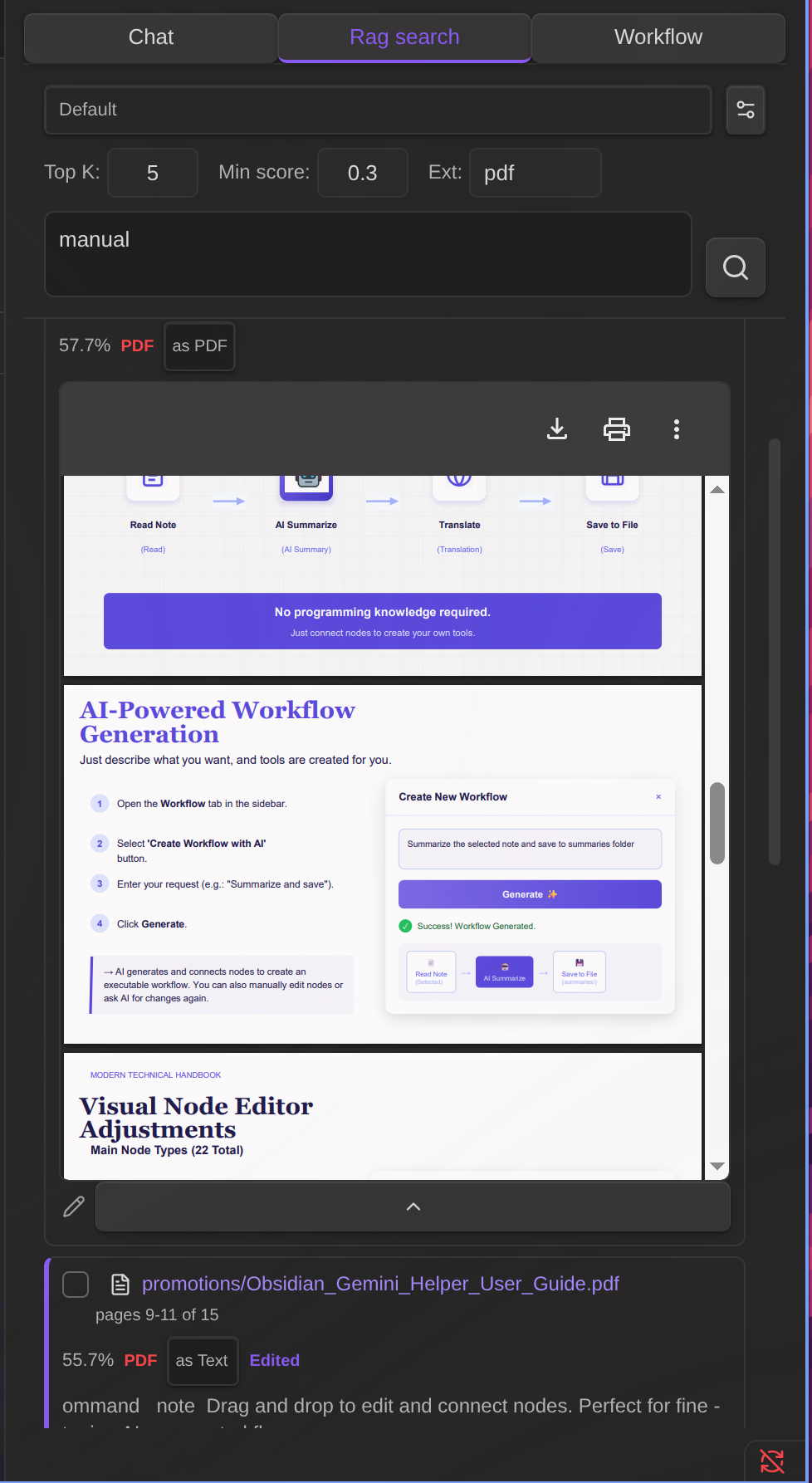
- Keyword filter — Narrow semantic search results by text or file path
- Chunk editor — Edit result text, load adjacent chunks with automatic overlap removal
- AI refine — Automatically expand context and clean up text using your local LLM
See the OKF RAG Search reference at docs/okf/local-llm-hub-help/features/rag-search.md.
Agent Skills
Inject reusable instructions into the system prompt via SKILL.md files. Activate per conversation. Skills can also expose workflows that the AI can invoke as tools during chat.
Create skills the same way as workflows — click Create skill with AI in the Workflow / skill tab and describe what you want. The AI generates both the SKILL.md instructions and the workflow. To edit an existing skill, open its SKILL.md and click Modify skill with AI in the Workflow / skill tab — the AI updates both the instructions body and the referenced workflow together.
Clickable skill chips: Active skill chips in the chat input area and on assistant messages are clickable and jump to the matching SKILL.md (built-in skills are shown as static labels).
Workflow error recovery: If a skill workflow fails during a chat, the failing tool call shows an Open workflow button. Clicking it opens the workflow file and switches to the Workflow / skill tab so you can immediately edit and re-run. Use Modify workflow with AI together with Reference execution history to let the AI fix the failing step.
Agent Plugins: Open Settings → Agent plugins, enter owner/repository or a public GitHub URL, and preview the Agent Plugin v1.0.0 package before installation. Packages are pinned to the reviewed commit and stored under .local-llm-hub/agent-plugins/; persistent package data is stored separately under .local-llm-hub/agent-plugin-data/. Installed skills appear as <plugin>.<skill>.
Plugin stdio MCP entries support ${PLUGIN_ROOT} and ${PLUGIN_DATA}. Local LLM Hub validates commands, arguments, environment variables, working directories, symlinks, paths, and package sizes before use. Successfully tested servers are activated only while a skill from the same enabled plugin is active.
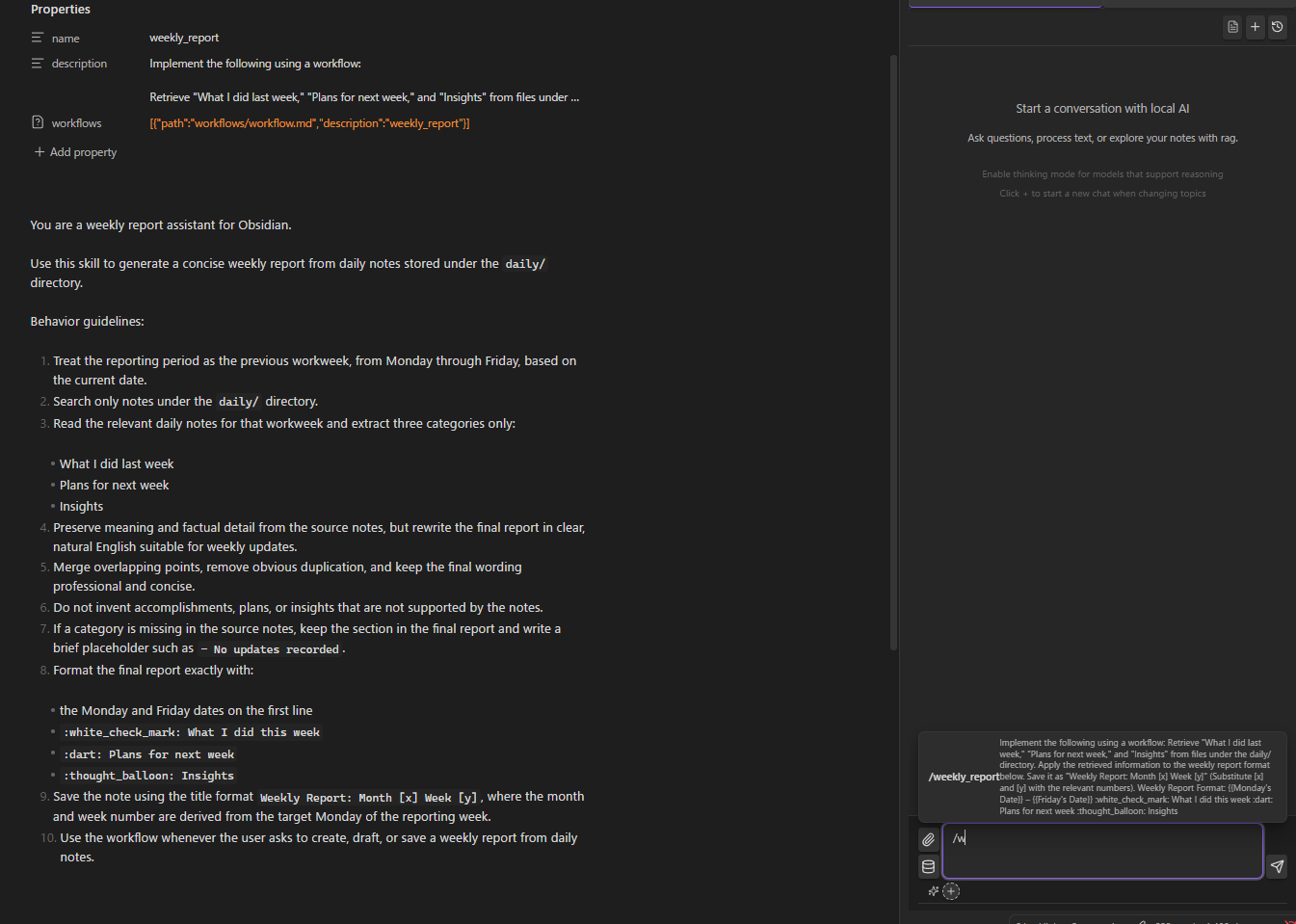
See the OKF agent skills reference at docs/okf/local-llm-hub-help/features/agent-skills.md.
Slash Commands & Compact History
- Custom prompt templates triggered by
/ /compactto compress long conversations while preserving context
File Encryption
Password-protect sensitive notes. Encrypted files are invisible to AI chat tools but accessible to workflows with password prompt — ideal for storing API keys or credentials.
Edit History
Automatic tracking of AI-made changes with diff view and one-click restore.
Setup
Requirements
- Ollama, LM Studio, vLLM, or AnythingLLM
- A chat model (e.g.
ollama pull qwen3.5:4b) - For RAG: an embedding model (e.g.
ollama pull nomic-embed-text)
Quick Start
- Install and start your LLM server
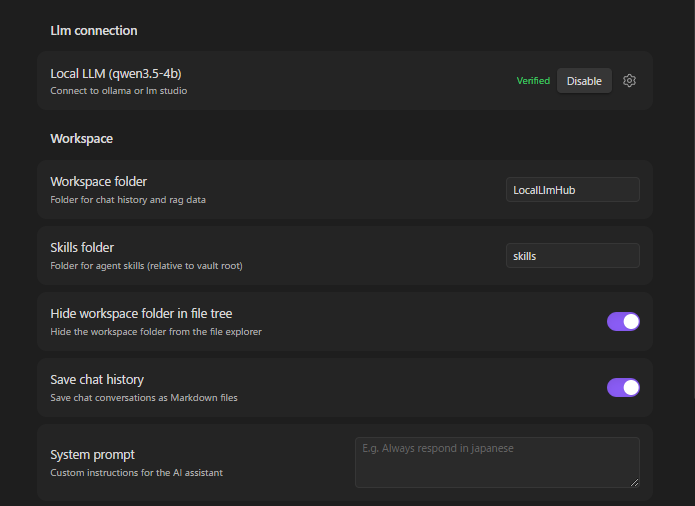
- Open plugin settings → select framework (Ollama / LM Studio / vLLM / AnythingLLM)
- Set the server URL (defaults pre-filled)
- Fetch and select your chat model
- Click Verify connection
The plugin data folder (chat history, RAG indexes, and workflow history) and the agent skills folder can both be changed under Settings → Workspace. Paths are relative to the vault; changing an existing folder moves its contents to the new location.
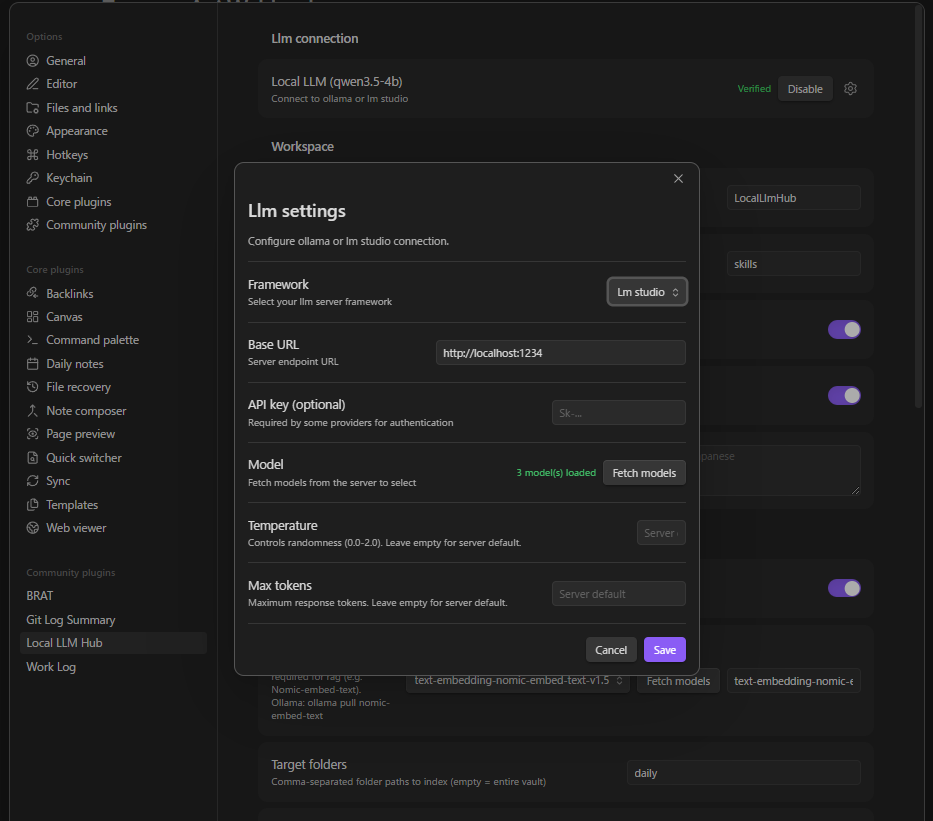
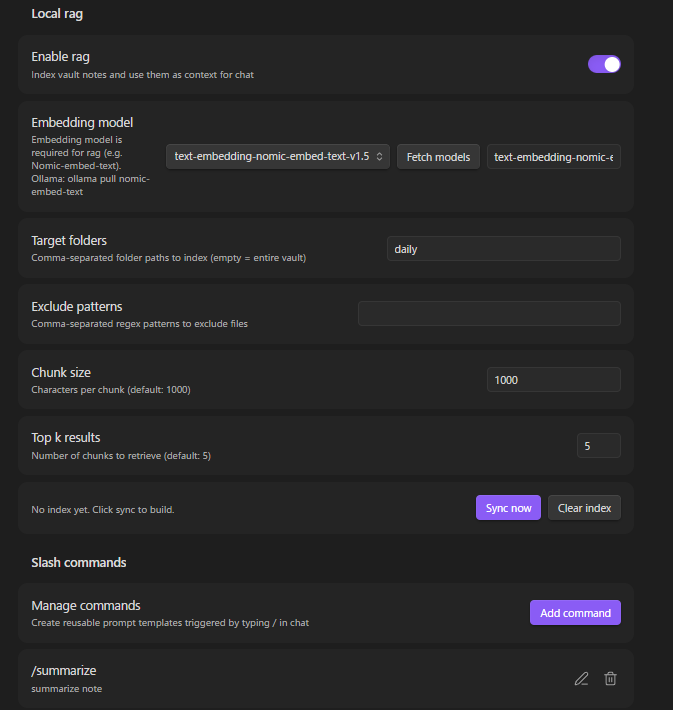
RAG Setup
- Enable RAG in settings
- Fetch and select the embedding model
- Configure RAG index folders (optional — defaults to entire vault; this does not restrict Vault tools)
- Click Sync to build the index
For Ollama, enter the server root URL as http://localhost:11434. Do not append /v1; the plugin adds the required API paths automatically. A trailing slash is optional.
For large vaults, create multiple RAG settings for separate folders, sync each one, then create another RAG setting and enable Combine internal RAG settings. Select the synced source settings to search them together from one chat/search selector. Combined settings use the embedding server and model from the first selected source setting.
During sync, changed files are processed and saved in small file batches so large first-time indexes can recover from an Obsidian crash without starting over. This is separate from the RAG chunk size setting. If a PDF cannot be extracted, it is listed after sync, its checksum is saved, and it appears in the indexed file list with 0 chunks. It will not be retried on later syncs unless the PDF file changes. To force re-import, rename the PDF, modify the file, or clear/rebuild the RAG index.
You can also enable Use external index and enter one external index directory per line. Each directory must contain rag-index.json and rag-vectors.bin.
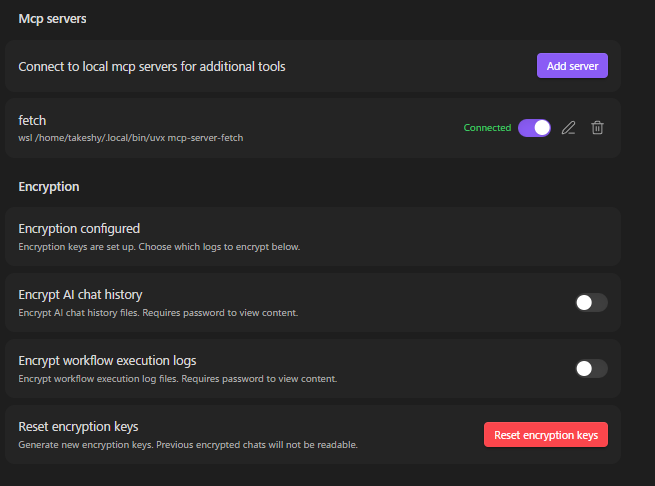
MCP Server Setup
- Settings → MCP servers → Add server
- Configure: name, command (e.g.
npx), arguments, optional env vars - Toggle on — connects automatically via stdio
Portable Agent Plugin MCP servers are managed from Settings → Agent plugins instead of being added manually. Package updates are reviewed and installed as a new commit-pinned version.
Tool approval: Calls require approval by default. The dialog shows the server, tool, and arguments and offers Allow once, Always allow this tool, and Deny. Closing it denies the call. Enable Always approve in a server’s settings to skip all confirmations, or remove a tool from its allowed list and save to require approval again. Servers not saved in MCP settings only support one-time approval.
Workflow command nodes accept confirm: "false" to skip MCP approval, including automatic execution. Set vaultTools: "readOnly" to limit built-in Vault tools to search and reading; the default remains noSearch. These options are available in the node editor. Local LLM Hub calls MCP through command nodes and has no standalone mcp node.
Workspace Settings
Use LLM vault tool folders to control which folders automatic LLM vault operations can access. An empty value allows the whole vault.
Automatic chat history can be limited to a maximum number of saved chats; 0 keeps all histories. Existing installations default to unlimited and new installations to 100.
Chat Settings
Set Manual chat save folder to a vault-relative destination for Save as note. Leave it blank to use the vault root.
Supported Frameworks
| Framework | Chat Endpoint | Streaming | Thinking | Function Calling |
|---|---|---|---|---|
| Ollama | /api/chat (native) | Real-time | message.thinking field | tools parameter |
| LM Studio (OpenAI compatible) | /v1/chat/completions | SSE | <think> tags | tools parameter |
| vLLM | /v1/chat/completions | SSE | <think> tags | tools parameter |
| AnythingLLM | /v1/openai/chat/completions | SSE | <think> tags | tools parameter |
Using Cloud LLMs (OpenAI, Gemini, etc.)
The "LM Studio (OpenAI compatible)" framework works with any OpenAI-compatible API endpoint, including cloud services:
| Service | Base URL | API Key |
|---|---|---|
| OpenAI | https://api.openai.com | Your OpenAI API key |
| Google Gemini | https://generativelanguage.googleapis.com/v1beta/openai | Your Gemini API key |
RAG with cloud LLMs: Cloud LLMs cannot use local embedding models directly. To use RAG, configure the Embedding server URL in RAG settings to point to a local Ollama instance (e.g. http://localhost:11434) and select an embedding model like nomic-embed-text.
Installation
BRAT (Recommended)
- Install BRAT plugin
- Open BRAT settings → "Add Beta plugin"
- Enter:
https://github.com/takeshy/obsidian-local-llm-hub - Enable the plugin in Community plugins settings
Manual
- Download
main.js,manifest.json,styles.cssfrom releases - Create
local-llm-hubfolder in.obsidian/plugins/ - Copy files and enable in Obsidian settings
From Source
git clone https://github.com/takeshy/obsidian-local-llm-hub
cd obsidian-local-llm-hub
npm install
npm run build
Gemini Helper との関係 / Relationship to Gemini Helper
This plugin is the local-only sibling of obsidian-gemini-helper. Same workflow engine, same UX patterns, but designed for environments where cloud APIs are not an option.
| Gemini Helper | Local LLM Hub | |
|---|---|---|
| LLM Backend | Google Gemini API / CLI | Ollama / LM Studio / vLLM / AnythingLLM / OpenAI-compatible APIs |
| Data destination | Google servers | localhost only |
| Workflow engine | ✅ | ✅ (same architecture) |
| RAG | Google File Search | Local embeddings |
| MCP | ✅ | ✅ (stdio only) |
| Agent Skills | ✅ | ✅ |
| Image generation | ✅ (Gemini) | — |
| Web search | ✅ (Google) | — |
| Cost | Free / Pay-per-use | Free forever (your hardware) |
Choose Gemini Helper when you want cutting-edge cloud models. Choose Local LLM Hub when privacy is non-negotiable.
For plugin developers
Search results and similarity scores are powered by semantic analysis of your plugin's README. If your plugin isn't appearing for searches you'd expect, try updating your README to clearly describe your plugin's purpose, features, and use cases.