Mastodon Threading
approvedby elpamplina
Compose and post threads to Mastodon.
mastodon-threading
Obsidian plugin to compose and post threads to Mastodon.
Introduction
Mastodon is a microblogging network (similar to Twitter), where users can publish text posts and optionally attach media such as pictures, audio, video, or polls. It also lets you follow friends and discover new ones.
Mastodon allows you to link responses together, one after another, to form a thread. Many users on this network, as has been done on Twitter before, use threads to post content that is longer than the limitations of the format would allow.
Making threads can be tedious, manually pasting text and images. This plugin allows you to leverage Obsidian's editing capabilities to prepare thread snippets and then send them to the Mastodon server automatically.
Features
This plugin can:
- Insert thread separators manually or automatically.
- Visualize the order of fragments and their size as they are typed.
- Add descriptions to images and other media to facilitate accessibility for people with visual impairments.
- Submit individual posts or entire threads directly to the Mastodon server, checking the size limitations and different types of visibility supported by the server.
Installation
This plugin is tested under Obsidian v1.7.7. It may not work with older versions.
To install Obsidian, download it from the official site and follow their instructions. Once you have Obsidian installed and created your vault, you can proceed to install the plugin.
Install from official repository (RECOMMENDED)
- Open settings -> Community plugins
- Disable Restricted mode
- Click Browse community plugins and search for "Mastodon Threading".
- Click Enable
Manual installation
- Download
main.js,manifest.jsonandstyles.cssfrom the releases page. - Create (if it doesn't exist) a folder
<path-to-obsidian-vault>/.obsidian/plugins/mastodon-threading/and copy in it the files. - Run Obsidian, open your vault, open Settings, and enable Mastodon Threading on the Community Plugins tab.
You can also install it with the BRAT plugin helper. Follow its instructions to get the plugin and enable it.
Build
To build the plugin, you need Node.js with NPM or similar manager installed in your computer. Clone the source, install all dependencies and build the plugin:
$ git clone https://github.com/elpamplina/mastodon-threading.git
$ cd mastodon-threading
$ npm install
$ npm run build
Settings
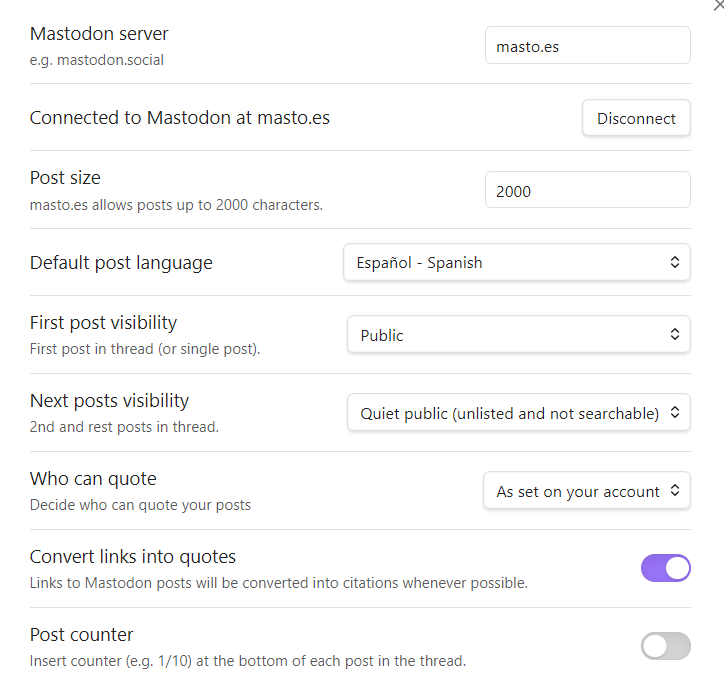
Connect to server
Before you use the plugin for the first time, you need to go into the settings to establish a connection to your Mastodon server.
As you know, Mastodon is a distributed network, which means that there are many servers (also known as instances) that collaborate by sending posts. To use the plugin, you need to connect to the server that your personal account lives on and give the plugin permissions to send posts.
If you don't know which server your personal account is, just look at the second part of your username. For example, if your name is @jane@example.org, then your server is example.org.
Type your server name in the box provided and press "Connect"
A browser window will open on your server, asking for your user credentials, and then for you to grant the following permissions to the plugin:
read:search: Search posts in the server to know if they can be quoted by you.write:media: Send multimedia attachments to the server.write:statuses: Post messages on your behalf.
Once permission is granted, the browser may ask you if you want to return to Obsidian, or you will be redirected automatically. It is necessary to return to Obsidian to store the authorization, and then it will be indicated that you are connected. The connection and authorization process is only necessary the first time you use the plugin. From then on, the plugin stores its credentials (not yours) securely until you press "Disconnect."
If the process fails, you can start it from the beginning as many times as necessary.
IMPORTANT: This plugin complies with the official Mastodon authentication guide. At no time does the plugin have access to your user credentials, nor does it store any personal information in any way, nor does it have access to your posts or your user profile. Nor does it collect any information from your account, not even that which is publicly accessible. The plugin stores in encrypted form only the tokens that the server sends to it using the secure OAuth protocol.
Other settings
- Post size: Sets the maximum post size that the plugin will send to Mastodon. By default, it is set to the maximum allowed by your server. This value is taken into account while editing the text, when preparing the submission, and also when using the auto-split command.
- Default post language: Language code that will be sent to the Mastodon server. By default, the same of the Obsidian interface is chosen.
- First post visibility: Sets the default visibility of the first post in the thread. This will be "public" by default.
- Next posts visibility: Sets the default visibility of the second and subsequent posts in the thread. This will be "quiet public" by default.
- Who can quote: Establish your policy so that others can quote your posts. By default, your Mastodon account preferences are followed.
- Convert links into quotes: If activated, the plugin will try to quote those links that correspond to Mastodon posts. If it is not possible to make the quote, due to the restrictions of the author of the post or for another reason, it will remain as a link. It is only possible to make one quote per post. If there are several possible quotes in the same post, only the first of them will be made and the rest will remain as links.
- Post counter: Sets whether to insert the fragment number at the end of each post (e.g.
[1/10]). By default, this is disabled.
For more information about quotes in Mastodon, refer to the official documentation.
Visibility
In Mastodon, visibility (aka publishing level) allows you to decide how your posts are published on the network:
- Public: The post is published on the local timeline (and possibly in the federated one) and can be read and searched publicly. This setting can be modified if you have activated the privacy options in your user profile.
- Quiet public: The post can be read by anyone, but it will not be in searches or published in timeline.
- Private: The post can only be read by your followers, and it will not appear in searches or timeline.
In Mastodon there is another visibility (direct), which is not supported by this plugin.
NOTE: Before using this plugin, please check your server's rules regarding posting. It is common that posting entire threads to the public to be considered disrespectful. This plugin recommends posting only the first post in the thread to the public. You must also follow the rest of the server rules regarding prohibited topics and content.
Usage
The plugin adds the following commands to the Obsidian's palette:
- Insert thread separator: Separators allow you to create fragments in the text, which will form the posts of the thread. The separator is inserted at the current cursor position.
- Insert thread separators automatically: Inserts separators in the active editor at sufficient intervals to not exceed the maximum size set. Separators are only placed between paragraphs, they do not break paragraphs in half. If you want to separate a paragraph, you can do it manually. This process is not perfect if there are very long paragraphs, or if the text has an unusual structure, so you will have to review the result and manually modify what did not turn out well.
- Remove all thread separators: In the active editor, all thread separators are removed. You can always remove them manually using the standard editor tools.
- Send to Mastodon: All fragments from the active editor are sent as a thread (or single post if there're no separators), checking first that the size and format are correct. Images are attached with descriptions (if available). If there's an active selection in the editor, only the selected text/attachments are sent.
The "Send to Mastodon" and "Insert thread separator" commands also appear in the context menu of the Obsidian editor.
The "Send to Mastodon" command also appears in the icons ribbon (if available).
Separators
Separators are the primary tool for composing threads. They are used to place text and images into chunks that will then be sent as posts in the thread.
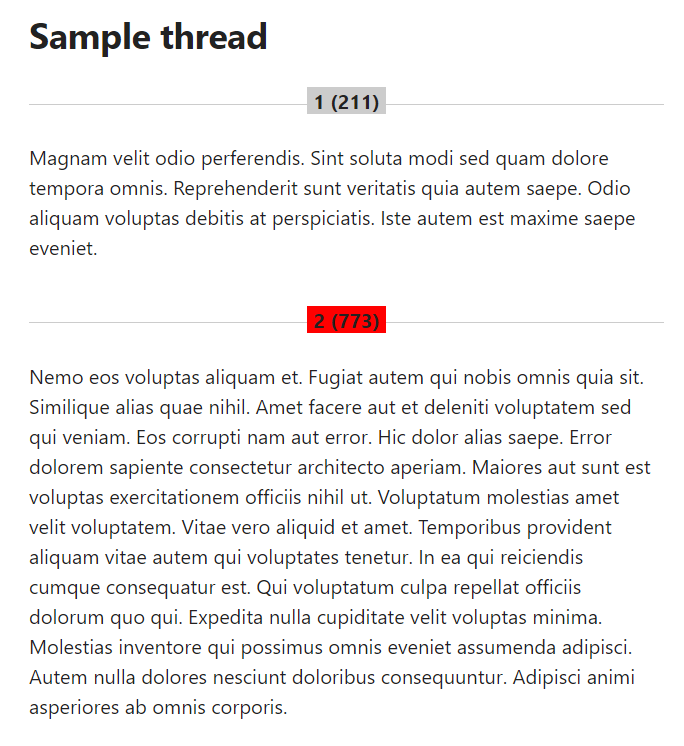
In Obsidian's edit mode, separators are displayed as horizontal lines with a chunk counter and a character counter.
When the maximum size is exceeded, this is indicated visually by turning the counters red.
In Obsidian's view mode, separators appear as simple horizontal lines with no counter.
When the plugin is disabled, or when copying text somewhere outside the vault, separators are displayed with the typographical paragraph symbol (§).
Media attachments
The plugin manages the images, videos and other media that are supported by the Mastodon server. In addition to the limitations in the number of files, their types and sizes, the Mastodon protocol also prohibits mixing videos and images in the same post, as well as add more than one video in the same post.
The plugin takes into account all this and, in the event that some attachment does not meet the limitations of the server, an error message is shown BEFORE starting to send the thread.
Quote blocks and media descriptions
The plugin uses quote blocks (starting with the Markdown symbol ">") to add descriptions to images and other media. Just add a quote block after a media, and it will be sent as description.
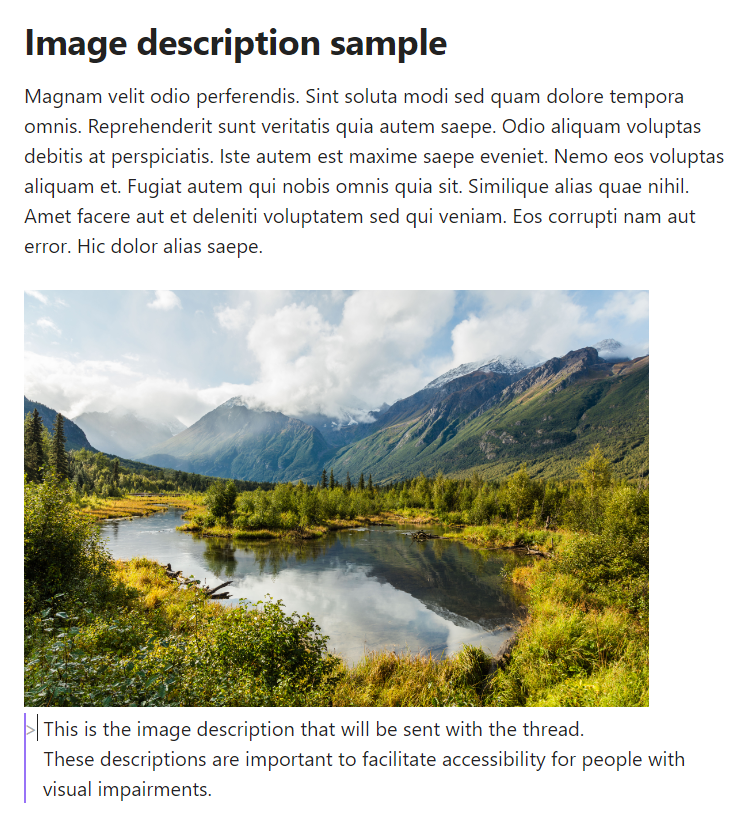
Quote blocks that are not directly behind an image will be ignored and will not be sent as part of the thread. Feel free to use them as a place to keep comments or notes.
Content warning
Starting a line with "!!" symbols will make it a content warning (aka spoiler text). Mastodon will show the rest of the post collapsed behind this warning.
Questions, suggestions or bugs
You are greatly welcome to ask questions, post any suggestions, or report any bugs! You can do it directly here in Github, or by email at elpamplinadecai@gmail.com, or in Mastodon at @ElPamplina@masto.es
Please note that this is a side project I'm working on in my spare time. I cannot guarantee responsiveness or maintenance beyond my personal circumstances.
Internationalization
Language definitions are in the lang folder. Currently only some languages are supported. Constributions in other languages are GREATLY APPRECIATED!!
Please send your language definitions via Pull Request on Github, or contact me at elpamplinadecai@gmail.com for further instructions.
License
This plugin is free software, released under the General Public License version 2.
Acknowledgements
This plugin is made and maintained as a side project for amusement only.
- Many thanks to Ulises Lafuente (@Rataunderground@neopaquita.es) for adapting the Mastodon icon.
- Thanks to platypusgit for the German translation.
- Thanks to Eugen Rochko and all the Mastodon team for creating the best open and free social network ruled by the people.
- Thanks to Ryō Igarashi for maintaining the masto.js library.
- Thanks to the people at Obsidian for this great software.
- And finally, thanks to the open source community for making the world better for all.
For plugin developers
Search results and similarity scores are powered by semantic analysis of your plugin's README. If your plugin isn't appearing for searches you'd expect, try updating your README to clearly describe your plugin's purpose, features, and use cases.