by xiaofeng hong
Back up your vault to local folders, Git hosts, WebDAV, S3 and cloud drives, with optional two-way sync through one primary destination.
Multi Backup
English | 简体中文
Back up your vault to several places at once: local folders, Git hosts, WebDAV, S3-compatible storage and cloud drives. Pick one of them as the primary to keep your devices in sync both ways; the others stay one-way backups you can restore from at any time.
Works on desktop and mobile. Local-folder destinations are desktop only.
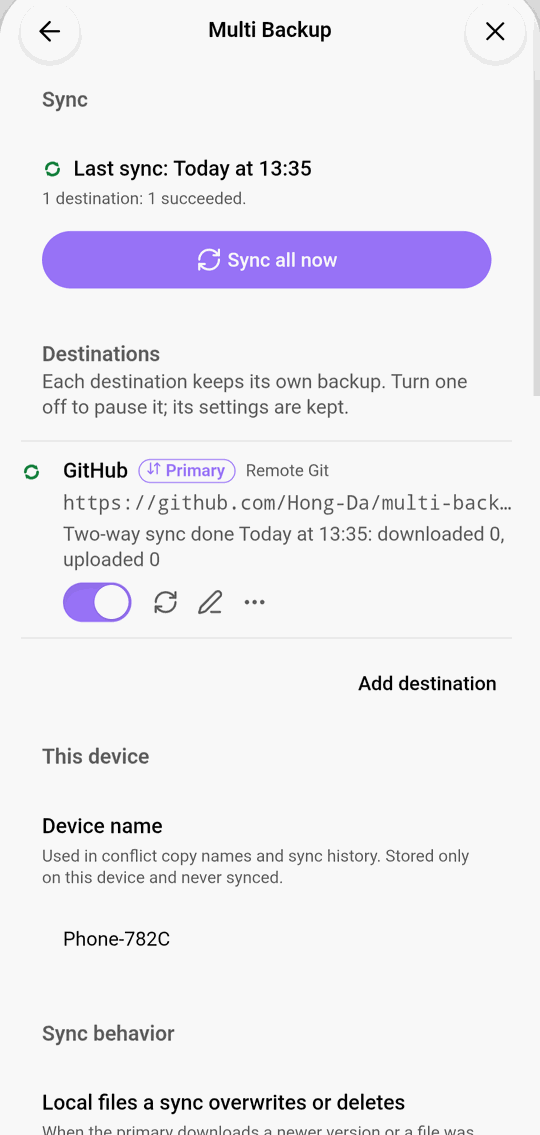
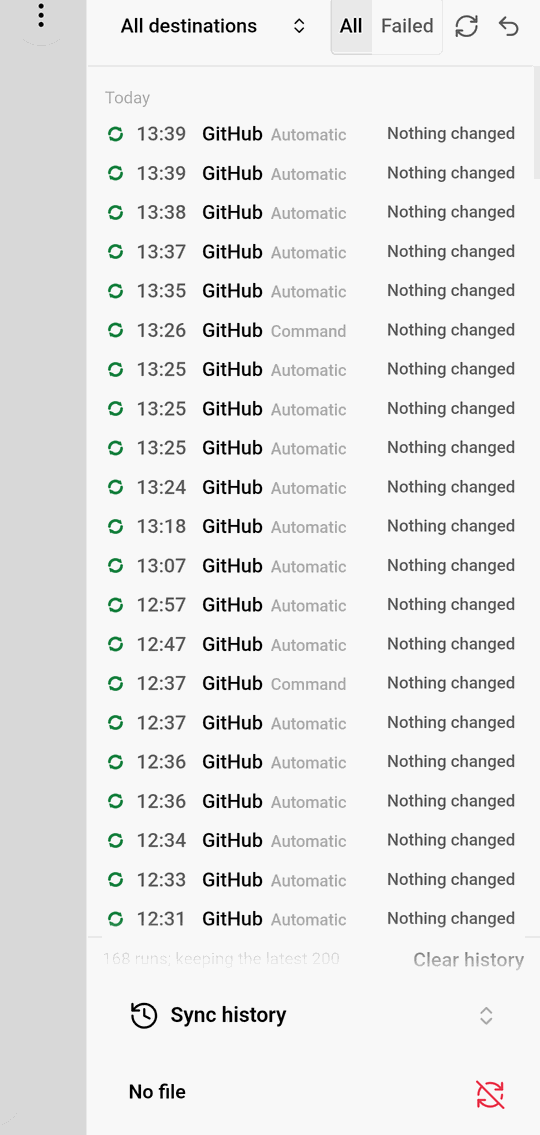
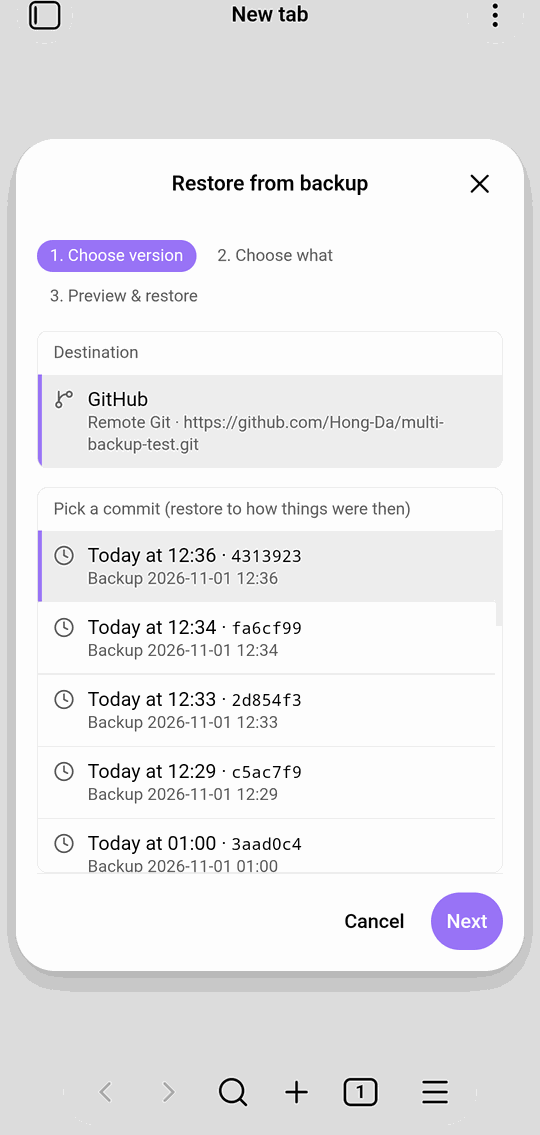
Full walkthrough with screenshots: User guide.
Features
- Many destinations at once
- Local folder mirror, zip snapshots, local Git repository (desktop)
- GitHub, Gitee or any Git host over HTTPS
- WebDAV: Nextcloud, Jianguoyun, and other drives through Alist
- S3-compatible storage: AWS S3, Cloudflare R2, MinIO, Backblaze B2 and others
- Dropbox (OneDrive and Google Drive are not available yet)
- Two-way sync through one primary. Changes, deletions and renames sync between devices. When a file changed on both sides, both versions are kept and listed for you to choose.
- Automatic sync. On a timer, after you stop editing, when Obsidian starts, or daily at a set time. Each destination has its own schedule.
- Restore. Restore the whole vault, a folder or one file from any destination, and see a file's version history. A restore can be undone.
- Safe by design. A failed sync never changes your local files. Before a sync overwrites or deletes a local file, the old version is moved to
.trash/multi-backup/. - Portable settings. The plugin's settings can be uploaded with the backup, exported and imported on a new device. Passwords and tokens are never included.
Install
From Community plugins (after it is accepted): Settings → Community plugins → Browse, search for “Multi Backup”, install and enable.
Manually: download main.js, manifest.json and styles.css from the latest release into <vault>/.obsidian/plugins/multi-backup/, then enable the plugin in Settings → Community plugins.
Requires Obsidian 1.11.4 or later.
Getting started
- Open Settings → Multi Backup and click Add destination.
- Choose a type and fill in the address and account. Click Test connection to check it.
- Run Multi Backup: Sync all now from the command palette, or use the menu on the Multi Backup status bar item (desktop).
- To sync between devices, open the destination's menu and choose Make primary…. The plugin compares both sides first and shows what the first sync will do; nothing is deleted in the first sync. Do the same on each device.
The ribbon icon opens the sync history. The conflict list, restore and a file's version history are in the command palette. See the user guide for every screen.
Privacy, network use and accounts
- Network. The plugin only connects to the destinations you add, to back up and sync your files. For cloud drives it also connects to the provider's sign-in service. It sends no telemetry and contains no ads.
- Accounts. Remote destinations need an account with that service (for example GitHub, an S3 provider or Dropbox). The plugin itself needs no account and is free.
- Credentials. Passwords, tokens and sign-ins are stored only in Obsidian's secret storage on each device. They are never written to the plugin's settings file, logs or backups. Logs mask them.
- Files outside the vault. Local-folder destinations (desktop only) write to the folder you choose, which is outside your vault. Nothing else is read or written outside the vault.
- What is uploaded. Your vault's files, minus the exclusions you set. The
.obsidianconfig folder is included only if you turn it on.
Development
Development notes are in Chinese: see README.zh-CN.md.
License
For plugin developers
Search results and similarity scores are powered by semantic analysis of your plugin's README. If your plugin isn't appearing for searches you'd expect, try updating your README to clearly describe your plugin's purpose, features, and use cases.