by Martin Schumacher
Synchronize all Nextcloud Collectives of a server bidirectionally with your vault.
Nextcloud Collectives Sync
English | Deutsch
An Obsidian plugin that syncs all Nextcloud Collectives of a Nextcloud server with your vault, in both directions. Each collective becomes a folder in your vault, each page a note. You edit in Obsidian, on desktop or on your phone, and your colleagues keep working in Collectives in the browser. When both sides change the same page, the plugin keeps both versions instead of overwriting one.
Install it from Obsidian's community plugins (see Installation).

⚠️ Disclaimer
This plugin is provided "as is", without warranty of any kind. Use it at your own risk. The author takes no responsibility for corrupted, overwritten or lost notes or any other data loss resulting from the use of this plugin. Always keep an independent backup of your vault and your Nextcloud Collectives before using it. See the MIT License for details.
Features
- All collectives of your account, each as a top-level folder of the vault.
- Pages and their hierarchy: a page with sub-pages is a folder with a note of the same name.
- New, renamed, moved and deleted pages and collectives in both directions. Deleting on the server asks you first, and deleted pages go to the Collectives trash, where you can restore them.
- Page emoji and tags in the note's properties (frontmatter), synced both ways.
- Links between pages: Obsidian wikilinks in the vault, Collectives links on the server.
- Attachments (images and other embedded files) in both directions, with a size limit.
- Conflict copies instead of overwrites, and a dialog to decide which version to keep.
- Automatic sync: on startup, at an interval, after you stop editing, and when you return to the app on your phone.
- Sign-in with the browser (Nextcloud Login Flow) or with an app password. Your main password is never needed.
- User interface in English and German.
Screenshots
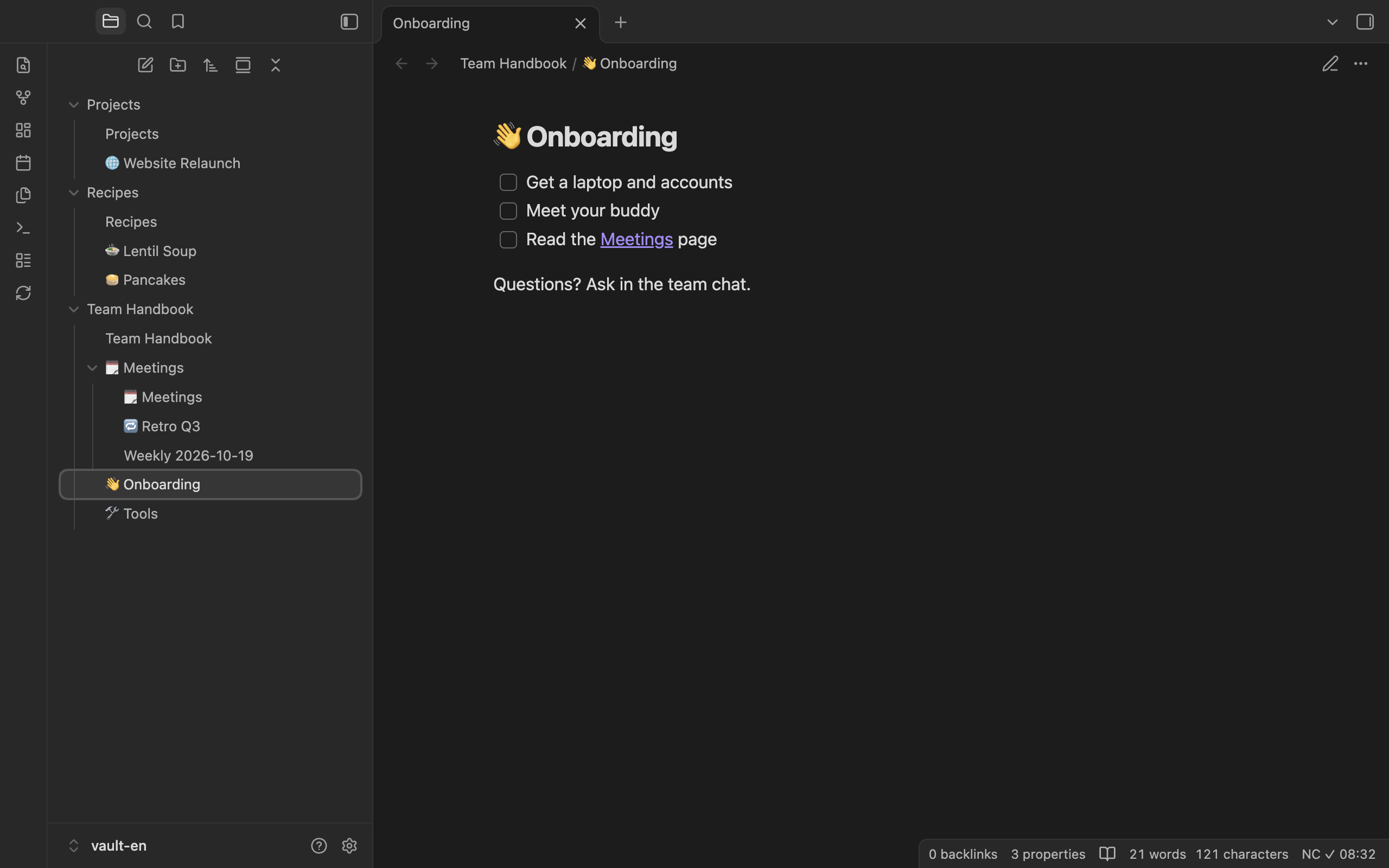
Conflict dialog: choose which version to keep.
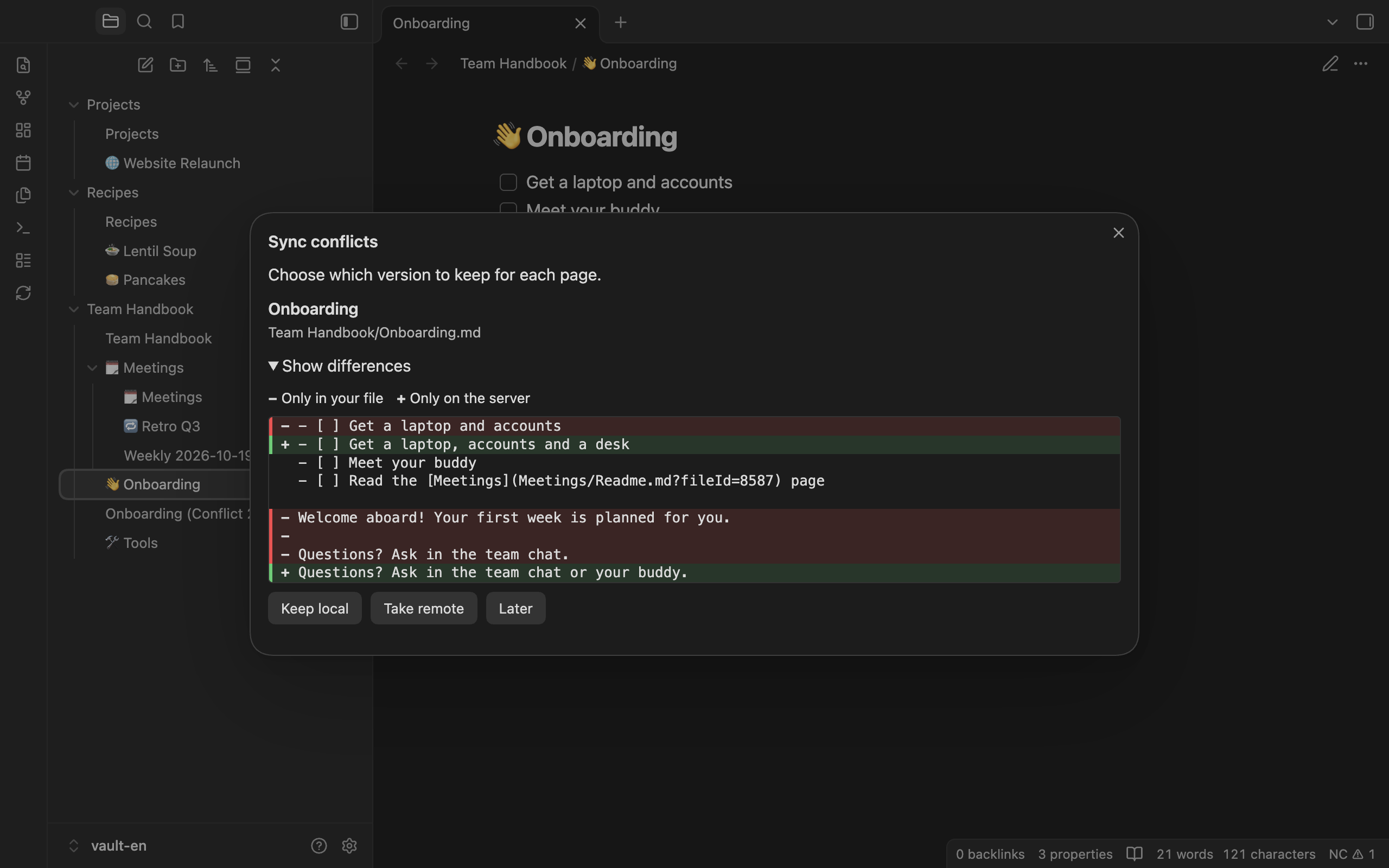
Deleting on the server needs your tick first.
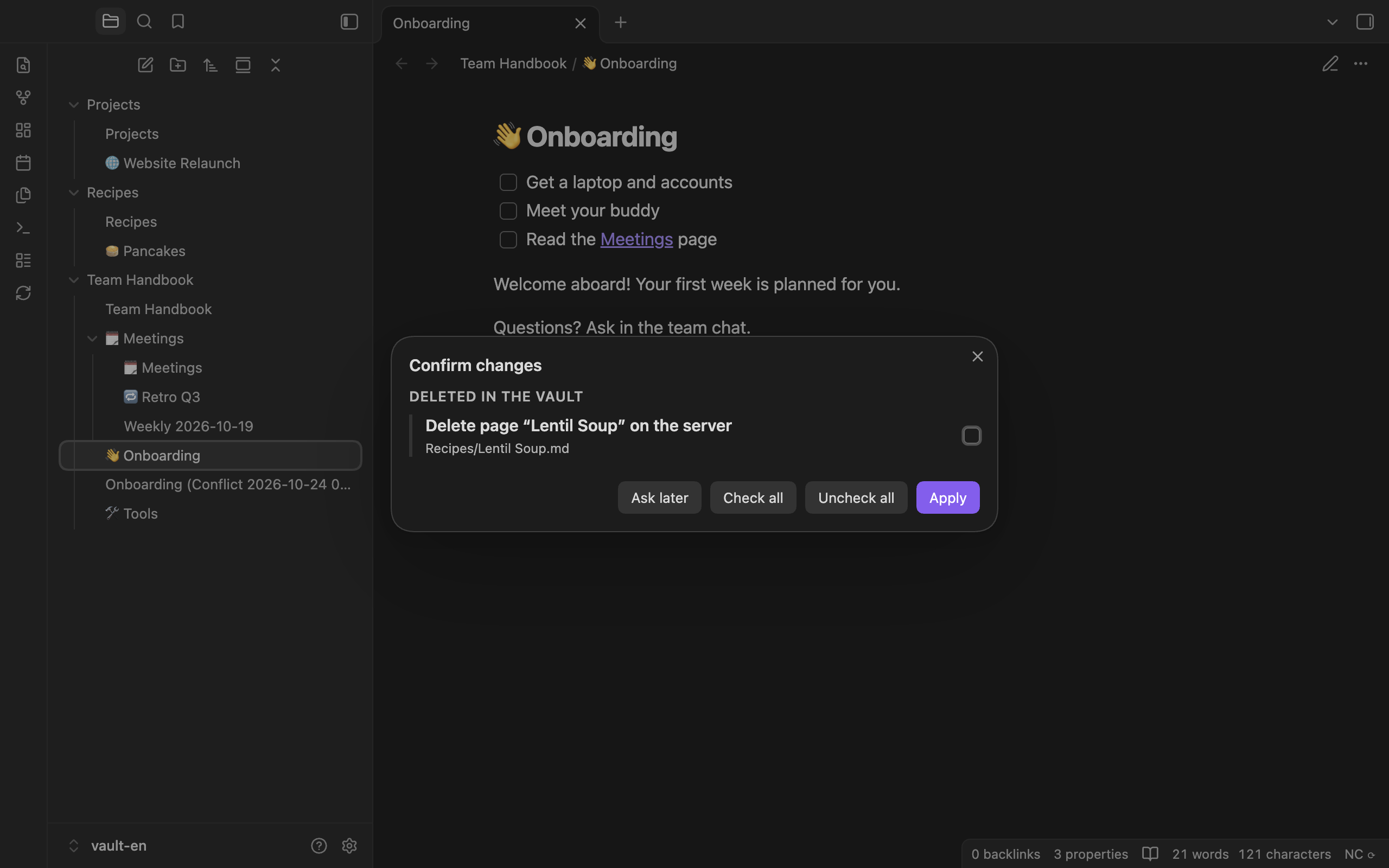
Settings: server, sign-in and app password.
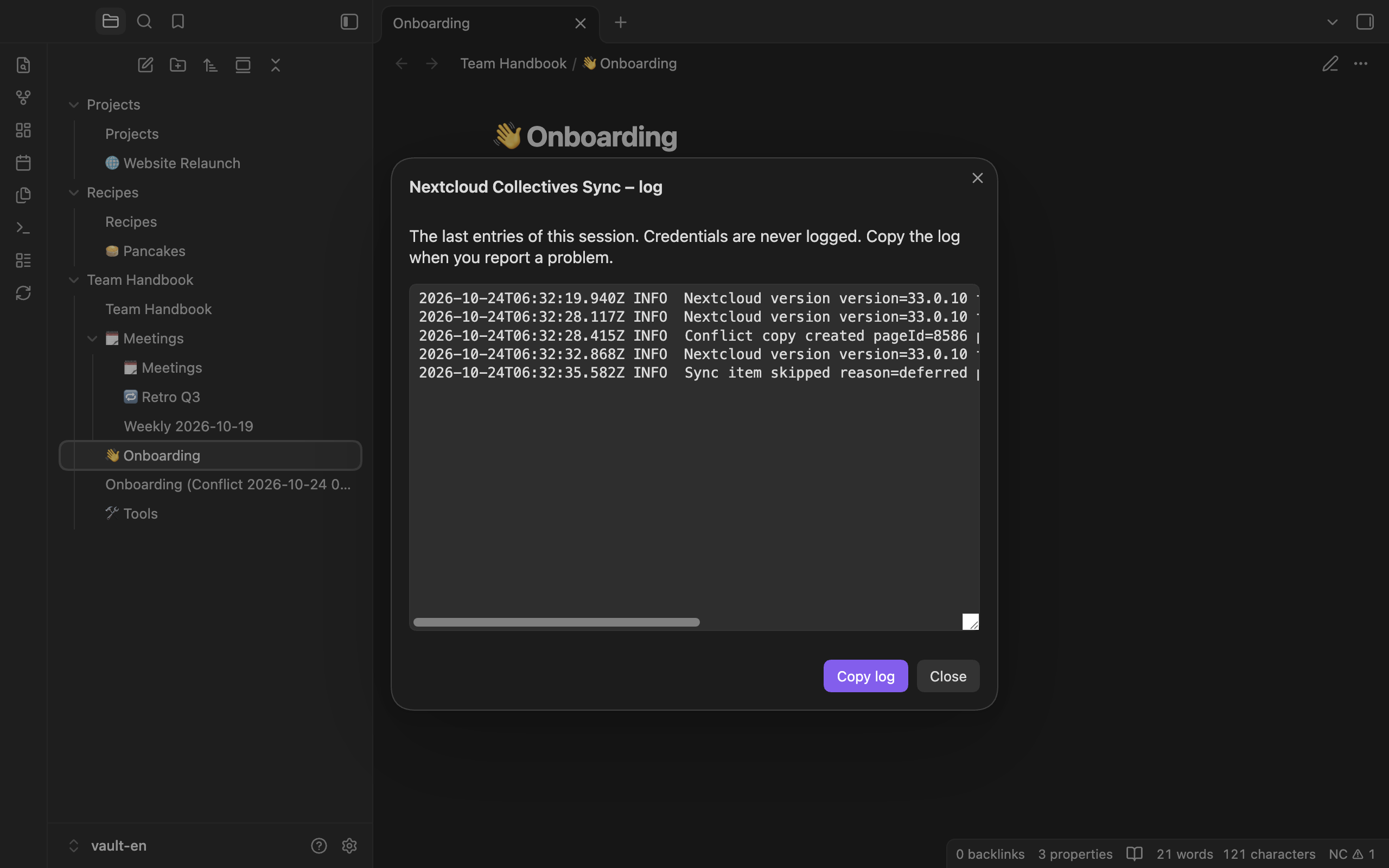
The log for reporting problems; credentials are never logged.
Requirements
- Obsidian 1.11.4 or later (desktop, iOS and Android).
- A Nextcloud server with the Collectives app. Tested with Nextcloud 33, 34 and 35, each with its matching Collectives version (most recently 4.7.1). With another major version of Nextcloud, the plugin shows a warning once and keeps syncing.
- A Nextcloud account. The plugin signs in with the Login Flow or with an app password.
Installation
Read Risks and backup before your first sync. For every way, restricted mode must be off: in Obsidian under "Settings › Community plugins", community plugins must be allowed.
From the community plugins (recommended, also on your phone)
- In Obsidian, open "Settings › Community plugins › Browse" and search for "Nextcloud Collectives Sync".
- Select Install, then Enable.
Obsidian installs updates under "Settings › Community plugins › Check for updates". The plugin's page in the community directory: community.obsidian.md/plugins/nextcloud-collectives.
With BRAT
BRAT installs plugins straight from the GitHub repository (releases). Use it to stay on a specific release, or to get a new release before the community directory has picked it up.
- In Obsidian, under "Community plugins › Browse", install and enable the plugin "BRAT" (Obsidian42 – BRAT).
- In the settings of BRAT, choose "Add beta plugin" (or run the command "BRAT: Plugins: Add a beta plugin for testing (with or without version)").
- Enter the repository:
https://github.com/keineantwort/obsidian-nextcloud-collectives(or short:keineantwort/obsidian-nextcloud-collectives). - Leave the version at "Latest version" (or pick a specific release), tick "Enable after installing the plugin" and confirm with "Add plugin".
- If the plugin is not enabled afterwards: enable "Nextcloud Collectives Sync" under "Community plugins".
From then on, BRAT checks for new releases when Obsidian starts (by hand: command "BRAT: Plugins: Check for updates to all beta plugins and UPDATE"). If you picked a specific release, the plugin stays at that version until you choose another one in BRAT.
If you installed the plugin with BRAT before, it is the same plugin as in the community plugins; your settings and notes stay. To let Obsidian update it instead of BRAT, remove it from the list of beta plugins in BRAT's settings (this does not uninstall it).
By hand
- Download
main.js,manifest.jsonandstyles.cssfrom the latest release. - In your vault, create the folder
.obsidian/plugins/nextcloud-collectives/and put the three files into it. - Restart Obsidian (or reload the list under "Community plugins") and enable "Nextcloud Collectives Sync".
On a phone, the .obsidian folder is hidden, so it is easiest to prepare the vault on a desktop computer. With this way, you also install updates by hand.
To build it yourself: npm ci && npm run build creates main.js in the project folder; manifest.json and styles.css are already there.
Getting started
- Make a backup of your vault folder, and of important collectives on the server.
- Use a new, empty vault for the first sync. A vault that already contains notes works too, but the plugin then merges your notes into your collectives and uploads them.
- Open the plugin settings and enter the Server URL of your Nextcloud, for example
https://cloud.example.com. - Choose Sign in next to "Sign in with the browser" and confirm the access in your Nextcloud. Username and app password are filled in automatically. Alternatively, enter your username and an app password by hand.
- Run the command Sync now (or click the ribbon icon "Sync with Nextcloud Collectives"). After that, the plugin syncs by itself.
Details: Getting started in the manual.
Risks and backup
The plugin writes in both directions: into your vault and to your Nextcloud server. A bug can change, move or trash pages.
- Make a backup before the first sync of your vault folder (and, for important collectives, on the server). Ideally, create a new, empty vault for the first sync.
- The plugin never overwrites silently: in a conflict your file is kept. It deletes only after asking, and only into the trash (Collectives trash on the server, Obsidian's trash in the vault). See Structure and Conflicts.
- Editing the same page in the browser and in Obsidian at the same time can lose what you type in the browser (see Conflicts).
- A vault belongs to one server and one account. Another account needs a new vault.
- The Collectives interface is not officially stable. If the server answers in an unexpected way, the plugin stops with a message instead of guessing.
- The app password is kept in Obsidian's secret storage, not in the plugin settings, and never in the log.
Network use and privacy
The plugin connects only to the Nextcloud server you enter in the settings. It needs that server to sync:
- Sign-in: the Nextcloud Login Flow (
/index.php/login/v2, opens the login page of your server in the browser) or an app password you enter. - Version and account check:
/ocs/v2.php/cloud/capabilitiesand/ocs/v2.php/cloud/user. - Collectives and pages: the Collectives and Circles interfaces (
/ocs/v2.php/apps/collectives/…,/ocs/v2.php/apps/circles/…) and WebDAV (/remote.php/dav/files/…) for page contents and attachments.
The plugin uses no other services: no telemetry, no analytics, no update checks. Links to this manual and to Ko-fi (for example in the settings) open GitHub or Ko-fi in your browser only when you click them; the plugin itself never connects to Ko-fi. The plugin reads and writes files only inside your vault. It writes to the clipboard only when you press Copy log in the log view, and it never reads the clipboard.
Support
The plugin is free and stays free. If it saves you time and you want to say thanks, you can leave a tip on Ko-fi (the button at the top of this page does the same). This is entirely voluntary and gets you nothing in return.
Documentation
The user manual explains every part of the plugin:
- Getting started: sign-in, first sync, what the vault looks like afterwards.
- When the plugin syncs: automatic and manual sync, status bar, what is not synced.
- Structure: new, renamed, moved and deleted pages and collectives.
- Conflicts: conflict copies, the conflict dialog, the conflict setting.
- Emoji, tags, links and attachments.
- Settings: every setting with its default and its risks.
- Commands and menus.
- Troubleshooting: log, error messages, FAQ.
Help and reporting problems
The command Show log (also in the settings under "Diagnostics") shows what the plugin did in this session and lets you copy it. With the setting "Detailed log", every request to the server is listed too (method, path, status, duration; never passwords or contents). The log is kept in memory only and is gone after a restart. More in Troubleshooting.
Report bugs and ideas as GitHub issues. Attach the log, and check it first for anything you do not want to share.
Contributing
See CONTRIBUTING.md.
License
Thanks to Nextcloud Sync by Daisuke ITO (MIT): its sign-in, conflict handling and WebDAV parsing served as a reference. No code was copied.
For plugin developers
Search results and similarity scores are powered by semantic analysis of your plugin's README. If your plugin isn't appearing for searches you'd expect, try updating your README to clearly describe your plugin's purpose, features, and use cases.