by yujia
Copy and paste notes between vaults with their images and attachments. One click to copy, paste into another vault. Move, transfer or migrate notes to a new vault; links fixed, nothing overwritten.
Note Courier
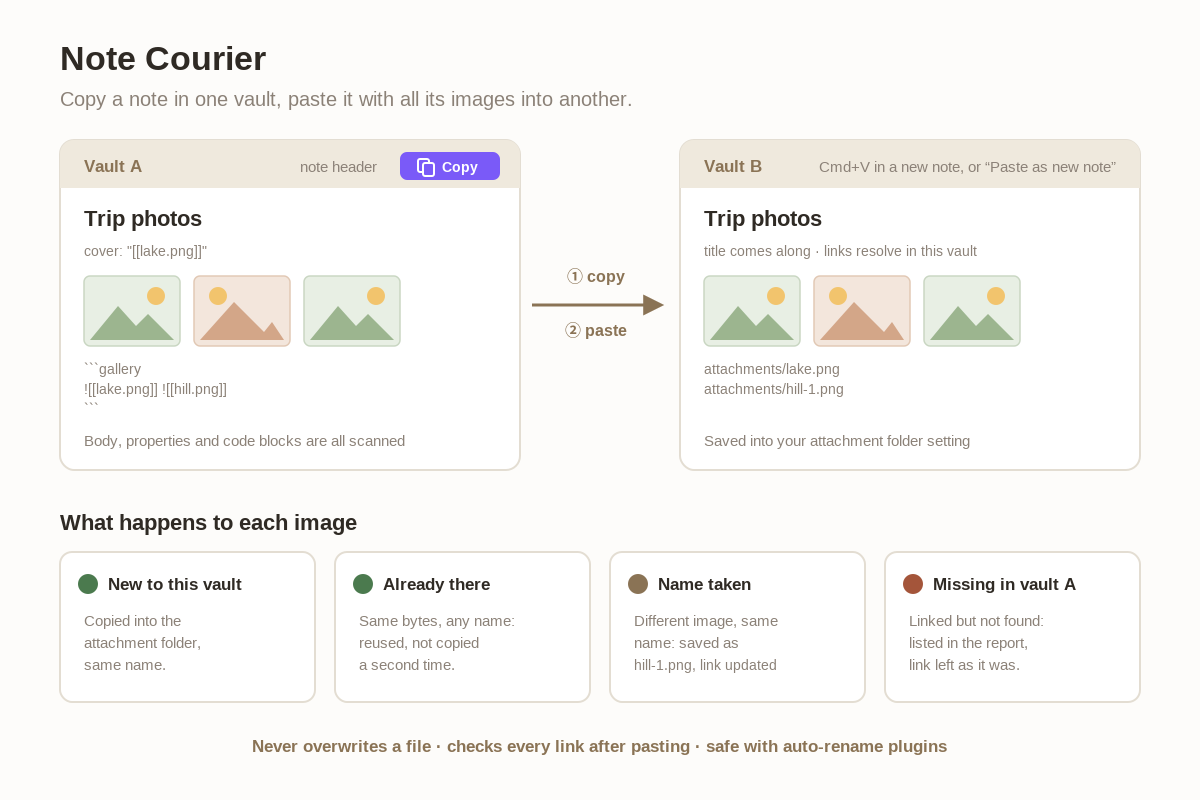
Copying a note from one vault to another only copies the text. The images stay behind, and you end up pasting them back one by one.
Note Courier adds a Copy note with images button to the note header. Click it, switch to the other vault, and paste: the note arrives with every image and attachment it uses, and the links work.
How to use
- In the vault you are copying from, open the note and click the copy icon in the note header (or run Note Courier: Copy current note with images).
- In the other vault, either
- create a new note and press Cmd/Ctrl+V, or
- click Paste as new note (with images) in the left ribbon (or run the command of the same name). The note is created in the folder of the note you have open, under its original name, and opened.
Both vaults need the plugin installed.
What it takes care of
- Every image the note uses: embeds in the body, links in properties
(
cover: "[[photo.png]]"), and links inside code blocks such as gallery blocks. Wikilinks and Markdown links, including relative paths. - Your attachment settings. Images go into the target vault's attachment folder, wherever you have set it.
- Nothing is overwritten. If the target vault already has the same file
(same bytes, whatever its name), it is reused instead of copied again. If it
has a different file with the same name, the new one becomes
name-1.pngand the link in the note is updated to match. - Links are checked. After pasting, every image link in the note is resolved in the target vault; any that would point to the wrong file is rewritten.
- Auto-rename plugins don't interfere. Some plugins rename any attachment that appears in the vault to the current note's name. Note Courier moves the images in so they are not seen as fresh pastes, and keeps their names.
- The title comes along. Pasting into a new, empty "Untitled" note renames it to the original note's name. A note you named yourself keeps its name.
- A report after every paste: how many attachments were copied, how many were already there, which were renamed, and any image the original note linked to that did not exist in the source vault.
Pasting into the same vault it was copied from, or pasting any other text, is an ordinary paste.
Use cases
- Moving notes into a new vault when you reorganize, without losing images
- Copying a note with screenshots or photos from a work vault to a personal vault
- Migrating a few notes at a time instead of copying whole attachment folders
Privacy and permissions
- Desktop only.
- The copied note and its attachments are kept in the app's own local storage (IndexedDB) until you copy the next note. Nothing leaves your computer and no network requests are made.
- The note text is also put on the clipboard, so a normal paste anywhere else still gives you the text.
Install
Search for Note Courier in Settings → Community plugins → Browse.
Manual install: download main.js and manifest.json from the
latest release
into <vault>/.obsidian/plugins/note-courier/, then enable the plugin.
License
MIT
For plugin developers
Search results and similarity scores are powered by semantic analysis of your plugin's README. If your plugin isn't appearing for searches you'd expect, try updating your README to clearly describe your plugin's purpose, features, and use cases.